
DinoFire Q78-CS-US
DinoFire Wireless Controller for Switch/Switch Lite User Manual
Model: Q78-CS-US
Introduction
This manual provides comprehensive instructions for the DinoFire Wireless Controller, designed for use with Nintendo Switch and Switch Lite consoles. Please read this manual carefully before using the product to ensure proper operation and longevity.

Figure 1: Front view of the DinoFire Wireless Controller. This image displays the controller's layout, including joysticks, D-pad, action buttons (A, B, X, Y), shoulder buttons, and central function buttons.
Setup
Compatibility
The DinoFire Wireless Controller is compatible with Nintendo Switch and Nintendo Switch Lite consoles. It is not compatible with Android/iOS devices, Gear VR Oculus, Super Mario Party, or Just Dance games.
Initial Pairing
To pair the controller with your Nintendo Switch/Switch Lite console:
- Ensure your Switch console is powered on and updated to the latest system version.
- From the HOME Menu, select Controllers, then Change Grip/Order.
- Press and hold the SYNC button on the top of the controller for a few seconds until the player LEDs begin to flash.
- Once paired, the player LED(s) on the controller will light up solid.
Note: This controller cannot wake up your Switch Console from sleep mode.

Figure 2: Illustration of the wireless connection capability of the controller, showing ease of connection to Nintendo Switch/Switch Lite via Bluetooth.
Operating Instructions
Vibration Adjustment
The controller features three levels of vibration feedback: strong, medium, and weak. To adjust the vibration intensity:
- Press the L, ZL, R, and ZR buttons simultaneously until the controller vibrates. Each simultaneous press will cycle through the vibration levels.
To turn off vibration on the Switch console:
- Navigate to System Settings > Controllers and Sensors > Controller Vibration Off.

Figure 3: Visual representation of the three vibration feedback levels (strong, medium, weak) provided by the built-in dual motors, enhancing gaming immersion.
Turbo Function
The Turbo function allows for rapid, continuous input of a button press. There are three Turbo speeds: 4 shoots/s, 8 shoots/s, and 16 shoots/s.
Activating Turbo:
- Press the Turbo button and any of the A/B/X/Y buttons simultaneously to enable the Turbo function for that specific button. Repeat the action to disable.
Adjusting Turbo Speed:
- To increase speed: Press the Turbo button and the Up direction button simultaneously.
- To decelerate speed: Press the Turbo button and the Down direction button simultaneously.

Figure 4: Diagram illustrating the three available Turbo speeds (4, 8, 16 shoots/s) and how to activate the Turbo function by pressing the Turbo button with an action button.
Motion Control
The controller incorporates a built-in 6-Axis Gyro, enabling sensitive motion control for an immersive gaming experience. This allows for precise and quick responses to movement, direction control, and vision adjustment within compatible games.
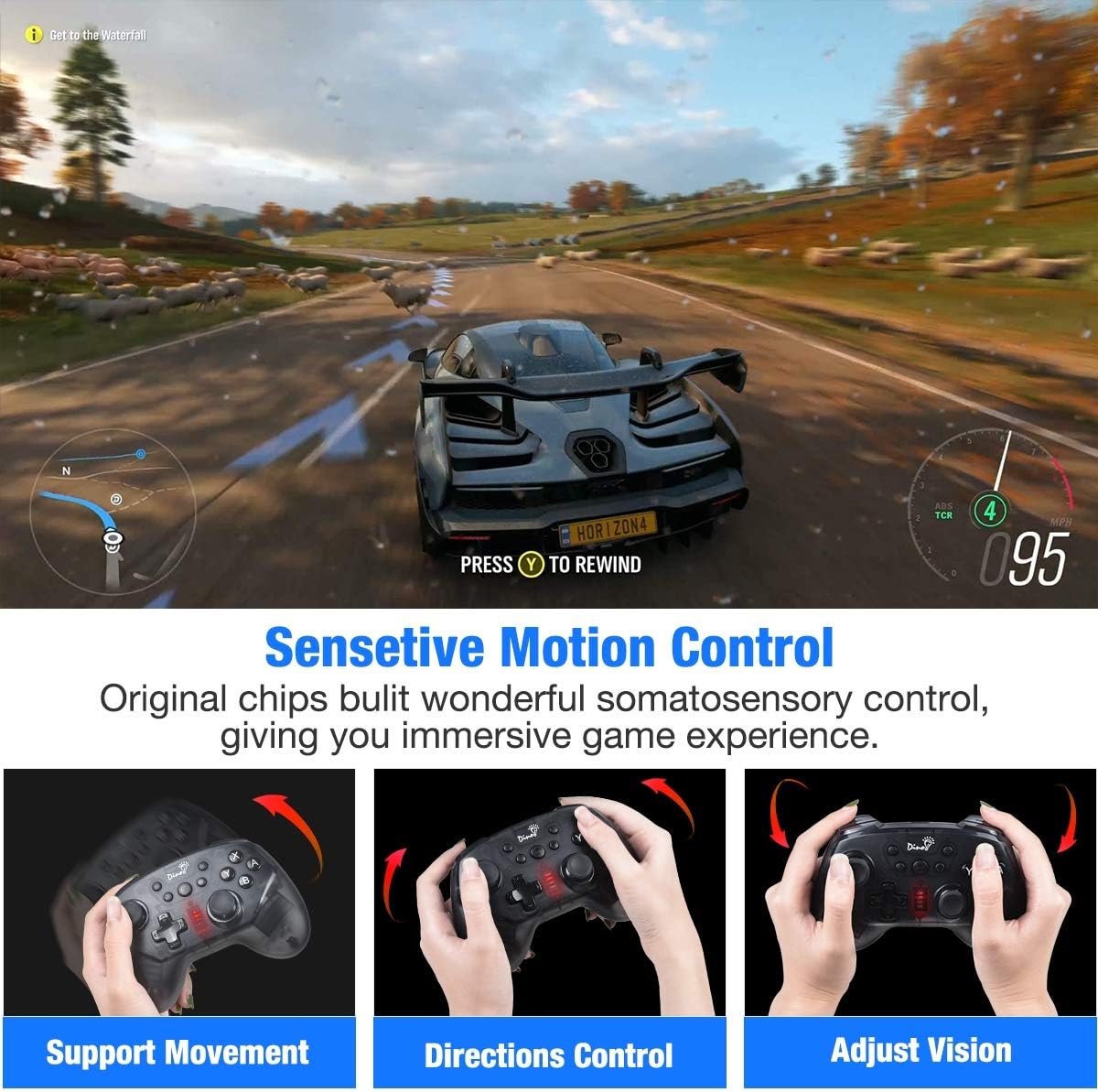
Figure 5: Examples of sensitive motion control in action, demonstrating support for movement, direction control, and vision adjustment within a game environment.
Joystick and Trigger Functionality
The controller features 360-degree rotatable dual joysticks for precise and smooth movement, and responsive triggers designed for faster input, which can be crucial in fast-paced games.
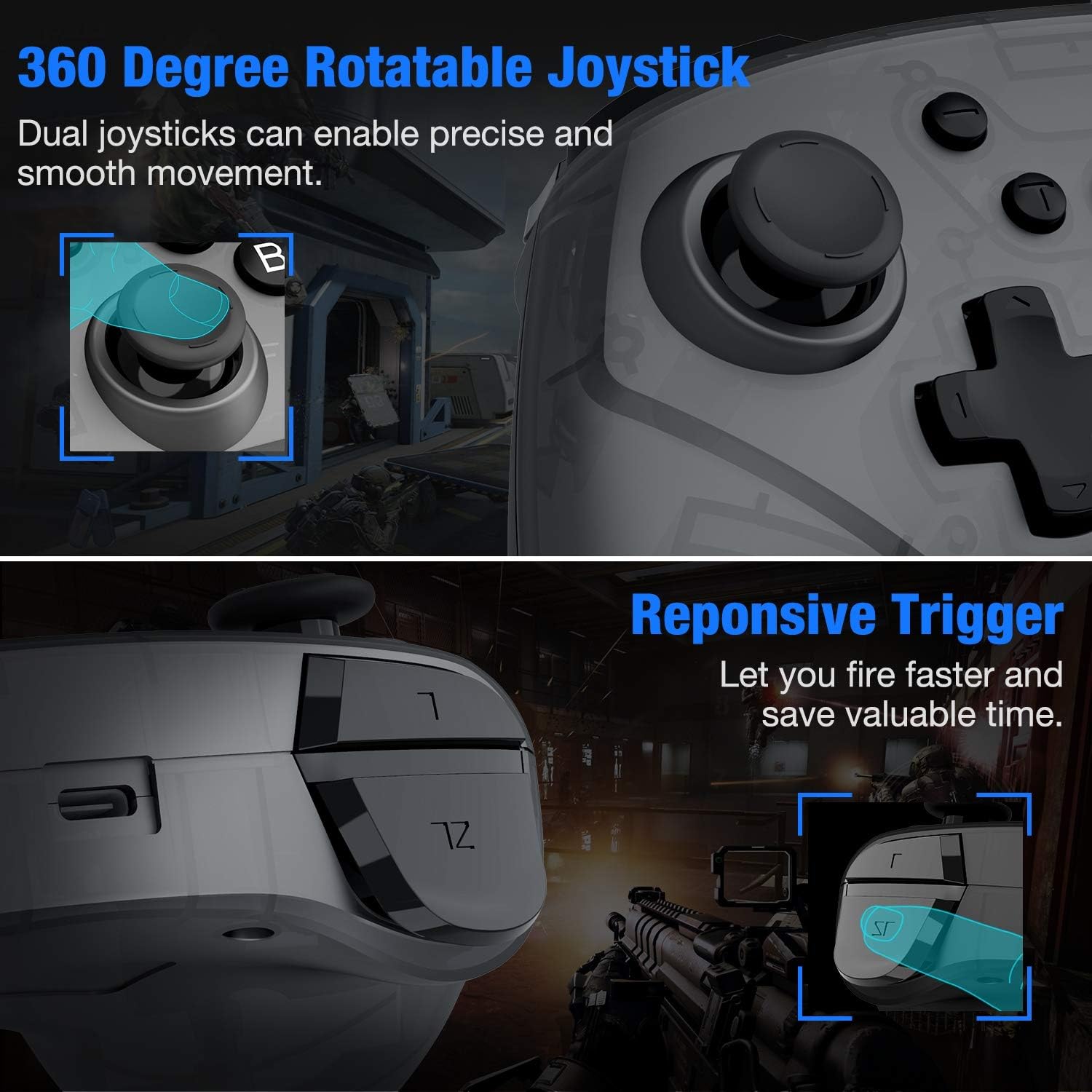
Figure 6: Close-up view highlighting the 360-degree rotatable joysticks for precise control and the responsive triggers for quick action in games.
Battery and Charging
The controller is equipped with a built-in 600mAh rechargeable battery, providing approximately 15-18 hours of continuous gameplay on a full charge. Charging time is typically 2-3 hours.
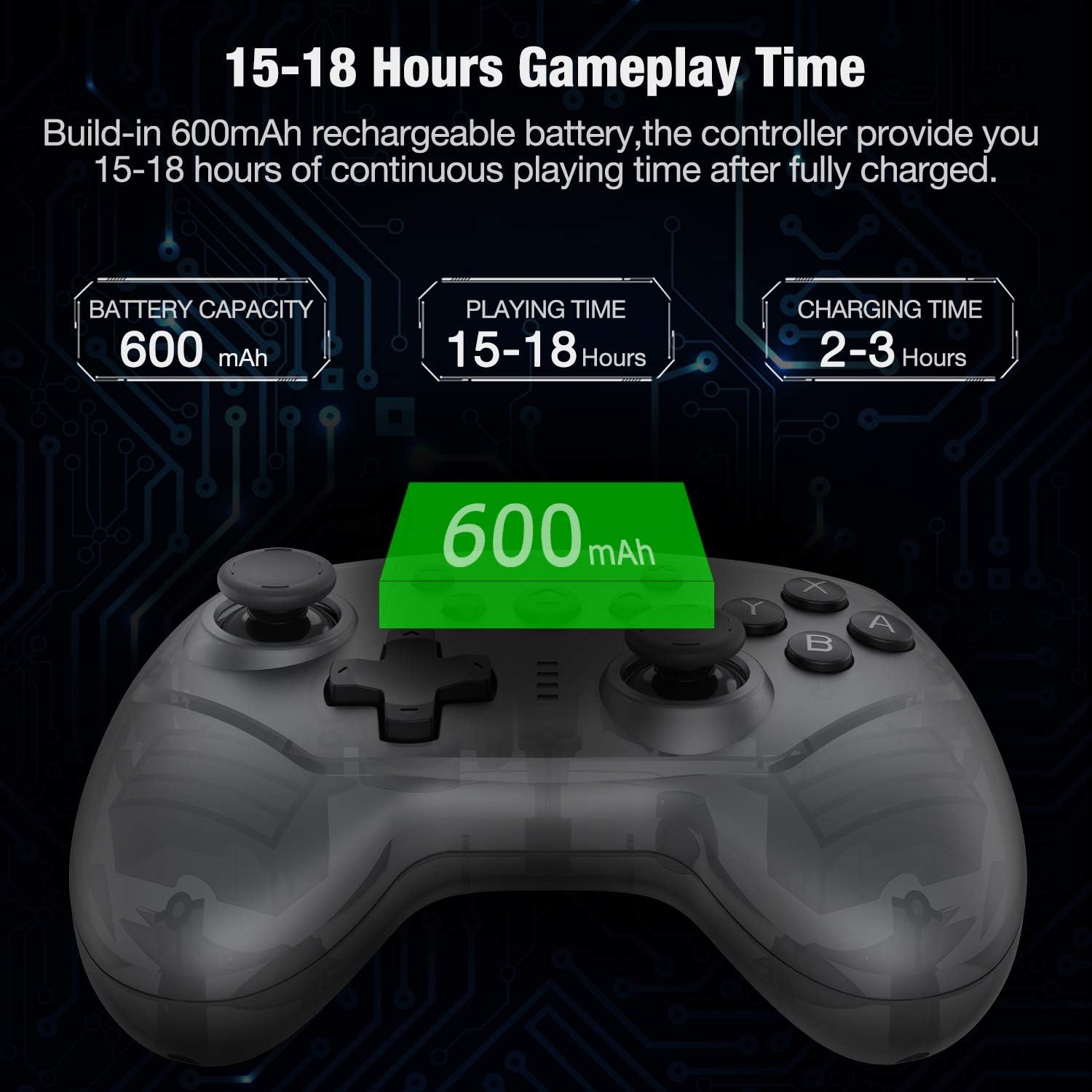
Figure 7: Information graphic detailing the 600mAh battery capacity, 15-18 hours of playing time, and 2-3 hours of charging time for the controller.
Maintenance
- Do not drop the controller from a height.
- Please keep the controller in a dry place to prevent damage from moisture.
- Avoid exposing the controller to extreme temperatures.
- Clean the controller with a soft, dry cloth. Do not use harsh chemicals or abrasive materials.
Troubleshooting
- Problem: Controller not pairing with the newest Switch console version.
Solution: If the controller cannot pair with the newest version of the Switch console, please visit the official website to obtain the latest upgrade firmware. The official website is www.beboncool.com/upgrade.
- Problem: Controller not working with certain games or devices.
Solution: This controller is specifically designed for Nintendo Switch and Switch Lite. It is not compatible with Android/iOS devices, Gear VR Oculus, Super Mario Party, or Just Dance games. Please ensure you are using it with a compatible system and game.
- Problem: Controller cannot wake up the Switch console.
Solution: This controller does not support the "wake up console" function. You will need to manually wake up your Switch console before connecting the controller.
Specifications
| Brand | DinoFire |
| Model Number | Q78-CS-US |
| ASIN | B085L98SZC |
| Compatibility | Nintendo Switch, Nintendo Switch Lite |
| Wireless Range | Within 10 meters |
| Battery Capacity | 600mAh |
| Play Time | 15-18 hours (approx.) |
| Charging Time | 2-3 hours (approx.) |
| Dimensions | 25.5 x 16 x 6.71 cm |
| Weight | 308 g |
Support
For any problems encountered while using the product, please seek assistance through Amazon mail or refer to the email address provided on the support card included with your purchase.
For the latest firmware upgrades, please visit the official website: www.beboncool.com/upgrade.
Related documentsQ78-CS-US


Ask a question about this manual
Ask about setup, troubleshooting, compatibility, parts, safety, or missing instructions. Manuals+ will review the question and use this page’s manual context to help answer it.