
1. Introduction
The Solar-Power Wireless Endoscope is a versatile inspection tool designed for detailed visual examination in hard-to-reach areas. It connects wirelessly to your smartphone or tablet, providing a live view and allowing you to capture high-resolution images and videos. Its IP68 waterproof rating and adjustable LED lights make it suitable for various environments, including wet or dark conditions. This manual provides instructions for setup, operation, maintenance, and troubleshooting to ensure optimal performance of your device.
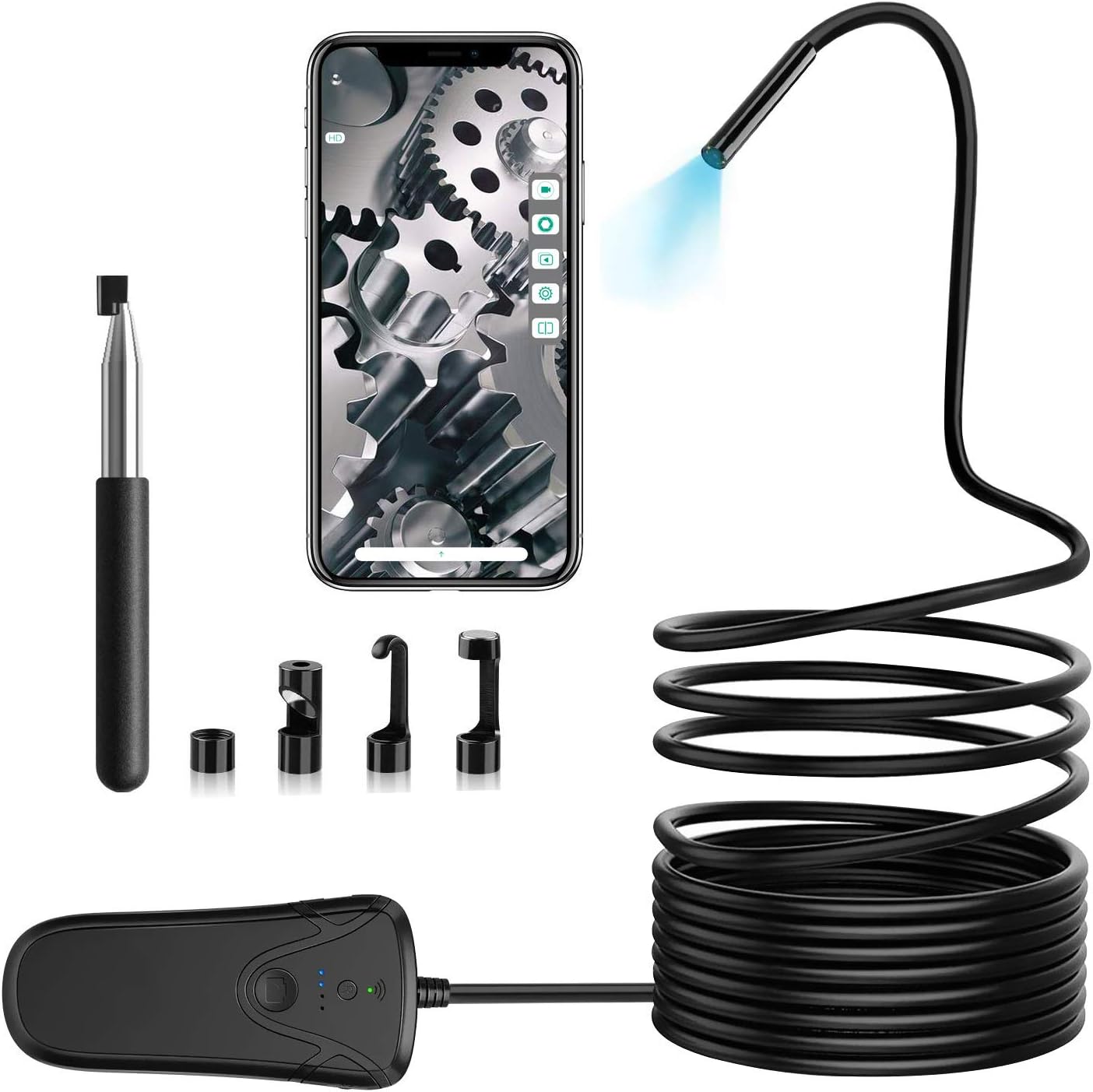
2. Package Contents
Please verify that all items listed below are included in your package:
- 1 x Industrial Endoscope
- 1 x Micro-USB Cable
- 1 x Storage case
- 1 x User Manual
- 4 x Accessories (Mirror, Hook, Magnet, Protective Cap)

3. Setup Guide
3.1 Charging the Endoscope
Before initial use, ensure the endoscope is fully charged. Use a DC5V-1A adapter to charge the endoscope camera via the Micro-USB cable. The charging indicator light will provide feedback on the charging status.
3.2 Wi-Fi Connection Steps
Follow these steps to connect your endoscope to your smartphone or tablet:
- Download the free application "inskam" from Google Play Store (for Android) or the App Store (for iOS).
- Ensure the endoscope is fully charged. Turn on the endoscope camera by pressing the power button on the Wi-Fi box. Wait for the Wi-Fi indicator to stay green, signifying that the endoscope has successfully generated its signal.
- On your smartphone or tablet, go to "Settings" → "Wi-Fi".
- Select the Wi-Fi network named "inskam130A-xxx" (the "xxx" will be unique to your device).
- Enter the password: "12345678" to connect to the inspection camera.
- Open the "inskam" application. You should now be able to view the real-time feed from the endoscope camera.


4. Operating Instructions
4.1 Basic Operation
Once connected, you can view the live feed through the "inskam" app. To capture images or record videos, press the dedicated shutter button located on the endoscope Wi-Fi box. The app also provides functions such as zoom in/out, rotate, and split screens for enhanced viewing and analysis.
4.2 Image Quality and Focal Distance
The endoscope is equipped with a 2.0-megapixel CMOS sensor, offering adjustable resolutions of 1920x1080, 1280x720, and 640x480. For optimal clarity, the recommended focal distance is between 5cm and 500cm (approximately 1.97 inches to 16.4 feet).


4.3 Application Scenarios
This endoscope is an ideal tool for various inspection tasks, including but not limited to:
- Vehicle inspection (e.g., engine cylinders, exhaust systems)
- Aero engine inspection
- Pipeline and drain inspection
- Mechanical parts maintenance
- Home appliance repair and inspection
- Non-destructive testing in various industrial applications

5. Maintenance and Care
- Protective Cap: Always install the protective cap on the camera lens when not in use or during inspection to prevent damage to the lens.
- Cable Care: The endoscope cable is semi-rigid. Please refrain from folding the cable more than 90 degrees to prevent internal damage. Store the cable coiled loosely.
- Charging: Use only a DC5V-1A adapter for charging to ensure proper battery health and longevity.
- LED Brightness: Be aware that higher LED brightness settings will consume more power and may reduce the endoscope's operating time.
- Cleaning: Gently wipe the camera lens and cable with a soft, dry cloth after each use. For stubborn dirt, a slightly damp cloth can be used, but ensure the device is completely dry before storage.

6. Troubleshooting
6.1 Connection Issues
If you experience difficulty connecting the endoscope to your smartphone or tablet, try the following:
- Reset the Endoscope: Press the reset button on the Wi-Fi box. This can help re-establish the Wi-Fi signal.
- Check Wi-Fi Indicator: Ensure the Wi-Fi indicator light on the endoscope box is solid green, indicating a stable signal.
- Re-enter Password: Double-check that you are entering the correct Wi-Fi password ("12345678").
- Restart Devices: Try restarting both your endoscope and your smartphone/tablet.
- App Reinstallation: If issues persist, consider uninstalling and reinstalling the "inskam" app.
- Distance: Ensure your smartphone is within the effective Wi-Fi transmission distance of approximately 10 meters from the endoscope.
7. Specifications
| Feature | Specification |
|---|---|
| Camera Resolution | 2.0 Megapixel (1080P) |
| Connection Method | Wi-Fi |
| Focal Distance | 5cm - 500cm (1.97 inches - 16.4 feet) |
| Waterproof Grade | IP68 |
| Operating Temperature | 0 to 45 ℃ (32 to 113 ℉) |
| Power Input | DC 5V 500 mAh/1A |
| Cable Length | 10m / 32.8ft |
| Camera Diameter | 5.5mm / 0.216 inches |
| Battery Type | 1 Lithium Ion (included) |
| Item Weight | 1.3 pounds |
8. Warranty and Support
For warranty information or technical support, please refer to the contact details provided on the product packaging or the official Solar-Power website. Keep your purchase receipt as proof of purchase for any warranty claims.