
1. Introduction
The EPOMAKER Theory TH68 Pro is a versatile 65% mechanical gaming keyboard designed for optimal performance and customization. It features a compact 67-key layout with an integrated rotary knob, RGB backlighting, and triple-mode connectivity: Bluetooth 5.0, 2.4GHz wireless, and USB-C wired. This manual provides detailed instructions for setting up, operating, and maintaining your keyboard.
2. Package Contents
Please verify that all items are present in your package:
- 1 x EPOMAKER TH68 Mechanical Keyboard
- 1 x Type-C Cable
- 1 x 2.4GHz Receiver
- 1 x Keycap Puller

Figure 2.1: The EPOMAKER Theory TH68 Pro keyboard, showcasing its compact 65% layout with RGB backlighting and a rotary knob.
3. Setup and Connection
3.1 Initial Charging
Before first use, it is recommended to fully charge the keyboard. Connect the provided USB-C cable to the keyboard's USB-C port and the other end to a powered USB port on your computer or a USB wall adapter. The keyboard has a 2400mAh battery capacity.
3.2 USB-C Wired Connection
To use the keyboard in wired mode, simply connect the provided USB-C cable from the keyboard to your computer. The keyboard will automatically detect the wired connection and function without additional setup.
3.3 2.4GHz Wireless Connection
- Ensure the keyboard's mode switch (located on the back or side) is set to the 2.4G wireless mode (usually indicated by a left position).
- Insert the 2.4GHz receiver into an available USB port on your computer.
- Press and hold FN + R for 3 seconds to initiate 2.4GHz pairing. The LED indicator on the keyboard will flash quickly.
- Once successfully paired, the LED will remain on for approximately 10 seconds before turning off. If pairing fails within 30 seconds, the LED will turn off, and the keyboard will enter sleep mode. Repeat the steps if necessary.

Figure 3.1: Angled view of the keyboard, highlighting its compact design and key layout, relevant for understanding connection modes.
3.4 Bluetooth Pairing
The keyboard supports up to three Bluetooth devices.
- Ensure the keyboard's mode switch is set to Bluetooth pairing mode (usually indicated by a right position).
- Press and hold FN + Q, FN + W, or FN + E for 3 seconds to initiate pairing for Bluetooth device 1, 2, or 3 respectively. The LED indicator will flash quickly.
- On your device (computer, tablet, smartphone), search for Bluetooth devices and select "EPOMAKER TH68 Pro" (or similar) to connect.
- After successful pairing, the LED will stay on for approximately 10 seconds. If the connection fails within 30 seconds, the LED will turn off, and the keyboard will enter sleep mode.
- To switch between paired Bluetooth devices, short press FN + Q, FN + W, or FN + E.
4. Operation
4.1 Basic Functions and Layout
The TH68 Pro features a 65% layout with 67 keys and a rotary knob. The compact design optimizes desk space while retaining essential functionality.

Figure 4.1: Overview of the EPOMAKER Theory TH68 Pro keyboard layout, showing the key arrangement and the rotary knob.
4.2 Rotary Knob Control
The rotary knob provides convenient control over multimedia functions:
- Rotate Clockwise: Increase volume.
- Rotate Counter-clockwise: Decrease volume.
- Press: Play/Pause media.

Figure 4.2: Close-up view of the rotary knob and the right-side keys, illustrating its position and function.
4.3 RGB Backlighting
The keyboard features customizable RGB backlighting, including a unique bottom mesh structure and side RGB lights. Various lighting effects can be cycled through using specific key combinations (refer to the keyboard's quick guide or software for detailed commands).
Note: The LED under the knob indicates connection status and is not part of the customizable RGB effects. It will turn off a few seconds after a successful connection.
4.4 Programmable Features
The TH68 Pro utilizes upgraded EPOMAKER software for advanced customization, including programmable macros and Fn layers. The software can automatically detect Windows/Mac operating modes.
- Check Battery Status: Press FN + B.
- Check Keyboard Mode: Refer to the software or specific indicators.
- Programmable Fn Layers: Press FN + BACKSPACE to access programmable Fn layers.
5. Maintenance
5.1 Cleaning the Keyboard
To maintain optimal performance and appearance, regularly clean your keyboard:
- Disconnect the keyboard from your computer.
- Use a soft brush or compressed air to remove dust and debris from between the keycaps.
- For stubborn dirt, gently wipe the keycaps and chassis with a slightly damp, lint-free cloth. Avoid excessive moisture.
5.2 Hot-Swappable Switches
The TH68 Pro features a hot-swappable PCB, allowing you to change switches without soldering. It is compatible with most 3-pin and 5-pin mechanical switches (e.g., Cherry, Gateron, Outemu, Kailh, and their clones).
- Using the provided keycap puller, carefully remove the desired keycap.
- Use a switch puller (not included, but often comes with replacement switches) to gently extract the switch from the PCB.
- Align the pins of the new switch with the holes on the PCB and press firmly until it clicks into place. Ensure the pins are not bent.
- Replace the keycap.
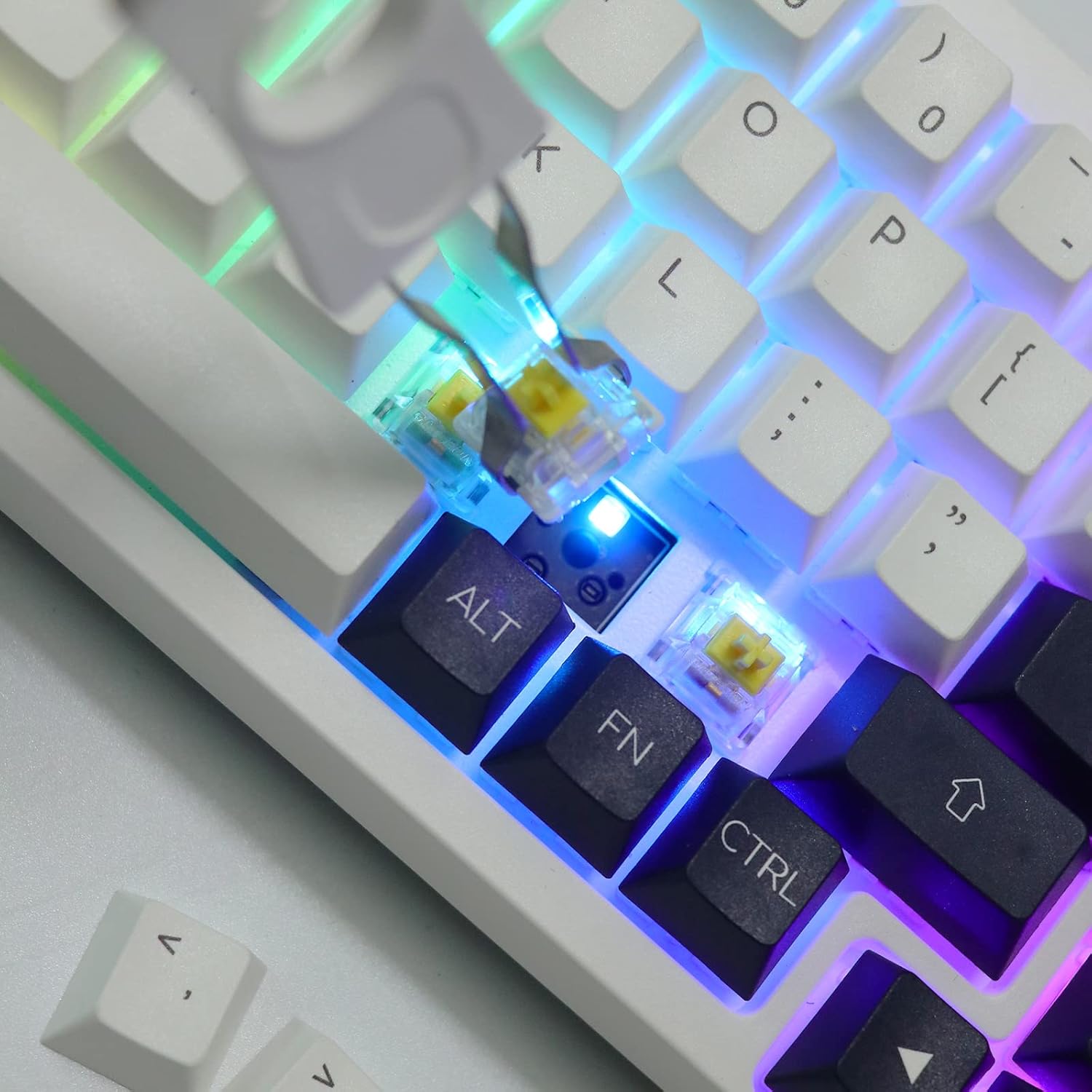
Figure 5.1: A close-up image demonstrating the hot-swappable switch feature, with a switch being removed or inserted.
6. Troubleshooting
6.1 Keyboard Not Responding
- Wired Mode: Ensure the USB-C cable is securely connected to both the keyboard and the computer. Try a different USB port or cable.
- 2.4GHz Wireless: Verify the 2.4G receiver is properly inserted and the keyboard is in 2.4G mode. Re-pair the keyboard if necessary (FN+R for 3 seconds).
- Bluetooth Mode: Confirm the keyboard is in Bluetooth mode and paired correctly (FN+Q/W/E for 3 seconds to pair, short press to switch). Check your device's Bluetooth settings.
- Battery: Ensure the keyboard has sufficient charge. Connect it via USB-C to charge.
6.2 Keys Not Registering or Double-Typing
- This can sometimes be caused by a faulty switch. Utilize the hot-swappable feature to replace the problematic switch.
- Ensure keycaps are properly seated on the switches.
- For wireless modes, ensure there is no significant interference or distance between the keyboard and receiver/device.
6.3 RGB Backlight Issues
- Check if the RGB backlight is turned off or set to a very dim setting. Use the keyboard's function keys or software to adjust.
- Ensure the keyboard firmware is up to date.
7. Specifications
| Brand | EPOMAKER |
| Model | Theory TH68 Pro (Item model number: 3084B) |
| Number of Keys | 67 Keys + 1 Knob |
| Backlight | RGB |
| Programmable | Yes |
| Connectivity | Triple Modes: Bluetooth 5.0 / 2.4GHz Wireless / USB-C Wired |
| Battery Capacity | 2400mAh |
| Cable Length | Approx. 1.5m |
| Product Dimensions | 33cm x 12cm x 3.5cm (12.99"L x 4.72"W x 1.38"H) |
| Product Weight | Approx. 980g (2.49 pounds) |
| Compatible Devices | Laptop, Mac/Win/Android systems |
| Material | Plastic |
8. Warranty and Support
EPOMAKER products are designed for reliability and performance. For specific warranty information, please refer to the warranty card included with your product or visit the official EPOMAKER website. If you encounter any issues or require technical assistance, please contact EPOMAKER customer support through their official channels.
For further assistance, please visit the EPOMAKER Store on Amazon.


