
1. Introduction
This manual provides detailed instructions for the installation, operation, and maintenance of your JOOAN 3MP Wireless Security Camera System, Model 703. This system is designed to provide reliable surveillance with features such as 3MP resolution, AI human detection, audio recording, and remote access.

Image 1.1: Overview of the JOOAN Wireless Security Camera System components.
2. System Components
The JOOAN 3MP Wireless Security Camera System typically includes the following components:
- NVR (Network Video Recorder) with pre-installed 1TB HDD
- Wireless IP Cameras (4 units)
- Power Adapters for NVR and cameras
- USB Mouse
- Ethernet Cable
- Mounting Screws and Anchors
- User Manual (this document)

Image 2.1: The 1TB Hard Disk Drive included with the NVR for video storage.
3. Setup Guide
3.1 Initial Power-Up and Connection
- Connect the NVR to a monitor using an HDMI or VGA cable.
- Connect the USB mouse to the NVR.
- Connect the NVR to power using its adapter.
- Connect each camera to its respective power adapter.
- The cameras will automatically pair with the NVR upon power-up.

Image 3.1: Illustration of the 'Auto Pair, Plug N Play' setup process for the camera system.
The system is designed for 'Plug N Play' functionality, meaning cameras should automatically connect to the NVR once powered. For optimal wireless signal, consider the NVR's built-in router capabilities.

Image 3.2: The NVR features a built-in router, providing up to 200ft range with one wall obstruction and up to 1640ft in open spaces.
3.2 Remote Access Setup (Eseecloud App)
To view your cameras remotely on mobile devices or PC, download the Eseecloud application.
- Download the Eseecloud app from your mobile app store (iOS/Android) or the Eseecloud software for PC.
- Register an account and log in.
- On the NVR interface, navigate to Network Setup to find the Cloud ID (QR code).
- In the Eseecloud app, scan the Cloud ID QR code or manually enter the ID to add your device.
- Ensure your NVR is connected to the internet for remote viewing.

Image 3.3: Remote viewing setup showing the Eseecloud app on mobile and PC for multi-device access.
Video 3.1: Demonstrates how to get a local image within one minute, showcasing the quick setup process.
Video 3.2: An overview of the Jooan 3MP Super HD Wireless System, highlighting its features and ease of use.
4. Operating Instructions
4.1 Live View and Playback
Once the system is set up, you can view live footage on your connected monitor or through the Eseecloud app. Recorded footage can be accessed via the NVR interface or the app for playback.
4.2 Motion Detection and Alerts
The system features advanced AI Human Detection to minimize false alarms. When motion or a human shape is detected, the system can trigger various alerts:
- NVR Buzzer
- Email Alert
- APP Notification (Push Alert)

Image 4.1: Demonstrates motion detection and the corresponding app push alerts and email notifications.
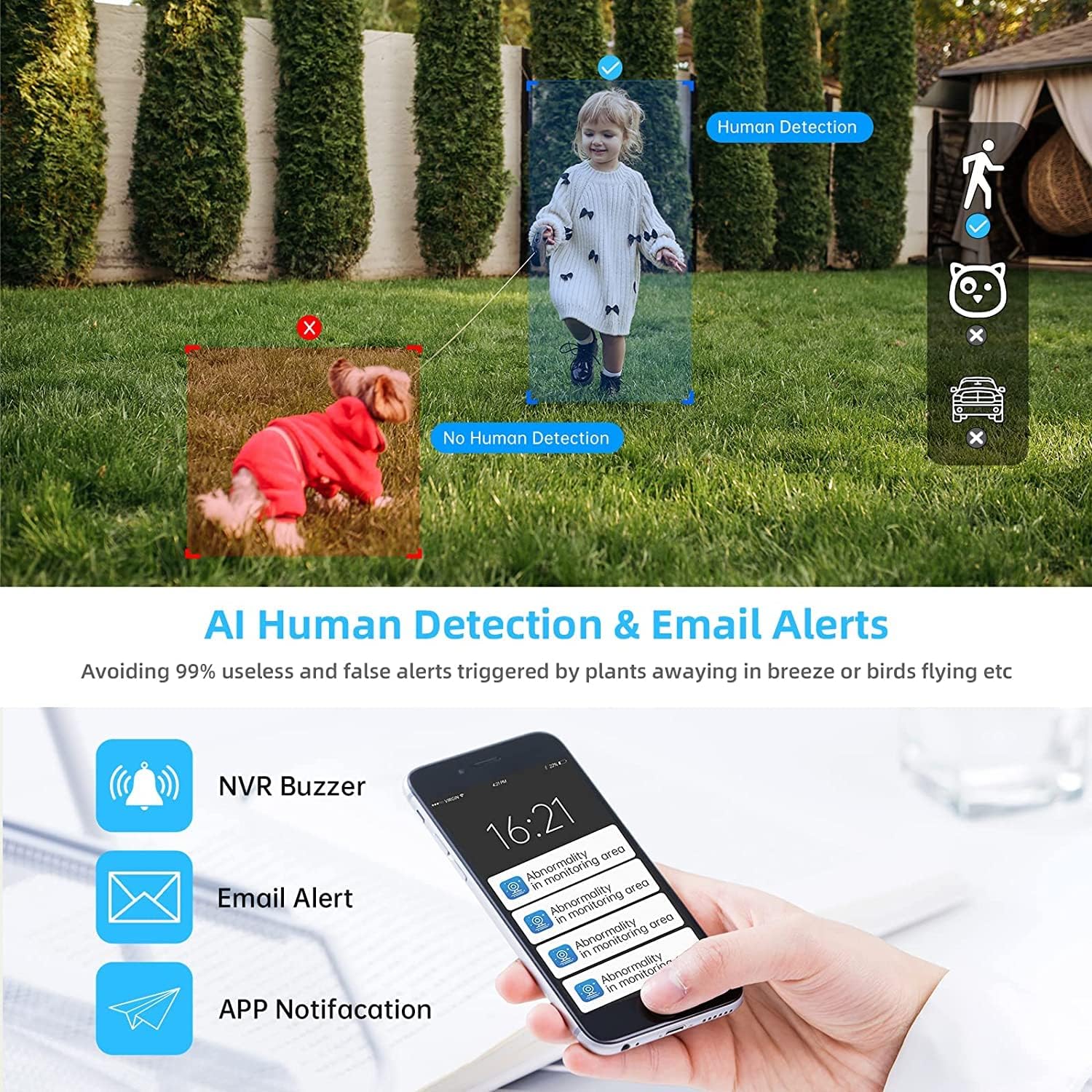
Image 4.2: AI Human Detection feature, distinguishing human shapes from other movements to reduce false alarms.
4.3 Audio Recording (One-Way Audio)
Each camera is equipped with a microphone, allowing for one-way audio recording. You can hear the sound from the monitoring scene during live viewing and playback.
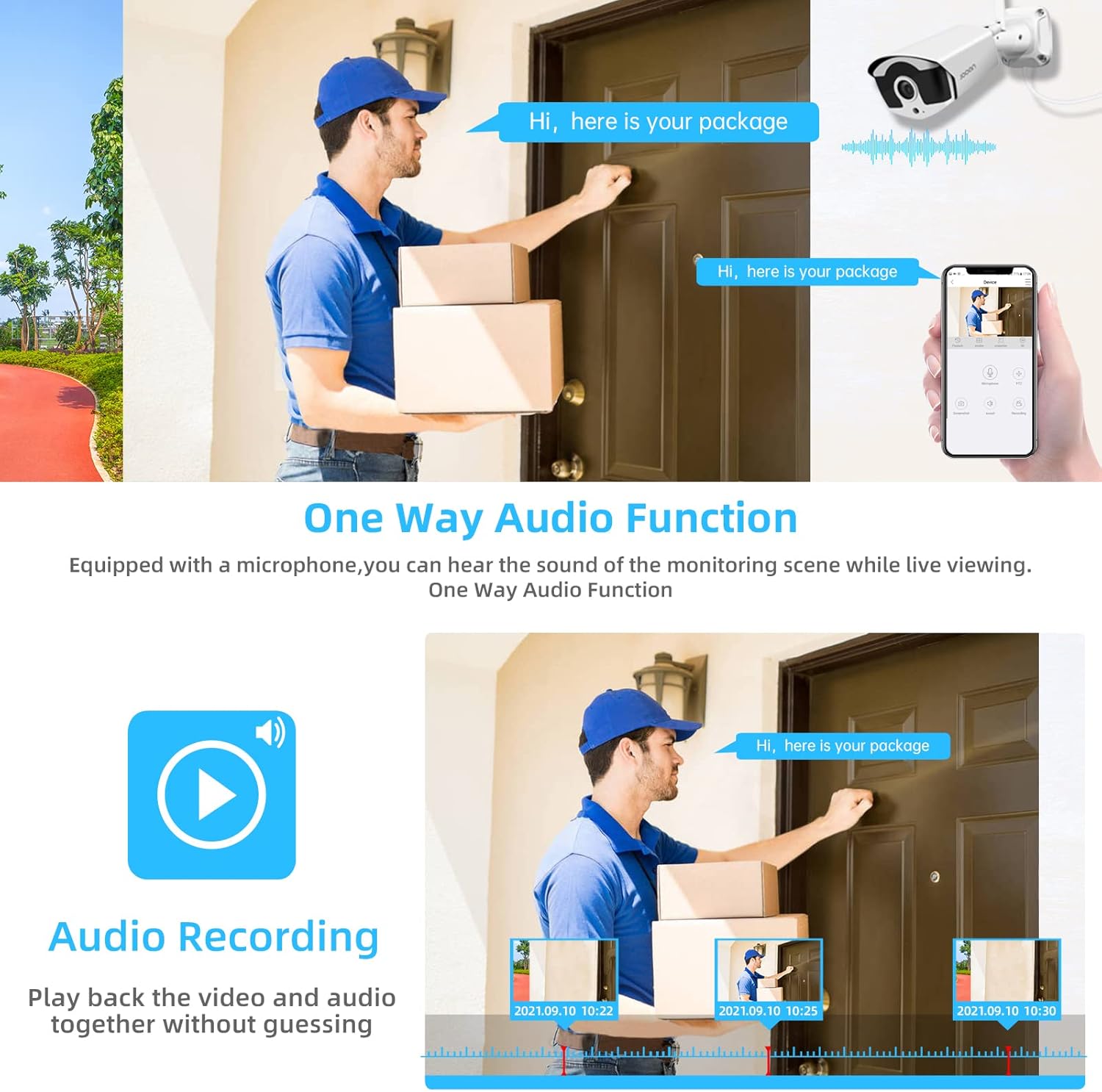
Image 4.3: Illustration of the one-way audio function, showing a delivery person speaking and the audio being recorded.
4.4 Night Vision
The cameras provide clear night vision, ensuring continuous surveillance even in low-light conditions.

Image 4.4: Depiction of the camera's night vision feature, providing clear images in darkness.
Video 4.1: A short clip demonstrating the night time monitoring capabilities of the camera system.
4.5 H.265+ Video Compression
The system utilizes advanced H.265+ video compression technology, which significantly reduces storage space requirements while maintaining high video quality. This allows for longer recording times on the 1TB HDD.

Image 4.5: Comparison showing how H.265+ compression saves storage space compared to H.264 and H.265.
5. Maintenance
Regular maintenance ensures the longevity and optimal performance of your security system.
- Camera Lens Cleaning: Periodically clean camera lenses with a soft, damp cloth to remove dust and smudges. Avoid abrasive cleaners.
- Cable Management: Ensure all cables are securely connected and protected from environmental damage.
- Software Updates: Check the manufacturer's website or the Eseecloud app for firmware updates for the NVR and cameras to ensure the latest features and security patches.
- Environmental Protection: While cameras are IP67 waterproof, extreme weather conditions can still affect performance. Ensure cameras are mounted securely and protected where possible.

Image 5.1: The IP67 waterproof rating ensures the camera's durability against various weather conditions, including rain, snow, and dust.
6. Troubleshooting
If you encounter issues with your JOOAN Security Camera System, refer to the following common troubleshooting steps:
6.1 No Video Display
- Check Power: Ensure the NVR and all cameras are properly powered on.
- Monitor Connection: Verify the HDMI/VGA cable connection between the NVR and the monitor.
- Camera Pairing: If a specific camera has no video, check its power and ensure it's within range of the NVR for wireless connection. Re-pair if necessary (refer to NVR manual for specific re-pairing steps).
6.2 Remote Access Issues
- Internet Connection: Ensure the NVR is connected to the internet via an Ethernet cable.
- App Login: Verify your Eseecloud app login credentials.
- Cloud ID: Double-check that the correct Cloud ID is entered in the app.
- Network Settings: Ensure your router settings are not blocking the NVR's internet access.
6.3 Recording Problems
- HDD Status: Check the NVR's settings to ensure the 1TB HDD is detected and functioning correctly.
- Recording Schedule: Verify that the recording schedule is properly configured.
- Motion Detection Settings: If using motion-triggered recording, ensure motion detection is enabled and sensitivity is adjusted appropriately.
7. Specifications
| Feature | Specification |
|---|---|
| Brand | JOOAN |
| Model Number | 703 |
| Video Capture Resolution | 3MP (Clearer than 1080p) |
| Number of Channels | 8 |
| Night Vision | Night color (up to 100ft) |
| Recording Mode | Continuous, Motion Detection, Event |
| Hardware Interface | 802.11 ac/b/g/n (Wireless) |
| Video Input | VGA, HDMI |
| Optical Sensor Technology | CMOS |
| Waterproof Rating | IP67 |
| HDD Included | 1TB |
8. Warranty and Support
For warranty information and technical support, please refer to the official JOOAN website or contact their customer service directly. Keep your purchase receipt as proof of purchase for warranty claims.
You can also find additional resources and FAQs on the JOOAN Store on Amazon.

