
Launch CRP239
LAUNCH CRP239 PREMIUM CODE READER SCANNER User Manual
Model: CRP239
1. Introduction
The LAUNCH CRP239 is an intelligent and networkable automotive diagnostic tool designed for passenger cars. It offers comprehensive OBD II full functionality and rapid testing capabilities for four major vehicle systems: Engine, Automatic Transmission (A/T), Anti-lock Braking System (ABS), and Supplemental Restraint System (SRS). Additionally, the CRP239 includes advanced reset functions such as Oil Reset, Steering Angle Reset, Brake-Pad Reset, Battery Matching, Throttle Adaptation, and Diesel Particulate Filter (DPF) Regeneration, catering to the needs of professional technicians and DIY enthusiasts.
2. Safety Information
Always observe the following safety precautions when operating the LAUNCH CRP239:
- Ensure the vehicle's ignition is off before connecting or disconnecting the diagnostic tool.
- Do not operate the tool in wet conditions or near flammable liquids or gases.
- Wear appropriate personal protective equipment, such as safety glasses, when working on vehicles.
- Refer to the vehicle's service manual for specific diagnostic procedures and safety warnings.
- Keep the tool away from strong magnetic fields.
- Only use the provided cables and accessories.
3. Package Contents
Verify that all items are present in the package:
- LAUNCH CRP239 Main Unit
- OBD II Diagnostic Cable
- USB Cable
- User Manual
- Carrying Case

Figure 3.1: Contents of the LAUNCH CRP239 package, showing the diagnostic tool, cables, and storage case.
4. Product Overview
The LAUNCH CRP239 features a robust design with a 5.0-inch 720p touch screen for intuitive navigation. It includes physical buttons for common operations and a durable rubber exterior for protection.

Figure 4.1: Front view of the LAUNCH CRP239, highlighting the touch screen display and navigation buttons.
4.1. Components
- 5.0-inch Touch Screen: High-resolution display for clear data presentation and touch input.
- Navigation Buttons: Directional pad, OK button, and Return button for menu navigation.
- OBD II Connector: Standard 16-pin connector for vehicle communication.
- USB Port: For connecting to a computer for updates or data transfer.
- Power Indicator: LED light indicating power status.
5. Setup
Follow these steps for initial setup of your LAUNCH CRP239:
- Charge the Device: Connect the CRP239 to a power source using the provided USB cable to ensure the internal 4000mAh lithium-polymer battery is fully charged before first use.
- Power On: Press and hold the power button to turn on the device.
- Language Selection: On the initial setup screen, select your preferred language. The device supports multilingual operation.
- Wi-Fi Connection: Navigate to the 'Settings' menu and select 'Wi-Fi'. Connect to an available wireless network to enable online updates and diagnostic report sharing.
- Software Update: It is recommended to perform a software update immediately after connecting to Wi-Fi to ensure you have the latest features and vehicle coverage. Navigate to the 'Update' section and follow the on-screen prompts.

Figure 5.1: The LAUNCH CRP239 with its diagnostic cable connected, ready for vehicle communication.
6. Operating Instructions
The LAUNCH CRP239 provides a comprehensive suite of diagnostic functions. Below are instructions for common operations.
6.1. Connecting to Vehicle
- Locate the vehicle's 16-pin OBD II diagnostic port (usually under the dashboard).
- Ensure the vehicle's ignition is OFF.
- Connect the OBD II diagnostic cable to the vehicle's OBD II port and to the CRP239.
- Turn the vehicle's ignition to the ON position (engine off). The CRP239 will power on automatically.
6.2. Main Menu Navigation
From the main menu, you can access various functions:
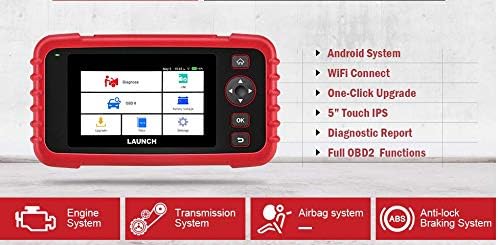
Figure 6.1: The main menu interface of the LAUNCH CRP239, providing access to all primary functions.
- Diagnose: For full system diagnostics (Engine, A/T, ABS, SRS).
- I/M: Readiness status for emissions.
- OBD II: Standard OBD II functions (read/clear DTCs, live data, freeze frame, O2 sensor test, etc.).
- Reset: Access various maintenance reset functions.
- Battery Voltage: Displays real-time vehicle battery voltage.
- Update: For software and firmware updates via Wi-Fi.
- Data: Review saved diagnostic data and reports.
- Settings: Configure device settings such as language, Wi-Fi, and display.
6.3. Performing a Diagnostic Scan
- From the main menu, select "Diagnose".
- The tool will attempt to automatically identify the vehicle via VIN scan. If unsuccessful, you may need to manually select the vehicle make, model, and year.
- Choose the system you wish to diagnose (e.g., Engine, Transmission, ABS, SRS).
- Select "Read Fault Codes" to view Diagnostic Trouble Codes (DTCs).
- Select "Clear Fault Codes" to erase DTCs after repairs have been made. Caution: Clearing codes without addressing the underlying issue will result in the codes reappearing.
- Select "Read Data Stream" to view live sensor data.
6.4. Using Reset Functions
The CRP239 supports several common maintenance reset functions:
- Oil Reset: Resets the oil life reminder after an oil change.
- Steering Angle Reset: Resets the steering angle sensor after alignment or component replacement.
- Brake-Pad Reset (EPB): Resets the electronic parking brake system after brake pad replacement.
- Battery Matching (BMS): Registers a new battery with the vehicle's Battery Management System.
- Throttle Adaptation: Relearns the throttle body position after cleaning or replacement.
- DPF Regeneration: Initiates the Diesel Particulate Filter regeneration process.
To use a reset function, select "Reset" from the main menu, then choose the desired function and follow the on-screen instructions.
6.5. Software Updates
The CRP239 supports one-click Wi-Fi updates for software and vehicle coverage, ensuring you always have the latest diagnostic capabilities.
- Ensure the device is connected to a stable Wi-Fi network.
- From the main menu, select "Update".
- The device will check for available updates. Select the updates you wish to install and confirm.
- Allow the update process to complete without interruption. The device may restart during this process.

Figure 6.2: The update screen on the LAUNCH CRP239, showing available software updates for various vehicle brands.
6.6. Diagnostic Report Generation
The CRP239 can automatically generate diagnostic reports, which can be shared via email.
- After completing a diagnostic session, the tool will prompt you to generate a report.
- Confirm to generate the report.
- Navigate to the "Data" menu to view saved reports.
- Select a report and choose the option to share via email. Ensure your Wi-Fi is connected and email settings are configured in the 'Settings' menu.
7. Maintenance
Proper maintenance ensures the longevity and optimal performance of your LAUNCH CRP239:
- Cleaning: Use a soft, dry cloth to clean the device. Do not use abrasive cleaners or solvents.
- Storage: Store the device in its carrying case in a cool, dry place when not in use. Avoid extreme temperatures.
- Battery Care: Charge the battery regularly, even if the device is not in frequent use, to maintain battery health. Avoid fully discharging the battery for extended periods.
- Cable Inspection: Periodically inspect the diagnostic and USB cables for any signs of damage. Replace damaged cables immediately.
8. Troubleshooting
This section addresses common issues you might encounter with the LAUNCH CRP239.
| Problem | Possible Cause | Solution |
|---|---|---|
| Device does not power on. | Low battery; faulty connection to vehicle. | Charge the device fully. Ensure the OBD II cable is securely connected to both the CRP239 and the vehicle. Check vehicle's ignition is ON. |
| Cannot communicate with vehicle. | Incorrect vehicle protocol; faulty OBD II port; damaged cable. | Verify vehicle compatibility. Check the vehicle's OBD II port for power. Try a different vehicle or cable if available. Ensure vehicle ignition is ON. |
| Software update fails. | Unstable Wi-Fi connection; insufficient storage. | Ensure a strong and stable Wi-Fi connection. Check available storage space on the device. Restart the update process. |
| Screen is unresponsive. | Software glitch; physical damage. | Perform a soft reset by holding the power button until the device restarts. If the issue persists, contact customer support. |
9. Specifications
| Feature | Detail |
|---|---|
| Model | CRP239 (CREADER PROFESSIONAL 239) |
| Display | 5.0-inch 720p Touch Screen |
| Battery | 4000mAh Rechargeable Lithium Polymer (included) |
| Connectivity | OBD II, Wi-Fi, USB |
| Vehicle Coverage | Domestic, Asian, European vehicles (1996 and newer OBD2) |
| Supported Systems | Engine, Automatic Transmission (A/T), ABS, SRS |
| Special Functions | Oil Reset, Steering Angle Reset, Brake-Pad Reset (EPB), Battery Matching (BMS), Throttle Adaptation, DPF Regeneration |
| Dimensions | 32.4 x 25.4 x 8 cm (Package) |
| Item Weight | 560 g |
| Exterior Material | Rubber |
10. Warranty Information
The LAUNCH CRP239 comes with a standard manufacturer's warranty. For specific warranty terms and conditions, please refer to the warranty card included in your product package or visit the official Launch website. Keep your purchase receipt as proof of purchase for warranty claims.
Extended warranty options may be available from third-party providers. For example, 1-Year and 2-Year Extended Warranties by Salama Care are offered for this product.
11. Support
For technical assistance, product inquiries, or support, please contact Launch customer service through their official website or the contact information provided in your product documentation. Ensure you have your product model number (CRP239) and serial number ready when contacting support.
For additional resources, visit the Launch Official Website.
Related documentsCRP239

Ask a question about this manual
Ask about setup, troubleshooting, compatibility, parts, safety, or missing instructions. Manuals+ will review the question and use this page’s manual context to help answer it.