
1. Introduction
The COMICA BoomX-D2 is a 2.4G digital RF wireless microphone system designed for high-quality audio recording. It features two transmitters and one receiver, offering stable transmission up to 650 feet (200 meters). This system is ideal for various applications including YouTube video recording, live streaming, interviews, and more, providing clear and reliable audio performance.
2. Package Contents
Please verify that all items listed below are included in your package:
- 2 x Transmitters (TX)
- 1 x Receiver (RX)
- 1 x 3-in-1 USB A to USB C Charging Cable
- 2 x 3.5mm Lavalier Microphones
- 1 x 3.5mm TRS-TRRS Audio Cable (for smartphones)
- 1 x 3.5mm TRS-TRS Audio Cable (for cameras)
- 1 x Carry Case
- 2 x Wind Muffs (for built-in microphones)
- 1 x User Manual (physical copy)
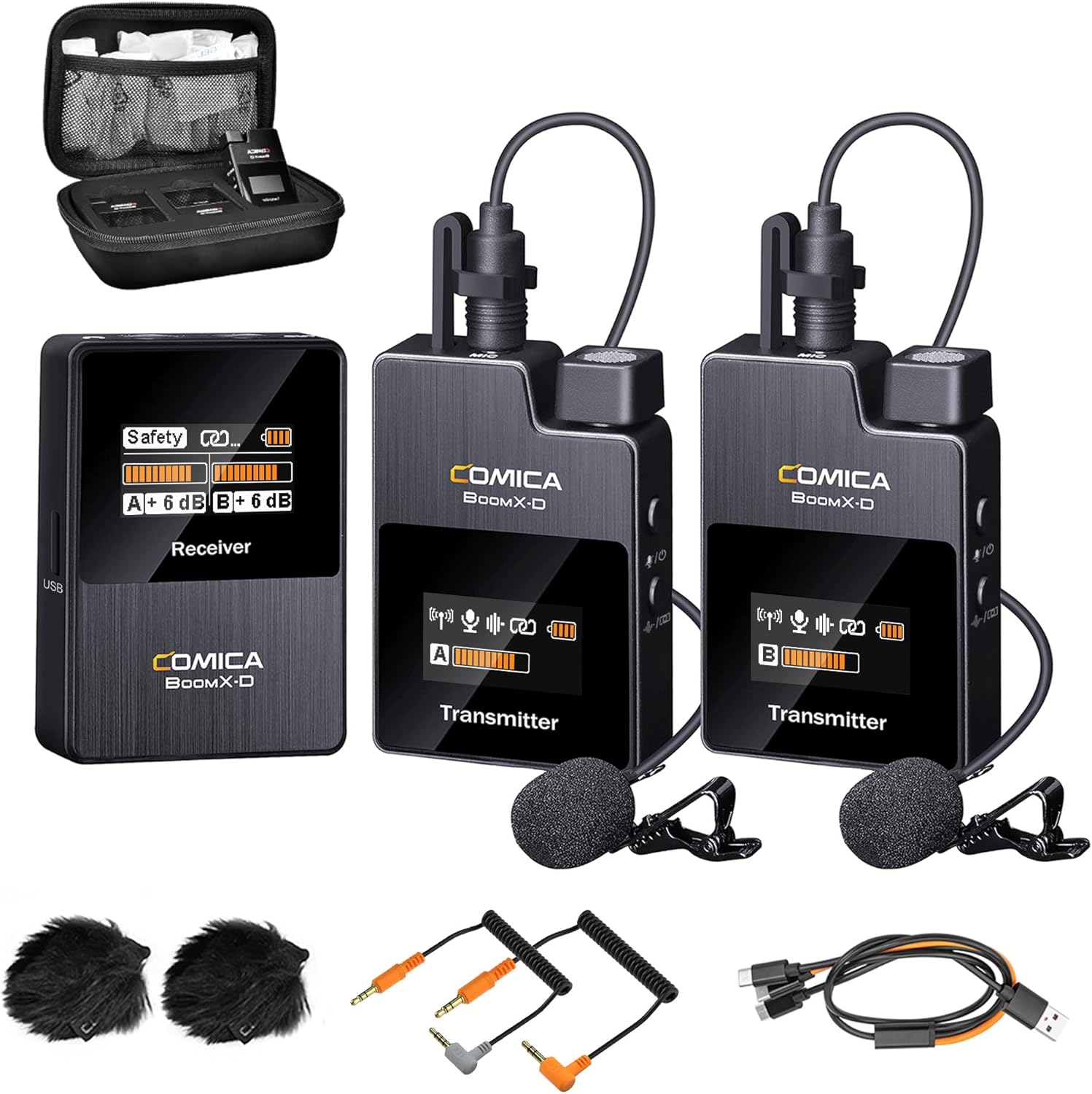
Figure 2.1: Complete package contents of the COMICA BoomX-D2 system.
3. Product Overview
3.1. Transmitter (TX)
- Built-in Microphone: For direct audio capture.
- 3.5mm TRS Input: For connecting the external lavalier microphone.
- Power/Mute Button: Short press to mute/unmute, long press to power on/off.
- Pair/Denoise Button: Short press for noise cancellation, long press for pairing.
- TFT Display Screen: Shows battery status, signal strength, audio levels, and mode.
- USB-C Port: For charging.
- Belt Clip: For attaching to clothing.
3.2. Receiver (RX)
- TFT Display Screen: Displays battery status, signal strength for both transmitters, audio levels, and output mode (Mono/Stereo/Safety).
- Power/M/S Button: Short press to switch between Mono/Stereo/Safety modes, long press to power on/off.
- A/B Adjustment Buttons: Adjust gain levels for Transmitter A and Transmitter B independently.
- 3.5mm TRS Output: Connects to cameras, camcorders, or PCs.
- 3.5mm Headphone Jack: For real-time audio monitoring.
- USB-C Port: For charging and audio output.
- Belt Clip/Cold Shoe Mount: For attaching to clothing or camera hot/cold shoe.
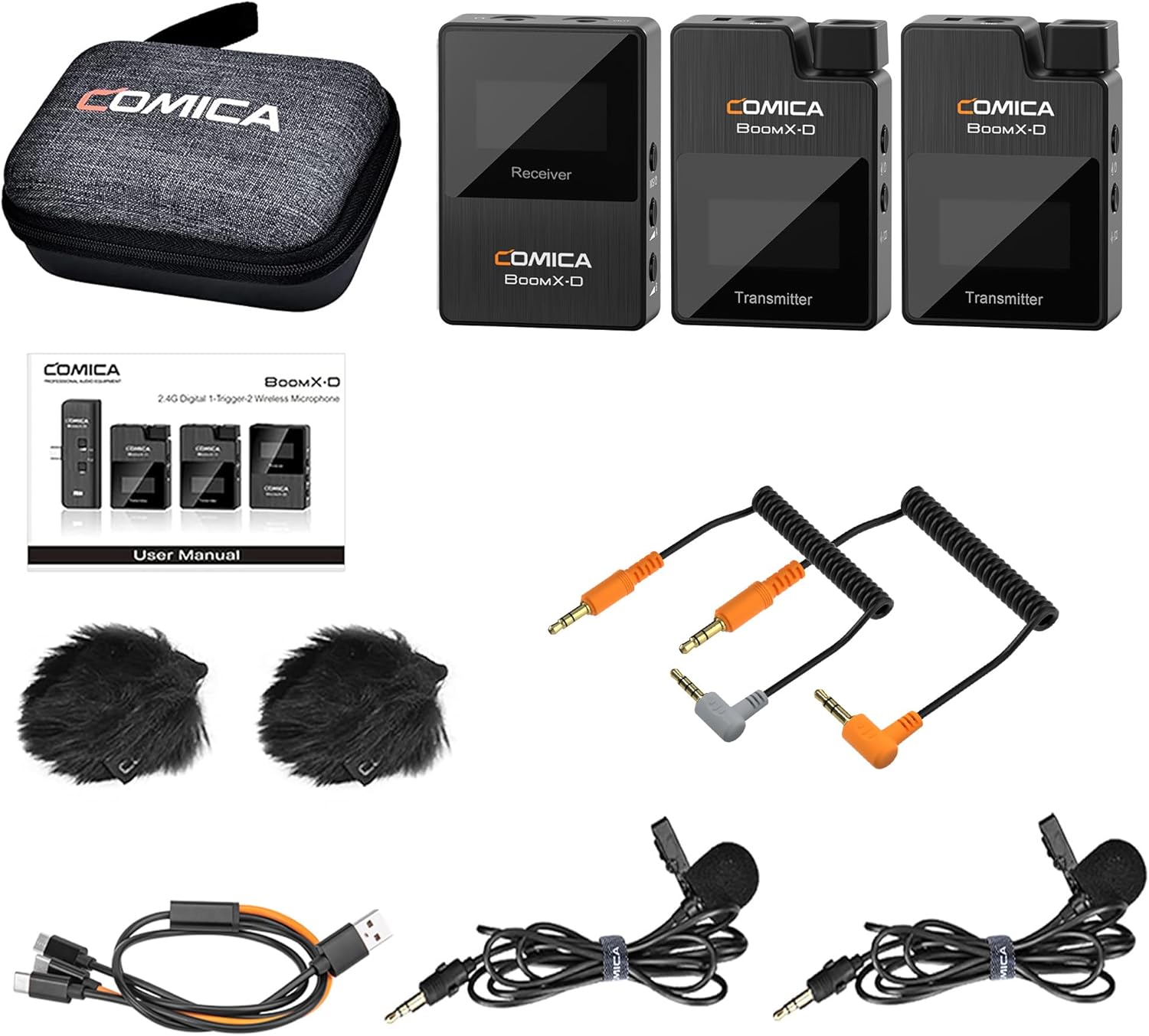
Figure 3.1: Detailed view of the BoomX-D2 system components.
4. Setup
4.1. Charging the Devices
Before first use, fully charge the transmitters and receiver. Use the provided 3-in-1 USB C charging cable. The orange cable supports both charging and data transmission, while the black cables are for charging only.
- Connect the USB-C end of the cable to the charging port on each transmitter and the receiver.
- Connect the USB-A end to a USB power adapter (not included) or a computer's USB port.
- The battery icon on the TFT display will indicate charging status. A full charge provides up to 12 hours of runtime.
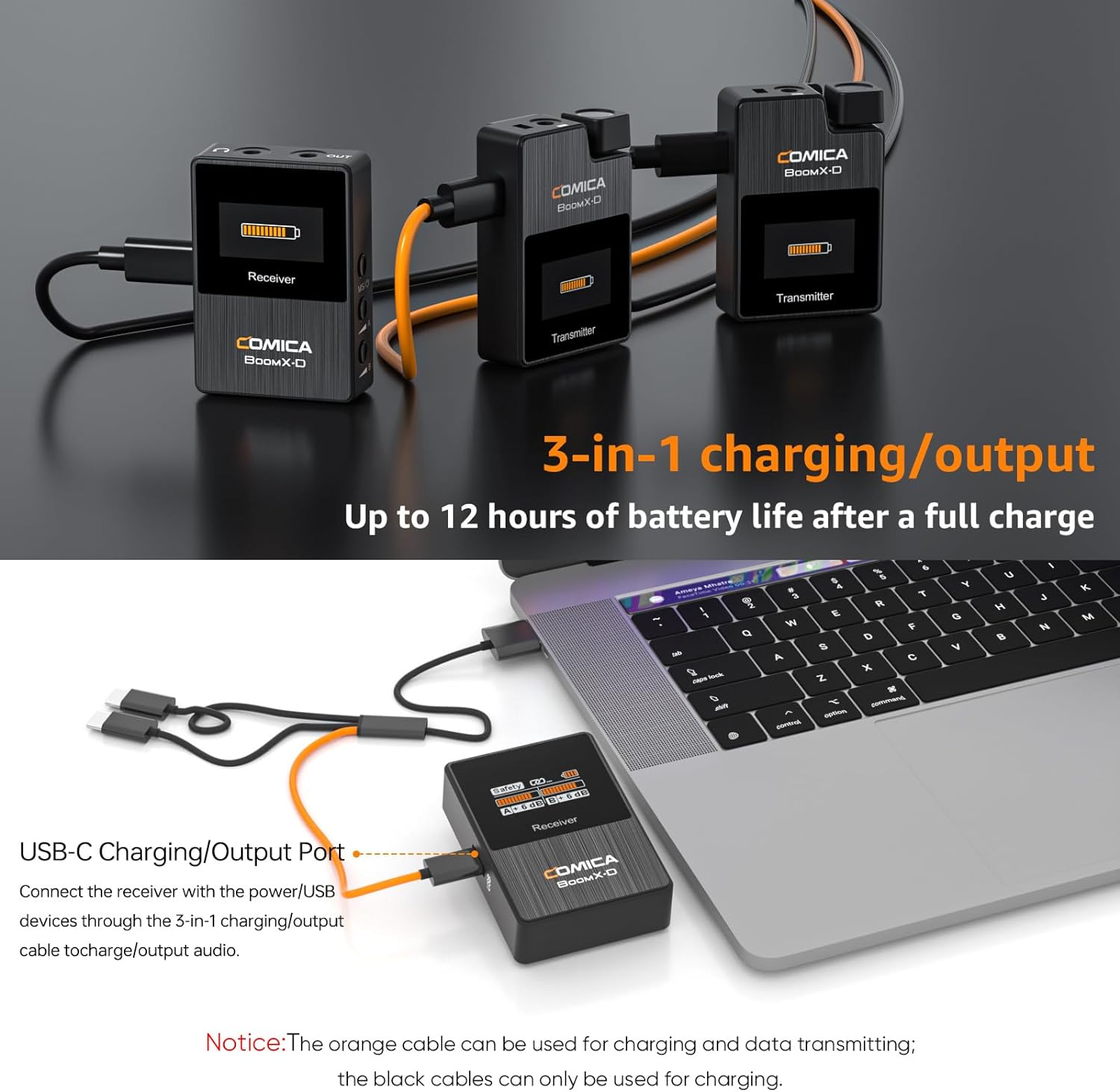
Figure 4.1: Charging the BoomX-D2 system components.
4.2. Power On/Off and Pairing
The BoomX-D2 system features automatic pairing for convenience.
- Power On: Long press the Power button on both transmitters and the receiver.
- Automatic Pairing: The transmitters and receiver will automatically pair upon powering on. The signal strength indicator on the display will show a stable connection.
- Manual Pairing: If pairing fails, long press the "Pair/Denoise" button on the transmitter and the "Power/M/S" button on the receiver simultaneously to initiate manual pairing.
- Power Off: Long press the Power button on each device to turn them off.
4.3. Connecting to Your Device
The BoomX-D2 offers wide compatibility with various recording devices.
- For Cameras (DSLR, Camcorders): Use the provided 3.5mm TRS-TRS audio cable. Connect one end to the receiver's 3.5mm audio output and the other end to your camera's microphone input.
- For Smartphones (Android, iPhone): Use the provided 3.5mm TRS-TRRS audio cable. Connect the TRS end to the receiver's 3.5mm audio output and the TRRS end to your smartphone's headphone/microphone jack. Note: For smartphones without a 3.5mm jack (e.g., newer iPhones, USB-C Android phones), a separate 3.5mm to Lightning or 3.5mm to USB-C adapter cable (not included) is required.
- For PCs: Use the 3.5mm TRS-TRS audio cable or the 3-in-1 USB C charging cable (orange one) for direct digital audio output.
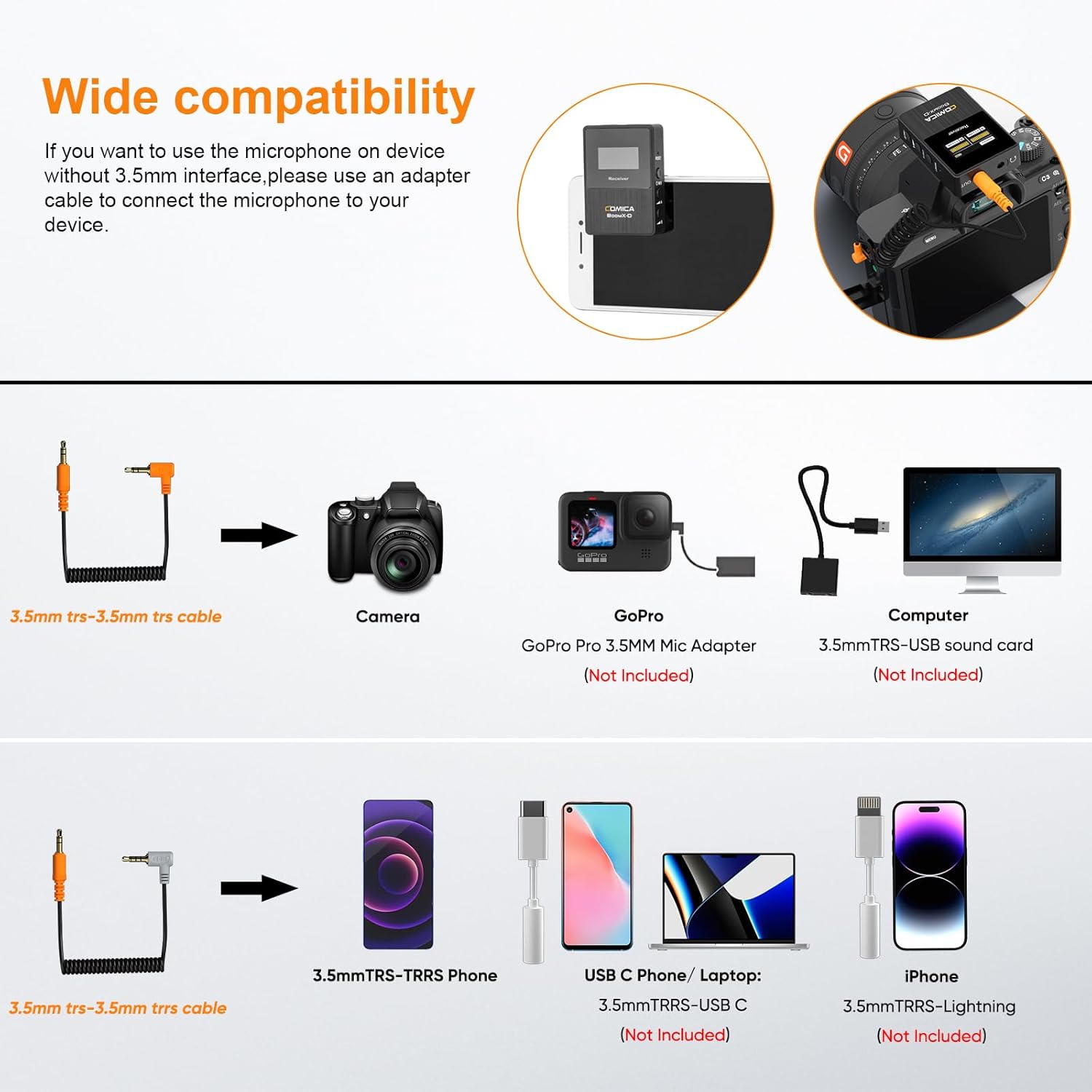
Figure 4.2: Compatibility and connection options for the BoomX-D2 system.
4.4. Attaching the Microphones
Each transmitter has a built-in microphone and a 3.5mm input for an external lavalier microphone.
- Using Built-in Mic: Simply clip the transmitter directly onto your clothing, ensuring the built-in microphone faces the sound source.
- Using Lavalier Mic: Plug the provided 3.5mm lavalier microphone into the TRS input on the transmitter. Clip the lavalier mic to your clothing, typically near the collar, and secure the transmitter using its belt clip.
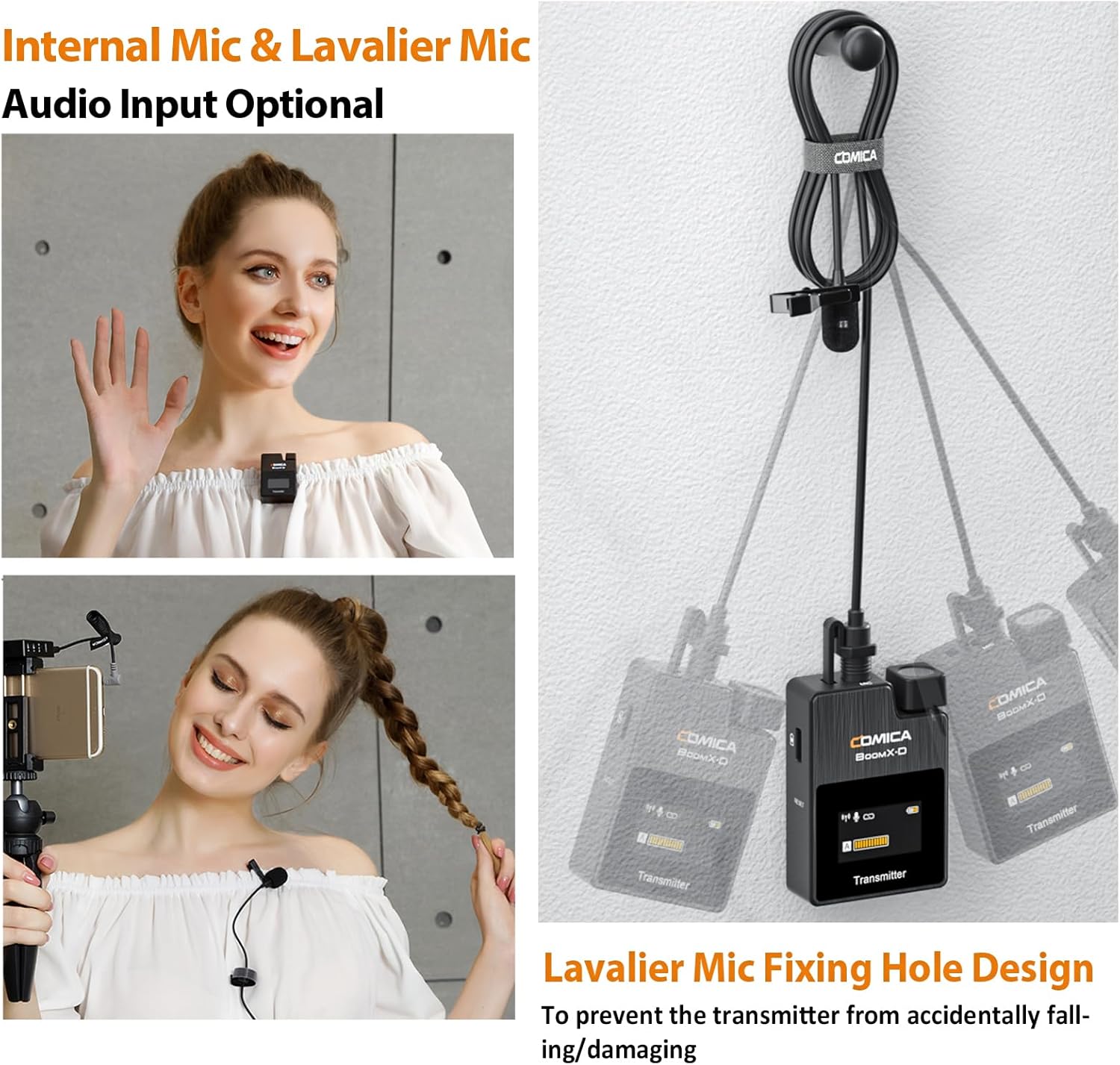
Figure 4.3: Internal vs. External Lavalier Microphone input options.
5. Operating Instructions
5.1. Muting Function
To temporarily stop audio transmission from a transmitter, short press its Power/Mute button. The display will indicate the mute status. Short press again to unmute.
5.2. Real-Time Monitoring
Connect headphones to the 3.5mm headphone jack on the receiver to monitor your audio in real-time during recording. This allows you to ensure optimal sound quality and detect any issues immediately.
5.3. Gain Adjustment
Use the A and B adjustment buttons on the receiver to independently control the output gain (volume) of each transmitter. This helps in optimizing audio levels for your recording device and environment.
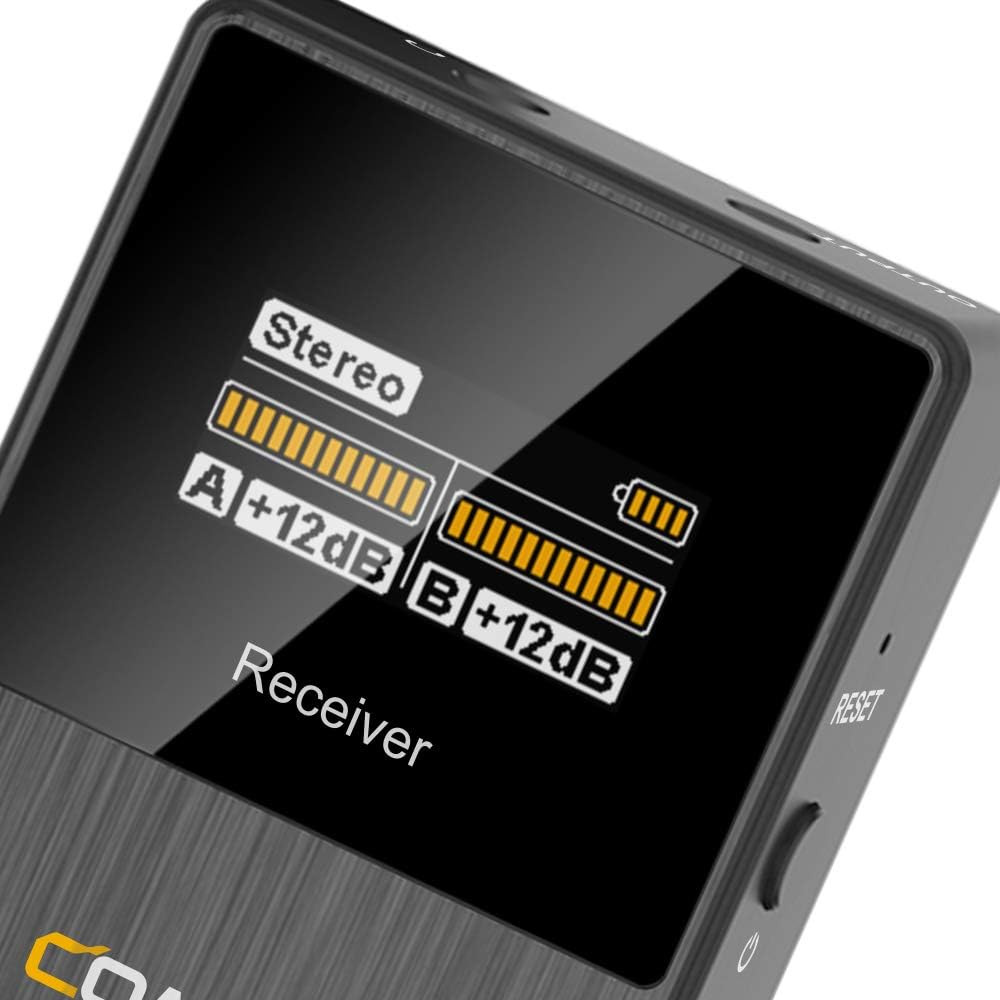
Figure 5.1: Receiver display showing audio levels and mode.
6. Advanced Features
6.1. Noise Reduction
The BoomX-D2 features a built-in DPS chip for intelligent noise filtering. To activate or deactivate noise cancellation, short press the "Pair/Denoise" button on the transmitter. This helps in achieving clear and clean audio, especially in environments with background noise.

Figure 6.1: Intelligent Noise Reduction functionality.
6.2. MONO/STEREO/Safety Mode Switch
The receiver allows you to switch between different output modes to suit your recording needs:
- Mono Mode: Combines audio from both transmitters into a single mono track.
- Stereo Mode: Separates audio from each transmitter into left and right stereo channels.
- Safety Mode: Records a primary audio track and a secondary -6dB safety track. This provides a backup in case the main track clips, offering greater flexibility in post-production.
To switch modes, short press the "Power/M/S" button on the receiver. The display will show the currently selected mode.

Figure 6.2: MONO/STEREO/Safety Mode options.
7. Specifications
| Feature | Detail |
|---|---|
| Brand | COMICA |
| Model Name | BoomX-D2 |
| Connectivity Technology | 2.4GHz |
| Microphone Form Factor | Lavalier |
| Wireless Communication Technologies | RF |
| Number of Channels | 2 |
| Operating Range | Up to 650ft (200M) |
| Latency | < 20ms |
| Frequency Response | 80 Hz - 20 KHz |
| Signal-to-Noise Ratio | 10 dB |
| Noise Level | 10 dB |
| Power Source | Battery Powered (3 Lithium Polymer batteries included) |
| Battery Runtime | Up to 12 hours |
| Material | Metal, Plastic |
| Color | Black |
| Item Weight (Transmitter) | 29 Grams (approx. 1.02 ounces) |
| Product Dimensions (L x W x H) | 2.44 x 5.71 x 6.5 inches |
| Compatible Devices | Camcorder, Camera, Personal Computer, Smartphone, Tablet |
| Special Features | Clip, Mute Function, Noise Reduction, Volume Control |
8. Troubleshooting
- No Sound/Low Sound:
- Ensure all devices (transmitters, receiver, recording device) are powered on.
- Check if transmitters are muted. Unmute by short pressing the Power/Mute button.
- Verify proper cable connection between the receiver and your recording device. Use the correct TRS-TRS or TRS-TRRS cable.
- Adjust the gain levels on the receiver using the A/B adjustment buttons.
- Check the volume settings on your recording device.
- Ensure the lavalier microphone is securely plugged into the transmitter, or that the built-in mic is not obstructed.
- Interference/Poor Sound Quality:
- Perform manual pairing to re-establish a stable connection.
- Activate the noise reduction feature on the transmitter by short pressing the Pair/Denoise button.
- Ensure there are no major obstructions or strong 2.4Ghz interference sources between the transmitters and receiver.
- Stay within the optimal operating range (up to 650ft/200M).
- Check if the wind muffs are properly installed when using the built-in mic outdoors.
- Device Not Charging:
- Ensure the charging cable is fully inserted into the USB-C port.
- Try a different USB power source or USB-A port.
- Confirm you are using the correct 3-in-1 USB C charging cable (orange cable for data/charging, black for charging only).
9. Maintenance
- Cleaning: Use a soft, dry cloth to clean the devices. Do not use harsh chemicals or abrasive materials.
- Storage: Store the system in the provided carry case in a cool, dry place away from direct sunlight and extreme temperatures.
- Battery Care: For long-term storage, charge the devices to approximately 50% every three months to preserve battery health.
- Handling: Avoid dropping the devices or exposing them to water or excessive moisture.
10. Warranty & Support
For warranty information, technical support, or service inquiries, please refer to the official COMICA website or contact your local distributor. Keep your purchase receipt as proof of purchase for warranty claims.
For further assistance, you may visit the COMICA Store on Amazon.


