
TP-Link Archer C80
TP-Link AC1900 Wireless MU-MIMO WiFi Router
Model: Archer C80
User Manual
1. Introduction
The TP-Link Archer C80 is an AC1900 Wireless MU-MIMO Gigabit WiFi Router designed to provide high-speed internet connectivity for home environments. It supports dual-band Wi-Fi (2.4 GHz and 5 GHz) for optimal performance across various devices and applications. Key features include MU-MIMO technology for efficient communication with multiple devices, Beamforming for extended coverage, and comprehensive parental controls.

Image: Front view of the TP-Link Archer C80 router, showcasing its four external antennas and sleek design.
2. Safety Information
- Ensure the router is placed in a well-ventilated area to prevent overheating.
- Use only the power adapter provided with the device. Using unauthorized adapters may damage the device and void the warranty.
- Keep the device away from water, fire, humidity, or hot environments.
- Do not attempt to disassemble, repair, or modify the device. If you need service, please contact TP-Link support.
- Avoid placing the router near strong electromagnetic fields.
3. Package Contents
Verify that all items are included in your package:
- TP-Link Archer C80 Wi-Fi Router
- Power Adapter
- RJ45 Ethernet Cable
- Quick Installation Guide
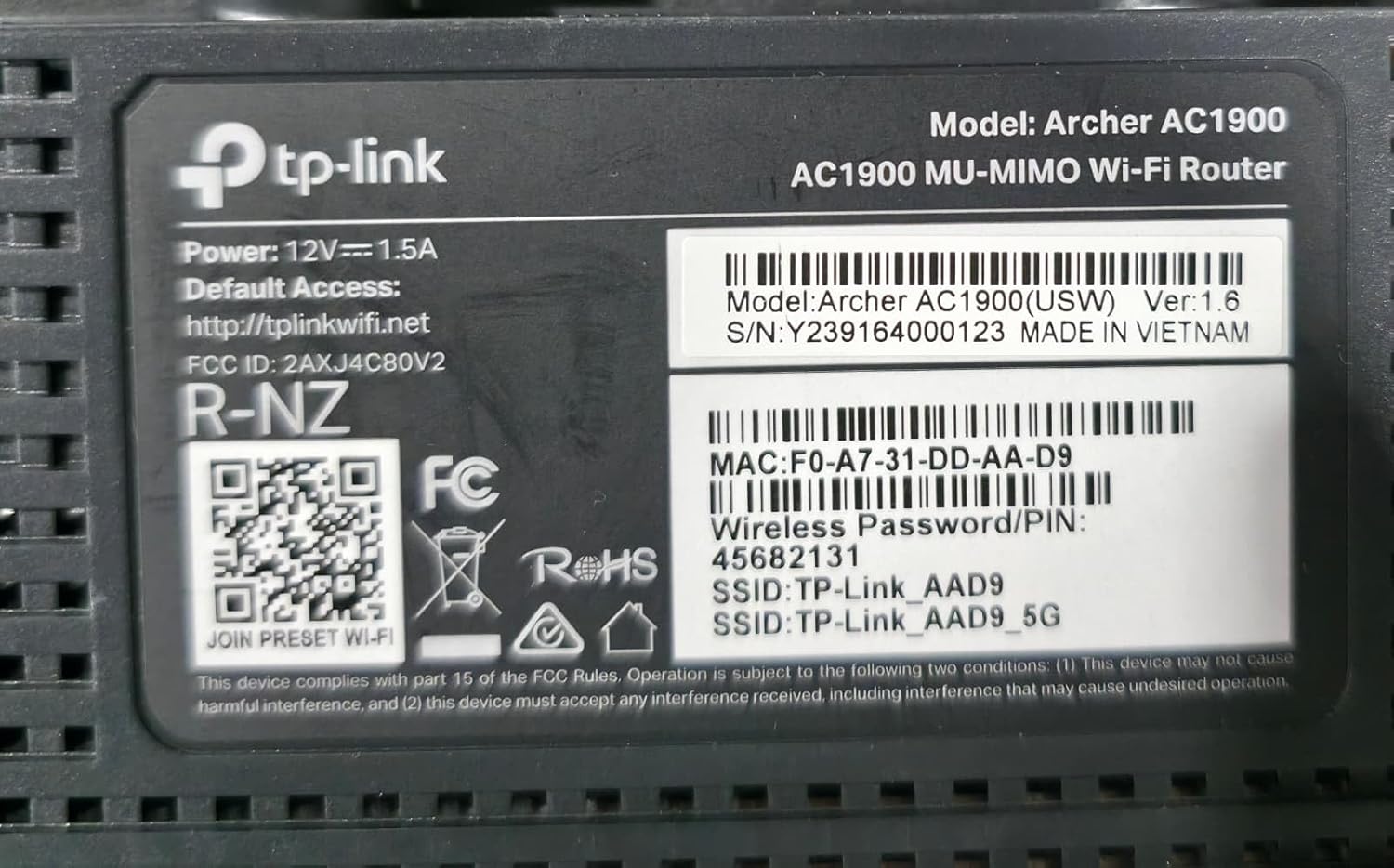
Image: The retail box of the TP-Link Archer C80, indicating the included components and key features.
4. Product Overview
4.1 Physical Components
The Archer C80 router features a sleek design with four fixed high-performance antennas for optimal signal coverage. The front panel includes LED indicators for power, internet status, Wi-Fi bands, and Ethernet connections. The rear panel houses all necessary ports and buttons.

Image: An angled view of the TP-Link Archer C80 router, highlighting the rear panel with its various ports and buttons.
- WAN Port (1x Gigabit): Connects to your modem for internet access.
- LAN Ports (4x Gigabit): Connects to wired devices such as computers, gaming consoles, or smart TVs.
- WPS/Wi-Fi Button: Press to enable WPS (Wi-Fi Protected Setup) for easy connection, or press and hold to turn Wi-Fi on/off.
- Power On/Off Button: Turns the router power on or off.
- Reset Button: Press and hold for approximately 10 seconds to restore the router to factory default settings.
- Power Connector: Connects to the provided power adapter.
4.2 Product Label Information
The product label, typically located on the bottom of the router, contains important information for setup and identification.

Image: Close-up of the TP-Link Archer C80's bottom label, displaying the model number, serial number (Y239164000123), MAC address (F0-A7-31-DD-AA-D9), default wireless password/PIN (45682131), and default SSIDs (TP-Link_AAD9, TP-Link_AAD9_5G).
Note the following details from the label for future reference:
- Model: Archer AC1900 (USW) Ver:1.6
- Serial Number (S/N): Y239164000123
- MAC Address: F0-A7-31-DD-AA-D9
- Default Wireless Password/PIN: 45682131
- Default SSIDs: TP-Link_AAD9, TP-Link_AAD9_5G
- Default Access: http://tplinkwifi.net
5. Setup
5.1 Hardware Connection
- Power Off: Disconnect the power from your modem and router (if applicable).
- Connect Modem: Connect your modem to the router's WAN port using the provided Ethernet cable.
- Connect Power: Connect the power adapter to the router and plug it into a power outlet.
- Power On: Power on your modem first, then wait for it to fully boot up. After that, power on the Archer C80 router.
- Connect Devices (Optional): For wired connections, connect your computers or other devices to the router's LAN ports using Ethernet cables.

Image: The TP-Link Archer C80 router positioned on a coffee table in a home environment, illustrating its compact size and ease of integration into living spaces.
5.2 Software Configuration
You can configure your router using the TP-Link Tether app or a web browser.
Using the TP-Link Tether App:
- Download the TP-Link Tether app from the App Store or Google Play.
- Connect your smartphone or tablet to the router's default Wi-Fi network (SSID and password are on the product label).
- Open the Tether app and follow the on-screen instructions to set up your router.
Using a Web Browser:
- Connect your computer to the router via an Ethernet cable or wirelessly to the default Wi-Fi network.
- Open a web browser and type http://tplinkwifi.net into the address bar.
- Create a login password when prompted.
- Follow the Quick Setup wizard to configure your internet connection and wireless settings.
6. Operating the Router
6.1 Wireless Connectivity
The Archer C80 operates on both 2.4 GHz and 5 GHz bands, providing flexible connectivity options for various devices.
- 2.4 GHz Band: Ideal for basic internet use like browsing, email, and connecting older devices. Offers wider coverage.
- 5 GHz Band: Provides faster speeds and less interference, suitable for bandwidth-intensive activities such as 4K streaming and online gaming.

Image: A visual representation of the benefits of dual-band Wi-Fi, showing 1300 Mbps on the 5 GHz band for 4K streaming and gaming, and 600 Mbps on the 2.4 GHz band for general internet use.
6.2 Advanced Wi-Fi Features
- MU-MIMO (Multi-User, Multiple-Input, Multiple-Output): Allows the router to communicate with multiple devices simultaneously, improving network efficiency and reducing latency.
- Beamforming: Concentrates Wi-Fi signals towards connected devices, enhancing signal strength and extending coverage, especially for distant devices.
- Smart Connect: Automatically assigns devices to the best available Wi-Fi band (2.4 GHz or 5 GHz) for optimal performance.
- Airtime Fairness: Improves overall Wi-Fi performance by ensuring that older, slower devices do not monopolize network time.

Image: A diagram illustrating the performance advantage of 3x3 MIMO AC1900 (Archer C80) over 2x2 MIMO AC1200, showing 100% efficiency for 3x3 MIMO devices.

Image: The TP-Link Archer C80 router with a visual overlay demonstrating its broader Wi-Fi coverage throughout a home, enabled by its four antennas and Beamforming technology.
6.3 Parental Controls
The router offers robust parental control features to manage and monitor internet usage for family members and devices.
- URL Filtering: Block specific websites or categories of content.
- Time Controls: Set schedules for internet access for individual devices or profiles.
- Profiles: Create profiles for family members to easily apply settings across multiple devices.
6.4 Guest Network
Create separate Wi-Fi networks for guests to ensure the security of your main network. The Archer C80 supports one 5 GHz Guest Network and one 2.4 GHz Guest Network.
6.5 TP-Link OneMesh™
The Archer C80 supports TP-Link OneMesh™, allowing you to create a seamless whole-home Wi-Fi network by adding OneMesh™ compatible range extenders or Powerline adapters. This eliminates Wi-Fi dead zones and provides a unified network name for continuous connectivity as you move around your home.
7. Maintenance
- Firmware Upgrade: Regularly check for and install firmware updates via the Tether app or web management interface (OTA Firmware Upgrade is supported) to ensure optimal performance and security.
- Router Placement: Place the router in a central location, away from obstructions and interference sources (e.g., microwaves, cordless phones) for best Wi-Fi coverage.
- Cleaning: Gently clean the router with a soft, dry cloth. Do not use liquid or aerosol cleaners.
- Rebooting: Periodically rebooting the router can help resolve minor performance issues.
8. Troubleshooting
8.1 Common Issues and Solutions
- No Internet Access:
- Check all cable connections between the modem, router, and your devices.
- Reboot your modem and router.
- Verify your internet service provider (ISP) connection is active.
- Slow Wi-Fi Speed:
- Ensure your devices are connected to the appropriate Wi-Fi band (5 GHz for faster speeds).
- Reduce interference by moving the router away from other electronic devices.
- Check for firmware updates.
- Cannot Access Web Management Page:
- Ensure your device is connected to the router's network.
- Verify you are typing http://tplinkwifi.net correctly in the browser.
- Try a different web browser.
- Forgot Wi-Fi Password or Login Password:
- The default Wi-Fi password is on the product label.
- If you changed it and forgot, you may need to perform a factory reset (see below).
8.2 Factory Reset
If issues persist, you may need to restore the router to its factory default settings. This will erase all your custom configurations.
- With the router powered on, press and hold the Reset button on the rear panel for approximately 10 seconds until the system LED blinks rapidly.
- Release the button and wait for the router to restart.
- After the reset, you will need to reconfigure the router using the Quick Setup wizard.
9. Specifications
| Category | Specification |
|---|---|
| Wireless Standards | Wi-Fi 5 (IEEE 802.11ac/n/a 5 GHz, IEEE 802.11n/b/g 2.4 GHz) |
| Wi-Fi Speeds | AC1900 (1300 Mbps on 5 GHz, 600 Mbps on 2.4 GHz) |
| Wi-Fi Range | 3 Bedroom Houses, 4x Fixed High-Performance Antennas, Beamforming |
| Wi-Fi Capacity | Medium, Dual-Band, 3x3 MU-MIMO, Airtime Fairness |
| Working Modes | Router Mode, Access Point Mode |
| Processor | 1.2 GHz CPU |
| Ethernet Ports | 1x Gigabit WAN Port, 4x Gigabit LAN Ports |
| Buttons | WPS/Wi-Fi, Power On/Off, Reset |
| Power | US Version 12 V ⎓ 1.5 A |
| Wi-Fi Encryption | WPA, WPA2, WPA3, WPA/WPA2-Enterprise (802.1x) |
| Network Security | SPI Firewall, Access Control, IP & MAC Binding, Application Layer Gateway |
| Guest Network | 1x 5 GHz Guest Network, 1x 2.4 GHz Guest Network |
| Protocols | IPv4, IPv6 |
| Parental Controls | URL Filtering, Time Controls |
| WAN Types | Dynamic IP, Static IP, PPPoE, PPTP, L2TP |
| Quality of Service (QoS) | QoS by Device |
| Cloud Service | OTA Firmware Upgrade, TP-Link ID, DDNS |
| NAT Forwarding | Port Forwarding, Port Triggering, DMZ, UPnP |
| IPTV | IGMP Proxy, IGMP Snooping, Bridge, Tag VLAN |
| DHCP | Address Reservation, DHCP Client List, Server |
| DDNS | TP-Link, NO-IP, DynDNS |
| Management | Tether App, Webpage |
| Dimensions (W×D×H) | 8.5 × 4.6 × 1.26 in (215 × 117 × 32 mm) |
| Item Weight | 11.4 ounces |
| Operating System Compatibility | Linux (as per specifications, generally OS independent for client devices) |
| Compatible Devices | All Wi-Fi devices |
10. Warranty and Support
TP-Link products come with a limited warranty. Please refer to the official TP-Link website for detailed warranty information specific to your region and product model.
For technical support, firmware updates, and frequently asked questions, please visit the official TP-Link support website:
You can also utilize the TP-Link Tether app for quick access to support resources and router management.
Related documentsArcher C80


Ask a question about this manual
Ask about setup, troubleshooting, compatibility, parts, safety, or missing instructions. Manuals+ will review the question and use this page’s manual context to help answer it.