
NETUM C740
NETUM C740 Bluetooth Mini 1D Barcode Scanner
User Manual
Model: C740 | Brand: NETUM
1. Introduction
The NETUM C740 is a versatile and portable 1D barcode scanner designed for efficiency and convenience. It features a 3-in-1 connection design, supporting Bluetooth, 2.4G wireless via USB dongle, and wired USB connection. Equipped with an advanced CCD sensor, it can easily capture 1D barcodes from both paper and digital screens, such as computer monitors, smartphones, or tablets. This scanner is compatible with a wide range of operating systems including Windows, Mac OS, Linux, Android, and iOS, making it suitable for various applications in retail, logistics, and inventory management.

Figure 1.1: NETUM C740 Bluetooth Mini 1D Barcode Scanner.
2. Key Features
- 3-in-1 Connection: Supports Bluetooth, 2.4G Wireless (USB dongle), and Wired USB connections for flexible use.
- CCD Sensor: Capable of scanning 1D barcodes from both printed materials and digital screens.
- Wide Compatibility: Works with Windows XP/7/8/10, Mac OS, Windows Mobile, Android OS, iOS, and POS systems.
- Efficient Decoding: Excellent speed for various 1D barcodes including CODE128, UPC/EAN Add on 2 or 5.
- Two Upload Modes: Instant upload mode for real-time data transfer and Storage mode for offline data collection (up to 100,000 barcodes).
- Long Battery Life: 1200mAh battery provides 7-8 hours of continuous scanning.
- Physical Power Switch: Helps conserve battery life by allowing complete power off.
- Compact and Portable: Small size and lightweight design for easy carrying and use.
3. Package Contents
Upon opening your NETUM C740 package, please verify that all the following items are included:
- NETUM C740 Barcode Scanner
- USB Charging Cable
- 2.4G Wireless USB Dongle
- Lanyard with Retractable Reel
- User Manual

Figure 3.1: Contents of the NETUM C740 package.
4. Product Overview
Familiarize yourself with the physical components and dimensions of your NETUM C740 barcode scanner.

Figure 4.1: Product dimensions and key features. The scanner measures approximately 124mm in length, 41mm in width, and 25mm in height. It features a physical power switch, a USB Type-C charging port, and a hooking ring for attaching a lanyard.

Figure 4.2: Overview of the scanner's wireless CCD pocket reader capabilities, emphasizing its 3-in-1 connection mode, multi-language support, and high compatibility with various devices.
5. Setup
5.1 Charging the Scanner
Before initial use, fully charge the scanner. Connect the provided USB cable to the scanner's USB Type-C port and the other end to a power source (e.g., computer USB port, USB wall adapter). A full charge typically takes 3 to 4 hours. The 1200mAh battery provides approximately 7-8 hours of continuous scanning on a full charge.
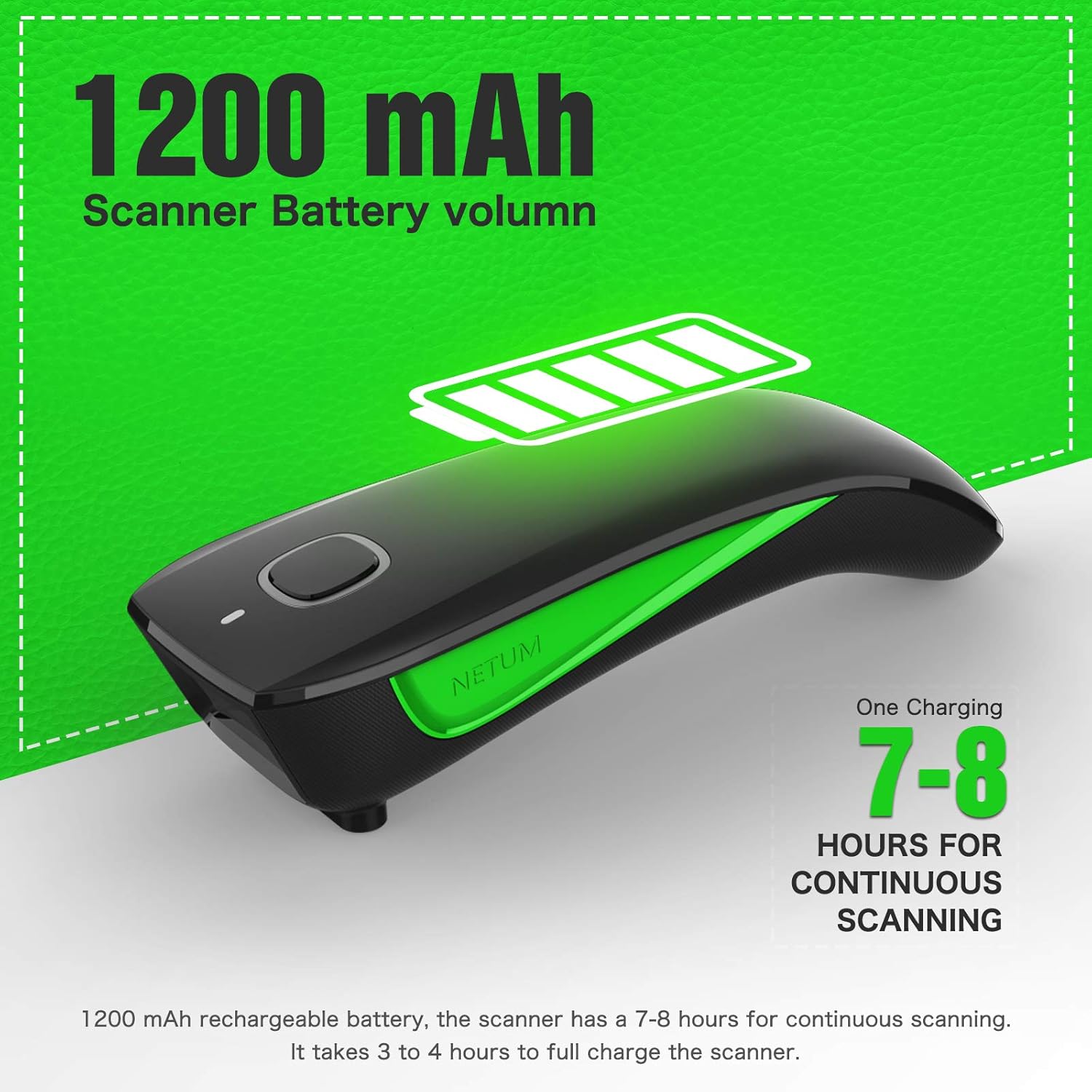
Figure 5.1: The scanner's 1200 mAh battery provides 7-8 hours of continuous scanning after a 3-4 hour charge.
5.2 Connection Modes
The NETUM C740 offers three versatile connection options:

Figure 5.2: The portable barcode scanner supports USB Wired, 2.4Ghz Wireless, and Bluetooth connections.
5.2.1 Bluetooth Wireless Connection
This mode allows the scanner to connect wirelessly to Bluetooth-enabled devices like smartphones, tablets, and laptops. The transmission distance is approximately 10m (33ft) in environments with obstacles and up to 20m (65ft) in barrier-free environments.
- Turn on the scanner using the physical power switch.
- Enable Bluetooth on your host device (e.g., iPhone, Android phone).
- Search for available Bluetooth devices. The scanner will appear as "NETUM Bluetooth" or similar.
- Select the scanner to pair. Once connected, you can begin scanning.
Video 5.1: Demonstrates how to connect the NETUM C740 scanner via Bluetooth to both iOS and Android devices. It shows enabling Bluetooth, searching for the scanner, and successfully pairing.
5.2.2 2.4G Wireless Connection
For devices without Bluetooth or for a more stable connection, use the 2.4G wireless USB dongle. The transmission distance is approximately 30m (99ft) in environments with obstacles and up to 50m (164ft) in barrier-free environments.
- Plug the 2.4G wireless USB dongle into an available USB port on your computer or host device.
- Turn on the scanner. It should automatically connect to the dongle.
- The scanner is now ready for use.
Video 5.2: Illustrates plugging in the 2.4G wireless USB dongle into a laptop for connection.
5.2.3 USB Wired Connection
For a direct and reliable connection, or while charging, use the USB wired mode. This is a plug-and-play connection.
- Connect the USB cable to the scanner's USB Type-C port.
- Connect the other end of the USB cable to a USB port on your computer or host device.
- The scanner will be recognized by your device and is ready for use.
Video 5.3: Shows how to connect the scanner using the USB wired connection.
6. Operation
6.1 Basic Scanning
To scan a barcode, ensure the scanner is connected to your device via one of the methods described in Section 5.2. Open a text editor, spreadsheet, or any application where you want the scanned data to appear. Point the scanner's window at the barcode and press the scan button. The scanner will emit a light beam and a beep (if enabled) upon successful decoding, and the barcode data will appear on your screen.
Video 6.1: Demonstrates basic barcode scanning using the Bluetooth connection, with data appearing on a smartphone.
Video 6.2: Shows scanning barcodes using the 2.4G wireless connection, with data being input into a laptop.
Video 6.3: Demonstrates scanning barcodes while connected via USB wired mode.
6.2 Decoding Ability
The NETUM C740 is equipped with a CCD sensor, allowing it to decode 1D barcodes from various surfaces, including:
- Printed paper labels
- Digital screens (computer monitors, smartphones, tablets)
- Barcodes through glass surfaces or plastic shrink wrap
Video 6.4: Shows the scanner's decoding ability on various 1D barcodes, including those on products and test charts, demonstrating its versatility.
6.3 Data Upload Modes
The scanner supports two primary data upload modes:
- Instant Upload Mode: Barcode data is transmitted directly to your connected device as soon as it is scanned. This is ideal for real-time data entry.
- Storage Mode: If the scanner is out of range or not connected, it can store scanned barcodes in its internal flash memory. It can store approximately 2000 Code128 barcodes. Data can then be batch uploaded to your device when a connection is re-established.
7. Maintenance
To ensure the longevity and optimal performance of your NETUM C740 barcode scanner, follow these maintenance guidelines:
- Cleaning: Regularly wipe the scanner's exterior with a soft, dry, lint-free cloth. For the scanning window, use a lens cleaning cloth or a soft cloth lightly dampened with a mild, non-abrasive cleaner. Avoid harsh chemicals or abrasive materials.
- Battery Care: To maximize battery life, avoid fully discharging the battery frequently. If storing the scanner for an extended period, charge it to about 50% and store it in a cool, dry place. Recharge every few months to prevent deep discharge.
- Storage: Store the scanner in a clean, dry environment away from extreme temperatures, direct sunlight, and corrosive materials.
- Handling: Handle the scanner with care to prevent drops or impacts that could damage internal components.
8. Troubleshooting
If you encounter issues with your NETUM C740 scanner, refer to the following common problems and solutions:
| Problem | Possible Cause | Solution |
|---|---|---|
| Scanner does not turn on. | Low battery; Power switch off. | Charge the scanner fully. Ensure the physical power switch is in the 'ON' position. |
| Cannot connect via Bluetooth. | Bluetooth not enabled on device; Scanner not in pairing mode; Interference. | Ensure Bluetooth is on and discoverable on your device. Turn the scanner off and on again to re-enter pairing mode. Move closer to the device or away from other wireless devices. |
| Scanned data does not appear. | Not connected; Incorrect application focus; Corrupted barcode. | Verify connection status. Ensure the cursor is active in the desired input field. Try scanning a different, known-good barcode. |
| Poor scanning performance. | Dirty scanning window; Damaged barcode; Insufficient lighting. | Clean the scanning window. Ensure the barcode is clear and undamaged. Provide adequate lighting for the barcode. |
| Data is incorrect or incomplete. | Partial scan; Incorrect barcode type setting. | Ensure the entire barcode is within the scanning beam. Refer to the full user manual (PDF) for advanced configuration settings related to barcode types. |
For more detailed troubleshooting or advanced configurations, please refer to the comprehensive User Manual (PDF) available for download or contact NETUM customer support.
9. Specifications
| Feature | Detail |
|---|---|
| Model Number | C740 |
| Product Dimensions | 4.72 x 1.57 x 1.18 inches (124 x 41 x 25 mm) |
| Item Weight | 6.3 ounces |
| Connectivity Technology | USB Cable, 2.4G Wireless, Bluetooth |
| Sensor Type | CCD |
| Barcode Types Supported | 1D barcodes (e.g., CODE128, UPC/EAN Add on 2 or 5) |
| Battery | 1 Lithium Metal battery (included), 1200mAh |
| Battery Life (Continuous Scan) | 7-8 hours |
| Charging Time | 3-4 hours |
| Storage Capacity | Approx. 2000 Code128 barcodes (in storage mode) |
| Compatible Devices | Laptops, PCs, mobile phones, tablets, POS systems |
| Operating Systems | Windows, Mac OS, Linux, Android, iOS |
10. Warranty and Support
NETUM products are manufactured under strict quality control standards. For warranty information, please refer to the documentation included with your product or visit the official NETUM website. If you require technical assistance or have questions not covered in this manual, please contact NETUM customer support.
Additional resources:
- Official User Manual (PDF): Download PDF
- NETUM Official Website: www.netum.net
Related documentsC740


Ask a question about this manual
Ask about setup, troubleshooting, compatibility, parts, safety, or missing instructions. Manuals+ will review the question and use this page’s manual context to help answer it.