
1. Introduction
This manual provides essential information for the proper setup, operation, and maintenance of your i-Life Zed Note CX3 13.3-inch Convertible Laptop. Please read this guide thoroughly before using your device to ensure optimal performance and longevity. Keep this manual for future reference.
2. Product Overview
The i-Life Zed Note CX3 is a versatile 13.3-inch convertible laptop featuring a 360-degree hinge and a touchscreen display, allowing it to function as both a traditional laptop and a tablet. It is powered by an Intel Core i3 processor, 8GB of RAM, and a 256GB SSD, running on Windows 10.
2.1 Key Features
- 13.3-inch Full HD (1920x1080) Touchscreen Display
- 360-degree Convertible Design
- Intel Core i3-5005U Processor
- 8GB DDR3 RAM
- 256GB SSD Storage
- Integrated Intel HD Graphics 5500
- Windows 10 Home Operating System
2.2 Physical Components and Ports
Familiarize yourself with the various ports and components of your laptop.

Figure 1: The i-Life Zed Note CX3 laptop in stand mode, displaying the screen and visible side ports including USB and HDMI.
- USB 3.0 Port: For connecting high-speed USB devices.
- USB Type-C Port: For data transfer.
- HDMI Port: For connecting to external displays.
- MicroSD Card Slot: For expanding storage or transferring files.
- Audio Jack: For headphones or external speakers.
- Power Input: For connecting the AC adapter.
- Webcam: Integrated camera for video calls and conferencing.
- Microphone: Built-in for audio input.
3. Setup
3.1 Initial Charging and Power On
- Connect the provided AC adapter to the laptop's power input port and then to a power outlet.
- Allow the laptop to charge for at least 30 minutes before initial use, or until the battery indicator shows sufficient charge.
- Press the power button located on the side or top edge of the laptop to turn it on.
3.2 Windows 10 First-Time Setup
Upon first boot, you will be guided through the Windows 10 setup process. Follow the on-screen instructions to:
- Select your region and language.
- Connect to a Wi-Fi network.
- Accept the license terms.
- Create or sign in with a Microsoft account.
- Set up a PIN or password.
- Adjust privacy settings.
3.3 Connecting to Wi-Fi
During the initial setup, you will be prompted to connect to a wireless network. If you skip this step or need to connect later:
- Click the Wi-Fi icon in the taskbar (usually in the bottom-right corner).
- Select your desired network from the list.
- Click 'Connect' and enter the network security key (password) if prompted.
4. Operating Instructions
4.1 Using Convertible Modes
The Zed Note CX3 features a 360-degree hinge, allowing it to be used in various modes:
- Laptop Mode: Traditional laptop configuration for typing and productivity.
- Tent Mode: Fold the laptop into an inverted 'V' shape for media consumption or presentations.
- Stand Mode: Position the keyboard face down to use the screen as a display.
- Tablet Mode: Fold the screen completely back against the base for a tablet experience. Windows 10 will automatically suggest switching to Tablet Mode for optimized touch interaction.

Figure 2: The i-Life Zed Note CX3 laptop configured in tent mode, showcasing the Windows 10 operating system interface.
4.2 Touchscreen and Touchpad Usage
- Touchscreen: Use gestures similar to a smartphone or tablet for navigation, scrolling, and selecting items.
- Touchpad: Supports multi-touch gestures. Tap to click, two-finger scroll, pinch-to-zoom, and three-finger swipe for task view or desktop navigation.
4.3 Connecting External Devices
- USB Devices: Insert USB drives, mice, keyboards, or other peripherals into the available USB 3.0 or Type-C ports.
- External Display: Connect an HDMI cable from the laptop's HDMI port to an external monitor or TV. You may need to adjust display settings in Windows (right-click desktop > Display settings).
- MicroSD Card: Insert a MicroSD card into the dedicated slot for additional storage or file transfer.
5. Maintenance
5.1 Cleaning the Device
- Use a soft, lint-free cloth slightly dampened with water or a screen cleaner to wipe the display.
- For the keyboard and chassis, use a soft, dry cloth. Avoid harsh chemicals or abrasive materials.
- Periodically use compressed air to clear dust from vents and ports.
5.2 Battery Care
- Avoid fully discharging the battery frequently.
- Store the laptop in a cool, dry place if not used for extended periods, with the battery charged to about 50%.
- Use only the original or an approved replacement AC adapter.
5.3 Software Updates
Regularly check for and install Windows updates to ensure system stability, security, and performance. Go to Settings > Update & Security > Windows Update.
6. Troubleshooting
This section addresses common issues you might encounter with your i-Life Zed Note CX3.
6.1 No Power / Laptop Not Turning On
- Ensure the AC adapter is securely connected to both the laptop and a working power outlet.
- Verify the power outlet is functional by plugging in another device.
- Try a hard reset: Disconnect the AC adapter, press and hold the power button for 15-20 seconds, then reconnect and try to power on.
6.2 Wi-Fi Connectivity Issues
- Check if Wi-Fi is enabled in Windows (Settings > Network & Internet > Wi-Fi).
- Restart your router and modem.
- Forget the network and reconnect by entering the password again.
- Update your Wi-Fi drivers via Device Manager.
6.3 Slow Performance
- Close unnecessary applications running in the background.
- Check for and install any pending Windows updates.
- Run a disk cleanup and defragmentation (for HDD, not necessary for SSD).
- Scan for malware or viruses.
- Ensure your SSD has sufficient free space (at least 15-20%).
6.4 Touchscreen Not Responding
- Restart the laptop.
- Check Device Manager for any issues with the touchscreen driver. Try updating or reinstalling it.
- Ensure the screen is clean and free of debris.
7. Specifications
Detailed technical specifications for the i-Life Zed Note CX3 laptop.
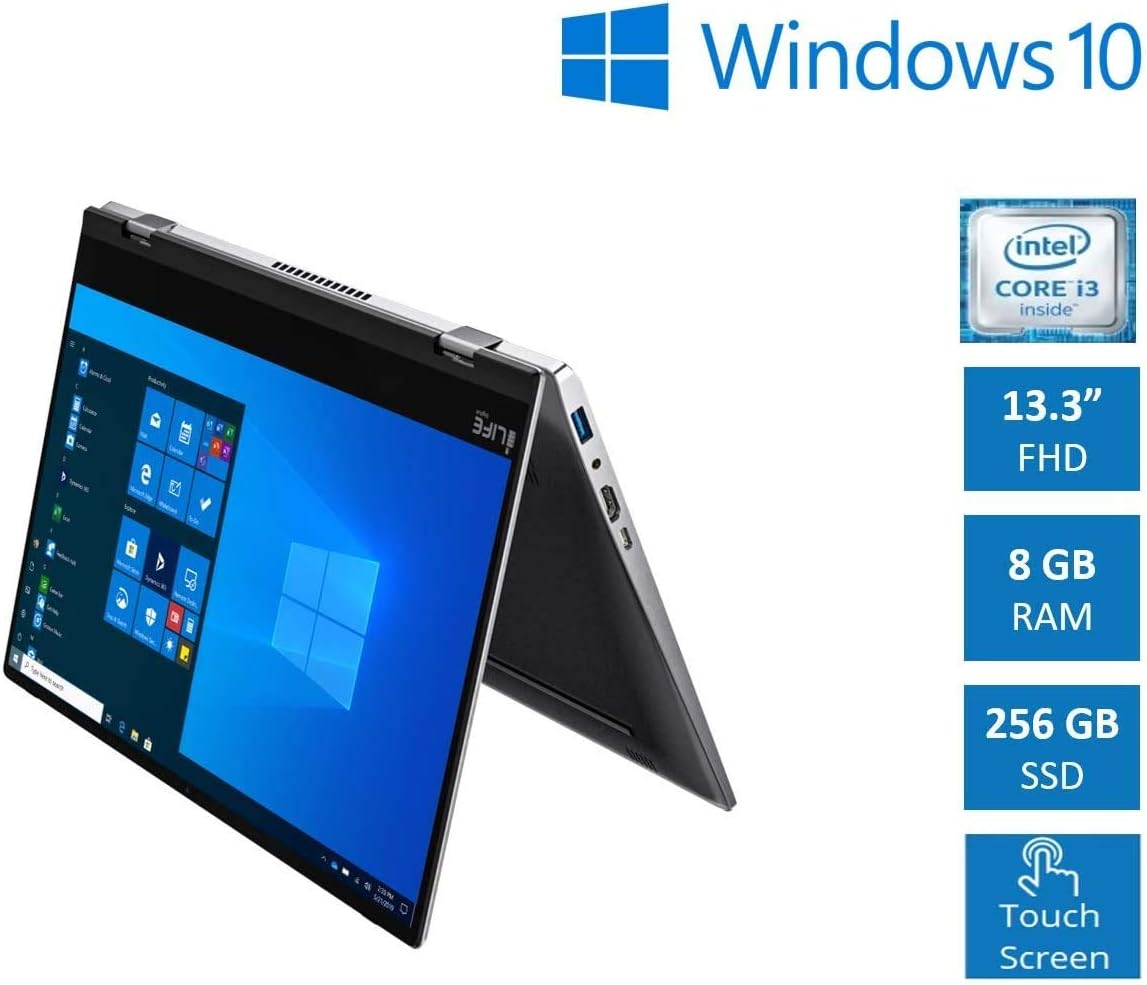
Figure 3: The i-Life Zed Note CX3 laptop highlighting its key features and specifications.
| Feature | Specification |
|---|---|
| Brand | i-Life |
| Model Name | Zed Note CX3 |
| Screen Size | 13.3 Inches |
| Screen Resolution | 1920 x 1080 Pixels (Full HD) |
| Processor | Intel Core i3-5005U (2.4 GHz, 2 Cores) |
| RAM Size | 8 GB DDR3 |
| Hard Drive Size | 256 GB SSD |
| Graphics Coprocessor | Intel HD Graphics 5500 (Integrated) |
| Operating System | Windows 10 Home |
| Connectivity | Bluetooth, Wi-Fi (802.11a/b/g/n/ac) |
| Ports | 1x USB 3.0, 1x USB Type-C, 1x HDMI, MicroSD Card Reader, Audio Jack |
| Special Features | Touch Screen, Convertible (360-degree hinge) |
| Battery Life (Average) | 4 Hours (Lithium Ion, 37.5 Watt Hours) |
| Item Weight | 1.5 Kilograms |
| Product Dimensions | 30.7 x 21 x 1.5 cm |
8. Warranty and Support
For warranty information and technical support, please refer to the documentation included with your purchase or visit the official i-Life website. Keep your proof of purchase for warranty claims.
For general inquiries or further assistance, you may contact i-Life customer service through their official channels.