
Introduction
Welcome to the Marvo M422 USB Gaming Mouse user manual. This guide provides detailed instructions for setting up, operating, maintaining, and troubleshooting your new gaming mouse. The Marvo M422 is designed for gaming, featuring an optical sensor, RGB lighting, and 7 programmable buttons for an enhanced gaming experience.
Package Contents
The Marvo M422 USB Gaming Mouse package typically includes:
- Marvo M422 USB Gaming Mouse
- User Manual (this document)
Setup
Follow these steps to set up your Marvo M422 USB Gaming Mouse:
Connect the Mouse: Locate an available USB port on your computer (PC or Laptop) or PlayStation 4 console. Insert the USB connector of the Marvo M422 mouse into the USB port.

Image: The Marvo M422 USB Gaming Mouse, showing its USB cable for connection.
Driver Installation: The Marvo M422 is a plug-and-play device. Your operating system (Windows, macOS, Linux) or PlayStation 4 will automatically detect and install the necessary drivers. This process may take a few moments.
Confirmation: Once the drivers are installed, the mouse's RGB lighting will illuminate, indicating it is ready for use. You can now move the mouse and click buttons to confirm functionality.
Operating Instructions
The Marvo M422 features 7 buttons and adjustable DPI settings for optimal performance.
Button Functions
- Left Click Button: Primary action button.
- Right Click Button: Secondary action button, typically for context menus.
- Scroll Wheel: Scrolls content up or down. Can also be pressed for a middle-click function.
- DPI Button: (Located behind the scroll wheel) Cycles through different DPI sensitivity settings. Each press changes the sensitivity, often indicated by a change in LED color or pattern.
- Forward Button: (Side button) Navigates forward in web browsers or file explorers.
- Backward Button: (Side button) Navigates backward in web browsers or file explorers.
- Programmable Buttons: The 7 buttons are programmable, allowing for custom assignments via compatible software (if available).
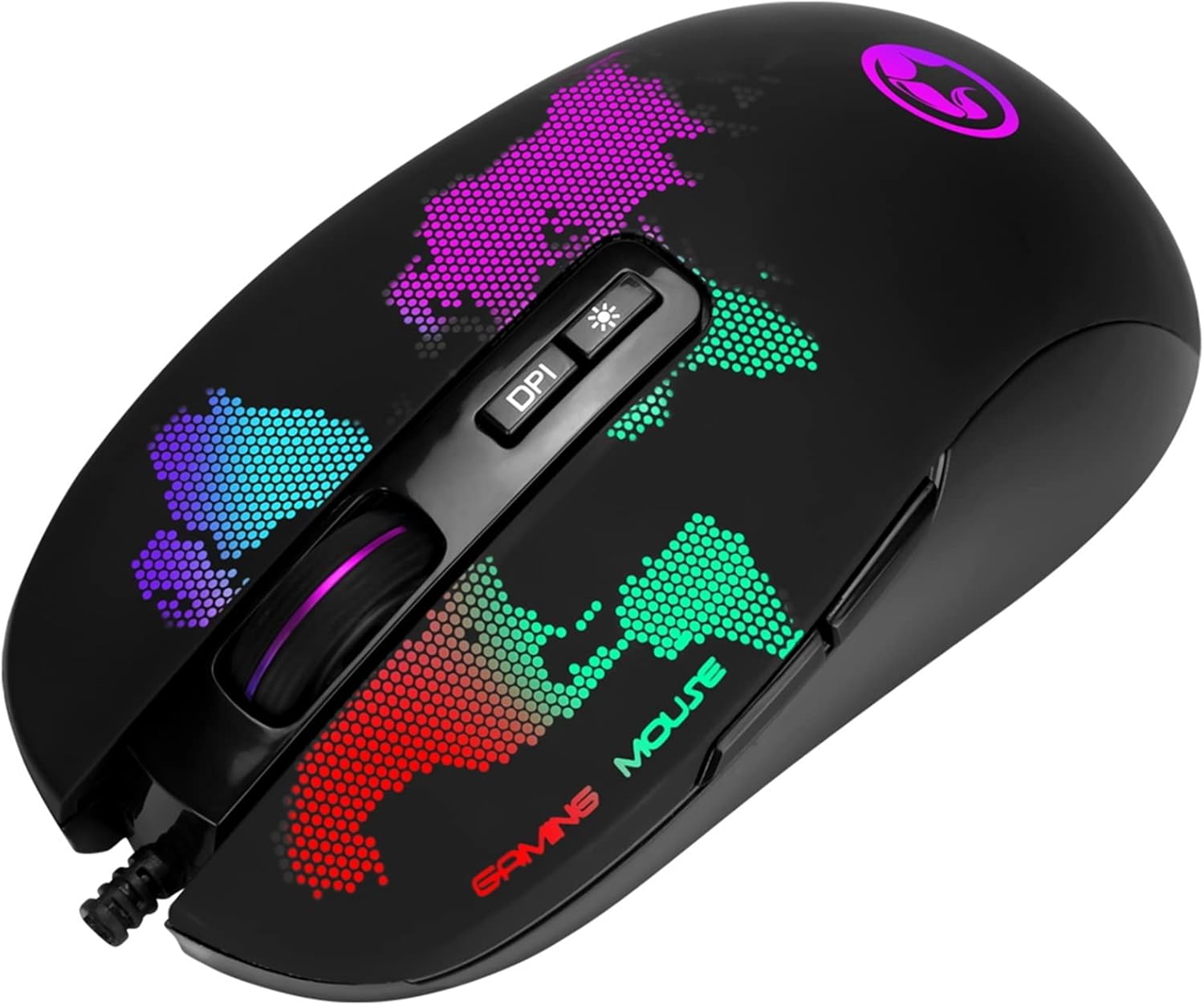
Image: Top view of the Marvo M422 mouse, highlighting the DPI button and scroll wheel.
Adjusting DPI Sensitivity
Press the DPI button (located behind the scroll wheel) to cycle through the available DPI settings. The mouse features a 4800 DPI optical sensor, allowing for precise control. Each press will adjust the cursor speed, enabling you to find the optimal sensitivity for your tasks or games.

Image: Angled view of the Marvo M422 mouse, showcasing its dynamic RGB lighting.
RGB Lighting
The Marvo M422 features integrated RGB LED lighting. The lighting patterns and colors may change based on the selected DPI setting or can be customized via dedicated software (if available, please check the manufacturer's website for software availability).
Maintenance
Proper care ensures the longevity and performance of your Marvo M422 mouse.
- Cleaning: Use a soft, dry cloth to wipe the surface of the mouse. For stubborn dirt, slightly dampen the cloth with water. Avoid using harsh chemicals or abrasive materials.
- Sensor Care: Keep the optical sensor on the underside of the mouse clean and free from dust or debris. Use a cotton swab or compressed air if necessary.
- Cable Management: Avoid sharp bends or excessive pulling on the USB cable to prevent damage.
- Storage: When not in use, store the mouse in a clean, dry environment away from extreme temperatures.
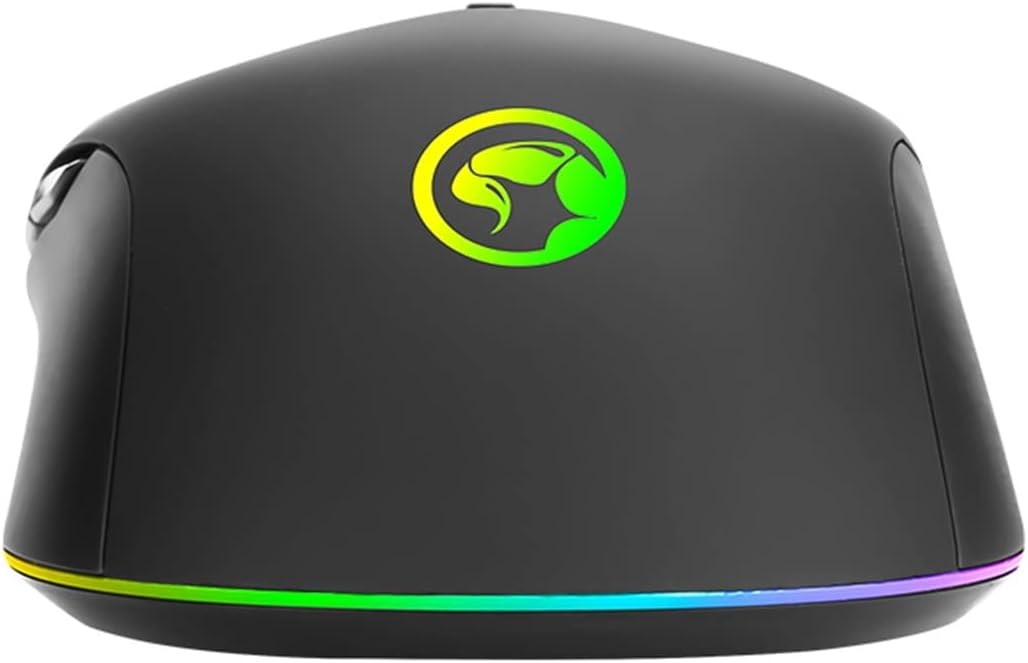
Image: Rear view of the Marvo M422 mouse, showing the base and the continuous RGB light strip.
Troubleshooting
If you encounter issues with your Marvo M422 mouse, refer to the following common solutions:
- Mouse Not Responding:
- Ensure the USB cable is securely plugged into a working USB port. Try a different USB port or a different computer/console to rule out port issues.
- Restart your computer or console.
- Cursor Movement is Erratic or Jumpy:
- Clean the optical sensor on the underside of the mouse.
- Ensure you are using the mouse on a suitable surface (e.g., a mouse pad). Avoid highly reflective or transparent surfaces.
- Buttons Not Working:
- Check for any physical obstructions.
- If using custom software, ensure settings are correctly configured.
- RGB Lighting Not Working:
- Verify the mouse is properly connected and powered.
- If applicable, check any software settings for RGB control.
Specifications
| Feature | Detail |
|---|---|
| Brand | Marvo |
| Model Number | M422 |
| Connectivity | USB |
| Sensor Type | Optical |
| DPI | Up to 4800 DPI |
| Number of Buttons | 7 (Programmable) |
| Lighting | RGB LED |
| Hand Orientation | Ambidextrous |
| Recommended Use | Gaming |
| Compatible Devices | PC, Laptop, PlayStation 4 |
| Product Dimensions | 12.6 x 6.7 x 4 cm |
| Item Weight | 218 grams |
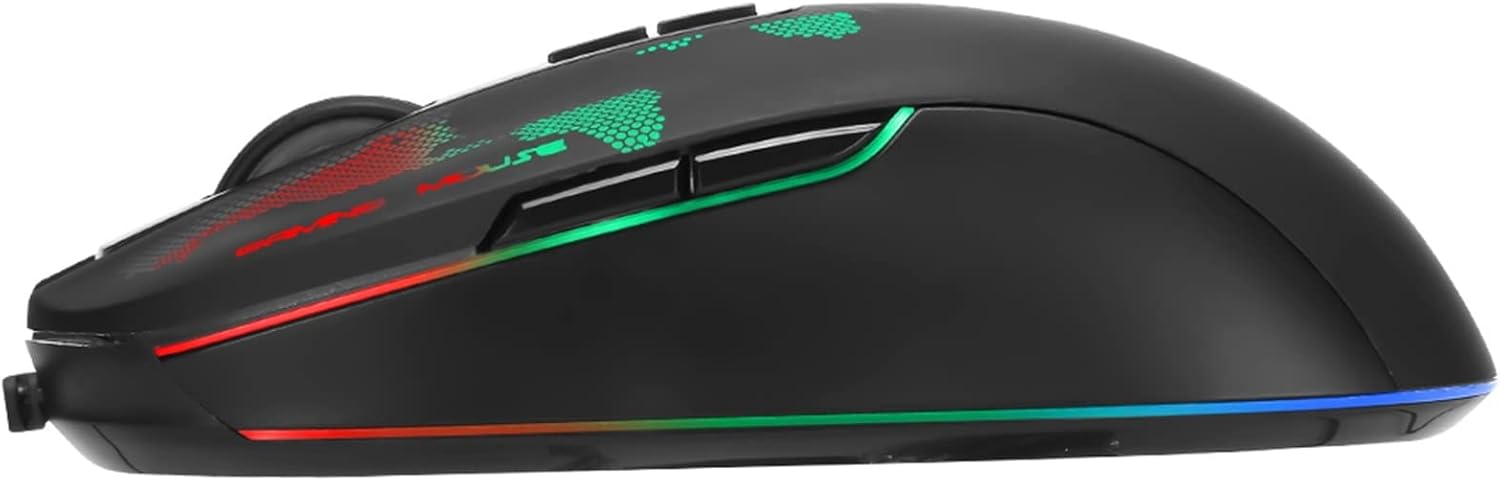
Image: Side view of the Marvo M422 mouse, illustrating the ergonomic design and side buttons.
Warranty Information
Marvo products are manufactured to high-quality standards. For specific warranty details, please refer to the warranty card included with your product or visit the official Marvo website. Keep your purchase receipt as proof of purchase for any warranty claims.
Support
For further assistance, technical support, or inquiries regarding your Marvo M422 USB Gaming Mouse, please visit the official Marvo support website or contact their customer service department.
You can often find support resources, FAQs, and driver downloads (if applicable) on the manufacturer's website.
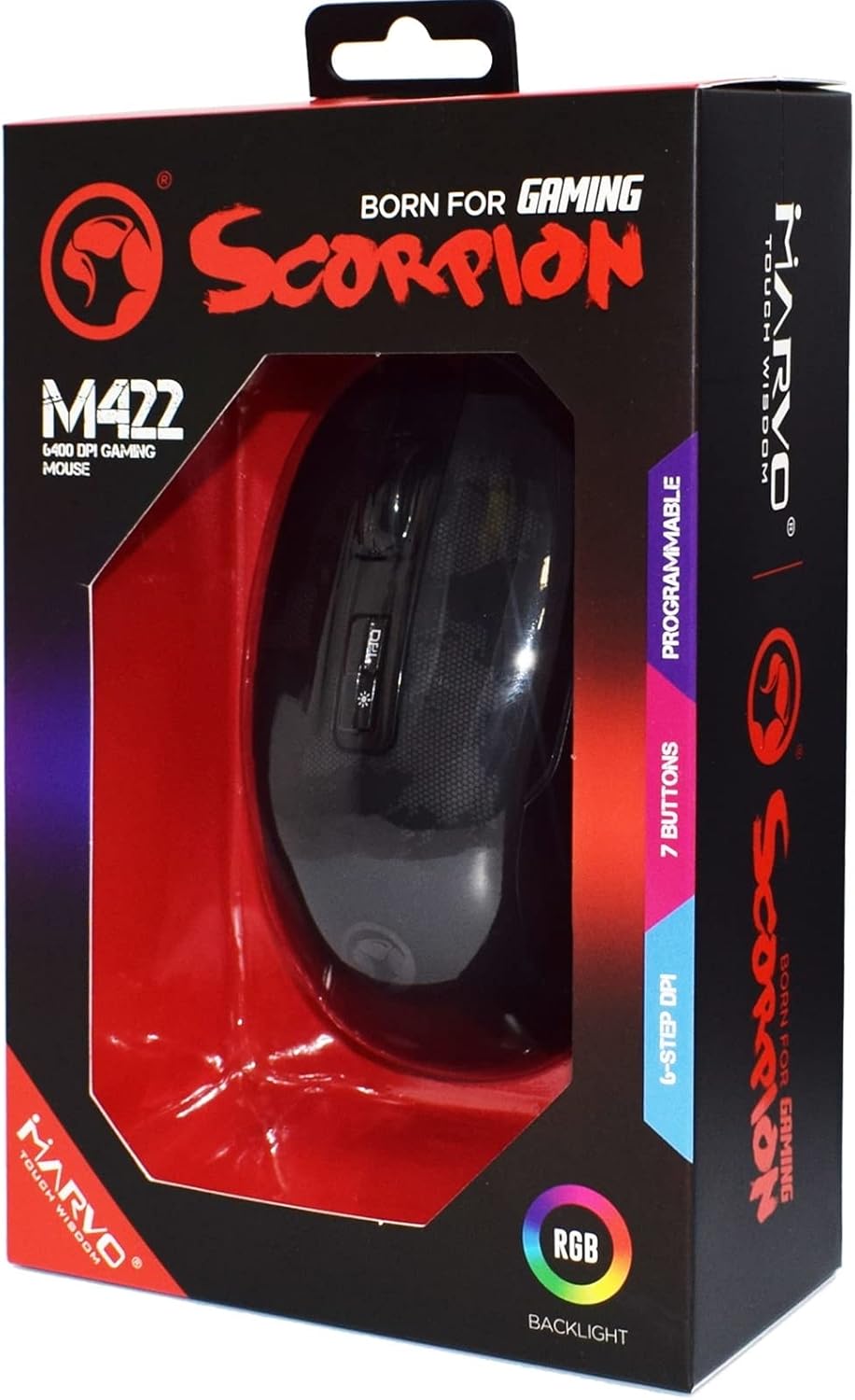
Image: The retail packaging for the Marvo M422 Gaming Mouse, showing product branding and key features.


