
moonka ZN-DP1002
moonka 10.1-inch WiFi Digital Photo Frame User Manual
Model: ZN-DP1002 | Brand: moonka
1. Introduction
Thank you for purchasing the moonka 10.1-inch WiFi Digital Photo Frame. This device allows you to easily share and display your precious photos and videos with family and friends, no matter where they are. Featuring a high-resolution touch panel, human sensor, and ample storage, this digital photo frame is designed for convenience and enjoyment. Please read this manual thoroughly before use to ensure proper operation and to maximize your experience.
2. Safety Precautions
- Do not expose the device to water or excessive humidity.
- Avoid placing the device in direct sunlight or near heat sources.
- Use only the provided power adapter.
- Do not attempt to disassemble or repair the device yourself. Contact customer support for assistance.
- Keep out of reach of children to prevent accidents.
- Ensure proper ventilation around the device during operation.
3. Package Contents
Please check the package for the following items:
- moonka 10.1-inch WiFi Digital Photo Frame
- Power Adapter
- User Manual (this document)
- Stand (pre-attached or separate)

Image: The moonka digital photo frame packaging, indicating it's ready for gifting.
4. Product Overview
Familiarize yourself with the components of your digital photo frame.
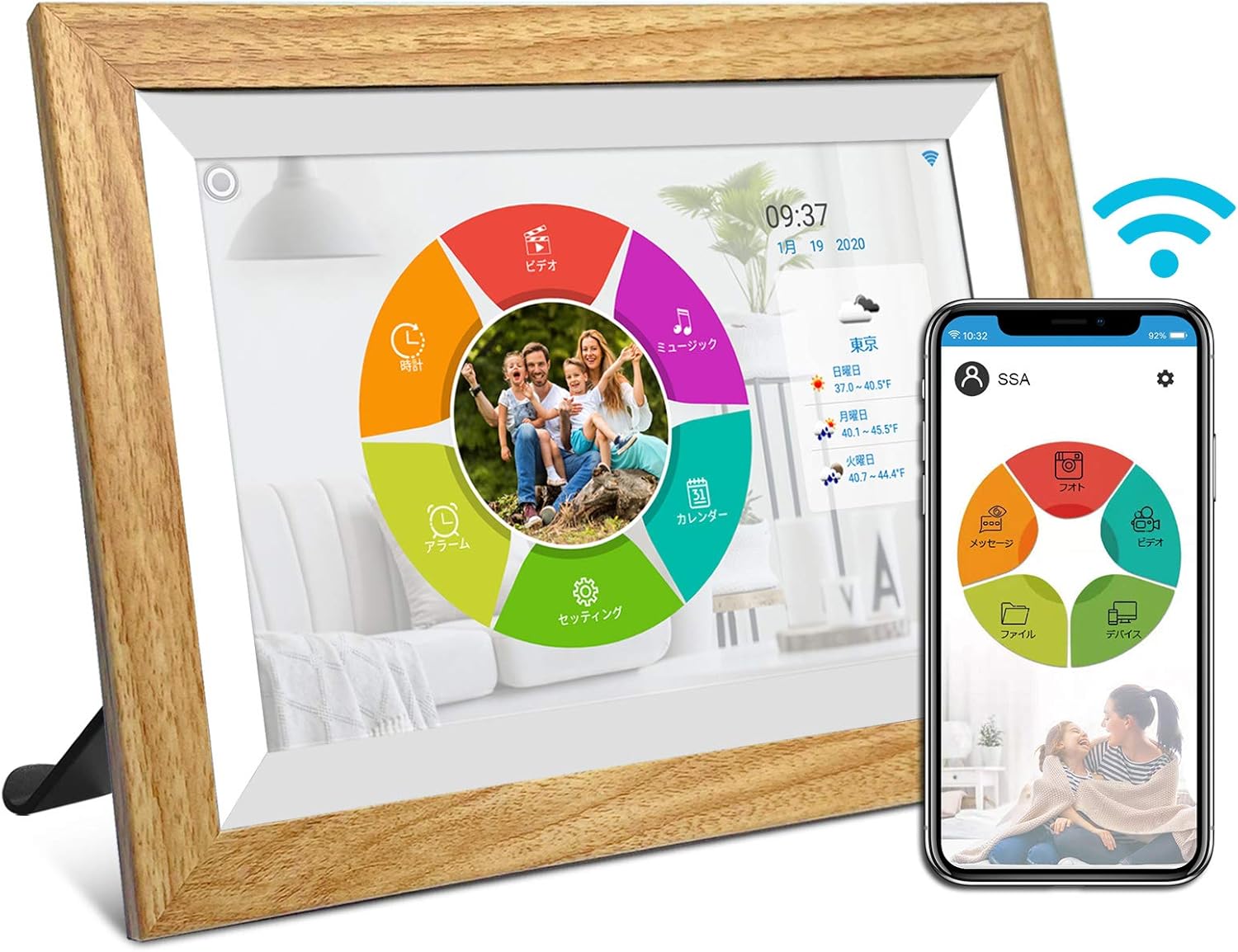
Image: Front view of the moonka digital photo frame, showing its 10.1-inch display and a smartphone displaying the companion app interface.

Image: Rear view of the moonka digital photo frame, highlighting the Reset button, Type-C port, and Micro SD card slot.
Key Features:
- 10.1-inch IPS Touch Panel: High-resolution (1280x800) display with wide viewing angles for vibrant photo and video playback.
- Wi-Fi Connectivity: Seamlessly transfer photos and videos from your smartphone via a dedicated app.
- Human Sensor: Automatically turns the frame on when motion is detected, saving energy.
- 32GB Internal Storage: Ample space to store approximately 20,000 photos or 3,000 15-second videos.
- MicroSD Card Support: Expand storage up to 32GB for additional media.
- Automatic Screen Rotation: Photos and videos adjust automatically to horizontal or vertical orientation.
- Multimedia Playback: Supports photo slideshows, video playback, and music playback.
- Additional Functions: Includes clock, calendar, and weather display.

Image: Visual representation of the frame's features including WiFi, human sensor, touch panel, 32GB memory, IPS wide viewing angle, auto-correction, photo, music, video, clock, calendar, and weather functions.
5. Setup
5.1 Initial Power On
- Connect the power adapter to the DC IN port on the back of the frame.
- Plug the power adapter into a wall outlet.
- The frame will automatically power on. Follow the on-screen instructions for initial setup.
5.2 Network Connection (Wi-Fi)
- On the frame's screen, navigate to Settings.
- Select Wi-Fi and turn it on.
- Choose your desired Wi-Fi network from the list.
- Enter the Wi-Fi password using the on-screen keyboard and tap Connect.
- Once connected, a Wi-Fi icon will appear on the status bar.
5.3 App Installation and Pairing
To share photos and videos from your smartphone, download the dedicated "SSA WiFi Frame" app.
- Download the "SSA WiFi Frame" app from the Google Play Store (for Android) or Apple App Store (for iOS).
- Open the app and create an account.
- On your digital photo frame, go to Settings > Device Info to find your unique pairing code.
- In the app, enter this pairing code to connect your smartphone to the photo frame.
- Once paired, you can easily send photos and videos to the frame from anywhere.
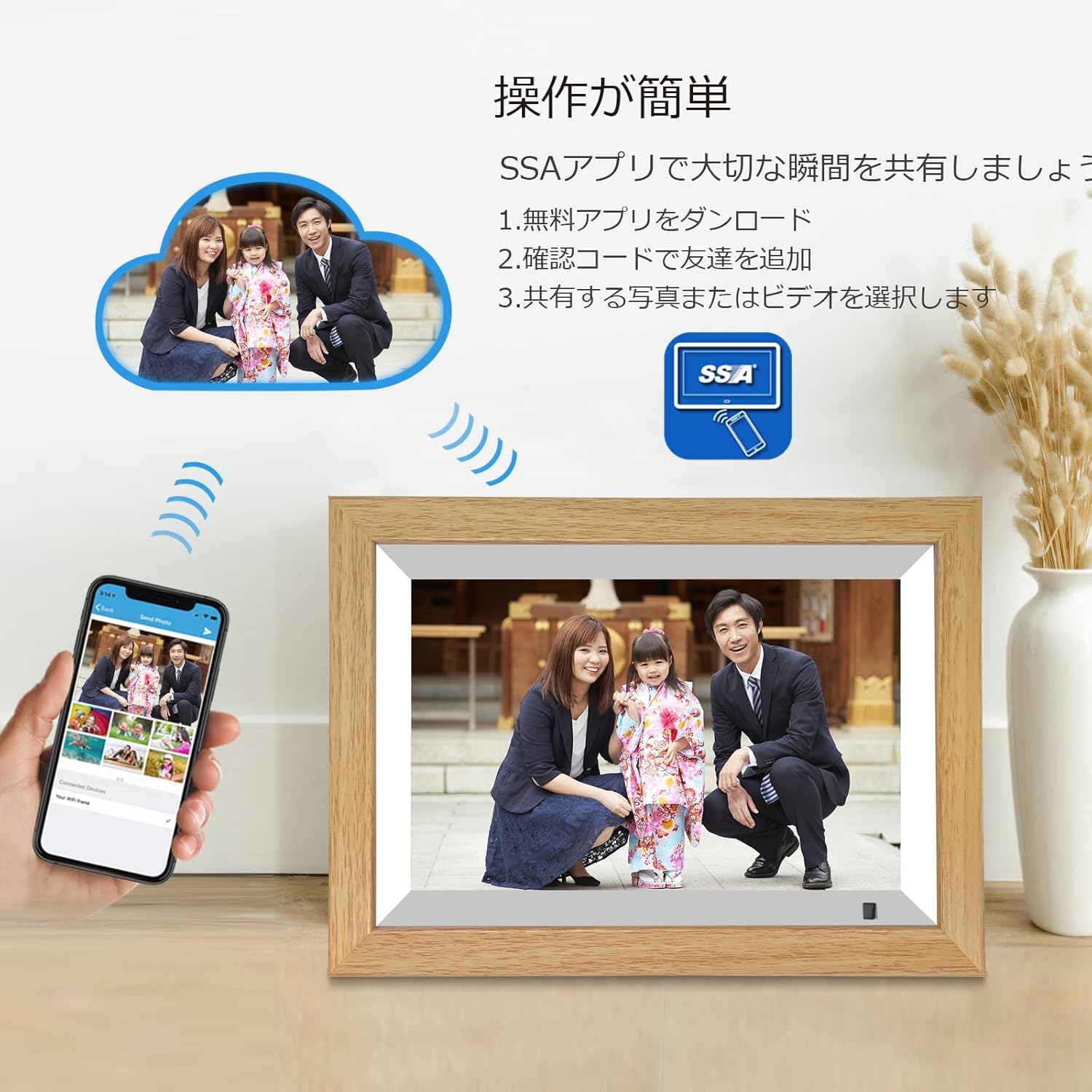
Image: A visual guide demonstrating the simple steps to share photos and videos using the SSA app, including downloading the app, adding friends via a confirmation code, and selecting media to share.

Image: The digital photo frame displaying a family photo, with a smartphone showing the SSA app interface. Below, icons for Google Play and the App Store indicate where to download the "SSA WiFi Frame" app.
6. Operating Instructions
6.1 Touch Panel Navigation
The moonka digital photo frame features a responsive touch panel for easy navigation. Tap icons to select, swipe to scroll, and pinch to zoom (where applicable).
6.2 Photo and Video Playback
- From the main menu, select Photos or Videos to browse your media.
- Tap on a file to view it.
- Photos will automatically enter a slideshow mode. You can adjust slideshow settings (interval, transition effects) in the Settings menu.
- Videos will play automatically.

Image: A family enjoying shared photos on the digital photo frame, emphasizing the ease of instant sharing from anywhere.
6.3 Human Sensor Function
The built-in human sensor detects motion and automatically turns the screen on or off to save power. This feature can be enabled or disabled in Settings.

Image: A digital photo frame on a shelf, with a human sensor icon and animated figures indicating motion detection, showing the frame activating as a person approaches.
6.4 Automatic Screen Rotation
The frame automatically adjusts the display orientation (horizontal or vertical) based on how it is positioned. This ensures your photos and videos are always displayed correctly.

Image: Two digital photo frames, one in vertical orientation and one in horizontal, demonstrating the automatic image orientation correction feature.
6.5 Storage Management
The frame comes with 32GB of internal storage. You can also insert a MicroSD card (up to 32GB) into the dedicated slot for additional storage.
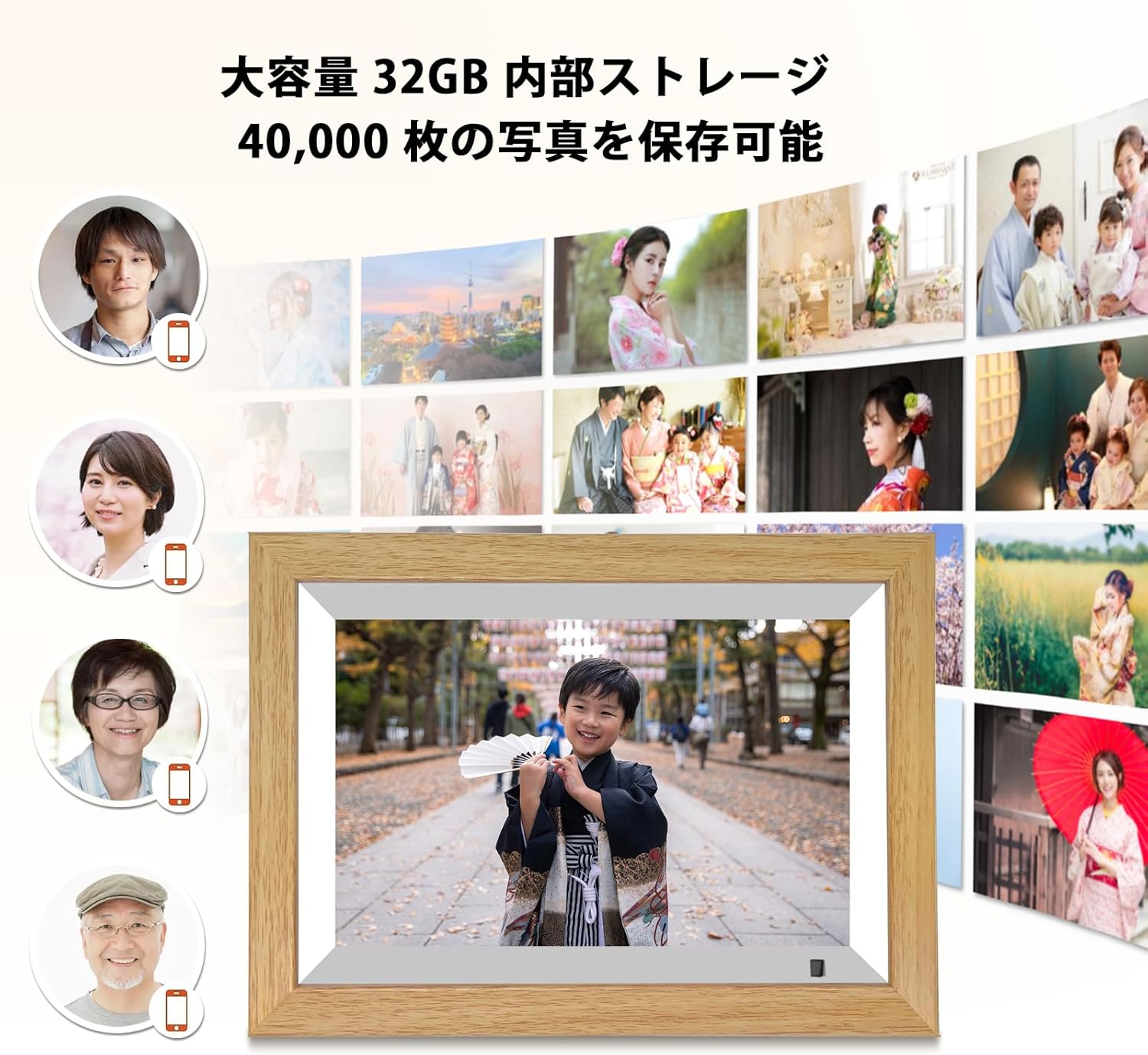
Image: A digital photo frame displaying a child's photo, surrounded by smaller images and icons indicating 32GB large capacity internal storage, capable of saving 40,000 photos.
6.6 Other Functions
- Music Player: Play background music during slideshows or as a standalone feature.
- Clock & Calendar: Display current time and date.
- Weather: Get local weather updates (requires internet connection).
7. Maintenance
- Cleaning: Use a soft, dry cloth to clean the screen and frame. Do not use liquid cleaners or abrasive materials.
- Storage: When not in use for extended periods, store the frame in a cool, dry place.
- Software Updates: Periodically check for firmware updates in the Settings menu to ensure optimal performance and new features.
8. Troubleshooting
| Problem | Possible Cause | Solution |
|---|---|---|
| Frame does not power on. | Power adapter not connected or faulty. | Ensure power adapter is securely connected to the frame and wall outlet. Try a different outlet. |
| Cannot connect to Wi-Fi. | Incorrect password, weak signal, or network issue. | Double-check Wi-Fi password. Move frame closer to router. Restart router and frame. |
| Photos/Videos not displaying. | Unsupported file format, corrupted files, or storage issue. | Ensure files are in supported formats (e.g., JPEG for photos, MP4 for videos). Try re-uploading files. Check storage space. |
| Human sensor not working. | Sensor disabled or obstructed. | Check sensor settings in the menu. Ensure nothing is blocking the sensor. |
| Screen freezes or becomes unresponsive. | Temporary software glitch. | Press the Reset button on the back of the frame (use a thin object like a paperclip). |
9. Specifications
| Feature | Detail |
|---|---|
| Brand | moonka |
| Model Number | ZN-DP1002 |
| Screen Size | 10.1 inches |
| Resolution | 1280 x 800 (HD) |
| Display Type | IPS Touch Panel |
| Internal Storage | 32GB |
| External Storage | MicroSD card (up to 32GB) |
| Connectivity | Wi-Fi |
| Special Features | Human Sensor, Auto-Rotation, Music Playback, Clock, Calendar, Weather |
| Product Dimensions | Approx. 4 x 3 x 2.51 cm (950g) |
10. Warranty and Support
This moonka digital photo frame comes with a 1-year warranty from the date of purchase. If you encounter any issues with the product, please contact our customer service center. We offer prompt phone support to resolve product problems quickly, avoiding delays often associated with email or message responses.
Within the 1-year warranty period, we offer exchange or refund for product quality defects. Please note that this warranty does not cover defects caused by customer misuse or accidental damage.
Contact Information:
Please refer to the contact details provided on the product packaging or our official website for the most up-to-date customer service information.
For more information, visit the moonka Brand Store.
Ask a question about this manual
Ask about setup, troubleshooting, compatibility, parts, safety, or missing instructions. Manuals+ will review the question and use this page’s manual context to help answer it.