1. Introduction
The ANCEL FX1000 is a professional vehicle diagnostic tool designed to read and clear trouble codes, view live data, and perform various special functions for a single-car manufacturer. It supports full OBD service modes and is compatible with vehicles manufactured from 1996 onwards. This manual provides detailed instructions for setting up and operating your device.
2. Product Features
- Full OBDII Service Modes: Supports 8 OBDII service modes for comprehensive diagnostics.
- Multi-System Diagnostics: Capable of diagnosing all major vehicle systems including Engine, Transmission, SRS (Supplemental Restraint System), SAS (Steering Angle Sensor), TPMS (Tire Pressure Monitoring System), ABS (Anti-lock Braking System), and more.
- Special Functions: Includes advanced functions such as DPF (Diesel Particulate Filter) Regeneration, Battery Replacement, ABS Bleeding, Oil Service Reset, EPB (Electronic Parking Brake) Reset, and Throttle Position Adaption.
- Multi-Language Support: Supports 7 languages: English, French, Spanish, German, Russian, Polish, and Portuguese.
- Manufacturer-Specific Tool: Designed for a single-car manufacturer, allowing in-depth diagnostics for a specific brand's vehicle series.
- Lifetime Free Online Updates: Ensures your device always has the latest software and vehicle coverage.
3. Package Contents
Your ANCEL FX1000 package should include the following items:
- ANCEL FX1000 Diagnostic Tool
- OBDII Connection Cable
- Micro USB Cable (for PC connection and updates)
- Download Guide
- Hard Shell Carrying Case
4. Device Layout
Familiarize yourself with the buttons and ports on your ANCEL FX1000 device for optimal operation.

Image: ANCEL FX1000 device showing LCD display, Return button, Scroll Left/Right/Up/Down buttons, Fn button, and Ok button. Dimensions are also indicated.
- LCD Display: Shows diagnostic information and menu options.
- Return Button: Navigates back to the previous screen or menu.
- Scroll Buttons (Up/Down/Left/Right): Used to navigate through menus and select options.
- Fn Button: Function button, may have context-specific uses.
- OK Button: Confirms selections or enters sub-menus.
- OBDII Connector: Connects the device to the vehicle's OBDII port.
- USB Port: For connecting to a computer for software updates.
5. Setup and Connection
Follow these steps to connect your ANCEL FX1000 to your vehicle:
- Locate your vehicle's OBDII port. This is typically found under the dashboard on the driver's side.
- Ensure the vehicle's ignition is ON, but the engine is NOT running. For push-button start vehicles, press the start button until all dashboard lights illuminate without starting the engine.
- Plug the OBDII connector from the ANCEL FX1000 into your vehicle's OBDII port. The device will power on automatically.
- Once powered on, the device is ready for use.
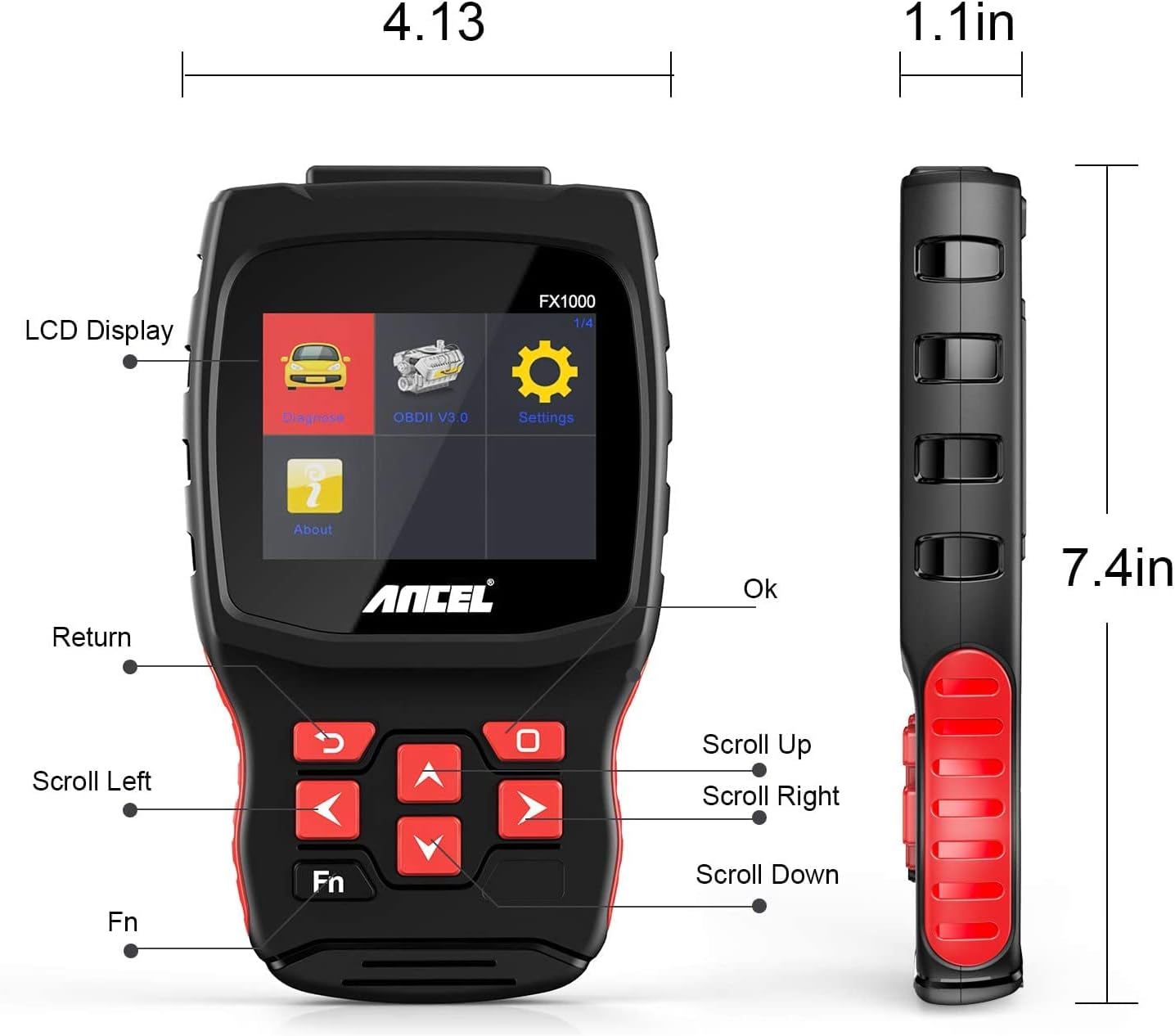
Image: A hand holding the ANCEL FX1000 connected to a vehicle's OBDII port, with the car's dashboard visible.
6. Navigation and Settings
The ANCEL FX1000 features a user-friendly interface. Use the arrow buttons to navigate and the OK button to select.
- Diagnose: Access vehicle-specific diagnostic functions.
- OBDII V3.0: Access general OBDII functions for all compatible vehicles.
- Settings: Configure device preferences.
- About: View device information such as serial number, firmware version, and software version.
Settings Menu Options:
- Language: Change the display language.
- Unit: Switch between Celsius and Fahrenheit for temperature readings.
- Beep: Enable or disable audible feedback.
- Record: View recorded diagnostic data.
- Button Test: Test the functionality of the device buttons.
- LCD Test: Test the LCD display.
7. System Diagnostics
The ANCEL FX1000 allows you to perform in-depth diagnostics on various vehicle systems. After selecting 'Diagnose' and your vehicle's manufacturer (e.g., Toyota), you can choose specific systems.
Image: Visual representation of systems diagnosed by FX1000, including Engine, ABS, TPMS, Transmission, Oil Service, Airbag, Battery, Audio, and Headlight Activate.
Diagnostic Functions:
- Read Trouble Code: Retrieves current, pending, and history Diagnostic Trouble Codes (DTCs).
- Clear Trouble Code: Erases DTCs from the vehicle's computer.
- Read Data Stream: Displays real-time data parameters from the vehicle's sensors.
- Active Test: Allows bidirectional control to test specific components.
- Special Function: Accesses advanced maintenance and service functions.
8. Special Functions
The ANCEL FX1000 offers several special functions for vehicle maintenance:

Image: Visual representation of special functions including Oil Service Reset, ABS Bleeding, TPMS Reset, and EPB Reset.
- Oil Service Reset: Resets the oil service light after an oil change.
- ABS Bleeding: Performs bleeding functions for the Anti-lock Braking System.
- EPB Reset: Resets the Electronic Parking Brake system.
- Throttle Position Adaption: Adapts the throttle position sensor.
- DPF Regeneration: Initiates the regeneration process for the Diesel Particulate Filter.
- Battery Replacement: Registers new battery replacements.
9. OBDII Functions (General)
The 'OBDII V3.0' menu provides general diagnostic functions compatible with all OBDII-compliant vehicles (1996 and newer).
- Read Current Trouble Code: Displays active DTCs.
- Clear Trouble Code: Erases all stored DTCs.
- Read Current Data: View live sensor data.
- Read Pending Trouble Code: Displays DTCs that have not yet fully matured.
- Read Freeze Frame Data: Shows a snapshot of vehicle conditions when a DTC was set.
- Readiness Tests: Checks the status of emission-related monitors.
Readiness Test:
The Readiness Test is crucial for emissions inspections. It indicates whether various emission control systems have completed their self-tests. Look for 'Complete' or 'Supported' status for all monitors. If a monitor shows 'Not Complete' or 'Not Supported', it may indicate an issue or that the drive cycle has not been completed.
10. Clearing Trouble Codes
To clear trouble codes, navigate to the 'Clear Trouble Code' option within the relevant diagnostic menu. The device will prompt you to confirm. After clearing, it is recommended to cycle the vehicle's ignition off and on to ensure all related warning lights are reset.
Note: The ANCEL FX1000 can only read and clear SRS error codes; it does NOT support SRS reset functions.
11. Software Update
To ensure your ANCEL FX1000 has the latest vehicle coverage and features, regular software updates are recommended. The device offers lifetime free online updates.
- Connect the device to your computer using the provided Micro USB cable.
- Follow the instructions in the 'Download Guide' included in your package to install the update software on your computer.
- Register your device using the serial number and your email address.
- Select the specific car manufacturer software you need for your device.
- Perform the update as prompted by the software.

Image: ANCEL FX1000 connected via USB cable to a laptop, illustrating the update process.
12. Troubleshooting
If you encounter issues while using your ANCEL FX1000, refer to the following common scenarios: