
Introduction
The MOTOSPEED K23 Mechanical Numeric Keypad is a wired 21-key mini numpad designed for enhanced data entry and convenience. Featuring professional mechanical blue switches, it provides tactile feedback and an audible click for precise key presses. Its plug-and-play design with a Type-C USB interface ensures easy setup without the need for additional drivers. The keypad is built for durability with 50 million keystroke lifespan and an ergonomic design to reduce wrist fatigue, making it suitable for various users including laptop users, financial professionals, and cashiers.
Package Contents
- MOTOSPEED K23 Mechanical Numeric Keypad
- USB Type-C Cable
Setup
- Connect the Keypad: Insert the USB Type-C cable into the port on the MOTOSPEED K23 keypad.
- Connect to Computer: Plug the other end of the USB Type-C cable into an available USB port on your PC or desktop computer.
- Plug and Play: The keypad is plug-and-play, requiring no additional drivers for operation. It is compatible with Windows 2000 / XP / Vista / 7 / 8 / 10 operating systems.

Image: The MOTOSPEED K23 keypad connected to a laptop via its USB Type-C interface, illustrating the simple plug-and-play setup.
Operating Instructions
Key Functions
The K23 keypad features 21 keys, including standard numeric keys and extended function keys such as Esc, Tab, NumLock, and Delete. The 'Fn' key can be combined with the 'Delete' key to switch its function to an '=' sign, providing additional utility.
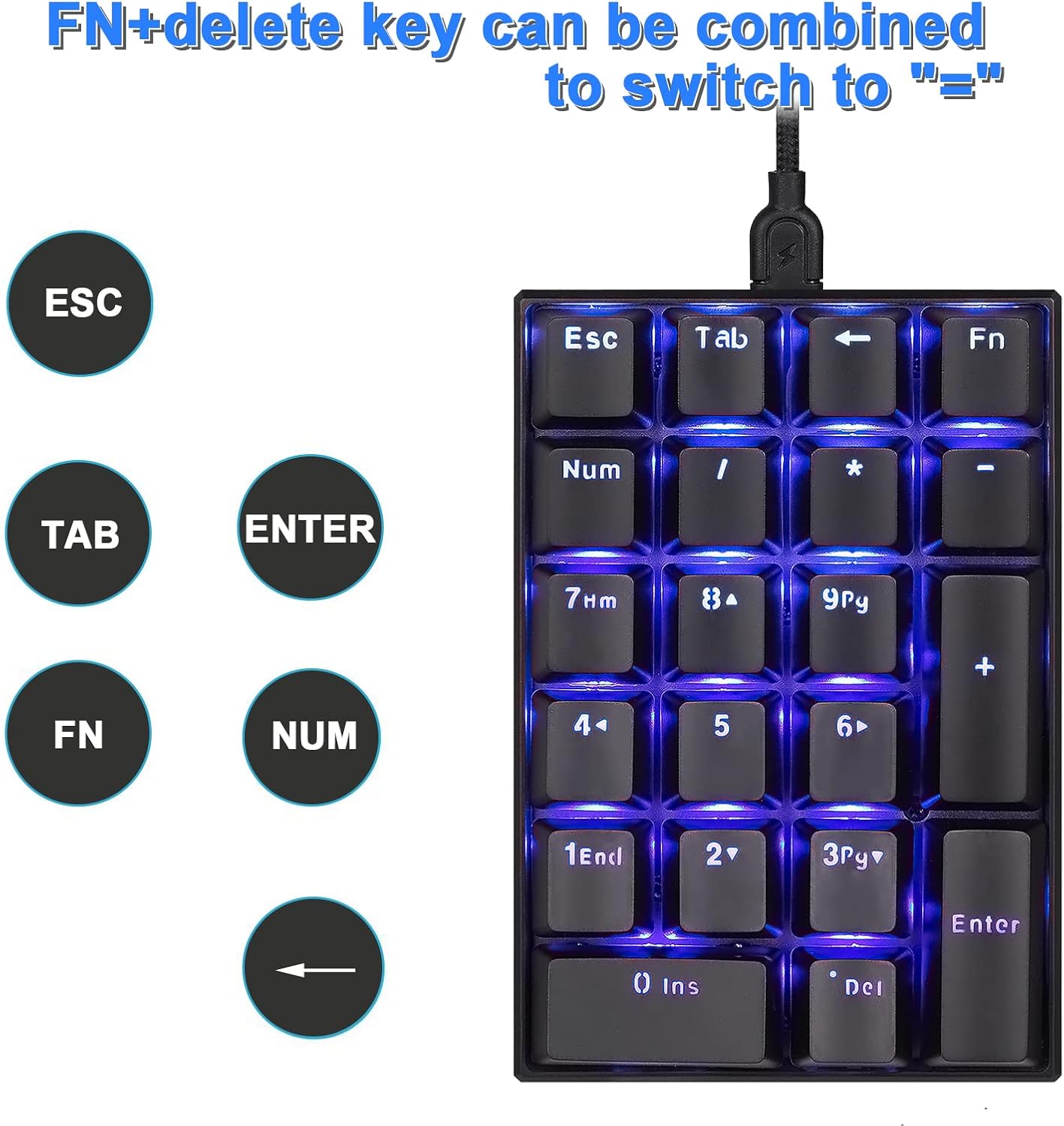
Image: Illustration of the 'Fn' key functionality, allowing the 'Delete' key to act as an '=' sign when pressed in combination.

Image: The keypad highlighting shortcut keys, including the ability to quickly open the computer calculator.
Mechanical Blue Switches
The keypad is equipped with professional mechanical blue switches, known for their tactile bump and audible click. These switches provide a distinct feedback, ensuring fast and precise key presses, which is beneficial for typing and data entry tasks.
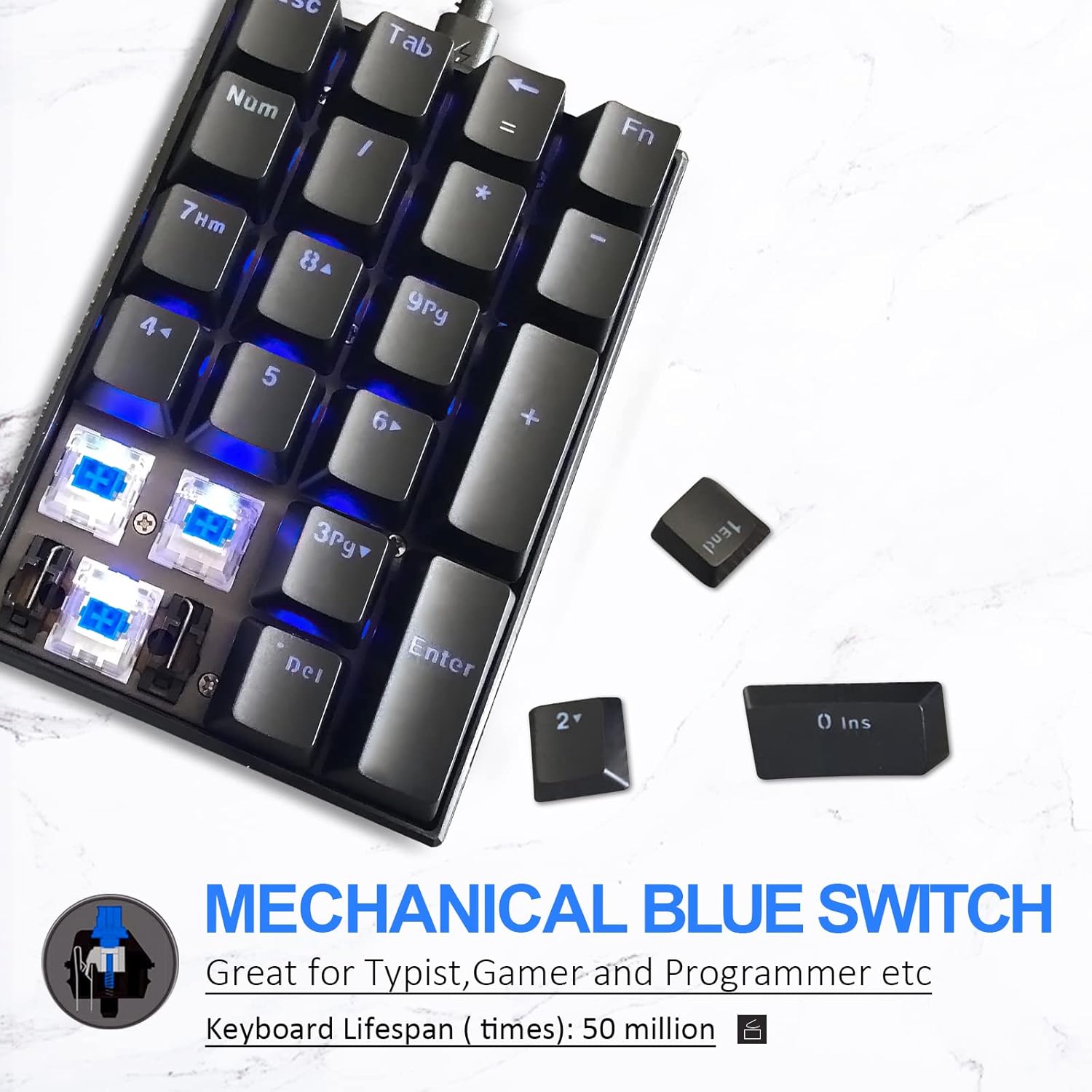
Image: A close-up view of the MOTOSPEED K23 keypad, showcasing the mechanical blue switches and their blue backlighting.
Ergonomic Design
The keypad features a stepped keycap design and a spring-type ergonomic structure. This design is intended to fit comfortably with your hands, helping to prevent wrist fatigue during prolonged use.

Image: The MOTOSPEED K23 keypad demonstrating its ergonomic tilt design, intended to reduce wrist strain.

Image: A hand positioned on the keypad, illustrating the comfortable and ergonomic design for extended use.
Product Overview Video
Video: An official overview of the Motospeed K23 Mechanical Numeric Keypad, showcasing its features and design.
Maintenance
Durability
The MOTOSPEED K23 is constructed with ABS material, designed to withstand tough conditions and ensure a lifespan of 50 million keystrokes. The key characters are engineered to resist fading over time.
Cleaning
To maintain the keypad's performance and appearance, regularly clean it with a soft, dry cloth. For deeper cleaning, you may use a can of compressed air to remove dust and debris from between the keys. Avoid using harsh chemicals or abrasive materials.
Troubleshooting
Keypad Not Recognized
- Check USB Connection: Ensure the USB Type-C cable is securely plugged into both the keypad and your computer.
- USB-C Orientation: If using a USB 2.0 port, try flipping the USB-C cable upside down and re-inserting it, as some USB 2.0 devices may only be compatible in one orientation despite the reversible nature of USB-C connectors.
- Try Different USB Port: Connect the keypad to a different USB port on your computer to rule out a faulty port.
- Restart Computer: A simple computer restart can often resolve connectivity issues.
Backlight Issues
- Check Switch on Back: The keypad has a switch on the back to turn the blue LED backlight on or off. Ensure it is in the desired position.
Specifications
| Feature | Detail |
|---|---|
| Brand | MOTOSPEED |
| Model Name | K23 |
| Connectivity Technology | USB Type-C |
| Switch Type | Mechanical Blue Switches |
| Number of Keys | 21 |
| Keyboard Backlighting | Single Color (Blue) |
| Material | Acrylonitrile Butadiene Styrene (ABS) |
| Compatible Devices | Laptop, PC, Desktop Computers |
| Operating System Compatibility | Windows 2000 / XP / Vista / 7 / 8 / 10 |
| Item Weight | 0.2 Kilograms |
Warranty and Support
For warranty information or technical support, please refer to the documentation included with your purchase or contact MOTOSPEED customer service directly. Keep your proof of purchase for any warranty claims.

