
1. Introduction
This manual provides comprehensive instructions for the ACASIS M.2 NVMe & SATA to USB C Docking Station (Model M04). This device is designed to facilitate high-speed data transfer and easy access to M.2 NVMe and SATA-based SSDs via a USB-C connection. Please read this manual thoroughly before use to ensure proper operation and longevity of your device.

Figure 1: ACASIS M.2 NVMe & SATA to USB C Docking Station
2. Product Features
- Super-Speed 10Gbps Data Transfer: Utilizes USB 3.2 Type-C for data transfer speeds up to 10Gbps, enabling quick backup of large files.
- Superior Heat Dissipation: Constructed from high-quality aluminum alloy to effectively dissipate heat, ensuring optimal performance and extending SSD lifespan.
- Toaster-Style Design: Features an open, horizontal design for easy, tool-free insertion and removal of M.2 SSDs, enhancing airflow and cooling.
- Tool-Free & Driver-Free Operation: Plug-and-play functionality with no tools or drivers required for M.2 SSD installation.
- Wide SSD Compatibility: Supports M.2 PCIe NVMe M Key/B+M Key SSDs and SATA-based SSDs (B+M Key) in sizes 2230, 2242, 2260, and 2280.
- High Capacity Support: Capable of backing up up to 8TB of data.
- Broad OS Compatibility: Works with Windows XP/2000/7/8/10/Vista, Linux, and macOS 10.3 or higher.
3. Package Contents
- ACASIS M.2 SSD Docking Station
- USB-C to USB-A Cable with USB-A to USB-C Adapter
- User Manual
Video 1: Unboxing and overview of the ACASIS NVMe to USB Docking Station.
4. Setup and Installation
The ACASIS M.2 Docking Station features a tool-free design for easy installation of your M.2 SSD.
- Insert the M.2 SSD: Gently align your M.2 NVMe or SATA SSD with the slot on the docking station and push it down firmly until it is securely seated. The toaster-style design allows for direct plugging.
- Connect to Computer: Use the provided USB-C to USB-A cable (or USB-C to USB-C if your computer supports it) to connect the docking station to an available USB port on your computer. For optimal performance, use a USB 3.2 Gen 2 (10Gbps) port.
- Power On: Press the power switch on the docking station. The indicator light will illuminate, signifying that the device is powered on and ready for use.
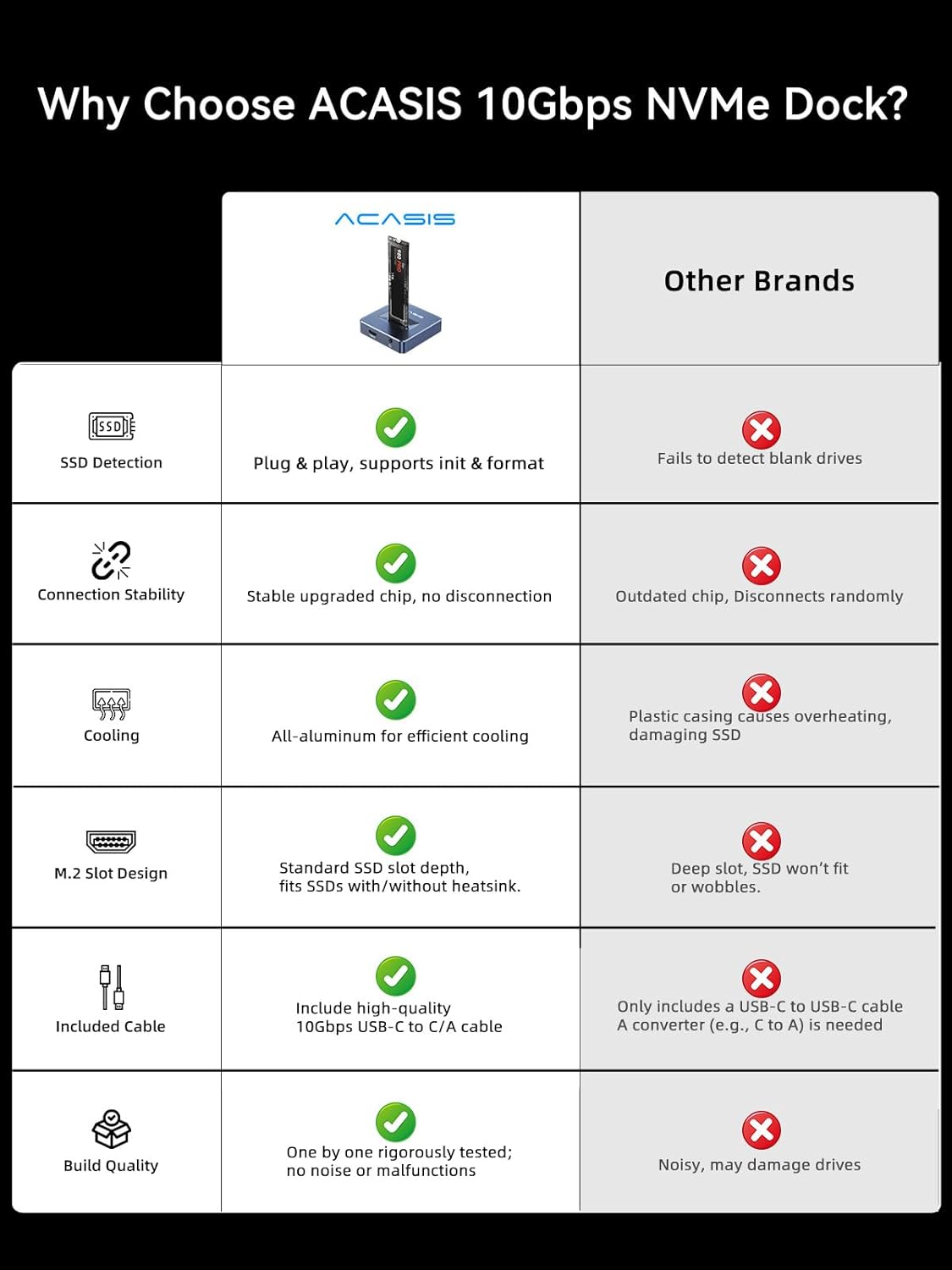
Figure 2: Step-by-step installation guide for the M.2 SSD docking station.

Figure 3: Tool-free installation of an M.2 SSD.
5. Operating Instructions
Once connected and powered on, your computer should automatically detect the M.2 SSD. You can then access, transfer, or manage data on the SSD as you would with any other external storage device.
- Accessing Data: The SSD will appear as a removable drive in your operating system's file explorer (e.g., File Explorer on Windows, Finder on macOS).
- Data Transfer: Drag and drop files to and from the SSD for high-speed data transfer.
- Formatting: If the SSD is new or requires reformatting, use your operating system's disk management tools to initialize and format the drive.
- Safe Removal: Always safely eject the drive from your operating system before disconnecting the docking station to prevent data corruption.

Figure 4: Illustrating 10Gbps data transfer speed with the docking station.
6. Compatibility
The ACASIS M.2 Docking Station offers broad compatibility with various SSD types and operating systems.
- SSD Types: Supports M.2 PCIe NVMe M Key and B+M Key SSDs, as well as SATA-based B+M Key SSDs.
- SSD Sizes: Compatible with 2230, 2242, 2260, and 2280 form factors.
- Maximum Capacity: Supports up to 8TB M.2 SSDs.
- Operating Systems: Compatible with Windows XP/2000/7/8/10/Vista, Linux, and macOS 10.3 or higher.

Figure 5: Compatibility overview for M.2 SSDs and operating systems.
7. Specifications
| Feature | Detail |
|---|---|
| Material | Aluminum |
| Item Weight | 56 Grams (1.98 ounces) |
| Memory Storage Capacity | Up to 8 TB |
| Compatible Devices | Personal Computer |
| Max Number of Supported Devices | 1 |
| Data Transfer Rate | 10 Gigabits Per Second (USB 3.2 Gen 2) |
| Manufacturer | ACASIS |
| Product Dimensions | 1.97 x 1.57 x 0.39 inches (50 x 40 x 10 mm) |
| Item Model Number | M04 |
| Hardware Interface | USB |
| Color | Dark Gray |
8. Maintenance
To ensure the longevity and optimal performance of your ACASIS M.2 Docking Station, follow these maintenance guidelines:
- Cleaning: Use a soft, dry cloth to clean the exterior of the docking station. Avoid using liquid cleaners or solvents.
- Storage: Store the device in a cool, dry place away from direct sunlight and extreme temperatures.
- Handling: Handle the docking station and inserted SSDs with care to prevent physical damage. Avoid dropping the device.
- Heat Management: The aluminum housing is designed for heat dissipation. Ensure the device is placed in an area with adequate airflow, especially during prolonged use.
9. Troubleshooting
If you encounter issues with your ACASIS M.2 Docking Station, refer to the following common troubleshooting steps:
- Device Not Recognized:
- Ensure the USB cable is securely connected to both the docking station and your computer.
- Try connecting to a different USB port on your computer.
- Verify that the SSD is correctly inserted into the docking station slot.
- Check your computer's Disk Management (Windows) or Disk Utility (macOS) to see if the drive is detected but uninitialized or unformatted.
- Restart your computer.
- Slow Data Transfer Speeds:
- Ensure you are connected to a USB 3.2 Gen 2 (10Gbps) port on your computer. Older USB ports (e.g., USB 2.0, USB 3.0/3.1 Gen 1) will result in lower speeds.
- Verify that your SSD itself is capable of 10Gbps speeds.
- Avoid transferring many small files simultaneously, as this can reduce overall transfer rates.
- Close other applications that might be consuming system resources or disk I/O.
- Intermittent Disconnections:
- Ensure the USB cable is not loose or damaged. Try a different USB cable if available.
- Avoid placing the docking station near strong electromagnetic interference.
- Ensure the SSD is not overheating. The aluminum casing helps, but extreme ambient temperatures or prolonged heavy use can still cause issues.
10. Warranty and Support
ACASIS is committed to providing high-quality products and customer service.
- Warranty: The product comes with a 365-day money-back guarantee. Please refer to the product packaging or official ACASIS website for detailed warranty terms and conditions.
- Customer Support: For technical assistance or any inquiries, please contact ACASIS customer support at support@acasis.com. Support is available 7x24 hours online.


