1. Introduction
This manual provides detailed instructions for the proper use and maintenance of your Blu Smart Electric Toothbrush. Please read this manual thoroughly before using the product to ensure optimal performance and longevity.
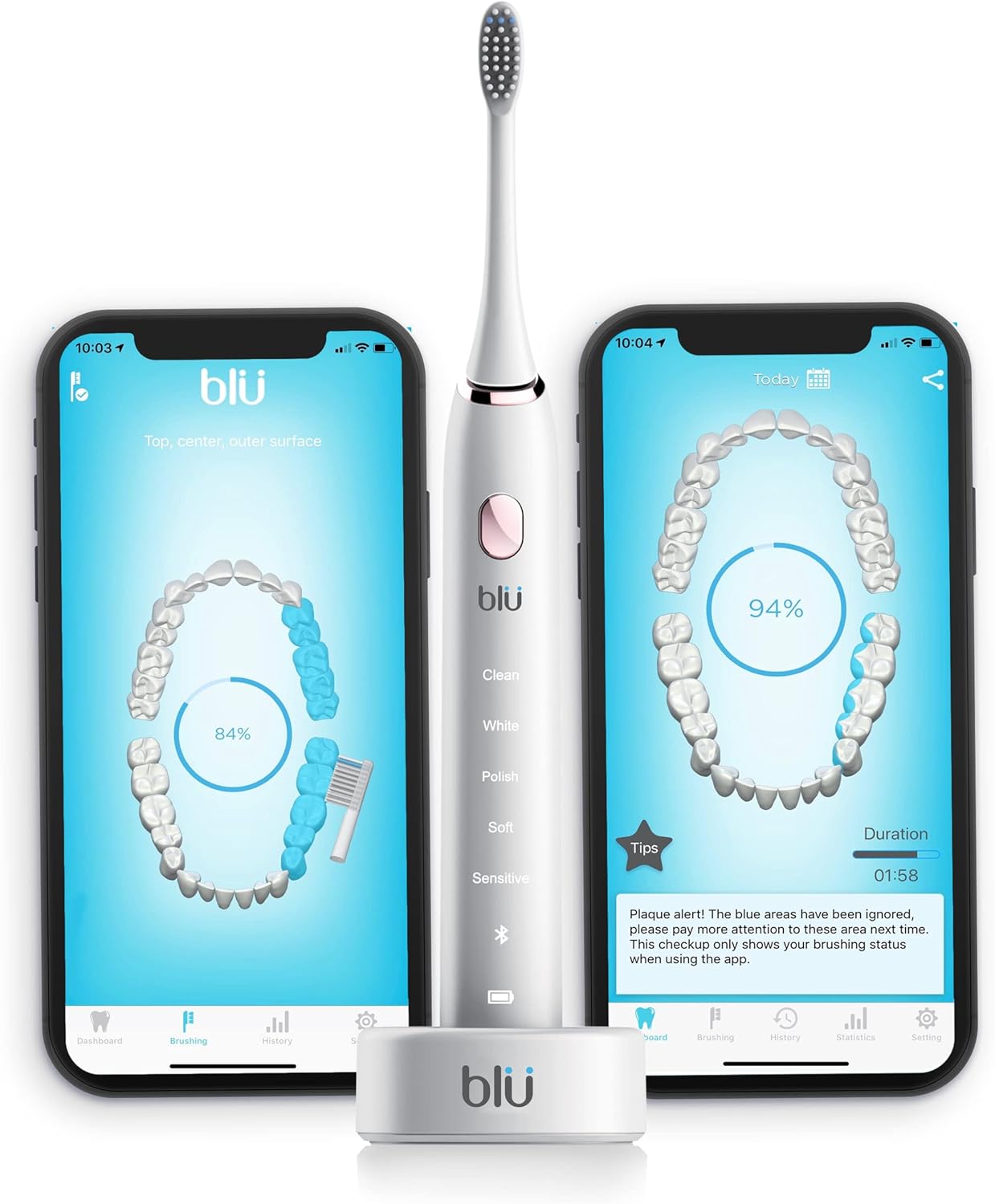
Image: The Blu Smart Electric Toothbrush in white, displayed alongside two smartphones showing the interactive live tracking app interface. The app visualizes brushing coverage and provides feedback.
2. What's in the Box
Upon receiving your Blu Smart Electric Toothbrush package, you will find the following components:
- 1 x Blu Smart Electric Toothbrush Body
- 1 x Wireless Charging Stand
- 2 x Blu Brush Heads

Image: The Blu Smart Electric Toothbrush handle and its wireless charging base. The brush head is detached, showing the connection point.
3. Setup and First Use
3.1. Attaching the Brush Head
The brush heads are designed to fit securely onto the top of the toothbrush body. Align the brush head with the metal shaft on the toothbrush handle and push down firmly until it clicks into place.
3.2. Initial Charging
For the first use, place the toothbrush onto the charging stand with the logo side facing outwards. Charge the toothbrush for a full 8 hours to ensure the battery is fully conditioned. After the initial charge, your toothbrush will last up to one month with regular use (brushing twice a day for the recommended two minutes per session).
The charging stand is USB compatible, allowing for convenient charging via a computer or any USB-compatible device, which is ideal for travel.
3.3. Downloading the Blu App
The Blu Smart Electric Toothbrush utilizes an interactive app for enhanced brushing experience and tracking. The app is compatible with both iOS and Android devices.
- Open your device's App Store (for iOS) or Google Play Store (for Android).
- Search for "Blu Toothbrush".
- Locate the app with the Blu logo and download the latest version.
3.4. App Registration and Device Pairing
Upon opening the Blu app for the first time, you will be prompted to sign in or register. You can sign in using your Apple ID, Facebook account, or via email. After successful registration, you will be directed to the home screen.
To connect your toothbrush to the app:
- Navigate to the "Settings" icon located at the lower right-hand corner of the app.
- Select "Device Management".
- Click the "Pair Device" button. Ensure your Blu toothbrush is nearby.
- Any available Blu devices will appear in the device list. Select your toothbrush to pair. If you have multiple brushes (e.g., for family members), ensure you select the correct one and name it accordingly.
Video: This official video from Blu provides a step-by-step guide on how to set up your Blu toothbrush, including attaching brush heads, initial charging, downloading the app, and pairing your device.
4. Operating Instructions
4.1. Brushing Modes
The Blu Smart Electric Toothbrush offers five distinct brushing modes for a tailored experience:
- Clean: Standard daily cleaning.
- White: For surface stain removal and whitening.
- Polish: For polishing and brightening teeth.
- Soft: Gentle cleaning for sensitive teeth and gums.
- Sensitive: Extra gentle cleaning for highly sensitive areas.
4.2. Using the App for Live Tracking
To begin a brushing session with live tracking:
- Ensure your smartphone is available and your toothbrush is within reach.
- From the app's dashboard, press the large "BRUSH" circle button in the center.
- Select the user who will be brushing (e.g., "You" or a child's named profile).
- The app will display a visual representation of your teeth and guide you through brushing different zones of your mouth. It will show where you should be brushing along the gum lines and in specific zones.
4.3. Understanding Brushing Feedback
After completing a brushing session, the app will provide a percentage of coverage. Any areas that were missed during brushing will be highlighted in blue on the teeth diagram. You have a 10-minute window to go back and correct these missed areas by re-brushing them.
4.4. Family Connect (Connecting with Kids' Brushes)
The Blu app allows you to monitor the brushing habits of your children. To connect a child's brush:
- From the dashboard, press the "Connect With Your Kids" button.
- The app will scan for nearby Blu brushes.
- Select the child's brush from the list and assign a name to it (e.g., "Thomas"). This allows for individual tracking.
4.5. Brushing History and Statistics
The Blu app stores brushing data for up to 45 days without needing to be connected to the app. You can review past brushing sessions and overall statistics:
- History: Click the "History" button at the bottom of the app. You can view a calendar where days with brushing activity are circled in blue. Clicking on a specific date will show the brushing chart for that day, including duration and coverage.
- Statistics: The "Statistics" screen provides an overview of your brushing habits, including duration, frequency (e.g., 1.8 times/day), and average coverage percentage.
5. Maintenance
5.1. Brush Head Replacement
It is recommended to replace your Blu brush head every three months. The blue bristles on the brush head will fade to white over time, indicating that it's time for a replacement. The app also features a "Brush Head Monitor" that tracks usage and will remind you when to order new brush heads.
5.2. Cleaning the Toothbrush
Regularly clean your toothbrush handle and brush head with water after each use. Ensure the charging stand is kept dry.
6. Specifications
| Feature | Detail |
|---|---|
| Brand | Blu |
| Model Number | Adult Black-White |
| Power Source | Corded Electric (USB compatible) |
| Brushing Modes | 5 (Clean, White, Polish, Soft, Sensitive) |
| Brush Strokes per Minute | 40,000 |
| Timer | Auto 2-minute timer |
| Waterproof Rating | IPX7 |
| Battery Life | Up to 1 month per full charge |
| Bristle Firmness | Soft |
| App Compatibility | iOS and Android |
| Dimensions | 8.7 x 6.3 x 1.5 inches |
| Weight | 1 Pound |
7. Troubleshooting
If you encounter any issues with your Blu Smart Electric Toothbrush or the accompanying app, please refer to the app's "Home Care Instructions" section under settings for common solutions. For further assistance, please contact customer support.
8. Important Information
8.1. Legal Disclaimer
Statements regarding dietary supplements have not been evaluated by the FDA and are not intended to diagnose, treat, cure, or prevent any disease or health condition.
9. Support
For any questions or assistance regarding your Blu Smart Electric Toothbrush, please feel free to email our support team.
Contact Email: Support@Blutoothbrush.com
You can also visit our website for more information: www.blutoothbrush.com


