1. Introduction
This manual provides detailed instructions for the installation, operation, and maintenance of your Zalman S4 Mid-Tower ATX PC Case. Please read this manual thoroughly before beginning installation to ensure proper setup and safe use of the product. Retain this manual for future reference.
2. Safety Information
- Always disconnect the power supply from the wall outlet before performing any installation or maintenance inside the PC case.
- Handle components with care to prevent damage from static electricity. Consider using an anti-static wrist strap.
- Keep small parts and screws away from children.
- Avoid placing the PC case in direct sunlight, near heat sources, or in areas with excessive dust or moisture.
- Ensure proper ventilation around the case to prevent overheating.
3. Package Contents
Verify that all components are present in the package:
- Zalman S4 Mid-Tower ATX PC Case
- 2 x 120mm Fans (pre-installed)
- Accessory Box (screws, standoffs, cable ties, etc.)
- User Manual (this document)
4. Component Identification
Familiarize yourself with the external features and I/O ports of the Zalman S4 case.

Figure 4.1: Front I/O Ports. This image displays a close-up of the top-front panel of the Zalman S4 PC case, highlighting the various input/output ports and buttons. From left to right, these include a USB 3.0 Port, Headphone Jack, Microphone Jack, two USB 2.0 Ports, a Reset Button, HDD/Power LED indicators, and the Power Button.
The front I/O panel provides convenient access to essential connections:
- USB 3.0 Port: For high-speed data transfer.
- USB 2.0 Ports (x2): For connecting peripherals.
- Headphone Jack: For audio output.
- Microphone Jack: For audio input.
- Power Button: To turn the system on/off.
- Reset Button: To restart the system.
- HDD/Power LED: Indicators for hard drive activity and system power status.
5. Setup and Installation
5.1. Preparing the Case
- Place the case on a flat, stable surface.
- Remove the side panels by unscrewing the thumbscrews at the rear of the case. The acrylic tinted side panel can be carefully lifted off.

Figure 5.1: Side Panel Removal. This image shows the Zalman S4 PC case with its acrylic tinted side panel detached, illustrating how the panel can be removed for internal access during component installation.
5.2. Motherboard Installation
The Zalman S4 supports ATX, Micro-ATX (mATX), and Mini-ITX motherboards.
- Install the I/O shield provided with your motherboard into the rear opening of the case.
- Align the motherboard with the pre-installed standoffs. If necessary, install additional standoffs from the accessory box according to your motherboard's form factor.
- Secure the motherboard with the appropriate screws.

Figure 5.2: Motherboard Compatibility. This diagram illustrates the internal layout of the Zalman S4 case, showing the compatible motherboard sizes: Mini-ITX, mATX, and ATX, indicating the spacious room available for various motherboard form factors.
5.3. Power Supply Unit (PSU) Installation
- The PSU mounts at the bottom rear of the case.
- Slide your PSU into the designated compartment from the rear of the case.
- Secure the PSU with screws from the outside of the case.
5.4. Storage Drive Installation (HDD/SSD)
The case supports 2 x 3.5" HDDs (1 combo) and 1 x 2.5" SSD.
- 3.5" HDDs: Locate the drive cage near the PSU shroud. Slide the HDD into the bay and secure it with screws.
- 2.5" SSDs: Mount the SSD to the designated bracket on the motherboard tray or drive cage using screws.
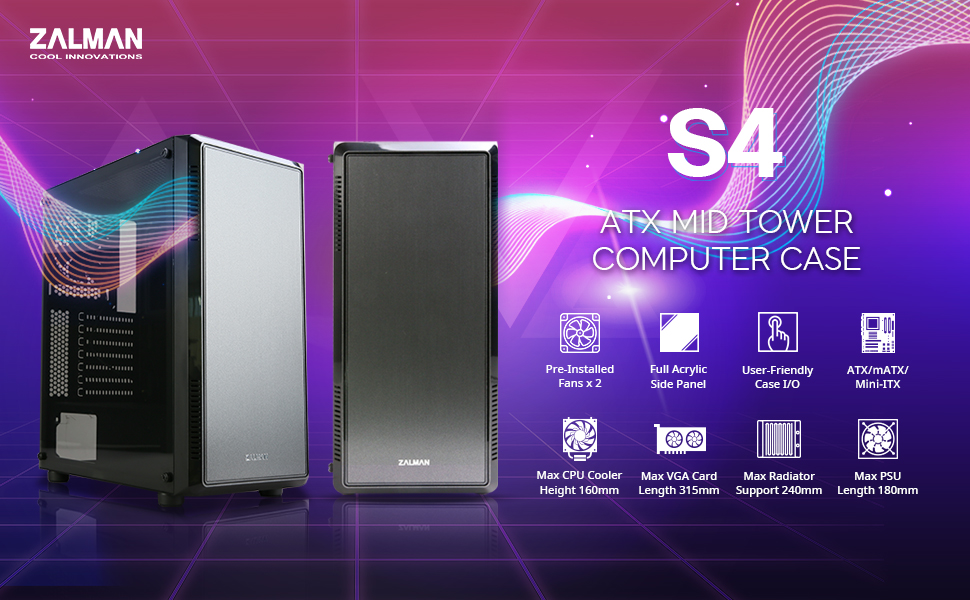
Figure 5.3: Drive and PSU Mounting Locations. This detailed internal view of the Zalman S4 case highlights the maximum CPU cooler height (160mm), maximum VGA card length (315mm without fan/radiator), maximum PSU length (180mm), and the locations for 3.5" HDDs and 2.5" SSDs.
5.5. Expansion Card Installation (e.g., Graphics Card)
- Remove the necessary PCI-E slot covers from the rear of the case.
- Insert your expansion card into the corresponding PCI-E slot on the motherboard.
- Secure the card with a screw.
5.6. Fan and Cooling System Installation
The Zalman S4 comes with two 120mm fans pre-installed and supports additional cooling options.
- Pre-installed Fans: The case includes two 120mm fans for immediate cooling.
- Additional Fan Support: The case supports up to 8 additional 120mm fans. Refer to the diagram below for mounting locations.
- Radiator Support: The case supports radiators up to 240mm in the front and 120mm in the rear.

Figure 5.4: Pre-installed Fans. This image shows two black 120mm Zalman fans, highlighting that the case includes two such fans pre-installed and supports up to 8 additional 120mm fans.
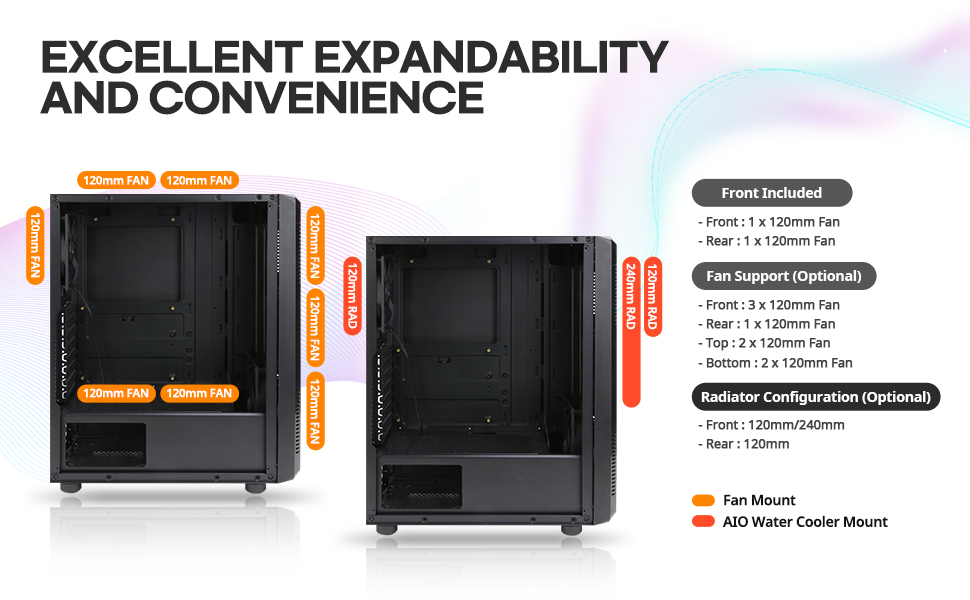
Figure 5.5: Fan and Radiator Configuration. This diagram illustrates the various fan and AIO water cooler mounting points within the Zalman S4 case, detailing support for 120mm fans and radiators (120mm/240mm) at the front, rear, top, and bottom.
5.7. Cable Management
Utilize the cutouts and tie-down points behind the motherboard tray to route and secure cables. This improves airflow and aesthetics.

Figure 5.6: Bezel Design for Optimal Airflow. This image highlights the front bezel design of the Zalman S4 case, which is engineered to facilitate optimal airflow into the system.
6. Operation
After all components are installed and cables are connected, replace the side panels. Connect your monitor, keyboard, mouse, and power cable. Press the power button on the front I/O panel to start your system.
7. Maintenance
- Cleaning: Regularly clean dust filters (if applicable) and internal components using compressed air. Ensure the system is powered off and unplugged before cleaning.
- Cable Management: Periodically check cable routing to ensure no cables are obstructing airflow or fan operation.
- Ventilation: Ensure the case's ventilation openings are not blocked.
8. Troubleshooting
If you encounter issues, consider the following common troubleshooting steps:
- System not powering on: Check all power connections, including the PSU to motherboard, CPU, and graphics card. Ensure the power button cable is correctly connected to the motherboard.
- No display: Verify that the monitor is connected to the graphics card (not the motherboard I/O, unless using integrated graphics) and that the graphics card is properly seated and powered.
- Overheating: Ensure all fans are spinning correctly and are oriented for optimal airflow. Check for dust buildup on components and in filters.
- USB ports not working: Check the USB header connections from the front I/O panel to the motherboard.
9. Specifications
| Feature | Specification |
|---|---|
| Model Name | S4 |
| Case Type | Mid-Tower |
| Motherboard Compatibility | ATX, Micro-ATX, Mini-ITX |
| Dimensions (LxWxH) | 8.11 x 18.03 x 14.96 inches |
| Item Weight | 7.9 pounds |
| Material | Acrylic, Alloy Steel, Plastic |
| Pre-installed Fans | 2 x 120mm |
| Fan Size | 120 Millimeters |
| Cooling Method | Air, Fan |
| Power Supply Mounting Type | Bottom Mount |
| Max CPU Cooler Height | 160mm |
| Max VGA Card Length | 315mm (without fan and radiator) |
| Max PSU Length | 180mm |
| USB 2.0 Ports | 2 |
| USB 3.0 Ports | 1 |
10. Warranty and Support
For warranty information and technical support, please refer to the official Zalman website or contact your local retailer. Keep your proof of purchase for warranty claims.


