
1. Introduction and Overview
The SanDisk Ultra Dual Drive Luxe Type-C is a versatile 2-in-1 flash drive designed for seamless data transfer between various devices. Featuring both a reversible USB Type-C connector and a traditional USB Type-A connector, this all-metal casing drive offers high-speed performance for moving files quickly and efficiently.

Image: SanDisk logo transition, indicating a new logo with the same trusted quality. Products may feature either logo.
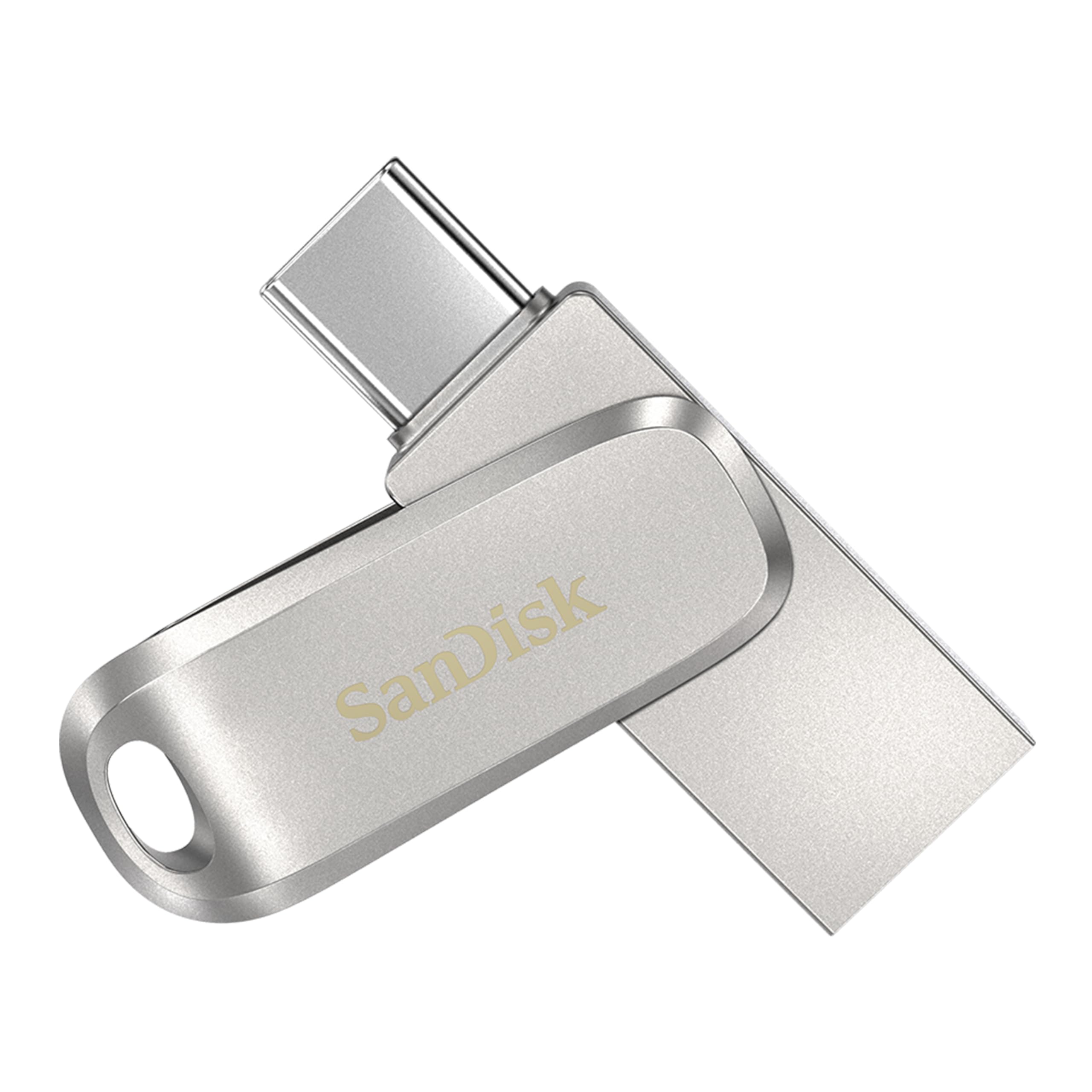
Image: The SanDisk Ultra Dual Drive Luxe, showcasing its compact, all-metal design with both USB Type-C and USB Type-A connectors.
2. Setup
Setting up your SanDisk Ultra Dual Drive Luxe is straightforward. No software installation is typically required for basic file transfer on most operating systems.
2.1 Connecting to Devices
- USB Type-C Devices: Insert the USB Type-C connector into the compatible port on your smartphone, tablet, or Mac. Ensure the connection is firm. The device should recognize the drive automatically.
- USB Type-A Computers: Insert the USB Type-A connector into an available USB port on your computer. The drive will appear as a removable storage device.

Image: The SanDisk Ultra Dual Drive Luxe connected to various devices, including a smartphone, tablet, and laptop, demonstrating its dual connectivity.
2.2 SanDisk Memory Zone App (Optional)
For Android devices, consider downloading the SanDisk Memory Zone app from the Google Play Store. This app helps you manage and back up content from your phone to the drive, and vice versa, offering features like automatic backup.

Image: A smartphone displaying a 'Photos backed up' notification from the SanDisk Memory Zone app, with the flash drive connected.
3. Operating Instructions
The SanDisk Ultra Dual Drive Luxe allows for easy file management across your devices.
3.1 Transferring Files
- From Device to Drive: Once connected, navigate to the files you wish to transfer on your device. Select them and use the 'Copy' or 'Move' function to transfer them to the SanDisk drive. On computers, you can typically drag and drop files directly to the drive's folder.
- From Drive to Device: Similarly, open the SanDisk drive on your device, select the desired files, and 'Copy' or 'Move' them to your device's internal storage or another connected storage.

Image: Several SanDisk Ultra Dual Drive Luxe units facilitating file transfers between different USB Type-C and Type-A devices.
3.2 Performance
This drive utilizes USB 3.2 Gen 1 technology, offering read speeds of up to 400MB/s. This enables rapid transfer of large files, such as high-resolution photos and videos, to your computer or other compatible devices.
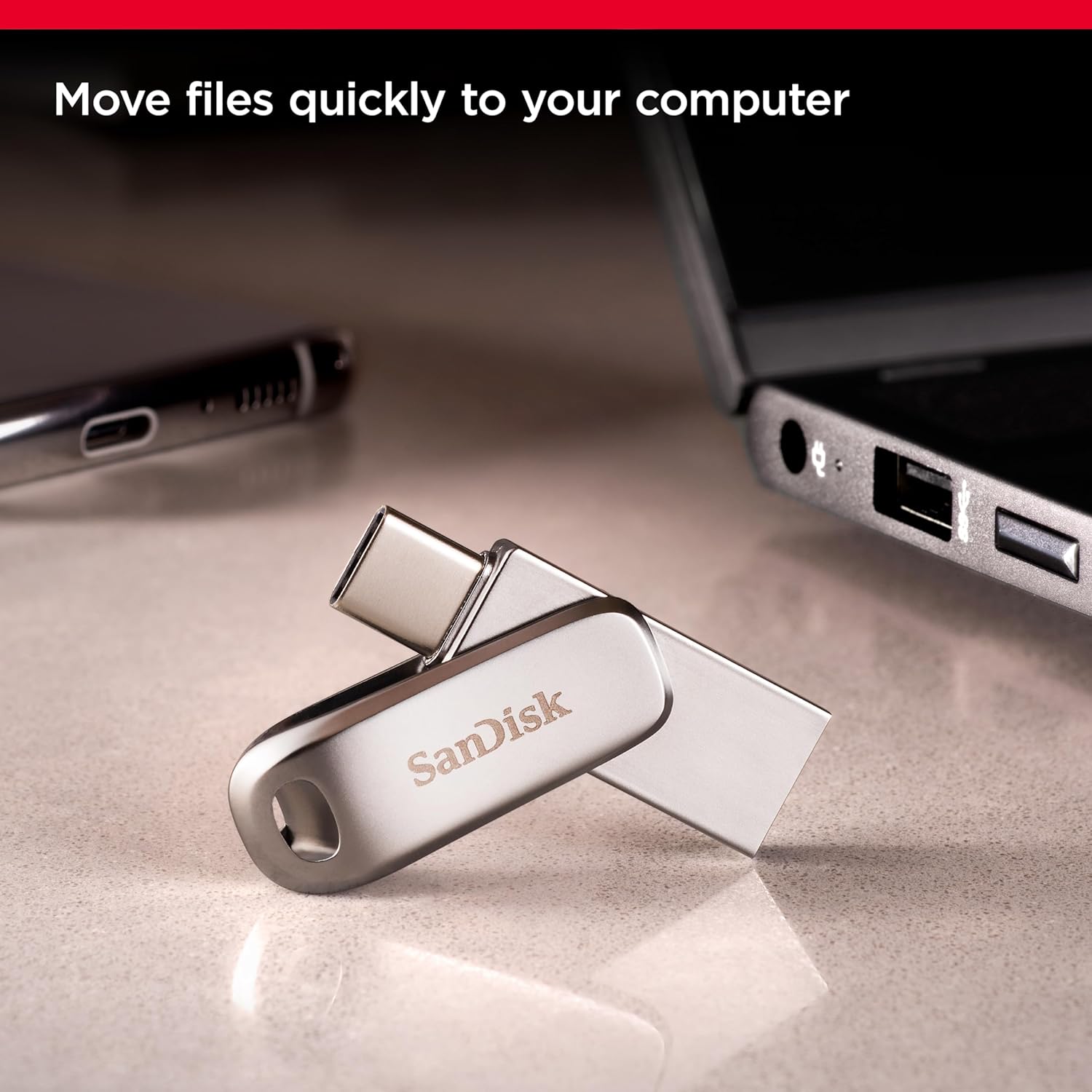
Image: The SanDisk Ultra Dual Drive Luxe connected to a laptop, illustrating its use for quick file transfers.
3.3 Freeing Up Space
Use the drive to offload photos, videos, and other large files from your smartphone or tablet, freeing up valuable internal storage space. This is particularly useful for capturing more memories without worrying about storage limitations.

Image: A smartphone showing a 'Cannot Take Photo' message due to full storage, with the SanDisk drive connected to help free up space.
4. Maintenance
Proper care ensures the longevity and optimal performance of your SanDisk Ultra Dual Drive Luxe.
- Physical Care: The drive features an all-metal casing for durability. Avoid dropping the drive or subjecting it to excessive force. Keep it away from extreme temperatures and moisture.
- Connector Protection: The dual-purpose swivel design helps protect the USB Type-C and Type-A connectors when not in use. Always swivel the cover over the unused connector to prevent dust and damage.
- Portability: The integrated keyring hole allows you to attach the drive to your keys or bag, making it convenient to carry. Ensure it is securely attached to prevent loss.

Image: The SanDisk Ultra Dual Drive Luxe attached to a keyring, highlighting its portability feature.
5. Troubleshooting
If you encounter issues with your SanDisk Ultra Dual Drive Luxe, refer to the following common solutions.
5.1 Drive Not Detected
- Check Connection: Ensure the drive is fully inserted into the USB port of your device.
- Try Another Port/Device: Test the drive in a different USB port on the same device, or on another compatible device (e.g., another computer or smartphone) to rule out a port issue.
- Restart Device: Sometimes, a simple restart of your computer or smartphone can resolve detection issues.
- Check Device Manager (Windows): On Windows, open Device Manager to see if the drive is listed, even if it's not assigned a drive letter. You might need to update drivers or assign a drive letter.
5.2 Slow Transfer Speeds
- USB Port Compatibility: Ensure you are using a USB 3.0 or higher port on your computer for optimal speeds. Connecting to a USB 2.0 port will result in slower transfers.
- File Size and Type: Transferring many small files can be slower than transferring a single large file of the same total size.
- Background Processes: Close any unnecessary applications or background processes that might be consuming system resources.
5.3 Heating During Use
- It is normal for flash drives, especially those with metal casings, to become warm during prolonged or intensive data transfer operations. This is due to the heat generated by the internal components and the metal casing acting as a heat sink.
- If the drive becomes excessively hot and you experience performance issues, disconnect it, allow it to cool down, and then resume use. Avoid continuous heavy usage if overheating persists.
6. Specifications
| Feature | Detail |
|---|---|
| Brand | SanDisk |
| Model Name | Ultra Dual Drive Luxe |
| Model Number | SDDDC4-064G-I35 |
| Memory Storage Capacity | 64 GB (Current Product) |
| Hardware Interface | USB Type C, USB Type A |
| Read Speed | Up to 400 Megabytes Per Second |
| Special Feature | Lightweight, Dual-purpose swivel design, Keyring hole |
| Compatible Devices | USB Type-C smartphones, tablets, Mac, USB Type-A computers |
| Colour | Silver |
| Flash Memory Type | NAND |
| Item Weight | 45 g |
| Country of Origin | Taiwan |
7. Warranty Information
The SanDisk Ultra Dual Drive Luxe Type-C comes with a 5-year limited warranty. This warranty covers defects in materials and workmanship under normal use. For detailed terms and conditions, or to initiate a warranty claim, please visit the official SanDisk support website.
Keep your proof of purchase for warranty validation.
8. Support
For further assistance, technical support, or to access additional resources, please visit the official SanDisk support page:


