
1010music BLACKBOX
Blackbox Compact Sampling Studio User Manual
Model: BLACKBOX
Introduction
The 1010music Blackbox is a next-generation compact sampling studio designed for music creation without a computer. It allows users to record, edit, and sequence audio, integrate external hardware, and perform compositions live. Its intuitive touchscreen interface and robust design make it suitable for various music production environments.
What's in the Box
Upon unboxing your Blackbox Compact Sampling Studio, please verify that all the following items are included:
- One Blackbox Compact Sampling Studio unit
- One microSD card (pre-loaded with Blackbox firmware, approximately 60 presets, and 900 WAV files)
- One USB power cable
- One USB wall adapter with 3 international adapters
- Two MIDI Adapters (Male 3.5mm TRS to Female 5-pin DIN, MIDI Class B standard)
- Quick Start guide

Figure 1: Contents of the Blackbox retail packaging, including the Blackbox unit, power supply, USB cable, MIDI adapters, and microSD card.
Setup
1. Powering On
- Insert the provided microSD card into the microSD slot on the side of the Blackbox unit. Ensure it clicks into place.
- Connect the USB power cable to the "POWER" port on the rear of the Blackbox.
- Attach the appropriate international adapter to the USB wall wart and plug it into a power outlet.
- The Blackbox will automatically power on and begin its boot sequence.

Figure 2: Rear panel of the Blackbox, highlighting the Power, Device, Clock, MIDI, and Audio ports for connection.
2. Connecting Audio and MIDI Devices
- Audio Input: Connect your audio sources (synths, drum machines, etc.) to the "AUDIO IN" jacks (1, 2, 3) using 3.5mm TRS cables.
- Audio Output: Connect headphones to the "PHONES" jack for monitoring, or connect to an external mixer/interface via the main audio outputs.
- MIDI: Use the provided MIDI adapters to connect external MIDI controllers or other MIDI devices to the "MIDI IN" and "MIDI OUT" ports.
- USB Device: The "DEVICE" USB port can be used to connect USB MIDI controllers or other compatible USB devices.
Operating the Blackbox
The Blackbox features a responsive touchscreen interface complemented by physical buttons and knobs for intuitive control.

Figure 3: Front view of the Blackbox, showing the touchscreen display, control knobs, and function buttons.
1. Basic Navigation
- Touchscreen: Tap icons and elements to select them. Swipe to scroll through lists or waveforms.
- Knobs: Use the four rotary encoders to adjust parameters displayed on the screen. Press a knob to confirm a selection or reset a parameter.
- Function Buttons: The buttons (PADS, KEYS, SEQS, SONG, FX, MIX, PSET, TOOLS) switch between different operational modes.
- Transport Controls: REC, STOP, and PLAY buttons control recording and playback.
2. Sampling and Editing
The Blackbox excels at capturing and manipulating audio. To record a new sample:
- Press the PADS button to enter Pad mode.
- Select an empty pad by tapping it on the screen.
- Press the REC button. The screen will show recording options.
- Adjust input levels and recording length as needed.
- Press REC again to start recording. Press STOP to end.
- After recording, you can edit the sample directly on the touchscreen, including trimming, normalizing, and applying effects.
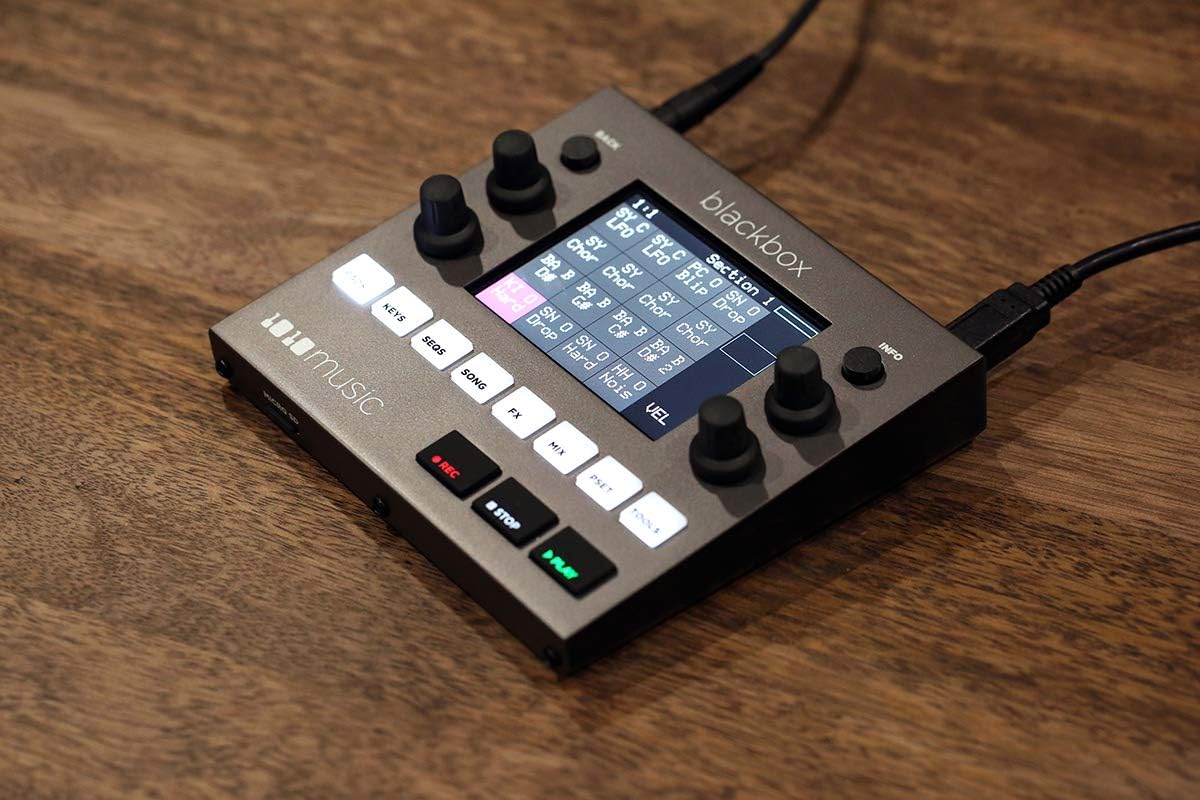
Figure 4: The Blackbox display showing a waveform being edited, demonstrating the visual feedback for sample manipulation.
3. Sequencing and Song Creation
Sequences are the building blocks of your songs. The Blackbox allows for flexible arrangement:
- Press the SEQS button to access the sequencer. Here you can create and edit patterns using your samples.
- Press the SONG button to arrange multiple sequences into a complete song structure. You can chain sequences, add pauses, and define loop points.
4. Effects and Mixing
- The FX button provides access to various built-in effects that can be applied to individual samples or the master output.
- The MIX button opens the mixer view, allowing you to adjust volume levels, panning, and routing for each track and sample.
5. Performance and External Control
The Blackbox is designed for live performance and integration with other gear:
- Trigger samples and sequences live using the pads or an external MIDI controller.
- Synchronize with other devices using the Clock In/Out ports.
- Connect USB MIDI controllers (like the Korg NanoPAD2 shown below) to expand your control options.

Figure 5: The Blackbox connected to an external Korg NanoPAD2 MIDI controller and headphones, demonstrating its expandability for performance.
Maintenance
- Cleaning: Use a soft, dry cloth to clean the unit. For stubborn marks, a slightly damp cloth can be used, but ensure no liquid enters the ports or buttons. Avoid abrasive cleaners.
- Storage: Store the Blackbox in a cool, dry place away from direct sunlight and extreme temperatures.
- Firmware Updates: Periodically check the 1010music website for firmware updates. Instructions for updating are typically provided with the firmware download.
- MicroSD Card: Regularly back up the contents of your microSD card to a computer to prevent data loss.
Troubleshooting
| Problem | Possible Cause | Solution |
|---|---|---|
| Unit does not power on. | Power cable not connected properly; faulty power adapter; microSD card issue. | Ensure power cable is securely connected. Try a different USB power source if available. Re-insert or try a different microSD card. |
| No audio output. | Volume too low; incorrect audio routing; faulty cables/headphones. | Check master volume and individual track volumes in the MIX section. Ensure headphones/speakers are connected correctly. Test with different cables/headphones. |
| Samples not recording. | Input level too low; incorrect input source selected; storage full. | Adjust input gain. Verify the correct audio input is selected. Check available space on the microSD card. |
| Touchscreen unresponsive. | Temporary software glitch. | Perform a soft reset by holding the INFO button for 10 seconds. If issue persists, power cycle the unit. |
Specifications
- Item Weight: 2.25 pounds
- Product Dimensions: 11 x 7 x 3 inches
- Item Model Number: BLACKBOX
- Compatible Devices: Tablet (referring to the touchscreen interface)
- Hardware Interface: USB
- Connectivity Technology: USB
- Number of Channels: 8
- First Available Date: May 31, 2019
Warranty and Support
For detailed warranty information and technical support, please visit the official 1010music website or contact their customer service department. Keep your proof of purchase for warranty claims.
Official Website: www.1010music.com
Related documentsBLACKBOX


Ask a question about this manual
Ask about setup, troubleshooting, compatibility, parts, safety, or missing instructions. Manuals+ will review the question and use this page’s manual context to help answer it.