
1. Introduction
This manual provides comprehensive instructions for the setup, operation, and maintenance of your Monoprice MP Cadet 3D Printer (Model 140108). This compact 3D printer features full auto-leveling and Wi-Fi connectivity, making it suitable for various environments including desktops, offices, dorm rooms, and classrooms. Please read this manual thoroughly before operating the device to ensure safe and efficient use.
2. Safety Information
WARNING: Failure to follow these safety instructions may result in fire, electric shock, injury, or damage to the product or property.
- Hot Surfaces: The extruder nozzle and print bed can reach high temperatures during operation. Avoid touching these components while the printer is active or immediately after use. Allow sufficient time for cooling.
- Moving Parts: The printer contains moving parts that can cause injury. Keep hands, hair, and loose clothing clear of the print area during operation.
- Ventilation: Operate the 3D printer in a well-ventilated area to dissipate any fumes produced during the printing process.
- Power Supply: Use only the provided AC adapter. Ensure the power supply is connected to a grounded outlet. Disconnect power before performing any maintenance or cleaning.
- Filament Handling: Store filament in a dry environment to prevent moisture absorption, which can affect print quality.
- Children and Pets: Keep the printer out of reach of children and pets. Adult supervision is required if children are operating the device.
3. Package Contents
Verify that all items listed below are present in the package. If any items are missing or damaged, contact customer support.
- Monoprice MP Cadet 3D Printer
- Starter Filament
- AC Adapter
- USB Cable
- microSD Card
- Start Guide (QR code for online manual is on the printer)

Image: Included accessories for the Monoprice MP Cadet 3D Printer.
4. Setup
- Unpacking: Carefully remove the printer and all accessories from the packaging. Retain the packaging for future transport or storage.
- Placement: Place the printer on a stable, level surface in a well-ventilated area, away from direct sunlight, heat sources, or excessive dust.
- Power Connection: Connect the AC adapter to the printer's power input and then plug it into a suitable electrical outlet.
- Filament Loading:
- Place the filament spool onto the filament holder.
- Feed the filament into the extruder's input hole until it is gripped by the feeder mechanism.
- From the printer's menu, select "Load Filament" and follow the on-screen prompts to heat the nozzle and extrude filament until it flows smoothly.
- Auto-Leveling: The MP Cadet features full auto-leveling. Upon initial power-on or when prompted, the printer will automatically calibrate the print bed. No manual adjustments are typically required.
- Software Installation: Install the recommended slicing software (e.g., Cura) on your computer. This software converts 3D models into printable G-code files.
- Wi-Fi Setup (Optional): Refer to the printer's on-screen menu or the online guide (accessible via QR code on the printer) for instructions on connecting the printer to your Wi-Fi network and using the mobile app for printing.

Image: Monoprice MP Cadet 3D Printer, showing the filament path.
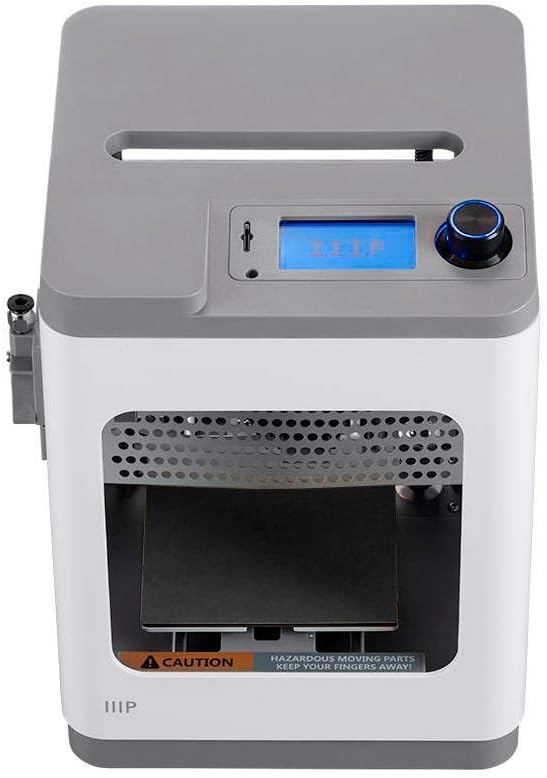
Image: Top view of the printer, showing the control panel and rotary knob.
5. Operating Instructions
- Preparing a Model:
- Obtain a 3D model file (e.g., .STL, .OBJ).
- Open the model in your slicing software.
- Adjust print settings (layer height, infill, supports, adhesion) as needed.
- Slice the model to generate a G-code file and save it to the microSD card.
- Starting a Print (MicroSD Card):
- Insert the microSD card into the printer's card slot.
- Navigate the printer's menu using the rotary knob and LCD screen.
- Select "Print from SD" and choose your desired G-code file.
- The printer will begin heating and then start the print.
- Starting a Print (Wi-Fi):
- Ensure the printer is connected to your Wi-Fi network.
- Use the mobile app or compatible software to send the G-code file to the printer.
- Monitor the print status through the app.
- Monitoring and Pausing:
- Observe the print progress.
- To pause a print, select "Pause" from the printer's menu. To resume, select "Resume".
- Removing a Print:
- Once the print is complete and the print bed has cooled, carefully remove the magnetic print bed.
- Flex the print bed to detach the printed object. Avoid using excessive force or sharp tools that could damage the bed.

Image: The Monoprice MP Cadet 3D Printer actively printing an object.
6. Maintenance
- Cleaning the Print Bed: After each print, ensure the print bed is clean. Use a soft cloth and isopropyl alcohol to remove any residue.
- Nozzle Cleaning: If extrusion issues occur, the nozzle may be partially clogged. Heat the nozzle and gently push a thin needle or cleaning filament through the nozzle opening. For severe clogs, nozzle replacement may be necessary.
- General Cleaning: Periodically clean the exterior of the printer with a dry, soft cloth. Avoid using abrasive cleaners or solvents.
- Firmware Updates: Check the Monoprice website for any available firmware updates. Follow the provided instructions carefully for installation.
7. Troubleshooting
| Problem | Possible Cause | Solution |
|---|---|---|
| Print not sticking to bed | Dirty print bed, incorrect bed temperature (if applicable), insufficient bed adhesion. | Clean the print bed with isopropyl alcohol. Ensure the auto-leveling process completed successfully. Apply a thin layer of glue stick if necessary. |
| Poor print quality (e.g., stringing, gaps) | Incorrect print settings (temperature, retraction), partially clogged nozzle, moist filament. | Adjust print settings in slicing software. Clean the nozzle. Ensure filament is stored in a dry environment. |
| Filament not extruding | Clogged nozzle, tangled filament, incorrect loading. | Clean or replace the nozzle. Check filament path for tangles. Re-load filament according to instructions. |
| Wi-Fi connection issues | Incorrect network credentials, printer out of range, network interference. | Verify Wi-Fi password. Move printer closer to router. Restart printer and router. |
| Printer makes unusual noises | Loose components, obstruction in moving parts. | Inspect the printer for any loose screws or obstructions. Power off and on. If noise persists, contact support. |
8. Specifications
| Feature | Detail |
|---|---|
| Brand | Monoprice |
| Model Number | 140108 |
| Product Dimensions (LxWxH) | 8.5"D x 10.6"W x 7.9"H |
| Item Weight | 12 Pounds (approx. 5.4 kg) |
| Material Compatibility | Polylactic Acid (PLA) |
| Operating System | Linux (internal) |
| Features | Full Auto Leveling, Wi-Fi Printing |
9. Warranty and Support
For warranty information and technical support, please refer to the official Monoprice website or contact Monoprice customer service directly. Keep your purchase receipt for warranty claims.
Online Resources:
- Monoprice Official Website: www.monoprice.com
- Product Support Page (if available): Check the Monoprice website for a dedicated support page for Model 140108.