
1. Product Overview
The SCYAN X5SN Smart Door Lock offers advanced keyless entry solutions, combining fingerprint recognition, keypad code entry, and traditional key access. Featuring an intuitive OLED display, this lock provides a secure and convenient way to manage access to your property. Its self-learning fingerprint sensor improves recognition over time, and the audit trail feature allows for tracking entry records.

Figure 1.1: Front view of the SCYAN X5SN Smart Door Lock, showcasing the OLED display, keypad, and fingerprint sensor.
Key Features:
- Keyless Convenience: Unlock using fingerprint, code, or a combination of both.
- Multiple Access Methods: Supports up to 100 fingerprint users (5 administrators, 95 regular users) and 300 user codes, plus 10 one-time codes.
- OLED Display: Provides visual prompts for easy setup and operation.
- Audit Trail: Stores up to 16384 entry logs for security monitoring.
- Reversible Handle: Compatible with both left and right-handed doors.
- Durable Construction: Weatherproof double-shell design.
2. What's in the Box
Upon opening your SCYAN Smart Door Lock package, please verify that all the following components are present:
- Front lock unit
- Back lock unit
- Two levers
- Cylinder & key
- Latch
- Screws

Figure 2.1: The front and back units of the SCYAN Smart Door Lock, which comprise the main body of the lock.
3. Specifications
| Feature | Detail |
|---|---|
| Product Dimensions | 6 x 3 x 7 inches |
| Item Weight | 4.47 Pounds |
| Model Number | X5SN |
| Manufacturer | Scyan Electronics LLC |
| Lock Type | Biometric, Keypad |
| Material | Metal |
| Special Feature | Fingerprint, Smart Lock, Touchscreen |
4. Setup and Installation
Proper installation is crucial for the optimal performance and security of your SCYAN Smart Door Lock. Please follow these steps carefully.
4.1 Door Preparation
Ensure your door meets the following requirements:
- Fits a USA standard 2 ⅛" (54mm) diameter bore hole.
- Door thickness between 1 ¼" to 2 ¼".
- The lock is NOT compatible with deadbolt locks. Please ensure there is no existing deadbolt directly above the installation area.

Figure 4.1: Illustration of door preparation, highlighting the required bore hole and the incompatibility with deadbolt mechanisms.
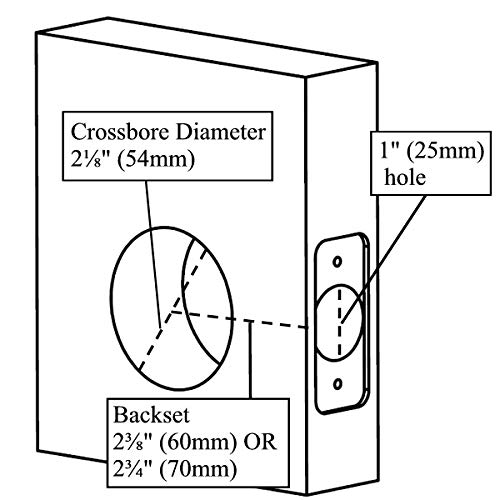
Figure 4.2: Detailed measurements for the crossbore diameter (2 ⅛" or 54mm) and backset (2 ⅜" or 2 ¾"), essential for proper lock fit.
4.2 Lever Reversibility
The lock's lever is fully reversible, allowing installation on both left and right-handed doors. The lever direction is controlled by the key cylinder.

Figure 4.3: The lock features a fully reversible lever, making it adaptable for both left and right-handed door installations.
4.3 Lever Setup (Left vs. Right Handed Door)
Follow the specific instructions below to set up the lever correctly for your door's handing. This involves rotating the inner spindle and inserting the cylinder and lever.

Figure 4.4: Step-by-step visual guide for configuring the lever for either left-handed or right-handed door installations.
5. Operating Instructions
The SCYAN Smart Door Lock is designed for intuitive operation via its OLED display and various entry methods.
5.1 Initial Setup and Programming
Upon first use or after a factory reset, the lock will guide you through initial setup via the OLED display. The default programming code is 1-2-3-4. This code is essential for accessing the lock's menu and managing users.
5.2 Unlocking Methods
- Fingerprint: Place your registered finger on the semiconductor fingerprint sensor. The lock will unlock if the fingerprint is recognized.
- Code: Enter your programmed user code on the keypad. The OLED display will show prompts.
- Fingerprint + Code (Double Verification): For enhanced security, configure the lock to require both a fingerprint and a code for entry.
- Key: Use the physical key as a backup or primary entry method.
5.3 Adding/Deleting Users
Access the lock's menu using the administrator code to add or delete fingerprints and user codes. The OLED display will provide clear instructions for each step.
5.4 Audit Trail
The lock records up to 16384 entry logs. You can view these logs directly on the OLED display to track who entered and when. This feature is particularly useful for business or rental property management.
6. Maintenance
To ensure the longevity and optimal performance of your SCYAN Smart Door Lock, regular maintenance is recommended.
6.1 Battery Replacement
The lock will indicate low battery on the OLED display. Replace batteries promptly to avoid lockout. Use high-quality alkaline batteries for best results. Refer to the manual's battery compartment access instructions.
6.2 Cleaning
Clean the lock's exterior, especially the fingerprint sensor and keypad, with a soft, dry cloth. Avoid using abrasive cleaners, solvents, or harsh chemicals, as these can damage the finish and electronic components.
6.3 Firmware Updates (If Applicable)
Check the manufacturer's website periodically for any available firmware updates. Follow the provided instructions carefully for any update procedures.
7. Troubleshooting
If you encounter issues with your SCYAN Smart Door Lock, refer to the following common problems and solutions:
| Problem | Possible Cause | Solution |
|---|---|---|
| Fingerprint not recognized | Finger dirty/wet, sensor dirty, fingerprint not properly enrolled, or sensor issue. | Ensure finger and sensor are clean and dry. Re-enroll fingerprint if necessary. Try different finger or entry method. |
| Keypad not responding | Low battery, keypad malfunction. | Replace batteries. If issue persists, contact customer support. |
| Lock does not unlock/lock | Incorrect code/fingerprint, mechanical obstruction, low battery, or internal error. | Verify credentials. Check for obstructions around the latch. Replace batteries. Perform a factory reset if necessary (refer to full manual). |
| OLED display is blank | Batteries dead or incorrectly installed. | Check battery orientation and replace with new ones. |
For issues not listed here or if solutions do not resolve the problem, please contact SCYAN customer support.
8. Warranty and Support
SCYAN provides a one-year manufacturer limited warranty for the X5SN Smart Door Lock. This warranty covers defects in materials and workmanship under normal use.
8.1 Customer Service
For technical assistance, warranty claims, or any other inquiries, please contact SCYAN customer service. As a US-based company, SCYAN offers dedicated customer support from Washington, USA.
Please refer to the product packaging or the official SCYAN website for the most current contact information.
