
Introduction
This manual provides instructions for the D-Link DUB-M530-US USB-C 5-in-1 Hub. This device expands the connectivity of your USB Type-C enabled computer by adding an HDMI port, two USB 3.0 ports, and a dual SD/microSD card reader.
Please read this manual thoroughly before using the product to ensure proper operation and to prevent damage.
Product Overview
The D-Link DUB-M530-US is designed to provide versatile connectivity for modern devices. It features:
- 1x HDMI port supporting up to 4K Ultra-HD @ 30 Hz resolution.
- 2x USB 3.0 ports for connecting peripherals.
- 1x SD card reader.
- 1x microSD card reader.
- USB-C and Thunderbolt 3 compatibility.
- Support for DisplayPort Alternate Mode over USB-C.
- Plug-and-Play functionality.

Image 1: Front view of the D-Link DUB-M530-US USB-C 5-in-1 Hub, showing the HDMI port, two USB 3.0 ports, and the SD/microSD card slots. The attached USB-C cable is visible.
Setup Instructions
- Connect to Host Device: Plug the USB-C connector of the DUB-M530-US hub into an available USB Type-C port on your computer (laptop, desktop, tablet, or smartphone). Ensure your device's USB-C port supports DisplayPort Alternate Mode for video output.
- Connect HDMI Display (Optional): If you wish to use an external display, connect an HDMI cable from your monitor or TV to the HDMI port on the DUB-M530-US hub.
- Connect USB Peripherals (Optional): Plug your USB devices (e.g., mouse, keyboard, USB flash drive) into the USB 3.0 ports on the hub.
- Insert Memory Cards (Optional): Insert an SD card into the SD card slot or a microSD card into the microSD card slot as needed. Ensure the card is inserted correctly.
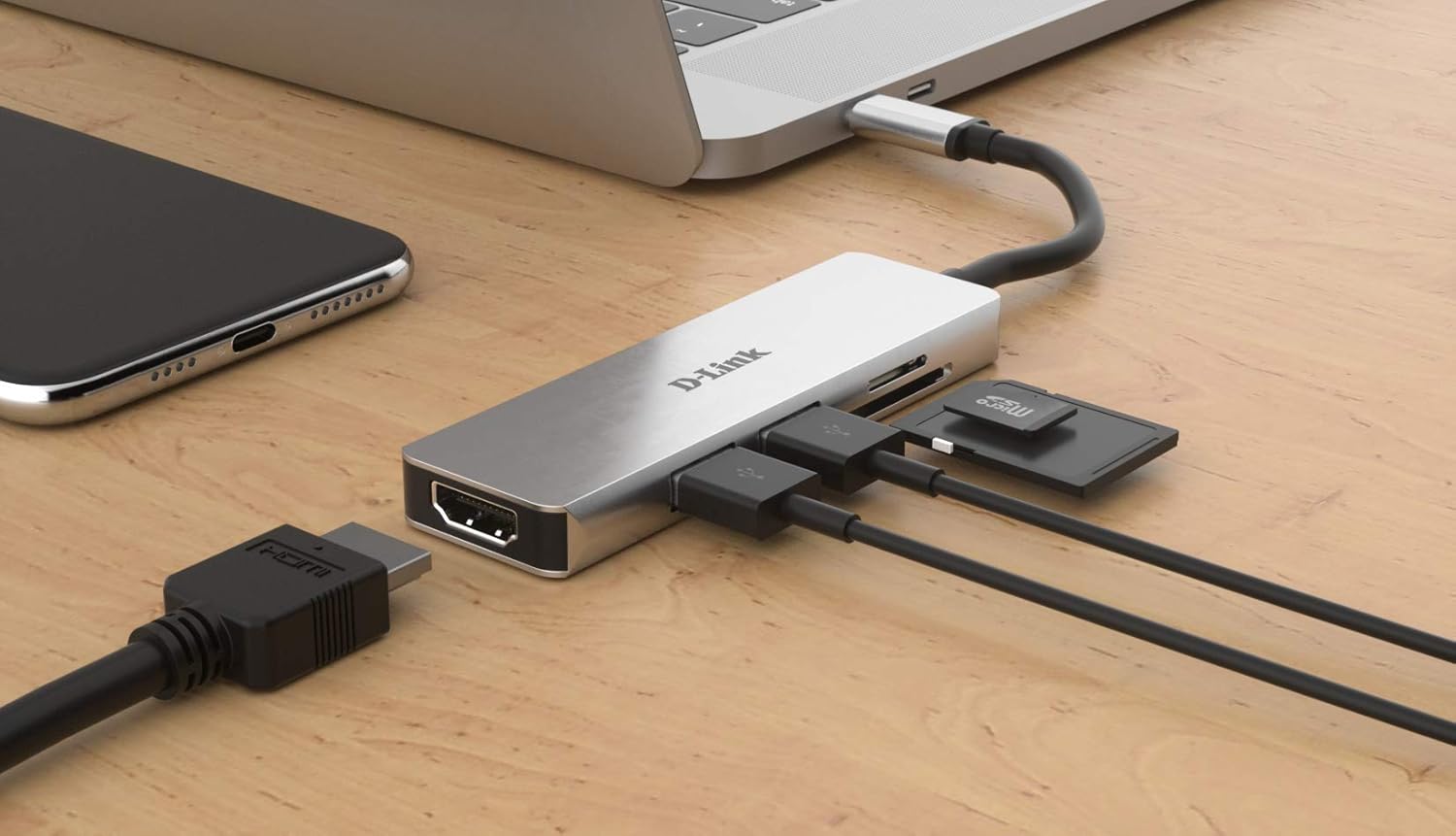
Image 2: The D-Link DUB-M530-US hub connected to a laptop via its USB-C cable. An HDMI cable, two USB devices, and an SD card are shown connected to the hub, illustrating a typical setup.
Operating Instructions
Using the HDMI Port:
Once connected, your operating system should automatically detect the external display. You may need to configure display settings (e.g., extend, duplicate) within your computer's display preferences.
- Windows: Right-click on the desktop, select "Display settings," and configure multiple displays.
- macOS: Go to "System Preferences" > "Displays" to arrange or mirror displays.
- Linux: Use your desktop environment's display configuration tool.
Using USB 3.0 Ports:
Connect any standard USB device. The ports are backward compatible with USB 2.0 devices. Data transfer speeds will depend on the connected device and the host system's capabilities.
Using SD/microSD Card Readers:
Insert your SD or microSD card into the corresponding slot. The card will appear as a removable drive in your computer's file explorer. Ensure only one card is inserted per slot at a time.
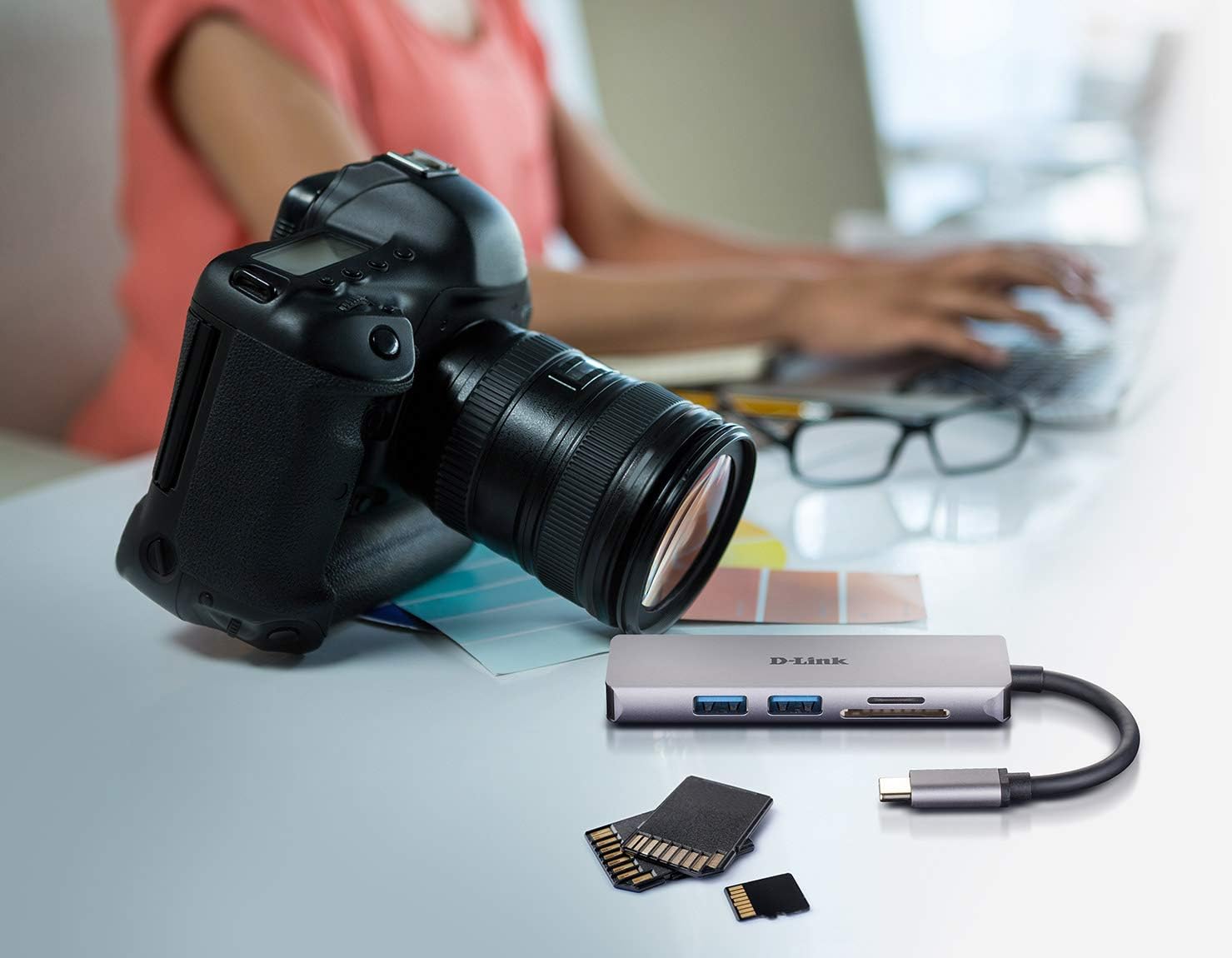
Image 3: The D-Link DUB-M530-US hub positioned next to a DSLR camera and various memory cards, illustrating its use for transferring photos and data from camera memory cards to a computer.
Maintenance
- Keep the hub clean and free from dust. Use a soft, dry cloth for cleaning.
- Avoid exposing the device to extreme temperatures, humidity, or direct sunlight.
- Do not attempt to disassemble or repair the hub yourself. Refer to qualified service personnel.
- Disconnect the hub from your computer when not in use for extended periods.
Troubleshooting
- No video output via HDMI:
- Ensure your computer's USB-C port supports DisplayPort Alternate Mode. Not all USB-C ports support video output.
- Check the HDMI cable connection at both the hub and the display.
- Verify the display input source is set correctly on your monitor/TV.
- Update your computer's graphics drivers.
- Test with a different HDMI cable or display if possible.
- USB devices not recognized:
- Ensure the hub is securely connected to your computer.
- Try connecting the USB device directly to your computer to confirm it functions.
- Test the USB device in a different port on the hub.
- Some high-power USB devices may require direct connection or a powered hub.
- SD/microSD cards not detected:
- Ensure the card is fully and correctly inserted into the appropriate slot.
- Verify the card is not physically damaged.
- Test the card with another reader or device to confirm functionality.
- Ensure only one card is inserted per slot.
Specifications
| Feature | Detail |
|---|---|
| Model | DUB-M530-US |
| Interface | USB Type-C (Host connection) |
| Ports | 1x HDMI, 2x USB 3.0, 1x SD Card Reader, 1x microSD Card Reader |
| HDMI Resolution | Up to 4K Ultra-HD @ 30 Hz |
| USB Standard | USB 3.0 (backward compatible with USB 2.0) |
| Card Reader Support | SD, SDHC, SDXC, microSD, microSDHC, microSDXC |
| Compatibility | USB-C and Thunderbolt 3 enabled devices (Mac, Windows, Linux) |
| Operating System | Linux, Mac, Windows |
| Dimensions | Approx. 7.8 x 5.5 x 1.5 inches (Package Dimensions) |
| Weight | Approx. 3.2 ounces |
Warranty Information
D-Link products are backed by a limited warranty. For specific warranty terms and conditions applicable to your region, please refer to the official D-Link website or the warranty card included with your product. Keep your purchase receipt as proof of purchase.
Technical Support
For technical assistance, product registration, or to download the latest drivers and firmware, please visit the official D-Link support website:
When contacting support, please have your product model number (DUB-M530-US) and serial number ready.


