
X-Rite EO3BAS
X-Rite i1Basic Pro 3 User Manual
Model: EO3BAS
1. Introduction
This manual provides comprehensive instructions for the setup, operation, and maintenance of your X-Rite i1Basic Pro 3 device. Designed for imaging professionals, the i1Basic Pro 3 ensures accurate color for displays and projectors, and allows for verification of monitor and print quality, as well as spot color measurement.
Please read this manual thoroughly before using the device to ensure optimal performance and longevity.
2. Product Overview
The X-Rite i1Basic Pro 3 is a professional color calibration solution. It is engineered to meet the demands of color-critical workflows, providing precise color measurement and profiling capabilities.
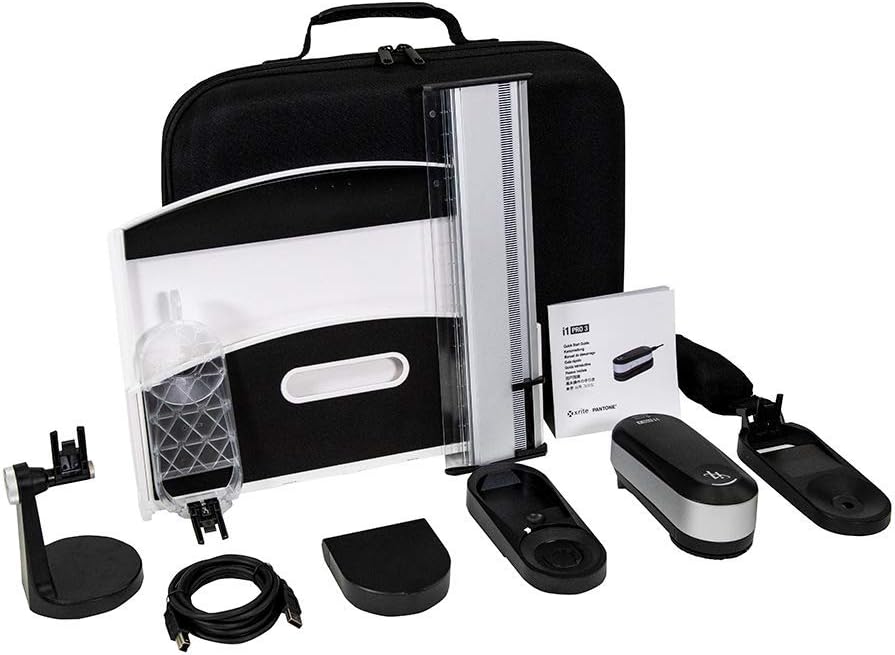
Figure 2.1: Complete X-Rite i1Basic Pro 3 kit, showing the spectrophotometer, various accessories, and the protective carrying case.
Key Features:
- Custom Profile Creation: Create custom profiles for professionally calibrated Monitors and Projectors, including presets for video production workflows.
- Enhanced Spectrophotometer Design: The i1Pro 3 spectrophotometer features a new illuminant design with a custom, full-spectrum LED light source, improving device reliability and accuracy.
- High Brightness Support: Supports 5001 nit measurement for high monitor brightness levels and broadcast video standards (NTSC, PAL SECAM, Rec. 709, Rec. 2020, DCI-P3).
- i1Profiler Software: Includes i1Profiler software with basic and advanced modes for monitors and projectors, plus display and printer quality assurance functions.
- PANTONE Color Manager: Easily capture and manage spot colors, and keep your PANTONE libraries up to date with this color palette creation and swatch bridging software.
3. Setup
Follow these steps to set up your X-Rite i1Basic Pro 3 for first use:
- Unpack the Device: Carefully remove all components from the packaging. Verify that all items listed in the product overview are present.
- Software Installation: Insert the i1Profiler software disc into your computer's optical drive, or download the latest version from the official X-Rite website. Follow the on-screen instructions to complete the installation. Ensure your operating system meets the minimum requirements.
- Connect the Device: Connect the i1Basic Pro 3 spectrophotometer to your computer using the provided USB cable. Ensure a secure connection.
- Initial Calibration: Before first use, the device may require an initial calibration. Follow the prompts within the i1Profiler software to perform this step. This typically involves placing the device on its calibration plate.

Figure 3.1: The X-Rite i1Basic Pro 3 device and its packaging, illustrating the components as they appear when unboxed.
4. Operating Instructions
The i1Basic Pro 3 is primarily operated through the i1Profiler software. Below are general steps for common tasks:
4.1. Display Profiling
- Prepare Your Display: Ensure your display has been on for at least 30 minutes to stabilize. Clean the screen surface.
- Launch i1Profiler: Open the i1Profiler software. Select the "Display Profiling" workflow.
- Attach the Device: Use the counterweight to hang the i1Basic Pro 3 spectrophotometer over the center of your display. Ensure the measurement window is flush against the screen.
- Follow On-Screen Prompts: The software will guide you through the measurement process, including adjusting brightness and contrast, and measuring color patches.
- Save Profile: Once measurements are complete, save the generated ICC profile. This profile will automatically be applied to your operating system.

Figure 4.1: The i1Basic Pro 3 spectrophotometer positioned on a monitor screen, ready for display calibration.

Figure 4.2: A user engaged in the process of calibrating a monitor using the X-Rite i1Basic Pro 3, demonstrating typical usage.
4.2. Projector Profiling
For projector profiling, the i1Basic Pro 3 uses ambient light measurement and projected color patches. Refer to the i1Profiler software's dedicated section for detailed steps, as this process requires specific setup of the projector and screen.
4.3. Spot Color Measurement
The i1Basic Pro 3 can also measure spot colors from physical samples. Use the included ruler and software interface to capture precise color data for integration into your digital workflows.
5. Maintenance
Proper maintenance ensures the longevity and accuracy of your i1Basic Pro 3:
- Cleaning: Use a soft, lint-free cloth to gently wipe the device's exterior. Do not use abrasive cleaners or solvents. Keep the measurement aperture clean and free of dust.
- Storage: When not in use, store the device in its protective carrying case in a cool, dry place, away from direct sunlight and extreme temperatures.
- Recalibration: Perform regular recalibration of the device as prompted by the i1Profiler software, or at least once a week for critical work. This maintains measurement accuracy.
- Software Updates: Regularly check the X-Rite website for software updates to ensure compatibility and access to the latest features and improvements.
6. Troubleshooting
If you encounter issues with your i1Basic Pro 3, refer to the following common problems and solutions:
| Problem | Possible Cause | Solution |
|---|---|---|
| Device not recognized by software. | USB connection issue, driver not installed, or software not updated. |
|
| Inaccurate color measurements. | Device needs calibration, dirty measurement aperture, or incorrect display settings. |
|
| Software crashes or freezes. | Outdated software, system incompatibility, or conflicting applications. |
|
For further assistance, please refer to the X-Rite support website or contact customer service.
7. Specifications
Detailed technical specifications for the X-Rite i1Basic Pro 3 (Model: EO3BAS):
| Feature | Detail |
|---|---|
| Product Dimensions (L x W x H) | 6.38 x 2.72 x 2.52 inches |
| Item Weight | 9.92 pounds |
| Model Number | EO3BAS |
| ASIN | B084GWQFSK |
| Manufacturer | X-Rite |
| Brand | X-Rite |
| Material | Metal |
| Screen Size (Visible Diagonal) | 13.3 Centimeters (6 inches) |
| First Available Date | February 4, 2020 |
8. Warranty and Support
X-Rite products are designed for reliability and performance. For specific warranty information regarding your i1Basic Pro 3, please refer to the warranty card included with your product or visit the official X-Rite website.
For technical support, software downloads, and frequently asked questions, please visit the X-Rite support portal:
Contact information for customer service can also be found on their website.
Related documentsEO3BAS


Ask a question about this manual
Ask about setup, troubleshooting, compatibility, parts, safety, or missing instructions. Manuals+ will review the question and use this page’s manual context to help answer it.