
1. Introduction
This manual provides detailed instructions for the setup, operation, maintenance, and troubleshooting of your Logitech G PRO X Gaming Headset. Designed for professional-grade gaming, this headset features Blue VO!CE technology, DTS Headphone:X 2.0 surround sound, and PRO-G 50mm drivers for an immersive audio experience across multiple platforms.
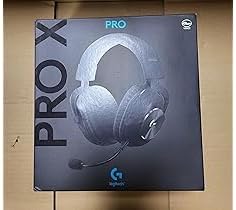
Image 1.1: Front view of the Logitech G PRO X Gaming Headset product box.
2. What's in the Box
Carefully unpack your Logitech G PRO X Gaming Headset and ensure all components are present:
- Logitech G PRO X Gaming Headset
- Detachable Microphone with Blue VO!CE technology
- USB External Sound Card
- PC Cable with inline volume and mute controls
- Mobile Cable with inline microphone and button
- Y-splitter for separate microphone and headphone jacks
- Extra Earpads (choice of premium leatherette or soft velour)
- Carrying Bag

Image 2.1: Diagram showing the contents included with the Logitech G PRO X Gaming Headset.
3. Setup
3.1 Attaching the Microphone
- Locate the microphone port on the left earcup of the headset.
- Align the detachable microphone with the port and gently push until it clicks into place.
3.2 Connecting to PC
For optimal performance on PC, use the included USB External Sound Card and Logitech G HUB software:
- Connect the PC cable (with inline volume/mute) to the headset.
- Connect the other end of the PC cable to the USB External Sound Card.
- Plug the USB External Sound Card into an available USB port on your PC.
- Download and install the Logitech G HUB software from the official Logitech website (www.logitechg.com/ghub) to access Blue VO!CE, DTS Headphone:X 2.0, and custom EQ profiles.
3.3 Connecting to Consoles (Xbox One, Xbox Series X|S, PS5, PS4, Nintendo Switch) and Mobile Devices
For consoles and mobile devices, use the 3.5mm mobile cable:
- Connect the mobile cable (with inline mic/button) to the headset.
- Plug the 3.5mm jack into your controller (Xbox/PlayStation), Nintendo Switch, or mobile device.
- For devices requiring separate audio and microphone inputs, use the included Y-splitter.

Image 3.1: Front view of the Logitech G PRO X Gaming Headset, showing the detachable microphone and earcup design.
4. Operating Instructions
4.1 Blue VO!CE Technology (PC Only)
When connected via the USB External Sound Card and using Logitech G HUB, Blue VO!CE technology provides real-time voice filters for cleaner, professional-sounding communication. Adjust settings like noise reducer, compressor, and limiter within G HUB.
4.2 DTS Headphone:X 2.0 Surround Sound (PC Only)
Experience next-generation 7.1 and object-based surround sound for enhanced in-game positional, distance, and object awareness. Activate and customize this feature through the Logitech G HUB software.
4.3 PRO-G 50mm Drivers
The advanced PRO-G 50mm drivers deliver clear and precise sound imaging with improved bass response, allowing you to hear critical in-game cues like footsteps and environmental sounds with clarity.
4.4 G HUB Software and EQ Profiles
Logitech G HUB allows you to:
- Customize audio EQ settings.
- Download pro-designed EQ profiles.
- Save custom or pro-tuned 5-band EQ profiles to the onboard memory of the USB External Sound Card for use on other systems without G HUB.
4.5 Inline Controls
Use the inline controls on the PC cable to adjust volume and mute the microphone. The mobile cable features an inline microphone and a single button for call control or media playback.

Image 4.1: Side view of the Logitech G PRO X Gaming Headset, highlighting the earcup and headband design.
5. Maintenance
5.1 Cleaning
- Wipe the headset with a soft, dry cloth.
- For earpads, gently wipe with a damp cloth and mild soap if necessary, then allow to air dry completely. Avoid harsh chemicals.
5.2 Earpad Replacement
The headset comes with interchangeable earpads (leatherette and velour). To replace:
- Gently peel off the existing earpad from the earcup.
- Align the new earpad with the earcup and press firmly around the edges until it is securely attached.
5.3 Storage
When not in use, store the headset in the included carrying bag to protect it from dust and damage.
6. Troubleshooting
6.1 No Audio / Low Volume
- Ensure all cables are securely connected.
- Check the inline volume control on the cable and your device's volume settings.
- For PC, verify that the Logitech G PRO X is selected as the default audio output device in your operating system's sound settings.
- Ensure Logitech G HUB software is running and updated.
6.2 Microphone Not Working
- Confirm the detachable microphone is fully inserted into the headset.
- Check the microphone mute switch on the inline control.
- For PC, ensure the Logitech G PRO X microphone is selected as the default input device in your operating system's sound settings and in any communication software (e.g., Discord, Teamspeak).
- In Logitech G HUB, check Blue VO!CE settings and ensure the microphone is not muted or excessively suppressed.
6.3 G HUB Software Issues
- Restart the G HUB software.
- Ensure your G HUB software is updated to the latest version.
- Try reinstalling G HUB if issues persist.
7. Specifications

Image 7.1: Side of the product box detailing key features and specifications.
| Feature | Detail |
|---|---|
| Model Name | G PRO X |
| Item Model Number | 981-000817-cr |
| Connectivity Technology | Wired |
| Headphones Jack | USB, 3.5mm |
| Audio Driver Type | Dynamic Driver (PRO-G 50mm) |
| Frequency Response | 20 Hz - 20 KHz |
| Impedance | 35 Ohm |
| Noise Control | Passive Noise Cancellation |
| Microphone | Detachable, Blue VO!CE Technology |
| Surround Sound | DTS Headphone:X 2.0 (PC only) |
| Compatible Devices | PC, Xbox One, Xbox Series X|S, PS5, PS4, Nintendo Switch |
| Material | Aluminum, Steel, Faux Leather |
| Earpads | Memory Foam (Leatherette and Velour options) |
| Item Weight | 259 Grams (9.1 ounces) |
| Product Dimensions | 6.77 x 3.22 x 7.17 inches |
| UPC | 683193844936 |
8. Warranty and Support
8.1 Amazon Renewed Guarantee
This product is part of the Amazon Renewed program. It has been professionally inspected and tested to work and look like new. Renewed products are eligible for replacement or refund under the Amazon Renewed Guarantee, typically for 90 days from purchase. Please refer to the Amazon Renewed program terms for specific details regarding your purchase.
8.2 Manufacturer Support
For additional support, software downloads, and detailed product information, please visit the official Logitech G support website: support.logi.com/hc/en-us/categories/360001770293-Gaming


