
1. Product Overview
The Ricoh P 501 B (Model 418363) is a high-performance A4 monochrome laser printer designed for efficient document production. It offers robust features including LAN and USB connectivity, and supports PCL5e and PCL6 printer languages, making it suitable for various office environments. This manual provides essential information for setting up, operating, maintaining, and troubleshooting your printer.

Figure 1: Ricoh P 501 B A4 Monochrome Laser Printer. This image shows the printer from an angled perspective, highlighting its compact design and control panel.
2. Setup and Installation
2.1 Unpacking the Printer
- Carefully remove the printer from its packaging.
- Remove all protective tapes and packing materials from the exterior and interior of the printer. Refer to the quick setup guide included in the box for specific locations.
- Place the printer on a stable, level surface with adequate ventilation.
2.2 Installing the Toner Cartridge
- Open the front cover of the printer.
- Unpack the new toner cartridge. Gently shake it horizontally several times to distribute the toner evenly.
- Insert the toner cartridge into the printer until it clicks into place.
- Close the front cover.
2.3 Loading Paper
- Pull out the paper tray located at the bottom front of the printer.
- Adjust the paper guides to match the size of the paper you are loading (e.g., A4).
- Load the paper stack into the tray, ensuring it is flat and below the maximum fill line.
- Gently push the paper tray back into the printer until it locks.
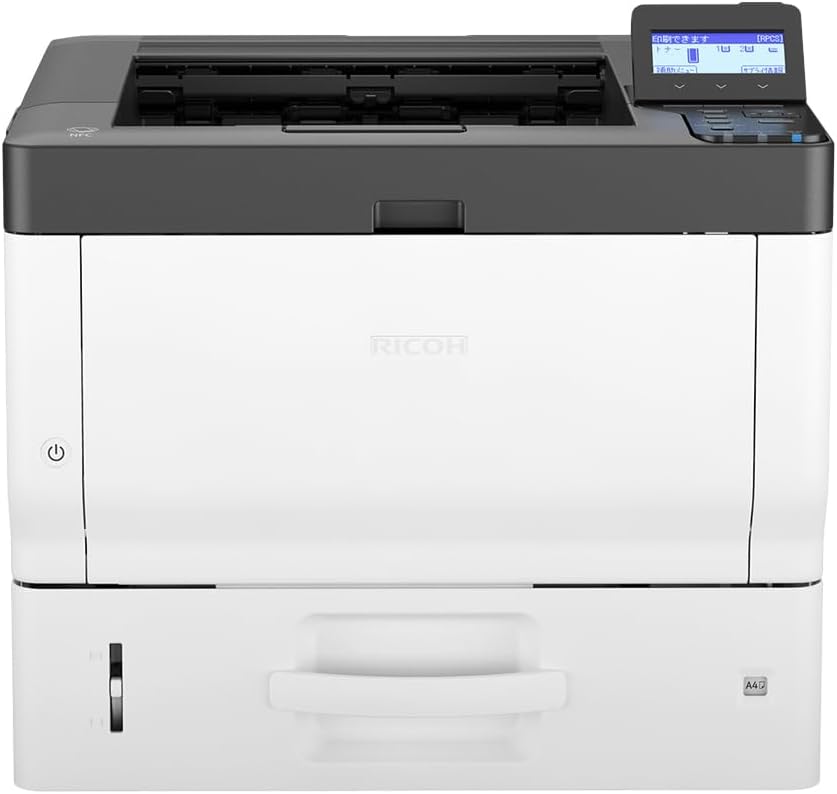
Figure 2: Front view of the Ricoh P 501 B printer, showing the main paper input tray.
2.4 Connecting the Printer
- Power Connection: Connect the power cord to the printer and then to a grounded electrical outlet.
- USB Connection: For direct connection, use a USB cable to connect the printer to your computer.
- Network (LAN) Connection: Connect an Ethernet cable from the printer's LAN port to your network router or switch.
2.5 Driver Installation
After connecting the printer, turn it on. Your operating system may automatically detect and install the necessary drivers. If not, insert the driver CD (if provided) or download the latest drivers from the official Ricoh support website. Follow the on-screen instructions to complete the installation.
3. Operating the Printer
3.1 Basic Printing
- Ensure the printer is powered on and connected to your computer or network.
- Open the document you wish to print on your computer.
- Select "Print" from the application's menu (e.g., File > Print).
- Choose the "Ricoh P 501 B" from the list of available printers.
- Adjust print settings as needed (e.g., number of copies, paper size, print quality).
- Click "Print" to send the job to the printer.
3.2 Control Panel Usage
The printer features a control panel with a display screen and navigation buttons. Use these to check printer status, configure network settings, or perform maintenance tasks. Refer to the on-screen menus for specific options.

Figure 3: Angled view of the Ricoh P 501 B, highlighting the control panel with its display and buttons for printer operation.
4. Maintenance
4.1 Replacing the Toner Cartridge
When the toner level is low or empty, the printer's display will indicate that the toner cartridge needs replacement. Follow these steps:
- Open the front cover of the printer.
- Carefully remove the old toner cartridge by pulling it out.
- Unpack the new Ricoh-compatible toner cartridge and gently shake it.
- Insert the new cartridge firmly until it locks into place.
- Close the front cover.
4.2 Cleaning the Printer
- Exterior: Wipe the exterior of the printer with a soft, damp, lint-free cloth. Do not use abrasive cleaners or solvents.
- Interior: Periodically open the front cover and gently remove any dust or paper debris from accessible areas using a dry, lint-free cloth or a small vacuum cleaner designed for electronics.
5. Troubleshooting
This section addresses common issues you might encounter with your Ricoh P 501 B printer.
- Printer Not Responding:
- Check if the printer is powered on and all cables (power, USB/Ethernet) are securely connected.
- Ensure the correct printer is selected in your computer's print dialog.
- Restart both the printer and your computer.
- Verify that the printer drivers are correctly installed and up to date.
- Slow Startup from Sleep:
Some users report slow startup times from sleep mode. Ensure the printer's firmware is up to date. Check printer settings for power-saving modes that might affect wake-up speed.
- Paper Jams:
- Turn off the printer and unplug it.
- Open all covers and carefully remove any jammed paper, pulling in the direction of the paper path to avoid tearing.
- Ensure paper is loaded correctly and not overfilled in the tray.
- Print Quality Issues:
- Check toner levels and replace the cartridge if necessary.
- Ensure you are using appropriate paper for laser printing.
- Perform a print head cleaning or calibration from the printer's control panel or driver settings if available.
- Automatic Landscape/Portrait Switching Issues:
If the printer struggles with automatic orientation switching, try manually setting the orientation in your application's print settings or the printer driver preferences before sending the print job.
For more detailed troubleshooting or issues not covered here, please refer to the comprehensive online support resources provided by Ricoh or contact their customer service.
6. Specifications
| Feature | Specification |
|---|---|
| Brand | Ricoh |
| Model Name | 418363 (P 501 B) |
| Connectivity Technology | USB, LAN (Ethernet) |
| Print Technology | Laser |
| Special Feature | Portable (as per manufacturer listing) |
| Color Output | Monochrome (Black and White) |
| Max Media Size | A4 |
| Product Dimensions (D x W x H) | 30P x 40l x 30H cm (approx. 30 x 40 x 30 cm) |
| Max Input Paper Capacity | 100 sheets |
| Max Output Sheet Capacity | 100 sheets |
| Max Copy Resolution (B&W) | 1200 dpi |
| Scanner Resolution | 1200 x 1200 dpi (Note: Product is listed as "Print Only" in some specs, scanner resolution might refer to internal component or a related model feature) |
| Duplex Printing | Simplex (No automatic duplex) |
7. Warranty and Support
For warranty information, please refer to the documentation included with your printer or visit the official Ricoh website. Ricoh provides customer support for product inquiries, technical assistance, and service requests.
It is recommended to register your product on the Ricoh website to receive updates and support notifications.
Contacting Support: For specific issues or technical support, please visit the Ricoh support portal or contact their customer service directly. Have your printer model (P 501 B) and serial number ready when contacting support.


