
Ancel X6
Ancel X6 Car Diagnostic Tool User Manual
Model: X6 | Brand: Ancel
1. Introduction
The Ancel X6 is a professional-grade car diagnostic and inspection device designed to help automotive technicians and enthusiasts accurately identify and resolve vehicle issues. This comprehensive tool combines advanced diagnostic capabilities with a user-friendly interface, running on an Android 7.0 tablet system. It offers extensive vehicle compatibility, supporting a wide range of American, European, Asian, Australian, and Chinese car brands.
Key features include a vibrant 10.1-inch display, a long-lasting 6000 mAh Lithium Polymer battery, and versatile connectivity options such as Bluetooth and Wi-Fi. The Ancel X6 provides multi-language support for its diagnostic program, including English and Arabic, ensuring a fast and responsive user experience. It also boasts free and permanent software updates, accessible via a convenient one-click online update feature, keeping your device up-to-date with the latest vehicle data and diagnostic functions.
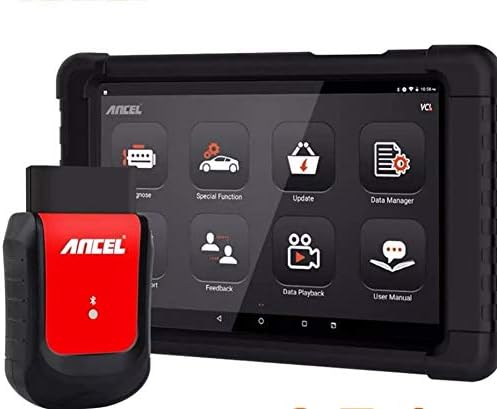
Figure 1: Ancel X6 Car Diagnostic Tool. The image displays the Ancel X6 car diagnostic tool, consisting of a black tablet with a 10.1-inch screen and a red and black OBD2 connector. The tablet screen shows various application icons including Diagnose, Special Function, Update, Data Manager, Feedback, Data Playback, and User Manual. The OBD2 connector has the 'ANCEL' logo prominently displayed.
2. Setup and Initial Use
2.1 Unpacking and Inspection
Carefully unpack all components from the packaging. Verify that all items listed in the packing list are present and undamaged. If any items are missing or damaged, contact customer support immediately.
2.2 Charging the Device
Before first use, fully charge the Ancel X6 tablet. Connect the provided power adapter to the charging port on the tablet and plug it into a standard electrical outlet. The charging indicator will illuminate. A full charge typically takes approximately 4-6 hours.
2.3 Powering On/Off
To power on the tablet, press and hold the power button located on the side of the device until the Ancel logo appears on the screen. To power off, press and hold the power button, then select "Power Off" from the options that appear.
2.4 Connecting to the Vehicle
- Locate the vehicle's OBD2 port, typically found under the dashboard on the driver's side.
- Plug the Ancel OBD2 connector firmly into the vehicle's OBD2 port.
- Ensure the Ancel X6 tablet's Bluetooth is enabled. The tablet will automatically attempt to connect to the OBD2 connector. A successful connection is indicated by a solid blue light on the connector and a Bluetooth icon on the tablet's status bar.
2.5 Wi-Fi Configuration
For software updates and online support, connect the tablet to a Wi-Fi network. Go to Settings > Network & Internet > Wi-Fi, select your desired network, and enter the password if prompted.
3. Operating the Device
3.1 Main Interface Overview
Upon powering on, the main interface displays various application icons. These include:
- Diagnose: For performing vehicle diagnostics, reading/clearing fault codes, and viewing live data.
- Special Function: Accessing various reset and service functions.
- Update: For downloading and installing the latest software updates.
- Data Manager: Managing saved diagnostic reports, data streams, and screenshots.
- Feedback: Submitting feedback or issues to Ancel support.
- Data Playback: Reviewing previously recorded live data streams.
- User Manual: Accessing the digital user manual.
3.2 Performing Diagnostics
- From the main interface, tap the Diagnose icon.
- Select the vehicle manufacturer, model, and year as prompted.
- Choose the desired diagnostic function (e.g., Read Fault Codes, Clear Fault Codes, Live Data Stream, ECU Information).
- Follow the on-screen instructions to complete the diagnostic process.
3.3 Special Functions (10 Reset Systems)
The Ancel X6 supports 10 common reset and service functions. To access these, tap the Special Function icon. Available functions include, but are not limited to:
- Oil Reset: Resets the oil life reminder after an oil change.
- EPB (Electronic Parking Brake) Reset: Deactivates and reactivates the brake control system for brake pad replacement.
- TPMS (Tire Pressure Monitoring System) Reset: Resets tire pressure sensor IDs.
- BMS (Battery Management System) Reset: Registers new battery replacement.
- ABS Bleeding: Performs brake bleeding to restore ABS brake sensitivity.
- DPF (Diesel Particulate Filter) Regeneration: Clears particulate matter from the DPF filter.
- Injector Coding: Codes new injector numbers to the ECU.
- SAS (Steering Angle Sensor) Calibration: Calibrates the steering angle sensor.
- Throttle Adaptation: Initializes the throttle actuators to the default state.
- IMMO (Immobilizer) Key Programming: Programs new keys or remote controls.
Always refer to the specific vehicle's service manual for detailed procedures before performing any special functions.
4. Maintenance
4.1 Cleaning the Device
Use a soft, damp cloth to clean the tablet screen and body. Avoid using abrasive cleaners or solvents that may damage the device. Keep the OBD2 connector free from dirt and debris.
4.2 Software Updates
The Ancel X6 offers free and permanent software updates. To update the software:
- Ensure the tablet is connected to a stable Wi-Fi network.
- Tap the Update icon on the main interface.
- The system will check for available updates. Select the desired updates and tap Download and then Install.
- Do not power off the device during the update process.
4.3 Battery Care
To prolong battery life, avoid exposing the device to extreme temperatures. Charge the device regularly, even if not in frequent use, to prevent deep discharge. Store the device in a cool, dry place.
5. Troubleshooting
| Problem | Possible Cause | Solution |
|---|---|---|
| Device does not power on. | Low battery; Power button not pressed long enough. | Charge the device; Press and hold the power button for 3-5 seconds. |
| Cannot connect to vehicle. | OBD2 connector not fully inserted; Bluetooth not enabled; Vehicle ignition off. | Ensure connector is firmly seated; Enable Bluetooth on tablet; Turn vehicle ignition to ON position. |
| Software update failed. | Unstable Wi-Fi connection; Insufficient storage space. | Ensure strong Wi-Fi signal; Clear unnecessary files from device storage. |
| Screen is unresponsive. | Temporary software glitch. | Perform a forced restart by holding the power button for 10 seconds. |
6. Specifications
| Feature | Detail |
|---|---|
| Model | X6 |
| Operating System | Android 7.0 |
| Screen Size | 10.1 inches |
| Battery | 6000 mAh Lithium Polymer |
| Connectivity | Bluetooth, Wi-Fi |
| Supported Functions | Full System Diagnostics, 10 Reset Functions (Oil, EPB, TPMS, BMS, ABS, DPF, Injector, SAS, Throttle, IMMO) |
| Software Updates | Free and Permanent Online Updates |
| Dimensions (Approx.) | 146.9 x 146.65 x 146.39 mm |
| Weight (Approx.) | 2.5 kg |
| Manufacturer Part Number | 706370621 |
7. Warranty and Support
Ancel provides free and permanent software updates for the X6 diagnostic tool, ensuring your device remains compatible with the latest vehicle models and diagnostic protocols. For technical assistance, troubleshooting, or any inquiries, please utilize the Feedback function within the device's main interface to contact Ancel support directly. You can also visit the official Ancel website for additional resources and contact information.
For warranty details, please refer to the warranty card included with your product or visit the official Ancel website. Keep your purchase receipt as proof of purchase for warranty claims.
Related documentsX6


Ask a question about this manual
Ask about setup, troubleshooting, compatibility, parts, safety, or missing instructions. Manuals+ will review the question and use this page’s manual context to help answer it.