
1. Introduction
The RICOO TRH-11 is an under-desk PC holder designed to securely mount your computer tower beneath a desk or table. This system helps to free up valuable desk space and can improve airflow around your PC, contributing to better cooling. It supports both vertical (standing) and horizontal (lying) mounting configurations and features an adjustable strap system to accommodate various PC case sizes up to a maximum weight of 10 kg.
2. Important Safety Information
- Maximum Load Capacity: Do not exceed the maximum load capacity of 10 kg (22 lbs). Overloading can lead to product failure and potential damage to your computer or injury.
- Secure Installation: Ensure all mounting screws are tightened securely to the underside of your desk. Verify that the desk material is strong enough to support the weight of your PC and the holder.
- Strap Adjustment: Always ensure the adjustable straps are tightly secured around your PC case to prevent movement or accidental dislodgement.
- Cable Management: Route all cables carefully to avoid pinching or strain, which could lead to damage or disconnection.
- Ventilation: While the under-table mounting supports cooling, ensure that your PC's ventilation ports are not obstructed by the holder or other objects.

Image: Maximum load capacity of 10 kg for the PC holder.
3. Package Contents
Please verify that all components are present before beginning installation:
- 1x RICOO TRH-11 Holder Frame (Alloy Steel)
- Adjustable Nylon Straps with Buckles
- Mounting Hardware (Screws, Anchors - quantity may vary based on desk material)
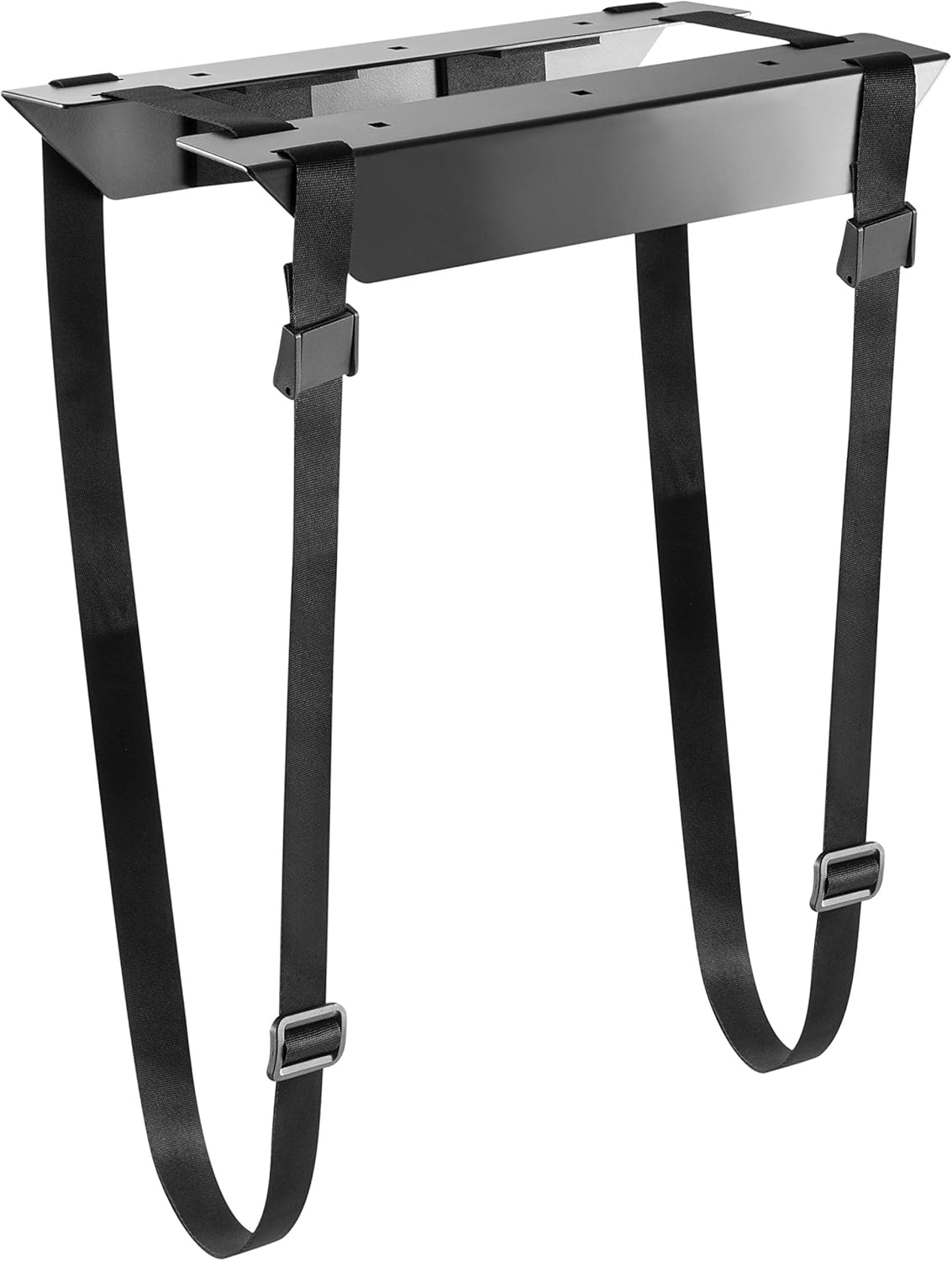
Image: RICOO TRH-11 holder frame and straps.
4. Setup and Installation
The RICOO TRH-11 offers flexible mounting options for your PC tower.
4.1. Vertical Mounting (Standing)
- Position the holder frame under your desk in the desired location. Ensure there is enough clearance for your PC and cables.
- Mark the drilling points for the mounting screws.
- Drill pilot holes if necessary, according to your desk material and screw type.
- Securely attach the holder frame to the underside of the desk using the provided mounting hardware.
- Place your PC tower vertically into the holder.
- Thread the adjustable straps around your PC case and through the buckles on the holder frame. Tighten the straps firmly to secure the PC.

Image: Vertical mounting configuration.

Image: Example of a PC mounted vertically under a desk.
4.2. Horizontal Mounting (Lying)
- Position the holder frame under your desk in the desired location, ensuring it is oriented to support your PC horizontally.
- Mark the drilling points for the mounting screws.
- Drill pilot holes if necessary, according to your desk material and screw type.
- Securely attach the holder frame to the underside of the desk using the provided mounting hardware.
- Place your PC tower horizontally onto the holder.
- Thread the adjustable straps around your PC case and through the buckles on the holder frame. Tighten the straps firmly to secure the PC.

Image: Horizontal mounting configuration.
4.3. Adjusting the Straps
The RICOO TRH-11 features an adjustable strap system to accommodate various PC case dimensions. The straps can be adjusted to fit widths and heights between approximately 34 cm and 54 cm.
- To adjust, loosen the buckle on each strap.
- Pull the strap through the buckle to achieve the desired tension and fit around your PC case.
- Once the PC is snug and secure, push the buckle back to lock the strap in place.
- Ensure all straps are equally tensioned for optimal stability.

Image: Individual strap adjustment for size customization.
5. Operation
Once the RICOO TRH-11 PC holder is securely installed and your computer tower is firmly strapped in, no further operational steps are required. The holder provides a stable and elevated platform for your PC, keeping it off the floor and out of the way. This setup also allows for better air circulation around the computer, which can contribute to its cooling efficiency.
6. Maintenance
- Cleaning: The holder frame can be wiped clean with a soft, damp cloth. Avoid using abrasive cleaners or solvents that could damage the finish.
- Strap Inspection: Periodically check the adjustable straps for any signs of wear, fraying, or damage. Ensure the buckles are functioning correctly and the straps remain taut.
- Mounting Security: Occasionally check the tightness of the mounting screws that attach the holder to your desk. Retighten if any looseness is detected.
7. Troubleshooting
- PC feels unstable: Ensure the adjustable straps are tightened sufficiently around the PC case. Re-adjust the straps to achieve a snug fit. Verify that the PC's dimensions are within the holder's adjustable range.
- Holder is loose on the desk: Check all mounting screws that attach the holder frame to the underside of the desk. Tighten any loose screws. If the issue persists, consider relocating the holder or using more robust mounting hardware suitable for your desk material.
- Difficulty fitting PC: Ensure the straps are fully extended before attempting to place the PC. Adjust the straps to the maximum width/height if needed.
8. Specifications
| Model | TRH-11 |
| Brand | RICOO |
| Material | Alloy Steel |
| Color | Black |
| Maximum Load Capacity | 10 kg (22 lbs) |
| Adjustable Strap Range (Height/Width) | 34 cm to 54 cm |
| Mounting Type | Under-desk (Vertical or Horizontal) |
| Product Dimensions (Holder Frame) | Approx. 54 x 34 x 54 cm (max dimensions, refer to diagram for details) |
| Item Weight | 1 kg |

Image: Detailed dimensions of the TRH-11 holder in millimeters.
9. Warranty and Support
For information regarding warranty coverage, returns, or technical support for your RICOO TRH-11 PC holder, please refer to the documentation provided at the time of purchase or visit the official RICOO website. You may also contact your retailer for assistance.
For general inquiries, please visit the RICOO brand page on Amazon.