
1. Introduction
The PXN V900 is a versatile PC Gaming Racing Steering Wheel designed to enhance your racing simulation experience across multiple platforms. This manual provides detailed instructions for setting up, operating, maintaining, and troubleshooting your device to ensure optimal performance and longevity.

Image: The PXN V900 racing steering wheel with its accompanying pedal unit, showcasing its ergonomic design and control layout.
2. Product Features
- Multi-Platform Compatibility: Compatible with PS4, PS4 Slim, PS4 Pro, PS3, Xbox One, Nintendo Switch, and PC (X-Input and D-input).
- Dual Vibration Motors: Built-in double vibration motors provide immersive feedback, simulating various driving scenarios.
- Adjustable Steering Angle: Features a physical button to switch between 270-degree and 900-degree rotation modes.
- Programmable Buttons: Customize button functions for personalized control.
- Interactive Communication: Supports audio communication functions on PS4 and Xbox One.
- Ergonomic Design: 11-inch diameter wheel with a rubber grip for anti-slip and improved tactile feel.
- Pressure-Sensitive Pedals: Includes gas and brake pedals with linear response.
- Shift Paddles: Two paddles on the wheel provide convenient gear shifting.
Image: Illustration of the dual vibration feedback system within the PXN V900 steering wheel, indicating how it simulates driving sensations.
3. Compatibility
The PXN V900 steering wheel is designed for broad compatibility with various gaming systems:
- PC: Supports Windows 7/8/10/11 (X-Input and D-input modes).
- PlayStation: Compatible with PS3, PS4, PS4 Slim, and PS4 Pro.
- Xbox: Compatible with Xbox One, Xbox One S&X, and Xbox Series S&X.
- Nintendo: Compatible with Nintendo Switch, Switch OLED, and Switch Lite.
Note: The PXN V900 steering wheel is not compatible with PS5, Xbox 360, iOS, or Android devices.
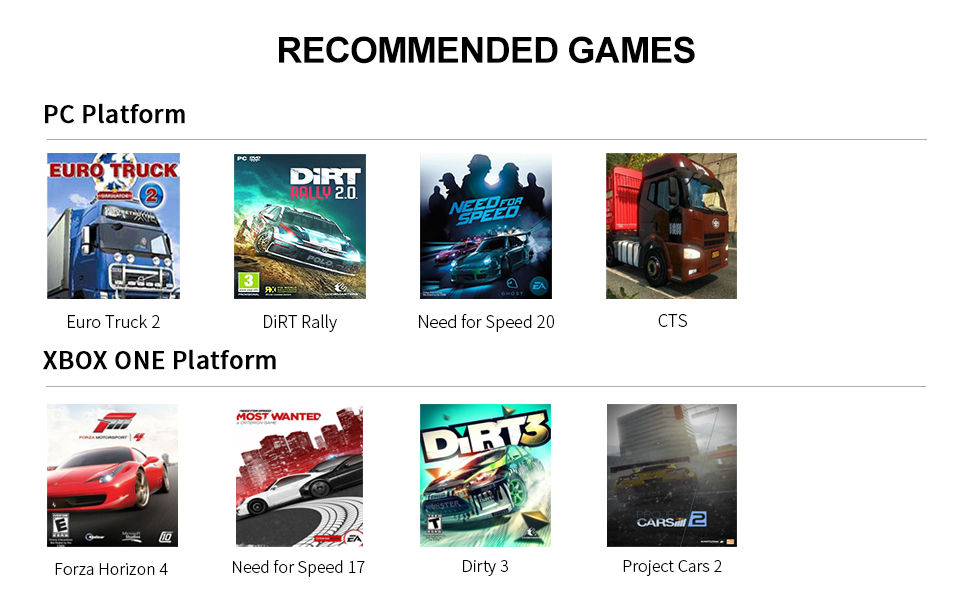
Image: A visual representation of the PXN V900's compatibility with various gaming platforms, including PC, Xbox, PlayStation, and Nintendo Switch.
4. Setup Instructions
Follow these steps to set up your PXN V900 racing steering wheel:
- Connect Pedals: Plug the pedal unit cable into the designated port on the back of the steering wheel base.
- Secure the Wheel: Place the steering wheel on a stable, flat surface. The base is equipped with 5 strong suction cups for firm attachment. Ensure the surface is clean and smooth for optimal grip.
- Connect to Console/PC: Plug the USB cable from the steering wheel into an available USB port on your gaming console or PC.
- Power On: Turn on your console or PC. The steering wheel should be automatically recognized.
- Initial Calibration: The wheel may perform an automatic calibration upon connection. Allow it to complete this process.
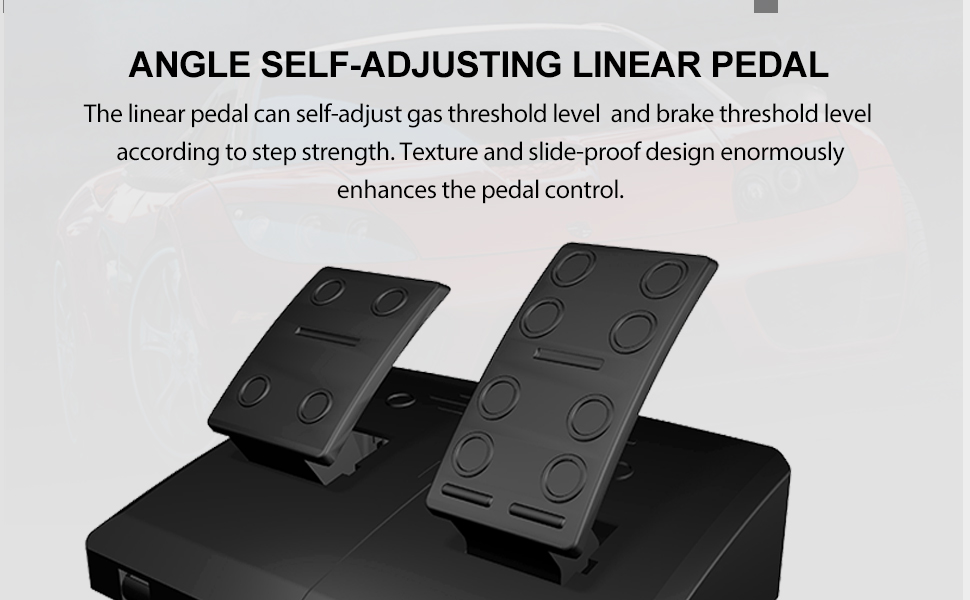
Image: An underside view of the PXN V900 steering wheel base, highlighting the five large suction cups designed for secure attachment to a table or desk.
5. Operating Instructions
5.1. Steering Angle Adjustment (270°/900°)
The PXN V900 allows you to switch between two steering angle modes:
- 270-Degree Mode: Ideal for competitive racing games like Need for Speed or Forza Horizon, offering fast and sensitive steering response.
- 900-Degree Mode: Suitable for driving simulation games such as Euro Truck Simulator or American Truck Simulator, providing a more realistic and sustained steering experience.
To switch between modes, locate the physical mode switch button on the steering wheel base and toggle it to your desired setting.
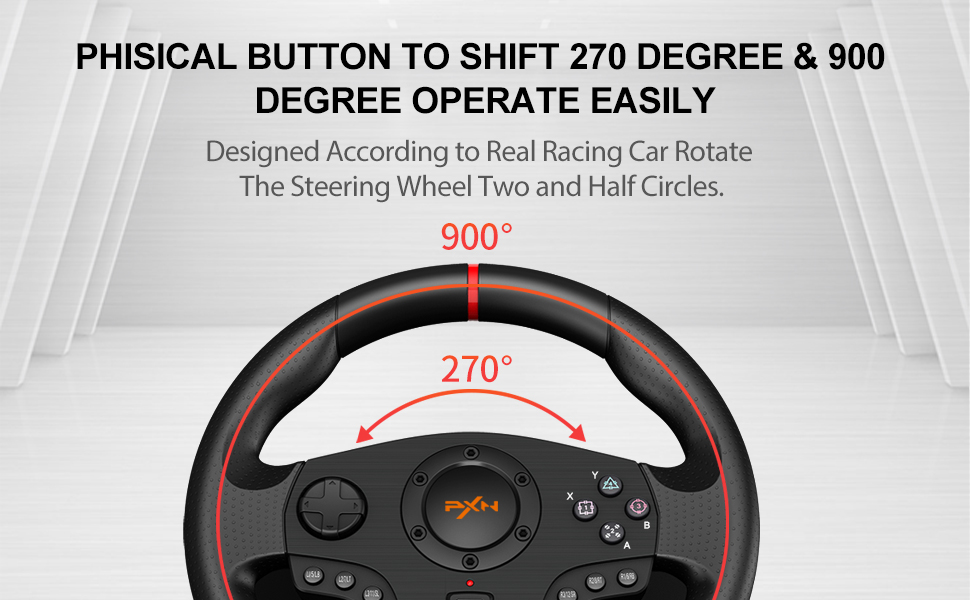
Image: A diagram illustrating the 270-degree and 900-degree rotation capabilities of the PXN V900 steering wheel, with examples of suitable game types for each mode.
5.2. Sensitivity Levels
The steering wheel features 3 adjustable sensitivity levels. Refer to the product's quick start guide or on-screen prompts for specific instructions on how to cycle through and select these levels.
5.3. Pedals and Shift Paddles
- Dual Linear Pedals: The included pedal unit features pressure-sensitive gas and brake pedals. These linear pedals automatically adjust throttle and brake thresholds based on the force applied, providing precise control. The pedal unit also has a folding pedal texture and anti-skid design for enhanced stability.
- Simulated Racing Shift Paddles: Use the paddles located behind the steering wheel for quick and efficient gear changes without needing a clutch.
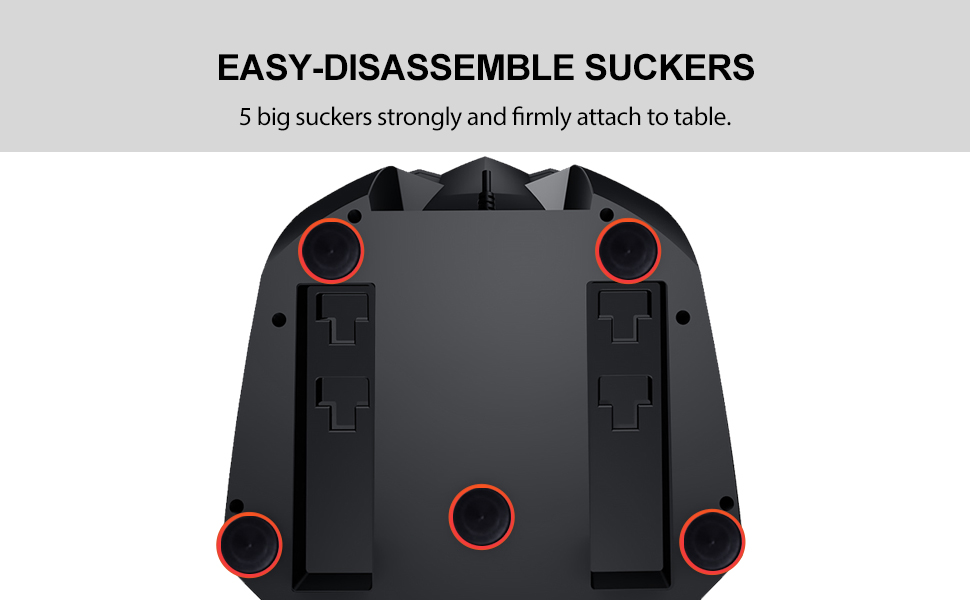
Image: A detailed view of the PXN V900's dual linear pedals, highlighting their design for automatic adjustment of throttle and brake thresholds based on pedaling force, and the anti-skid base.

Image: Close-up of the simulated racing shift paddles on the PXN V900 steering wheel, designed for direct and efficient gear changes.
5.4. Audio Communication Function
For PS4 and Xbox One, the PXN V900 supports audio communication. Connect your headset to the appropriate port on the steering wheel or console as per your system's requirements.
6. Maintenance
To ensure the longevity and proper functioning of your PXN V900 steering wheel, follow these maintenance guidelines:
- Cleaning: Use a soft, dry cloth to wipe down the steering wheel and pedals. Avoid using abrasive cleaners or solvents, which can damage the finish.
- Storage: When not in use, store the device in a cool, dry place away from direct sunlight and extreme temperatures.
- Cable Care: Avoid sharp bends or kinks in the cables. Do not pull on the cables to disconnect the device.
- Suction Cups: Periodically clean the suction cups and the surface they attach to for optimal grip.
7. Troubleshooting
If you encounter issues with your PXN V900, refer to the following common problems and solutions:
- Wheel Not Responding / Disconnecting:
- Ensure all cables are securely connected.
- For PS4: Go to your console's power save settings and turn off the automatic sleep mode for controllers.
- For Nintendo Switch: Ensure "Pro Controller Wired Communication" is enabled in the Switch system settings.
- Use a high-quality USB cable capable of transmitting high-speed data.
- Steering Wheel Stability Issues:
- Ensure the suction cups are clean and the table surface is smooth and free of dust or debris.
- Press down firmly on the wheel to engage the suction cups fully.
- "Dead Zone" or Input Lag:
- The wheel has adjustable sensitivity levels. Refer to the operating instructions or the product's quick start guide to adjust these settings.
- Some games may have in-game steering sensitivity or dead zone settings that can be adjusted.
- Wheel Pulls to One Side / Calibration Issues:
- Perform a recalibration if the wheel's center seems to wander. Specific recalibration steps may be found in the product's quick start guide.
- Ensure the wheel is centered before connecting it to your console/PC.
- Buttons Tied to Pedals/Paddles:
- Some games or configurations might map certain buttons to pedal or paddle inputs. Check in-game control settings for remapping options.
- Incompatibility with PS5:
- As stated in the compatibility section, the PXN V900 is not designed to work with the PlayStation 5.
8. Specifications
| Feature | Detail |
|---|---|
| Model Number | V900 |
| Manufacturer | PXN |
| Dimensions (Parcel) | 31.1 x 30.2 x 25.9 cm |
| Weight (Parcel) | 4.18 kg |
| Language | English |
| Steering Angle | 270° and 900° (switchable) |
| Vibration Feedback | Dual motors |
| Pedals | Linear (Gas, Brake) |
9. Warranty and Support
The PXN V900 PC Gaming Racing Steering Wheel typically comes with a 12-month warranty from the date of shipping. For warranty claims, technical support, or further assistance, please contact PXN customer service or your retailer. Keep your proof of purchase for warranty validation.


