
1. Introduction
This user manual provides comprehensive instructions for the OMOTON Bluetooth Keyboard. Designed for wide compatibility with various iPad and iPhone models, this keyboard offers a comfortable and efficient typing experience. Please read this manual thoroughly to ensure proper setup, operation, and maintenance of your device.
2. Package Contents
Upon opening the package, please verify that all the following items are included:
- 1 x OMOTON Bluetooth Keyboard
- 1 x Micro-USB Charging Cable
- 1 x User Manual (this document)
3. Key Features
The OMOTON Bluetooth Keyboard is engineered with several features to enhance your productivity and comfort:
- Wide Compatibility: Seamlessly connects with iPad Pro 13/11 2024, iPad Air 13/11 inch 2024, iPad 10th/9th/ 8th/ 7th, iPad Pro 12.9/9.7 inch, iPad Minis/iPad Airs series, and all iPhones.
- Reliable Connection: Advanced Bluetooth technology ensures a stable connection up to 33 feet (10 meters), providing cable-free convenience.
- Comfortable Typing: Features a refined scissor mechanism for a tactile, comfortable, and silent typing experience, ideal for extended use.
- Durable Materials: Constructed from premium stainless steel and ABS materials, ensuring a long service life. Keys are tested for over 3 million keystrokes.
- Long-Lasting Battery: Equipped with a high-capacity rechargeable lithium battery, offering up to 90 days of uninterrupted typing on a single charge.
- Power-Saving Mode: Automatically enters sleep mode after 30 minutes of inactivity to conserve battery life. Press any key to reactivate.

Image: The OMOTON Bluetooth Keyboard demonstrating its wide compatibility with various iPad and iPhone models, showing Bluetooth connection icons.

Image: A close-up view of the OMOTON Bluetooth Keyboard, illustrating its durable metal base and ABS keycap materials.
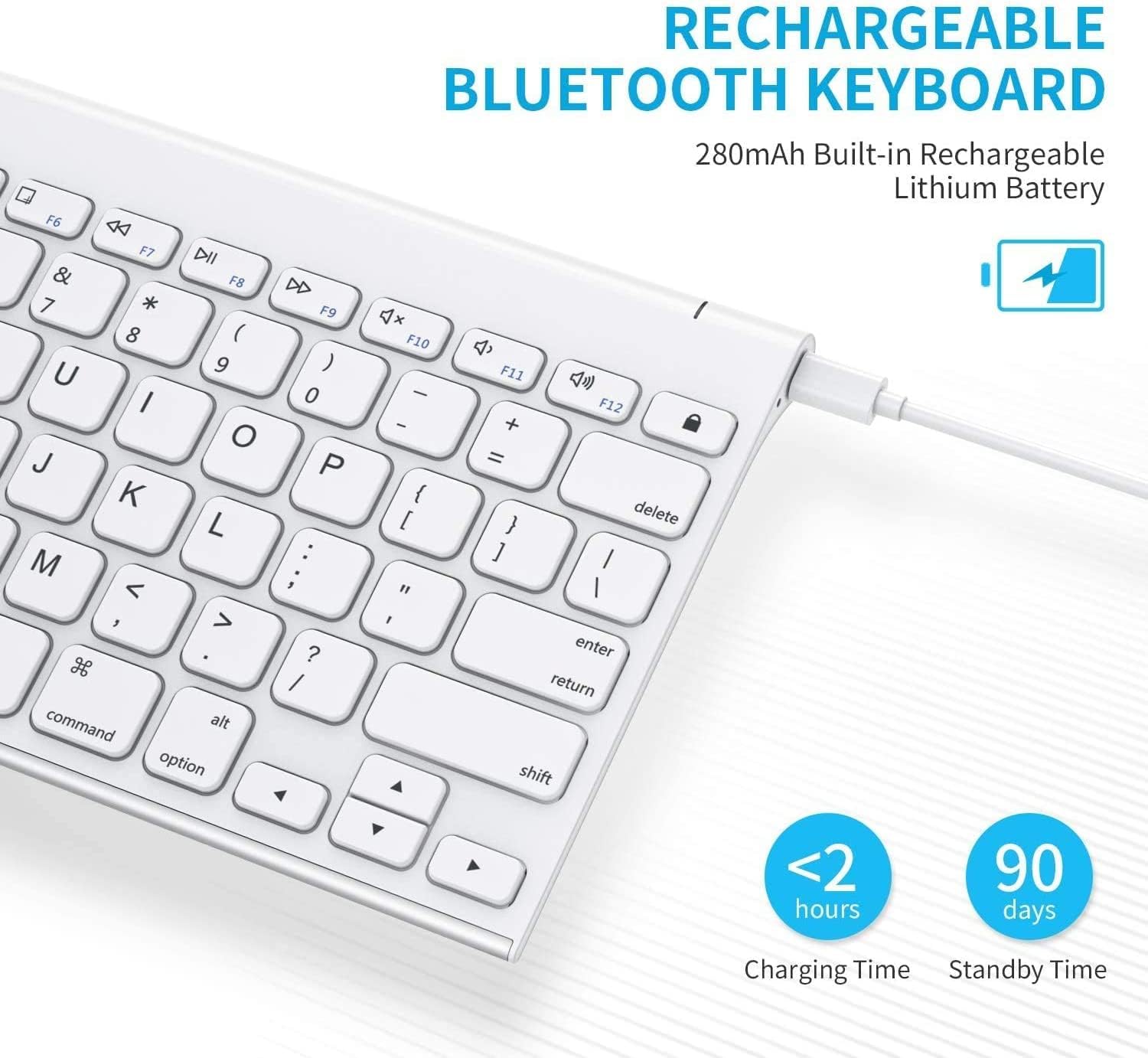
Image: The OMOTON Bluetooth Keyboard connected via Micro-USB for charging, with icons indicating less than 2 hours charging time and 90 days standby time.
4. Setup and Pairing
Follow these steps to connect your OMOTON Bluetooth Keyboard to your device:
- Ensure the keyboard is charged. Connect the Micro-USB charging cable to the keyboard's charging port and a power source. The charging indicator light will illuminate.
- Locate the power switch on the keyboard (usually on the side or back) and slide it to the 'ON' position.
- Activate Bluetooth on your iPad or iPhone. Go to Settings > Bluetooth and toggle Bluetooth to 'On'.
- On the OMOTON keyboard, press the Fn key and the C key (labeled 'Pairing') simultaneously. The Bluetooth indicator light on the keyboard will start blinking, indicating it is in pairing mode.
- On your iPad or iPhone, look for 'OMOTON Keyboard' or a similar name in the list of available Bluetooth devices. Tap on it to connect.
- If prompted, enter the displayed pairing code on the OMOTON keyboard and press Enter.
- Once connected, the Bluetooth indicator light on the keyboard will stop blinking and remain solid or turn off, depending on the model. Your keyboard is now ready for use.
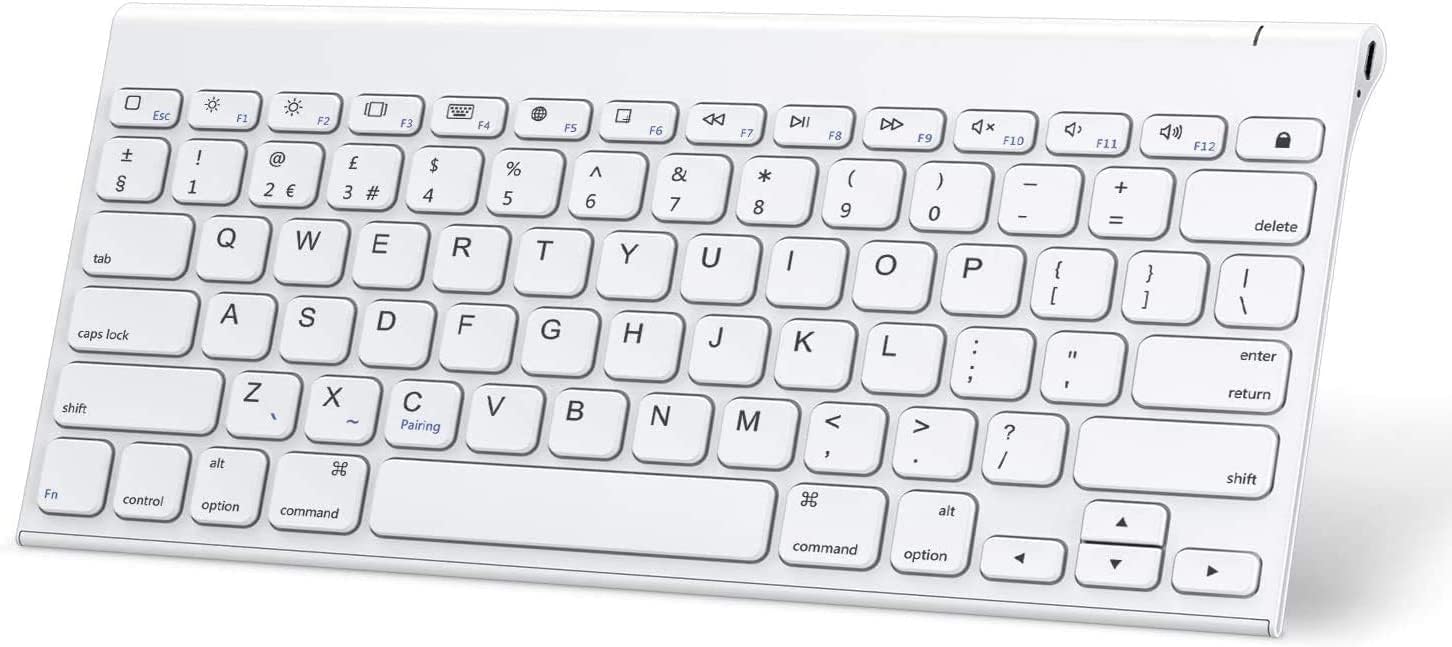
Image: Top-down view of the OMOTON Bluetooth Keyboard, showing the layout of keys including the 'Fn' and 'C' (Pairing) keys used for Bluetooth connection.
5. Operating Instructions
The OMOTON Bluetooth Keyboard features a standard QWERTY layout along with dedicated iOS shortcut keys for enhanced functionality:
- Function Keys (F1-F12): These keys provide quick access to various iOS functions such as Home, Brightness adjustment, Search, Volume control, and Media playback controls. Press the desired function key directly to activate its corresponding action.
- Typing: Begin typing in any text input field on your connected device. The keyboard provides a responsive and comfortable typing experience.
- Power-Saving Mode: If the keyboard is idle for 30 minutes, it will automatically enter sleep mode. To wake it up, simply press any key and wait for approximately 3 seconds for it to reconnect.

Image: The OMOTON Bluetooth Keyboard positioned in front of an iPad, which is mounted on a stand, demonstrating a typical usage scenario for productivity.
6. Maintenance
To ensure the longevity and optimal performance of your OMOTON Bluetooth Keyboard, follow these maintenance guidelines:
- Cleaning: Use a soft, dry, lint-free cloth to wipe the surface of the keyboard. For stubborn dirt, slightly dampen the cloth with water. Avoid using harsh chemicals, abrasive cleaners, or solvents.
- Storage: When not in use for extended periods, turn off the keyboard to conserve battery life. Store it in a cool, dry place away from direct sunlight and extreme temperatures.
- Battery Care: Recharge the keyboard when the battery indicator is low. Avoid fully depleting the battery frequently, as this can reduce its overall lifespan.
- Handling: Handle the keyboard with care. Avoid dropping it or exposing it to excessive force, which could damage internal components or keys.
7. Troubleshooting
If you encounter any issues with your OMOTON Bluetooth Keyboard, please refer to the following common problems and their solutions:
- Keyboard not connecting via Bluetooth:
- Ensure Bluetooth is enabled on your device.
- Make sure the keyboard is powered on and fully charged.
- Put the keyboard into pairing mode by pressing Fn + C.
- Forget the device from your iPad/iPhone's Bluetooth settings and attempt to pair again.
- Restart both your device and the keyboard.
- Keys not responding or typing incorrectly:
- Check the battery level and recharge if necessary.
- Ensure the keyboard is within the 33ft (10m) operating range of your device.
- Clean any debris from around the keys.
- If specific keys are not working, there might be a hardware issue.
- Keyboard frequently disconnects:
- Ensure there are no strong interferences (e.g., other wireless devices, thick walls) between the keyboard and your device.
- Keep the keyboard and device close to each other.
- Update your device's operating system to the latest version.
If the problem persists after trying these solutions, please contact OMOTON customer support for further assistance.
8. Specifications
Detailed technical specifications for the OMOTON Bluetooth Keyboard:
| Feature | Specification |
|---|---|
| Product Dimensions | 11.09"L x 5.31"W x 0.16"H (281.7mm x 135mm x 4.1mm) |
| Item Weight | 1.01 pounds (approx. 458g) |
| Material | Stainless Steel, Acrylonitrile Butadiene Styrene (ABS) |
| Connectivity Technology | Bluetooth |
| Number of Keys | 78 |
| Color | White |
| Battery Type | High-capacity rechargeable lithium battery (280mAh) |
| Charging Time | Less than 2 hours |
| Standby Time | Up to 90 days |
| Keystroke Life | Over 3 million times |

Image: Technical drawing of the OMOTON Bluetooth Keyboard showing its precise length, width, and thickness measurements.
9. Warranty and Support
OMOTON products are designed for reliability and performance. This product comes with a standard manufacturer's warranty covering defects in materials and workmanship under normal use. For specific warranty terms, duration, and to register your product, please refer to the warranty card included in your package or visit the official OMOTON website.
For technical support, troubleshooting assistance beyond this manual, or warranty claims, please contact OMOTON customer service through their official channels. Have your product model and purchase information ready to expedite the support process.


