
1. Introduction
Thank you for choosing the 4URPC USB C Dual Monitor Docking Station, Model DS-C01. This docking station is designed to expand the connectivity of your USB-C or Thunderbolt 3 enabled laptop, transforming it into a powerful workstation. It supports dual monitor setups, provides multiple USB ports for peripherals, offers wired network connectivity, and includes audio input/output.

Image 1: The 4URPC USB C Dual Monitor Docking Station in a dual monitor setup with a laptop.
2. Product Overview
The 4URPC DS-C01 docking station features a comprehensive array of ports to enhance your productivity. Familiarize yourself with the port layout and their functions:

Image 2: Detailed view of the docking station's ports and their functions.
- HDMI 1, HDMI 2, HDMI 3: Connect external monitors. Supports resolutions up to 4Kx2K@30Hz (HDMI 1, 2) and 4Kx2K@60Hz (HDMI 3, when input source is DP1.4).
- VGA: Connect an external monitor. Supports resolution up to 1080P@60Hz.
- USB-C IN (Host): Connects to your laptop's USB-C or Thunderbolt 3 port.
- USB-C (Data Transfer): For connecting USB-C peripherals, offering data transfer speeds up to 5Gbps.
- USB-C (Power Delivery 3.0): Connect your laptop's USB-C power adapter to charge your laptop through the dock, supporting up to 87W PD. Note: USB-C power adapter is not included.
- USB 3.0 (Type-A): Four ports for connecting USB 3.0 devices like external hard drives, mice, keyboards, and printers, with data transfer speeds up to 5Gbps.
- RJ45 Gigabit Ethernet: Provides a stable wired network connection (10/100/1000Mbps).
- 3.5mm Audio In & Out: For connecting headphones, speakers, or a microphone.
- Power Input (DC 12V 3A): For powering the docking station itself.
3. Setup Instructions
Follow these steps to set up your 4URPC USB C Dual Monitor Docking Station:
- Power the Dock: Connect the provided power adapter to the DC 12V 3A Power Input port on the docking station and then plug it into a wall outlet.
- Connect to Laptop: Use the included USB-C to USB-C cable to connect the docking station's 'USB-C IN (Host)' port to your laptop's USB-C or Thunderbolt 3 port.
- Connect Monitors: Connect your external monitors to the available HDMI or VGA ports on the docking station. For dual monitor setups, use any combination of HDMI 1, HDMI 2, HDMI 3, or VGA.
- Connect Peripherals: Plug in your USB devices (keyboard, mouse, external drives), Ethernet cable, and audio devices into their respective ports on the docking station.
- Power Delivery (Optional): If your laptop supports USB-C Power Delivery, connect your laptop's USB-C power adapter to the 'USB-C (Power Delivery 3.0)' port on the dock to charge your laptop.
Video: Dual Monitor Configuration
Video 1: This video demonstrates the steps for setting up a dual monitor configuration on both macOS and Windows operating systems using the 4URPC USB C Dual Monitor Docking Station.
4. Operating Instructions
Display Configuration
After connecting your monitors, your operating system should automatically detect them. You may need to adjust display settings:
- Windows: Right-click on the desktop, select 'Display settings'. You can arrange displays, change resolution, and set display mode (Extend, Duplicate, Second screen only).
- macOS: Go to 'System Preferences' > 'Displays'. You can arrange displays, set resolution, and choose between 'Mirror Displays' or 'Use as separate Space'.
Data Transfer
The USB 3.0 and USB-C data ports support high-speed data transfer up to 5Gbps, allowing for quick file transfers with compatible devices.
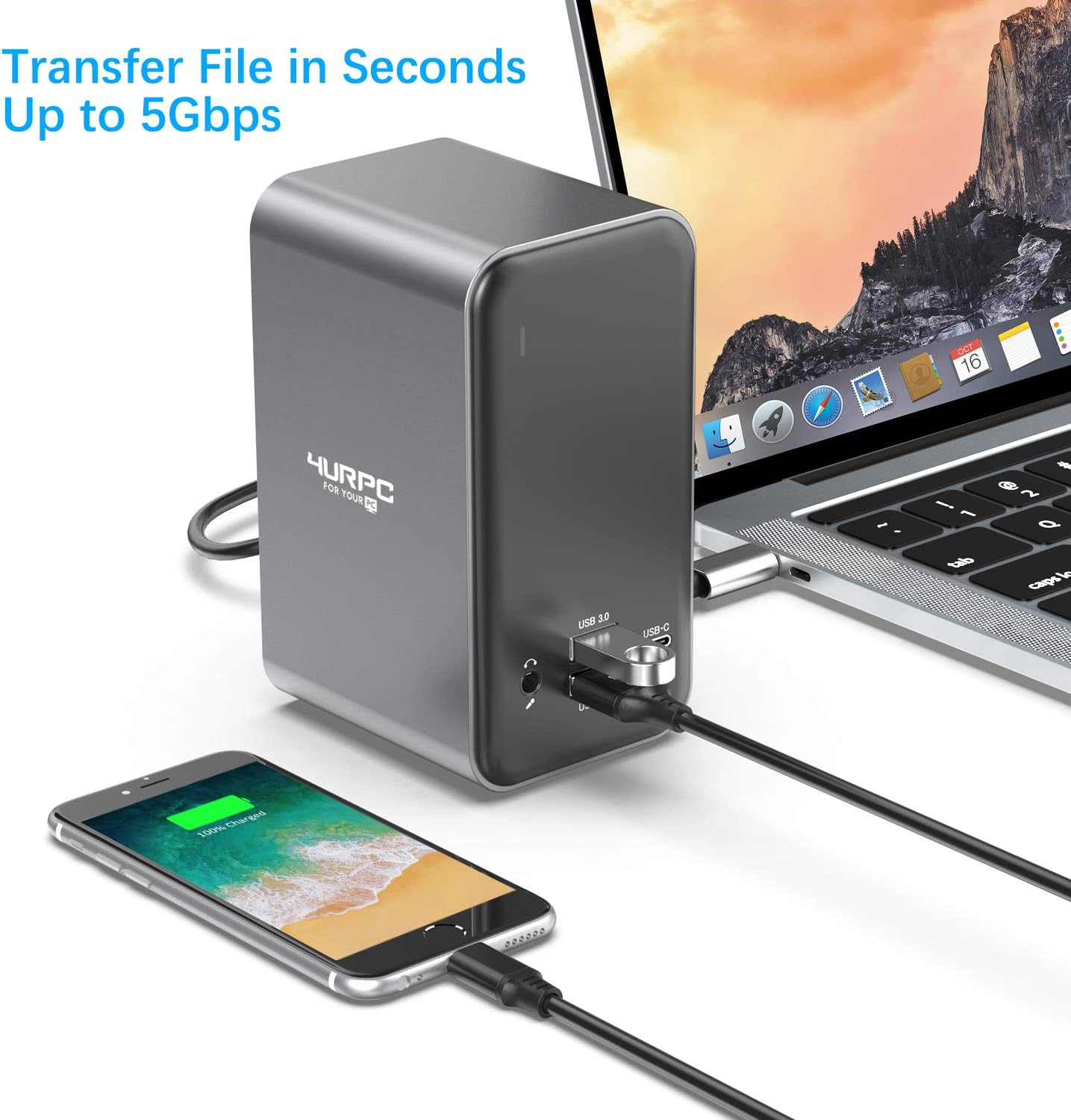
Image 3: The docking station facilitating data transfer between a laptop and a smartphone.
Network Connection
Connect an Ethernet cable to the RJ45 port for a stable and fast wired internet connection, ideal for environments with unreliable Wi-Fi.
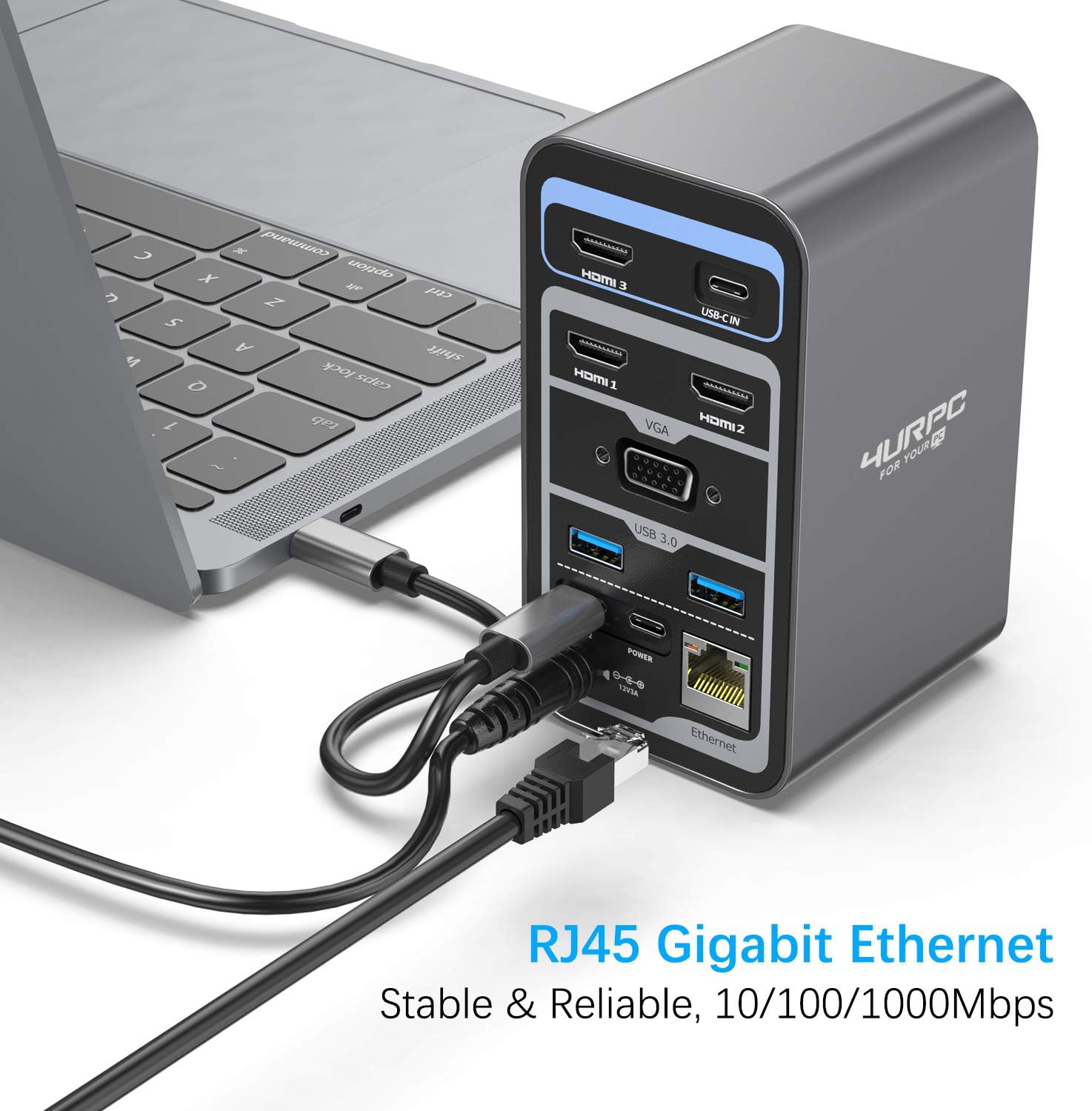
Image 4: The RJ45 Gigabit Ethernet port provides a reliable wired network connection.
5. Maintenance
To ensure the longevity and optimal performance of your docking station:
- Keep the device in a dry environment and avoid extreme temperatures.
- Clean the exterior with a soft, dry cloth. Do not use liquid cleaners or aerosols.
- Avoid dropping or subjecting the device to strong impacts.
- Do not attempt to disassemble or repair the device yourself. Contact customer support for assistance.
6. Troubleshooting
If you encounter issues with your docking station, please refer to the following common solutions:
- No Display on External Monitors:
- Ensure the docking station is powered and correctly connected to your laptop.
- Verify that the HDMI/VGA cables are securely connected to both the dock and the monitors.
- Check your laptop's display settings to ensure external monitors are detected and configured correctly (Extend/Duplicate).
- Try connecting one monitor at a time to isolate the issue.
- Ensure your laptop's USB-C port supports DisplayPort Alternate Mode (DP Alt Mode).
- Peripherals Not Working:
- Ensure the docking station is powered.
- Try connecting the peripheral directly to your laptop to confirm it's functional.
- Reconnect the peripheral to a different USB port on the dock.
- No Network Connection:
- Verify the Ethernet cable is securely connected to both the dock and your router/modem.
- Check your laptop's network settings.
- Ensure the network cable is functional by testing it with another device.
- Laptop Not Charging:
- Ensure your laptop's original USB-C power adapter is connected to the 'USB-C (Power Delivery 3.0)' port on the dock.
- Confirm your laptop supports USB-C Power Delivery.
7. Specifications

Image 5: Physical dimensions of the docking station.
| Feature | Specification |
|---|---|
| Model Number | DS-C01 |
| Product Dimensions | 4.5 x 1.1 x 0.3 inches (124 x 65 x 72 mm) |
| Item Weight | 6 ounces |
| Material | Aluminum Alloy |
| Input | USB-C |
| HDMI Ports | 3 (HDMI 1, 2: 4Kx2K@30Hz; HDMI 3: 4Kx2K@60Hz) |
| VGA Port | 1 (1080P@60Hz) |
| USB-A 3.0 Ports | 4 (5Gbps data transfer) |
| USB-C Data Port | 1 (5Gbps data transfer) |
| USB-C PD Port | 1 (Power Delivery 3.0 up to 87W) |
| Ethernet Port | RJ45 Gigabit (10/100/1000Mbps) |
| Audio Port | 3.5mm Audio In & Out |
| Power Input | DC 12V 3A |
8. Compatibility
The 4URPC DS-C01 docking station is compatible with laptops featuring a USB-C port that supports DisplayPort Alternate Mode (DP Alt Mode) or a Thunderbolt 3/4 port. No extra drivers are needed for most operating systems (plug and play).
Including but not limited to:
- Apple: MacBook Pro 2016/2017/2018/2019, MacBook Air 2018/2019
- Huawei: MateBook, MateBook X, MateBook X Pro
- Asus: Deluxe 3, Deluxe 3PRO, Deluxe X Series, U306/U321 Series, U4100ROG, U5100UQ Series
- Dell: XPS13, XPS15, G3/G5/G7 series, Inspiron 5000/7000
- Lenovo: Yoga5 Pro, Mix 720, Thinkpad-X1, Thinkpad-X390, Yoga720/730, C930
- Razer: Blade stealth Spirit Blade, Spirit Blade Sneak Edition
- HP: Pavilion x2, EliteBook Folio G1
9. Warranty and Support
4URPC products are designed for reliability and performance. For warranty information or technical support, please refer to the official 4URPC website or contact their customer service directly. Keep your purchase receipt for warranty claims.

