
1. Introduction
Thank you for choosing the TMEZON Wireless Security Outdoor Camera. This battery-powered, 1080P HD camera provides reliable surveillance with features like two-way audio, PIR motion detection, and night vision. This manual will guide you through the installation, operation, and maintenance of your new security camera to ensure optimal performance.
2. Product Components
Please check the package contents to ensure all items are present:
- TMEZON Battery Camera
- Camera Bracket
- USB Charging Cable
- Screw Pack (for mounting)
- User Manual

Image: Contents of the TMEZON Wireless Security Outdoor Camera package.
2.1. Camera Parts Diagram
Familiarize yourself with the camera's components:
- Microphone: For two-way audio communication.
- IR LEDs: Infrared lights for night vision.
- Lens: Captures 1080P HD video.
- PIR Sensor: Passive Infrared sensor for motion detection.
- Speaker: For two-way audio output and siren.
- Magnetic Bracket: For easy mounting (note: some models may use a screw bracket).
- Silicone Plug: Protects USB port and SD card slot from water.
- DC 5V USB Port: For charging the camera.
- TF Card Slot: For local video storage (supports up to 128GB, SD card not included).
- Reset Key: To reset the camera to factory settings.
- Rechargeable Battery: Powers the camera.
- Back Cap: Secures the battery compartment.

Image: Detailed diagram of the camera's components and ports.
3. Setup Guide
3.1. Initial Charging
Before first use, fully charge the camera using the provided USB charging cable. Connect the cable to the DC 5V USB port on the camera and a standard USB power adapter (not included). The charging indicator light will show the charging status.
3.2. App Download and Installation
The TMEZON camera operates with the VicoHome mobile application. Download and install the app on your smartphone:
- Scan the QR code provided in the quick start guide or on the product packaging.
- Alternatively, search for "VicoHome" in the Apple App Store (for iOS devices) or Google Play Store (for Android devices).
- You can also visit the official download page: https://www.vicohome.io/download/
3.3. Camera Connection
Follow these steps to connect your camera to the VicoHome app:
- Power On: Long press the power button on the camera for 3 seconds to turn it on.
- Network Configuration: Double-click the power button to enter network configuration mode.
- App Pairing: Open the VicoHome app, register or log in to your account. Follow the in-app instructions to add a new device. You will be prompted to scan a QR code displayed on your phone screen with the camera's lens.
- Connection Success: Once the camera successfully connects to your 2.4GHz Wi-Fi network, you can enjoy the live view.

Image: Simple connection steps for the TMEZON camera.
3.4. Mounting the Camera
The camera is designed for both indoor and outdoor use and can be wall-mounted. Choose a location that provides the desired viewing angle and has strong Wi-Fi signal coverage.
- Use the provided camera bracket and screw pack to securely mount the camera to a wall or suitable surface.
- Adjust the camera angle using the bracket to cover your desired monitoring area.

Image: Examples of camera installation in different environments.
4. Operating Instructions
4.1. Live View
Once connected, open the VicoHome app to access the live video feed from your camera anytime, anywhere. This allows you to monitor your property in real-time.
4.2. Two-Way Audio
The camera features a built-in microphone and speaker, enabling two-way communication. You can speak to visitors at your door or deter intruders directly through the app.

Image: Demonstrating the two-way audio feature for communication.
4.3. Smart PIR Motion Detection
The integrated PIR sensor detects body heat and movement, sending instant notifications to your smartphone when activity is detected. This minimizes false alarms from non-human movements.
- Customizable Detection Zones: Set specific areas within the camera's view for motion detection to focus on critical zones.
- AI Analysis: The camera can differentiate between people, pets, vehicles, and packages, providing more precise alerts.
- Spotlight and Siren: Activate the built-in spotlight or siren manually or automatically upon detection to deter unwanted visitors.

Image: Smart PIR Motion Detection in action, showing a notification on a smartphone.
4.4. Recording and Playback
The camera supports two storage options for recorded video:
- Micro SD Card Storage: Insert a TF (Micro SD) card (up to 128GB, not included) into the camera's slot for local storage. Recordings are saved directly to the card.
- Cloud Storage: Subscribe to the optional cloud service via the VicoHome app for secure, remote storage of your video recordings. This allows access to footage even if the camera is tampered with.
You can review recorded events directly from the VicoHome app, with a timeline view for easy navigation.
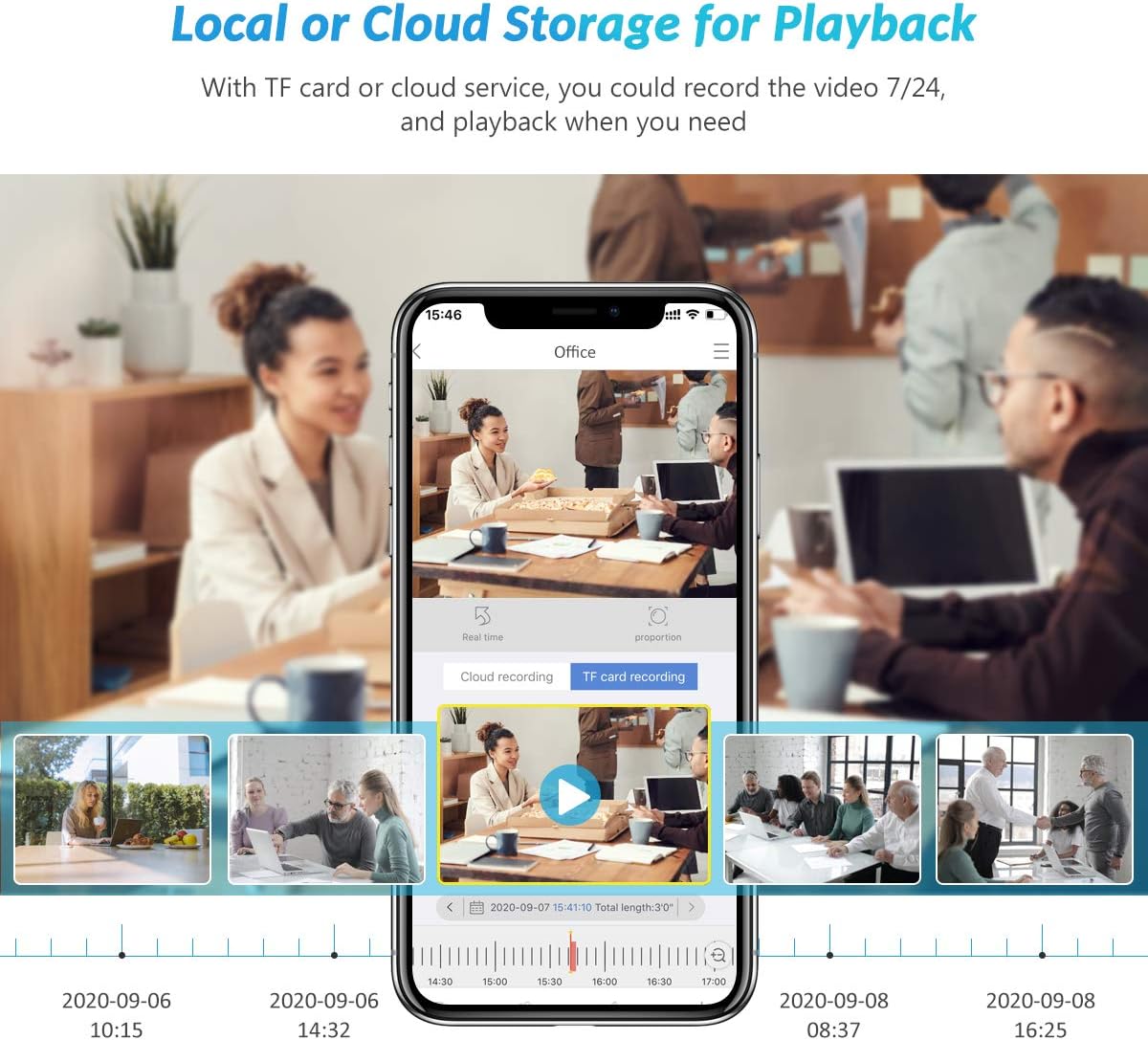
Image: Interface for local (TF card) or cloud storage playback.
4.5. Night Vision
The camera automatically switches to night vision mode in low-light conditions, providing clear black-and-white video footage up to a certain range, ensuring 24/7 surveillance.

Image: Night vision capability of the camera.
5. Key Features
- 100% Wire-Free & Easy Installation: No complex wiring required, offering flexible placement options.
- Rechargeable Battery: Built-in battery for extended operation.
- 1080P HD Image Quality: Provides clear and detailed video footage.
- 130-Degree Wide-Angle View: Covers a broad area for comprehensive monitoring.
- IP66 Weatherproof: Designed to withstand harsh outdoor conditions (rain, snow, wind).
- Two-Way Audio: Communicate with visitors or deter intruders remotely.
- Smart PIR Motion Detection: Accurate human detection with instant alerts.
- Local & Cloud Storage: Flexible options for video recording and playback.
- Multiple User Access: Share camera access with family members through the app.

Image: The camera's IP65 weatherproof design.
6. Maintenance
- Cleaning: Gently wipe the camera lens and body with a soft, dry cloth to remove dust and smudges. Avoid using harsh chemicals or abrasive materials.
- Battery Charging: Recharge the camera battery when the app indicates low power. Ensure the camera is fully charged before extended periods of non-use.
- Firmware Updates: Regularly check the VicoHome app for available firmware updates. Updates can improve performance, add new features, and enhance security.
- Storage Management: If using an SD card, periodically check its storage capacity and format it if necessary to ensure continuous recording. Back up important footage before formatting.
7. Troubleshooting
If you encounter issues with your TMEZON camera, refer to the following common problems and solutions:
| Problem | Possible Cause / Solution |
|---|---|
| Camera won't connect to Wi-Fi. | Ensure your Wi-Fi is 2.4GHz (5GHz is not supported). Check Wi-Fi signal strength at the camera's location. Re-scan the QR code carefully. Reset the camera and try again. |
| Frequent disconnections. | Weak Wi-Fi signal. Move the camera closer to the router or use a Wi-Fi extender. Ensure no physical obstructions are blocking the signal. |
| Battery drains quickly. | Frequent motion detections in high-traffic areas can consume battery faster. Reduce motion sensitivity or adjust detection zones. Ensure the camera is fully charged. Extreme temperatures can affect battery life. |
| No motion detection alerts. | Check PIR sensor settings in the app (sensitivity, detection zones). Ensure notifications are enabled on your phone and in the VicoHome app. Make sure the camera is online. |
| Two-way audio not working. | Check microphone and speaker permissions for the VicoHome app on your phone. Ensure volume is turned up. Check for any physical obstructions on the microphone/speaker. |
| Cannot view recorded footage. | Ensure an SD card is inserted correctly and formatted, or that your cloud subscription is active. Check the recording settings in the app. |
| Camera is unresponsive. | Try restarting the camera by pressing the power button. If unresponsive, use the reset key to perform a factory reset (note: this will erase settings). |
8. Specifications
| Feature | Detail |
|---|---|
| Model Name | CG3A |
| Video Capture Resolution | 1080p |
| Connectivity Technology | Wireless (Wi-Fi 2.4GHz only) |
| Power Source | Battery Powered (Rechargeable Lithium) |
| Indoor/Outdoor Usage | Indoor, Outdoor |
| Viewing Angle | 130 Degrees |
| Special Features | Rechargeable, Waterproof (IP66), Motion Detection, 2-Way Audio, Night Vision |
| Storage Options | Micro SD Card (up to 128GB), Cloud Storage |
| Compatible Devices | Smartphone (via VicoHome App) |
| Item Weight | 410 g |
| Material | Silicone |
9. Warranty and Support
TMEZON products come with a standard warranty. For specific warranty terms and conditions, please refer to the warranty card included in your product packaging or contact TMEZON customer support.
If you require technical assistance, have questions about your product, or need to report an issue, please contact TMEZON customer support through the following channels:
- Refer to the contact information provided in the VicoHome app.
- Visit the official TMEZON website for support resources and contact details.
Please have your product model (CG3A) and purchase information ready when contacting support.


