
GLIDiC TW-5000s
GLIDiC Sound Air TW-5000s True Wireless Earbuds Instruction Manual
Model: TW-5000s
1. Introduction
Thank you for purchasing the GLIDiC Sound Air TW-5000s True Wireless Earbuds. This manual provides essential information for the safe and effective use of your device. Please read it thoroughly before use and retain it for future reference.
2. Safety Information
- Do not expose the earbuds or charging case to extreme temperatures, direct sunlight, or high humidity.
- Avoid dropping, impacting, or disassembling the device. This may cause damage and void the warranty.
- Keep the device away from water and liquids. While sweatproof, immersion can cause damage.
- Use only the provided charging cable or a certified equivalent.
- Prolonged listening at high volume levels can cause hearing damage. Adjust volume to a safe level.
- Be aware of your surroundings when using earbuds, especially in traffic or hazardous environments.
3. Package Contents
Verify that all items are present in your package:
- GLIDiC Sound Air TW-5000s True Wireless Earbuds (Left and Right)
- Charging Case
- USB Charging Cable (Type-A to Micro-USB)
- Multiple sizes of ear tips (S, M, L)
- Instruction Manual (this document)
4. Product Overview
Familiarize yourself with the components of your GLIDiC Sound Air TW-5000s earbuds and charging case.

Figure 4.1: GLIDiC Sound Air TW-5000s Earbuds and Charging Case. The image displays the black charging case with the GLIDiC logo on top, positioned next to the two black earbuds.
Earbud Components
- Multifunction Button: Located on the outer surface of each earbud, used for playback control, call management, and voice assistant activation.
- LED Indicator: Provides status information (pairing, charging, power).
- Microphone: For voice calls and voice assistant commands.
- Charging Contacts: Located on the underside of each earbud, for charging within the case.
- Ear Tip: Silicone tip for in-ear comfort and sound isolation.
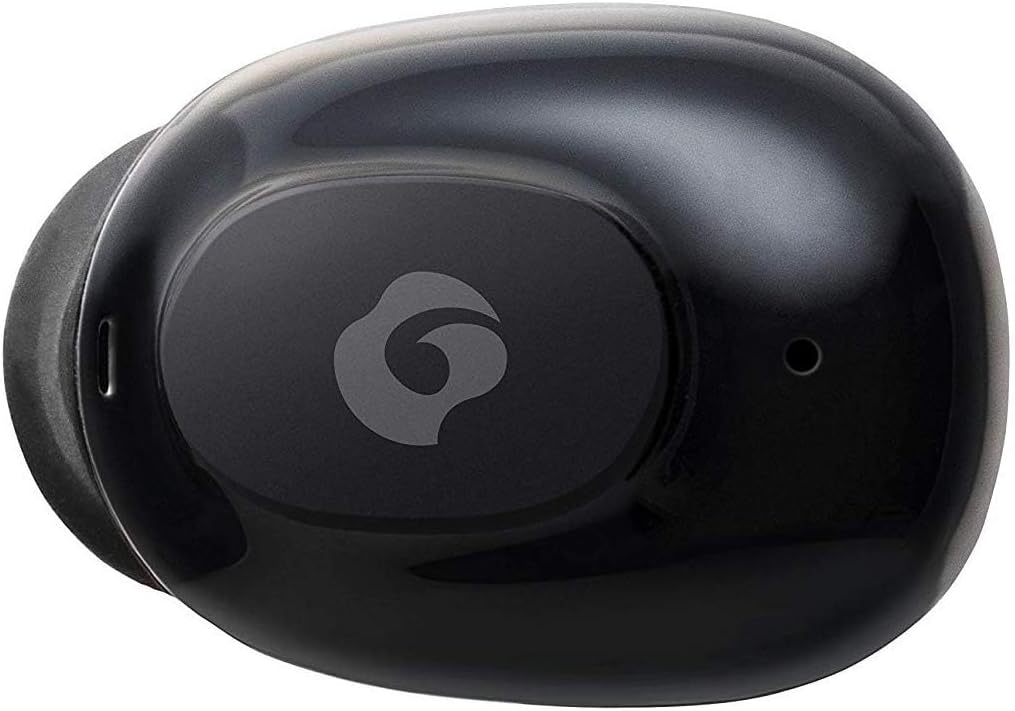
Figure 4.2: Close-up view of a single GLIDiC earbud, highlighting the multifunction button with the GLIDiC logo and the microphone opening.
Charging Case Components
- Charging Ports: Internal contacts for earbuds, external port for case charging.
- Case LED Indicator: Shows charging status of the case.
- Lid: Protects earbuds and secures them during charging.
5. Setup
5.1 Initial Charging
- Place both earbuds into the charging case. Ensure they are correctly seated, and the LED indicators on the earbuds illuminate.
- Connect the USB charging cable to the charging port on the case and plug the other end into a USB power source (e.g., computer, wall adapter).
- The case LED indicator will show charging status. Allow approximately 2 hours for a full charge of both earbuds and the case.
- Once fully charged, disconnect the charging cable. The earbuds offer up to 60 days of standby time when stored in the fully charged case.
5.2 Pairing with a Bluetooth Device
- Ensure the earbuds are charged.
- Open the charging case. The earbuds will automatically enter pairing mode, and their LED indicators will flash.
- On your Bluetooth-enabled device (smartphone, tablet, etc.), go to the Bluetooth settings.
- Search for available devices. Select "GLIDiC TW-5000s" from the list.
- Once connected, the earbud LED indicators will stop flashing and may show a solid light or turn off, depending on the model. A voice prompt may also confirm the connection.
- If pairing fails, place the earbuds back in the case, close the lid, wait a few seconds, and then repeat the steps.
6. Operating Instructions
6.1 Power On/Off
- Power On: Open the charging case, or press and hold the multifunction button on each earbud for approximately 3 seconds.
- Power Off: Place the earbuds back into the charging case and close the lid, or press and hold the multifunction button on each earbud for approximately 5 seconds.
6.2 Music Playback
- Play/Pause: Press the multifunction button once on either earbud.
- Next Track: Double-press the multifunction button on the right earbud.
- Previous Track: Double-press the multifunction button on the left earbud.
- Volume Up: Triple-press the multifunction button on the right earbud.
- Volume Down: Triple-press the multifunction button on the left earbud.
6.3 Call Management
- Answer/End Call: Press the multifunction button once on either earbud.
- Reject Call: Press and hold the multifunction button on either earbud for approximately 2 seconds.
6.4 Voice Assistant
- Activate Voice Assistant: Press and hold the multifunction button on either earbud for approximately 2 seconds (when not on a call).
6.5 Multi-Communication Mode
The GLIDiC Sound Air TW-5000s features a multi-communication mode that allows select ambient sounds to be heard without compromising audio quality. This enhances user awareness and safety.
- Activate/Deactivate Multi-Communication Mode: Consult the specific instructions provided with your device, as activation methods can vary. Typically, this involves a specific press sequence on the multifunction button or an option within a companion app if available.
7. Maintenance
7.1 Cleaning
- Wipe the earbuds and charging case with a soft, dry, lint-free cloth.
- Do not use abrasive cleaners, alcohol, or chemical solvents.
- Gently remove ear tips and clean them with mild soap and water if necessary. Ensure they are completely dry before reattaching.
- Use a dry cotton swab to carefully clean the charging contacts on both the earbuds and the case.
7.2 Storage
- When not in use, store the earbuds in their charging case to protect them and ensure they remain charged.
- Store the device in a cool, dry place, away from direct sunlight and extreme temperatures.
8. Troubleshooting
If you encounter issues with your GLIDiC Sound Air TW-5000s, refer to the following common problems and solutions:
| Problem | Possible Solution |
|---|---|
| Earbuds do not power on. | Ensure earbuds are charged. Place them in the charging case and connect the case to a power source. |
| Earbuds do not pair with device. |
|
| Only one earbud has sound. |
|
| Charging case not charging. |
|
| Sound quality is poor or intermittent. |
|
9. Specifications
| Feature | Detail |
|---|---|
| Model Name | TW-5000s |
| Connectivity Technology | Wireless (Bluetooth) |
| Bluetooth Range | 10 Meters |
| Frequency Range | 20 Hz - 20,000 Hz |
| Battery Life (Carrying Case Standby) | Up to 60 Days |
| Water Resistance Level | Water Resistant (Sweatproof) |
| Control Type | Media Control, Touch, Voice |
| Special Features | Microphone Included, Noise Cancellation, Multi-communication mode |
| Material | Plastic, TPE, and Silicone |
| Dimensions (Earbud) | 0.98 x 0.67 x 0.91 inches (approximate) |
| Item Weight | 9.6 ounces (total package weight) |
| UPC | 811559030024 |
10. Warranty and Support
GLIDiC products are designed for reliability and performance. For specific warranty details, please refer to the warranty card included with your purchase or visit the official GLIDiC website. If you require technical support or have questions not covered in this manual, please contact GLIDiC customer service through their official channels.
Please retain your proof of purchase for warranty claims.
Related documentsTW-5000s


Ask a question about this manual
Ask about setup, troubleshooting, compatibility, parts, safety, or missing instructions. Manuals+ will review the question and use this page’s manual context to help answer it.