
1. Introduction
The TP-Link RE455 AC1750 WiFi Range Extender is designed to expand your existing WiFi coverage, eliminating dead zones and providing a high-speed, reliable wireless connection throughout your home. This device supports dual-band WiFi (2.4 GHz and 5 GHz) with speeds up to 1750 Mbps (450 Mbps on 2.4 GHz and 1300 Mbps on 5 GHz) and includes a Gigabit Ethernet port for wired connections. It is compatible with all standard internet routers and gateways.
2. Safety Information
- Always follow basic safety precautions to reduce the risk of fire, electric shock, and injury to persons.
- Do not expose this device to water, fire, humidity, or hot environments.
- Use only the power adapter provided with the device.
- Ensure the device is placed in a well-ventilated area.
- Avoid placing the range extender near strong signal obstructions such as thick walls (brick, marble, concrete, armored glass) or metal objects, as these can significantly degrade WiFi performance.
- Keep the device away from sources of interference like Bluetooth devices, microwave ovens, and refrigerators.
- For optimal performance, place your main router and the range extender in elevated positions, avoiding enclosed spaces like cupboards.
3. Package Contents
The package should contain the following items:
- TP-Link RE455 AC1750 WiFi Range Extender Unit
- Quick Installation Guide
4. Physical Overview
The TP-Link RE455 features a compact design with integrated power plug and three external antennas for enhanced signal coverage. It includes a Gigabit Ethernet port for wired connections and various indicators and buttons for easy management.
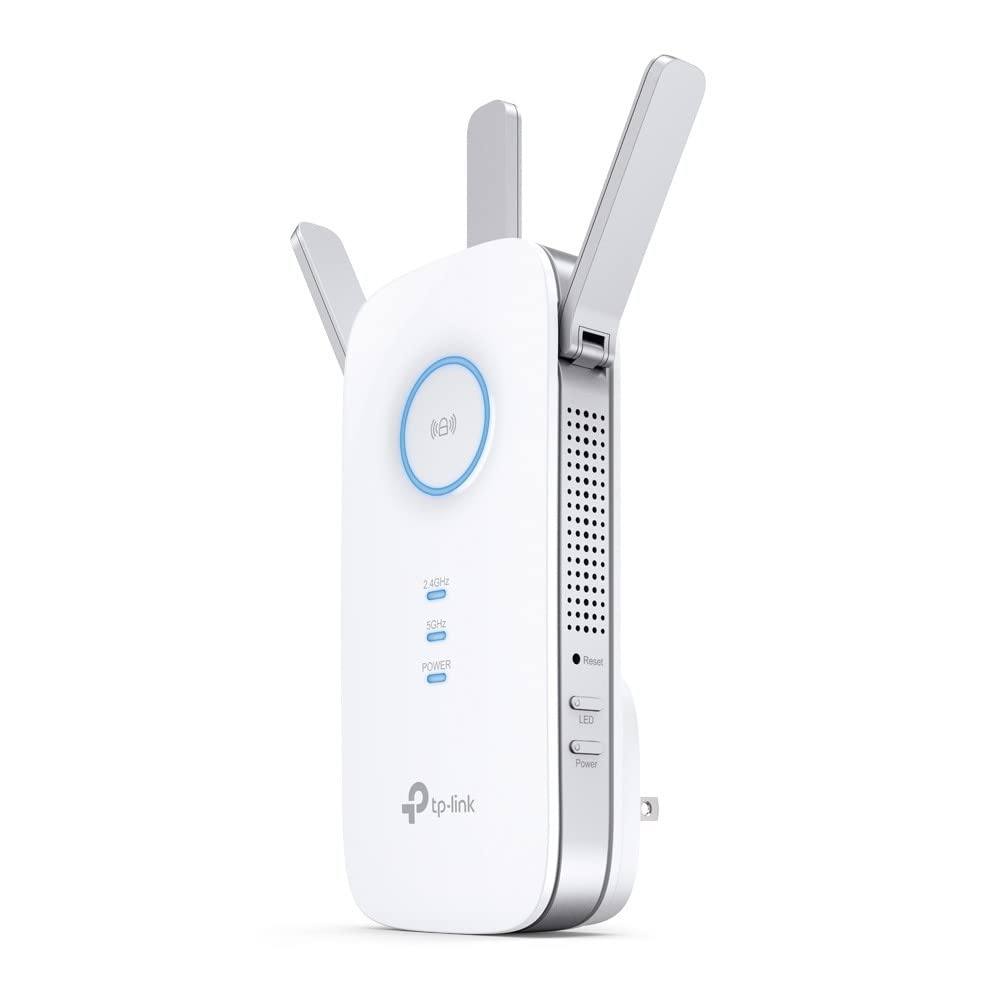
Image: TP-Link RE455 AC1750 WiFi Range Extender showing its front, side, and back with dimensions (Height: 16.3cm, Width: 7.64cm, Depth: 6.65cm). The device has three adjustable external antennas, ventilation holes, a power plug, and a Gigabit Ethernet port.
Key Components:
- External Antennas: Three adjustable antennas to optimize WiFi signal direction and strength.
- Power Plug: Integrated for direct wall outlet connection.
- Gigabit Ethernet Port (RJ45): For connecting wired devices like PCs, gaming consoles, or smart TVs, or for use in Access Point mode.
- WPS Button: For quick and easy setup with a WPS-enabled router.
- Reset Button: To restore the device to factory default settings.
- Power Button: To turn the device on or off.
- Signal Indicator LED: Provides visual feedback on the signal strength received from the main router, helping to determine the optimal placement for the extender.
5. Setup
The RE455 can be set up using two primary methods: via the WPS button or through the TP-Link Tether app/web browser.
Method 1: Using the WPS Button (Recommended for quick setup)
- Plug the RE455 into an electrical outlet near your main router.
- Press the WPS button on your main router.
- Within two minutes, press the WPS button on the RE455. The RE LED on the extender will start blinking.
- Once the connection is established, the RE LED will turn solid, indicating a successful connection. The extender will create a new WiFi network with the same name as your main network, appended with "_EXT" (e.g., MyHomeWiFi_EXT). The password will be the same as your main WiFi network.
Method 2: Using the TP-Link Tether App or Web Browser
- Plug the RE455 into an electrical outlet.
- Download the TP-Link Tether app from your mobile device's app store, or open a web browser on a computer and navigate to the default setup address (usually tplinkrepeater.net).
- Connect your mobile device or computer to the RE455's default WiFi network (e.g., "TP-Link_Extender" or "TP-Link_RE455"). The default password can be found on the device label.
- Follow the on-screen instructions in the Tether app or web interface to select your main WiFi network and enter its password.
- The RE455 will connect to your main router and extend its network.
For detailed video tutorials on setup, search for "Tplink Repeater Installation" on YouTube.
6. Operating Modes
The RE455 supports two main operating modes:
6.1. Range Extender Mode (Default)
In this mode, the RE455 wirelessly connects to your existing router's WiFi network and extends its coverage to areas with weak or no signal. This is the most common mode for expanding your home WiFi.
- Connects wirelessly to your main router.
- Extends the WiFi signal to eliminate dead zones.
- The Gigabit Ethernet port can be used to connect a wired device (e.g., PC, game console) to the extended network.
6.2. Access Point (AP) Mode
In AP mode, the RE455 transforms your existing wired network into a wireless one. This is useful if you have an Ethernet connection in an area but no WiFi, or if you want to create a new WiFi network.
- Connects to your router via an Ethernet cable through its Gigabit Ethernet port.
- Creates a new WiFi network, providing wireless access to the wired connection.
- This mode can replace the WiFi functionality of a less performant router.
7. Optimal Placement Guidelines
Proper placement of your RE455 is crucial for maximizing WiFi coverage and performance.
- Midway Point: Place the range extender roughly halfway between your router and the area where you need improved WiFi coverage. It should be within the range of your main router's WiFi signal.
- Signal Indicator: Utilize the Signal Indicator LED on the RE455 to find the best location. A solid blue light typically indicates a good connection to the router.
- Avoid Obstacles: Walls made of brick, marble, concrete, or armored glass, as well as large metal objects, can significantly block WiFi signals. Position the extender to minimize such obstructions.
- Elevated Position: Placing the extender in a higher position, such as on a shelf, can help signals travel further and avoid ground-level interference.
- Minimize Interference: Keep the extender away from other electronic devices that emit radio frequencies, such as cordless phones, Bluetooth devices, microwave ovens, and large appliances like refrigerators.
8. Maintenance
- Cleaning: Gently wipe the device with a soft, dry cloth. Do not use liquid or aerosol cleaners.
- Firmware Updates: Periodically check the TP-Link website or the Tether app for firmware updates to ensure optimal performance and security.
- Restarting: If you experience connectivity issues, try restarting the device by unplugging it from the power outlet for a few seconds and then plugging it back in.
9. Troubleshooting
- No Internet Access:
- Ensure your main router has an active internet connection.
- Verify the RE455 is properly connected to your main router (check the Signal Indicator LED).
- Try repositioning the RE455 closer to your main router.
- Weak Signal or Slow Speed:
- Relocate the RE455 to a position indicated by a strong signal (blue LED).
- Minimize physical obstructions and interference sources between the extender and your devices.
- Ensure your main router is also optimally placed.
- Cannot Connect to the Extender's WiFi:
- Confirm you are using the correct WiFi password for the extended network.
- If you changed the network name or password, ensure your devices are updated.
- Try restarting both the extender and your device.
- Factory Reset: If issues persist, you can perform a factory reset by pressing and holding the Reset button for approximately 5-10 seconds until the LEDs flash. After a reset, you will need to reconfigure the extender.
10. Specifications
| Model Number | RE455 |
| Wireless Standards | IEEE 802.11ac/n/a (5 GHz), IEEE 802.11n/g/b (2.4 GHz) |
| Data Transfer Rate | Up to 1750 Mbps (1300 Mbps at 5 GHz, 450 Mbps at 2.4 GHz) |
| Frequency Bands | Dual Band (2.4 GHz & 5 GHz) |
| Antennas | 3 External Antennas |
| Ethernet Port | 1 x 10/100/1000 Mbps Gigabit Ethernet Port (RJ45) |
| Operating Modes | Range Extender/Access Point |
| Dimensions (W x D x H) | 7.64 cm x 6.65 cm x 16.3 cm (approximate, based on image) |
| Weight | 7.41 Ounces (approx. 210 grams) |
| Color | White |
| Coverage Area | Up to 200 square meters (2150 sq ft) |
| Compatible Devices | Routers, Wireless Access Points |
11. Warranty and Support
The TP-Link RE455 AC1750 WiFi Range Extender comes with a 3-year manufacturer's warranty.
For technical support, warranty claims, and more detailed product information, please visit the official TP-Link website or contact their customer support. Keep your purchase receipt for warranty purposes.


