
1. Introduction
The Hafele RE-AI Digital Door Lock is an advanced security solution designed for wooden doors in both home and office environments. It offers multiple access methods including fingerprint, RFID card, pincode, and a traditional mechanical key, providing enhanced convenience and security. This manual provides essential information for the proper installation, operation, and maintenance of your digital door lock.
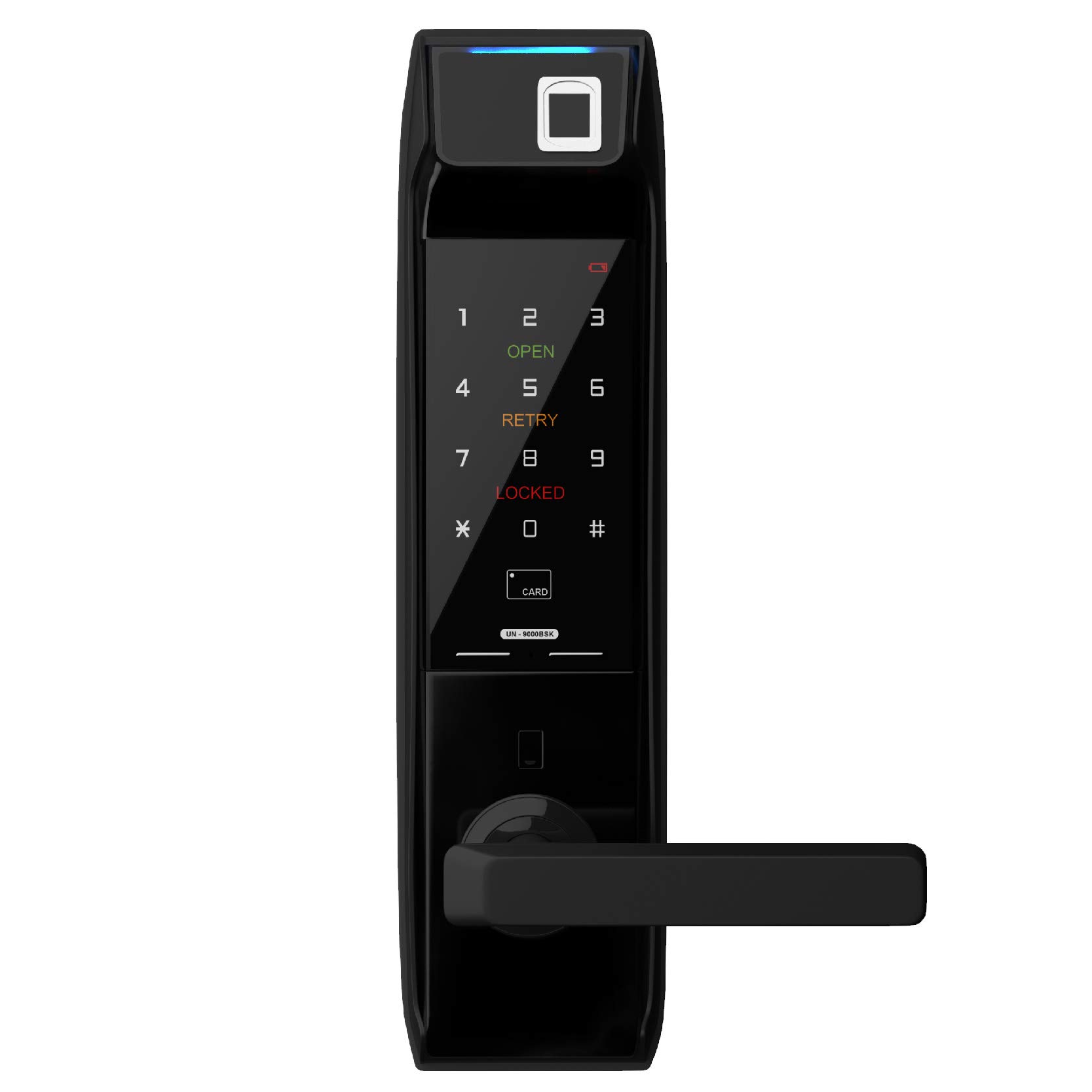
Image 1.1: Front view of the Hafele RE-AI Digital Door Lock, showcasing its sleek black design and integrated handle.
2. Product Features
The Hafele RE-AI Digital Door Lock integrates several features to ensure security and user convenience:
- Multiple Access Modes: Capacitive Fingerprint, RFID, Key-pad/Pincode, Mechanical Key, and optional Remote Control Module.
- Smart Locking Modes: Auto Locking, Manual Locking, Privacy Locking, and Defense Locking.
- Security Alarms: Low Battery Alarm, Break-in Alarm, and Door Not Locked Alarm.
- Panic Exit Function: Allows quick exit from the inside.
- Non-handed Operation: Suitable for both left and right-handed doors.

Image 2.1: Overview of smart features including Smart Password, Smart Security, Smart Freeze, Smart Video Phone, Smart Etiquettes, and Smart Voice.

Image 2.2: Detailed graphic of access modes: Capacitive Fingerprint (up to 100 unique accesses), RFID (up to 100 unique accesses), Key-pad or Password (1 master, up to 3 user accesses), Mechanical Key (up to 2 keys), and Remote Control Module (purchased separately).

Image 2.3: Explanation of locking modes: Auto Locking Mode, Manual Locking Mode, Privacy Locking Mode, and Defense Locking Mode.

Image 2.4: Additional features including Panic Exit, Non-handed Operation, Low Battery Alarm, Break-in Alarm, Door not Locked Alarm, and power source (8 AA batteries, 3,000 cycles).
3. Package Contents
Please verify that all components are present before beginning installation:
- Outer Body Assembly
- Inner Body Assembly
- Mortise Lock Body
- Strike Plate and Box
- Mechanical Keys (2 pcs)
- RFID Cards/Tags (quantity may vary)
- Mounting Screws and Hardware
- AA Batteries (8 pcs)
- User Manual (this document)
4. Setup and Installation
The Hafele RE-AI Digital Door Lock is designed for easy installation. However, for optimal performance and security, professional installation is recommended. Ensure the door thickness and frame are compatible with the lock specifications.
4.1 Pre-Installation Checks
- Verify door dimensions and ensure sufficient clearance.
- Confirm door handing (left or right) and adjust the lock's handle direction if necessary.
- Ensure all necessary tools are available (e.g., drill, screwdriver, measuring tape).
4.2 Installation Steps (Overview)
- Prepare the door by drilling necessary holes according to the provided template.
- Install the mortise lock body into the door edge.
- Mount the outer body assembly, ensuring cables are routed correctly.
- Connect the cables to the inner body assembly.
- Secure the inner body assembly to the door.
- Install the strike plate and strike box on the door frame.
- Insert the 8 AA batteries into the battery compartment.
- Perform initial setup and programming (refer to Section 5).

Image 4.1: Interior view of the Hafele RE-AI Digital Door Lock, showing the battery compartment and manual locking switch.
5. Operating Instructions
After successful installation, configure and operate your lock using the following guidelines.
5.1 Initial Setup and Master Pincode Registration
Upon first power-up, you must register a master pincode. This code is essential for managing other user access methods.
- Open the battery cover on the inner body.
- Press the [Registration] button.
- Enter a new 4-12 digit master pincode on the keypad, followed by the [#] button.
- Re-enter the same master pincode and press [#] to confirm.
- A confirmation sound indicates successful registration.
5.2 Registering User Access Methods
Use the master pincode to register fingerprints, RFID cards, and user pincodes.
5.2.1 Fingerprint Registration (Up to 100)
- Press the [Registration] button.
- Enter the master pincode followed by [#].
- Select the fingerprint registration option (refer to specific menu prompts).
- Place the finger on the fingerprint sensor multiple times as prompted until registration is complete.
5.2.2 RFID Card Registration (Up to 100)
- Press the [Registration] button.
- Enter the master pincode followed by [#].
- Select the RFID card registration option.
- Place the RFID card on the card reader until a confirmation sound is heard.
5.2.3 User Pincode Registration (Up to 3)
- Press the [Registration] button.
- Enter the master pincode followed by [#].
- Select the user pincode registration option.
- Enter a new 4-12 digit user pincode followed by [#].
- Re-enter the same user pincode and press [#] to confirm.
5.3 Unlocking the Door
- By Fingerprint: Place a registered finger on the sensor.
- By RFID Card: Place a registered RFID card on the card reader.
- By Pincode: Touch the keypad to activate, enter the registered pincode, then press [#].
- By Mechanical Key: Insert the mechanical key into the emergency keyhole and turn.
5.4 Locking the Door
- Auto Locking Mode: The lock will automatically engage after the door is closed.
- Manual Locking Mode: From the outside, press the [#] button. From the inside, use the manual locking switch.
- Privacy Locking Mode: Engaged from the inside to prevent entry from the outside, even with valid credentials.
- Defense Locking Mode: Activates an alarm if the inner handle is operated while the lock is engaged from the outside.
6. Maintenance
Proper maintenance ensures the longevity and reliable operation of your digital door lock.
- Battery Replacement: Replace all 8 AA batteries when the low battery alarm sounds. Do not mix old and new batteries.
- Cleaning: Wipe the lock's surface with a soft, dry cloth. Avoid using abrasive cleaners, solvents, or harsh chemicals, as these can damage the finish and electronic components.
- Keypad and Sensor: Keep the keypad and fingerprint sensor clean and free from dirt or moisture for optimal performance.
- Mechanical Key: Store the mechanical keys in a safe, accessible location outside the premises for emergency access.
7. Troubleshooting
Refer to this section for common issues and their solutions.
| Problem | Possible Cause | Solution |
|---|---|---|
| Lock does not respond / No power | Dead batteries | Replace all 8 AA batteries. |
| Fingerprint not recognized | Finger is dirty/wet, sensor is dirty, or fingerprint not registered correctly. | Clean finger and sensor. Re-register fingerprint if issue persists. |
| Pincode not working | Incorrect pincode entered, or keypad malfunction. | Ensure correct pincode. Try master pincode. Clean keypad. |
| Door not locking automatically | Auto-locking mode is off, or door sensor misalignment. | Check lock settings for auto-locking. Verify door sensor alignment. |
| Alarm sounds unexpectedly | Break-in attempt, door not fully closed, or low battery. | Check door status. Replace batteries. Inspect for tampering. |
8. Specifications
| Brand | Hafele |
| Model | RE-AI |
| Lock Type | Digital, Key Lock |
| Access Methods | Fingerprint, RFID, Pincode, Mechanical Key |
| Fingerprint Capacity | Up to 100 unique accesses |
| RFID Capacity | Up to 100 unique accesses |
| Pincode Capacity | 1 Master, up to 3 User Pincodes |
| Mechanical Keys | 2 included |
| Color | Black |
| Power Source | 8 x AA Batteries (approx. 3,000 cycles) |
| Connectivity | Wi-Fi (for remote control, module sold separately) |
| Recommended Use | Security |
| Style | Modern |
| Manufacturer | Hafele |
9. Warranty and Support
For warranty information and technical support, please refer to the documentation provided at the time of purchase or contact Hafele customer service. Keep your purchase receipt as proof of purchase for warranty claims.