
Bewinner Bewinnerge9uz0gvf5-14
User Manual: Bewinner 3-in-1 Capacitive Stylus
Model: Bewinnerge9uz0gvf5-14
Brand: Bewinner
1. Introduction
Thank you for choosing the Bewinner 3-in-1 Capacitive Stylus. This versatile tool is designed to enhance your interaction with touch-screen devices, offering high precision for various tasks such as drawing, gaming, and general navigation. Its unique three-in-one design provides flexibility with a cloth tip, a transparent disc tip, and a traditional ballpoint pen. This manual provides comprehensive instructions on how to use, maintain, and troubleshoot your stylus to ensure optimal performance and longevity.
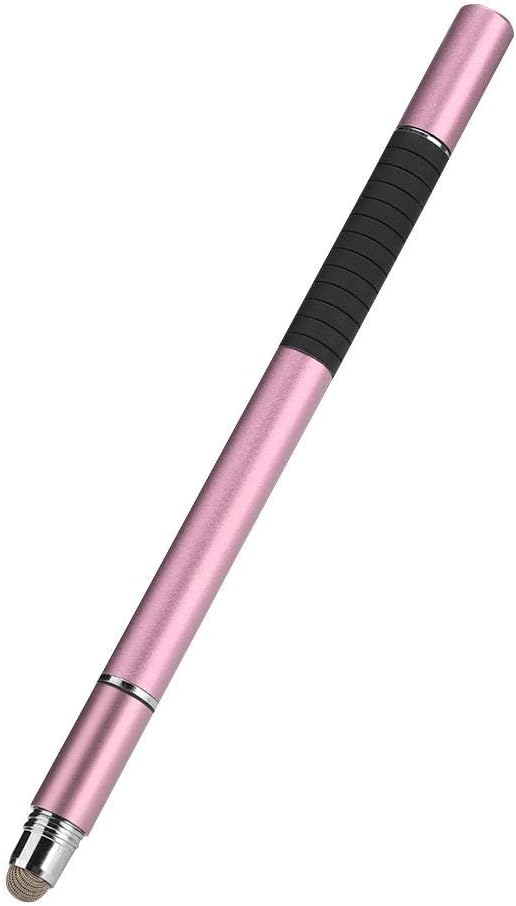
Image: The Bewinner 3-in-1 Capacitive Stylus, showcasing its sleek gold design with a black grip.
2. Product Features
- High Precision: Engineered for accurate input, ideal for detailed drawing, precise gaming, and smooth navigation on capacitive screens.
- 3-in-1 Versatility: Features a soft cloth tip for general use, a transparent disc tip for fine detail, and a traditional ballpoint pen for writing on paper.
- Wide Compatibility: Universally compatible with most capacitive touch-screen devices, including smartphones (e.g., iPhone) and tablets (e.g., iPad).
- Portable and Lightweight: Designed for easy carrying and comfortable use, ensuring reliability and convenience.
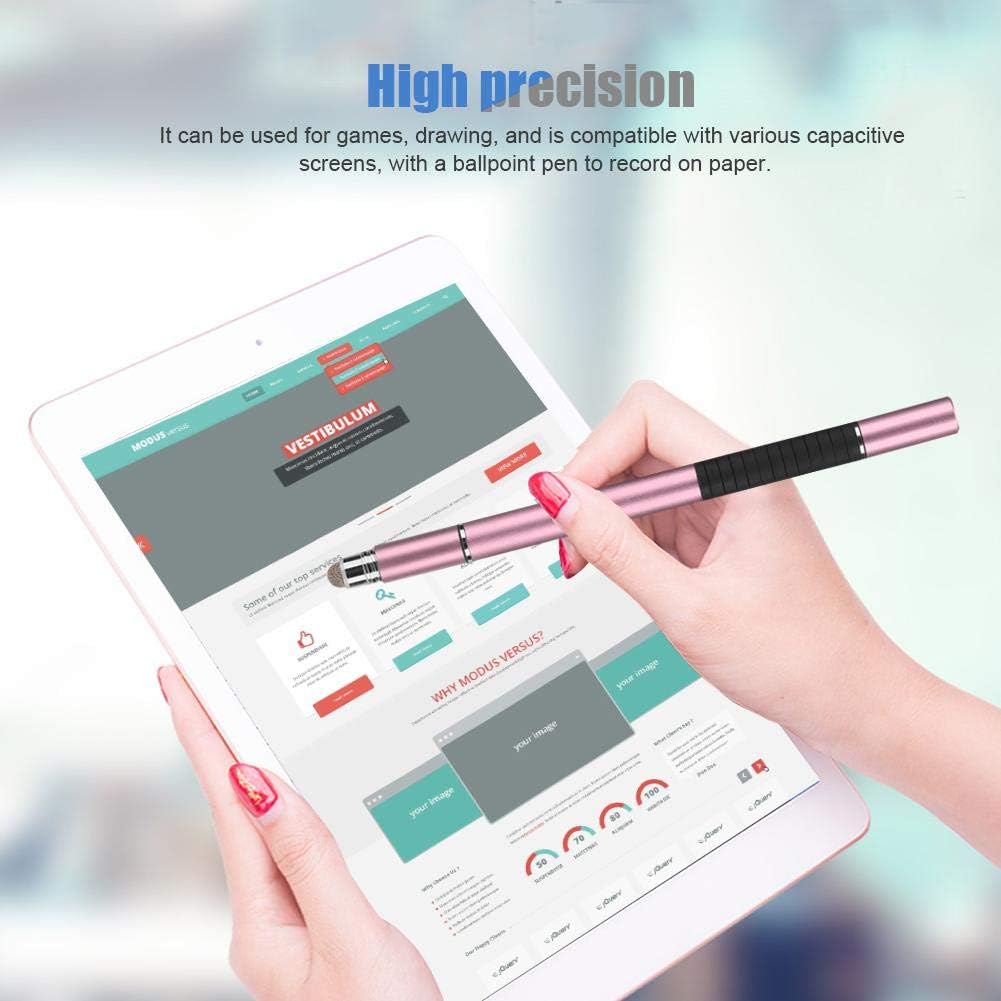
Image: A hand using the stylus on a tablet, illustrating its high precision for detailed tasks.

Image: The stylus positioned alongside a tablet and two smartphones, highlighting its wide compatibility.

Image: The stylus disassembled to show its three distinct tips: the cloth tip, the transparent disc tip, and the ballpoint pen.
3. Components
The Bewinner 3-in-1 Capacitive Stylus consists of the following main components:
- Stylus Body: The main barrel of the stylus, typically made of metal, providing a comfortable grip.
- Cloth Tip: A soft, conductive fiber tip located at one end, suitable for general navigation and preventing screen scratches.
- Disc Tip: A transparent, precision disc tip located at the other end, ideal for detailed drawing and writing.
- Ballpoint Pen: Integrated within the stylus, accessible by unscrewing a cap, for traditional writing on paper.
- Protective Caps: Caps to protect the cloth and disc tips when not in use.

Image: A detailed view of the stylus, highlighting the ballpoint pen and the cloth tip, with the protective cap removed.
4. Setup
The Bewinner 3-in-1 Capacitive Stylus requires no batteries or complex setup. It is ready for use right out of the box.
- Unpack: Carefully remove the stylus from its packaging.
- Remove Protective Caps: Remove the protective caps from the desired tip (cloth or disc) before use. Keep the caps in a safe place to protect the tips when not in use.
- Access Ballpoint Pen: To use the ballpoint pen, unscrew the cap covering the pen end.
5. Operating Instructions
5.1 Using the Cloth Tip
The cloth tip is ideal for general navigation, scrolling, tapping, and basic drawing. It provides a smooth glide across the screen and helps prevent fingerprints and smudges.
- Hold the stylus comfortably in your hand.
- Gently touch the cloth tip to your device's screen.
- Use it as you would your finger for all touch-screen interactions.
5.2 Using the Disc Tip
The transparent disc tip offers enhanced precision, making it perfect for detailed drawing, fine writing, and accurate selection in apps. The disc allows you to see exactly where your tip is touching the screen.
- Ensure the disc tip is clean and free of debris.
- Place the disc flat against the screen. The disc is designed to pivot, allowing for various angles of use while maintaining full contact.
- Apply light, consistent pressure for optimal responsiveness.
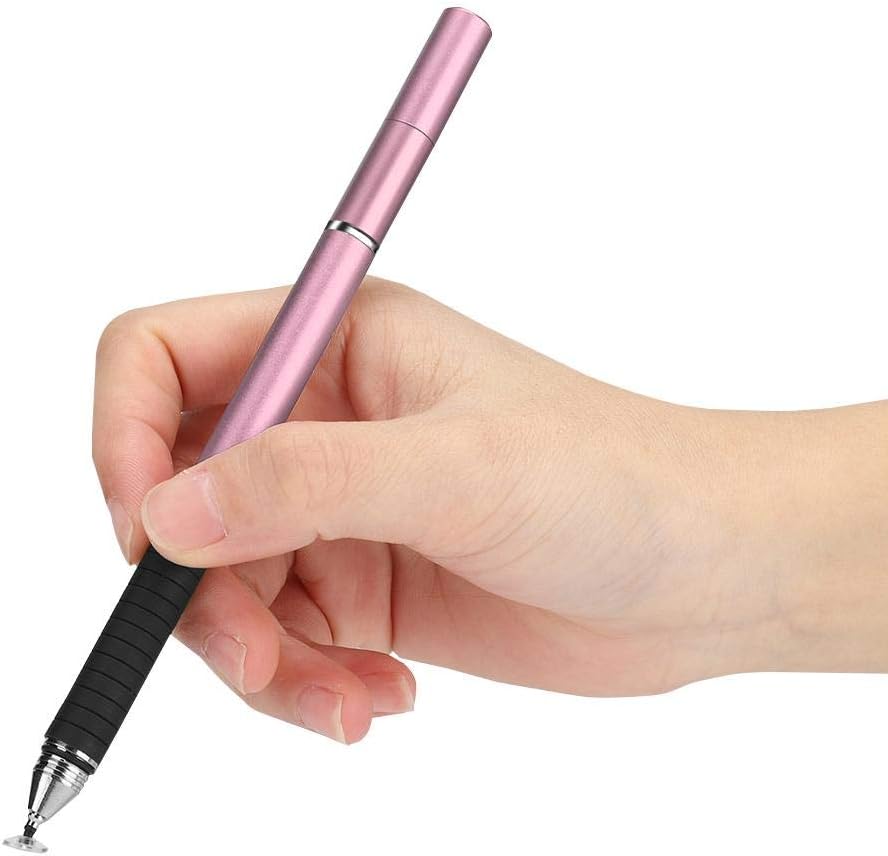
Image: A hand demonstrating the proper grip and angle for using the transparent disc tip on a touch screen.
5.3 Using the Ballpoint Pen
For traditional writing on paper, the stylus includes a standard ballpoint pen.
- Unscrew the cap from the end of the stylus that conceals the ballpoint pen.
- Use the pen as you would any standard ballpoint pen for writing on paper.
- Replace the cap securely after use to prevent the ink from drying out.
6. Maintenance
Proper maintenance will extend the life and performance of your stylus.
- Cleaning Tips:
- For the cloth tip and disc tip, gently wipe with a soft, lint-free cloth. If necessary, slightly dampen the cloth with water, but ensure the tips are completely dry before use.
- Do not use harsh chemicals or abrasive materials, as these can damage the tips.
- Storage:
- Always replace the protective caps on the cloth and disc tips when not in use to prevent damage and keep them clean.
- Store the stylus in a clean, dry place, away from extreme temperatures and direct sunlight.
- Handling:
- Avoid dropping the stylus, especially on hard surfaces, as this can damage the tips or the internal ballpoint mechanism.
- Do not apply excessive force when using the stylus on your screen.
7. Troubleshooting
If you encounter issues with your stylus, refer to the following common problems and solutions:
| Problem | Possible Cause | Solution |
|---|---|---|
| Stylus not responding or inconsistent response. | Dirty tip, screen protector interference, or device screen issue. | Clean the stylus tip thoroughly. Ensure your device screen and screen protector (if any) are clean. Test on another compatible device to rule out device-specific issues. |
| Disc tip feels wobbly or detached. | The disc is designed to pivot for optimal contact; it is not meant to be rigidly fixed. | This is normal operation. The flexible connection allows the disc to maintain full contact with the screen at various angles. If it appears broken, contact support. |
| Ballpoint pen not writing. | Ink dried out, protective wax on tip, or pen mechanism issue. | Ensure the cap was replaced after last use. Try scribbling on a piece of scrap paper to get the ink flowing. Check if there's a small wax ball on the tip (remove if present). If the issue persists, the ink cartridge may be empty. |
8. Specifications
| Brand | Bewinner |
| Model Number | Bewinnerge9uz0gvf5-14 |
| Color | Gold |
| Material | Metal (Body), Fabric (Cloth Tip), Plastic (Disc Tip) |
| Item Weight | 22 Grams |
| Compatible Devices | Tablets, Mobile Phones (Capacitive Touch Screens) |
| Batteries Required | No |
| UPC | 738590011730 |
9. Warranty and Support
Bewinner is committed to providing quality products. While specific warranty details are not provided in this manual, please retain your proof of purchase. For any product inquiries, technical support, or assistance with troubleshooting beyond what is covered in this manual, please contact Bewinner customer service through the retailer where you purchased the product or visit the official Bewinner brand store on Amazon.
Note: Information regarding spare parts availability and guaranteed software updates is not available for this product.
Ask a question about this manual
Ask about setup, troubleshooting, compatibility, parts, safety, or missing instructions. Manuals+ will review the question and use this page’s manual context to help answer it.