
Pifco P55003
Pifco P55003 Mini USB Desk Fan
User Instruction Manual
Introduction
Thank you for purchasing the Pifco P55003 Mini USB Desk Fan. This compact and lightweight fan is designed to provide personal cooling in various settings, such as your desk at work, home office, or bedside table. Its simple USB power connection and adjustable design make it a convenient solution for staying cool.

Figure 1: Front view of the Pifco P55003 Mini USB Desk Fan, showcasing its black plastic body, protective grille, and brown leather-look strap handle.
Important Safety Information
Please read these instructions carefully before using the appliance. Keep this manual for future reference.
- Ensure the fan is placed on a stable, flat surface to prevent tipping.
- Do not insert fingers or any objects into the fan grille while it is operating.
- Keep the fan away from water or other liquids. Do not immerse the fan in water.
- Do not operate the fan with a damaged cord or plug. If the cord is damaged, it must be replaced by the manufacturer or a qualified service agent.
- This appliance is for indoor use only.
- Unplug the fan from the USB power source before cleaning or when not in use for extended periods.
- Keep out of reach of children and pets.
Product Features
- Efficient Cooling: Equipped with a 2.5 W motor and three blades, providing 2000 rpm for effective airflow.
- USB Powered: Plugs directly into any standard USB socket, laptop, or desktop computer for convenient operation.
- Compact & Portable: Lightweight design for easy transport and placement on desks or tables.
- Adjustable Airflow: Features two adjustable tilt angles (45 and 60 degrees) to direct air precisely.
- Integrated Handle: Double leather strap handle for easy carrying.
- Stable Base: Foldable metal feet with anti-slip grip ensure stability on various surfaces.

Figure 2: The fan's integrated leather-look strap handle allows for easy portability.
Parts Identification
Familiarize yourself with the components of your Pifco Mini USB Desk Fan:
- Fan Grille (Front and Rear)
- Fan Blades
- Motor Housing
- Leather Strap Handle
- Foldable Metal Feet with Anti-slip Grips
- USB Power Cable (attached)
- On/Off Switch (located on the rear of the motor housing)

Figure 3: Detail of the foldable metal feet, providing stability and compact storage.
Setup
- Unpack: Carefully remove the fan from its packaging. Retain packaging for future storage or transport if needed.
- Positioning: Place the fan on a firm, level surface such as a desk or table. Ensure there is adequate space around the fan for proper air circulation.
- Adjust Feet: Extend the foldable metal feet to provide a stable base for the fan.
- Connect Power: Insert the USB plug of the fan's power cable into a compatible USB port on a laptop, desktop computer, or a USB wall adapter (not included).
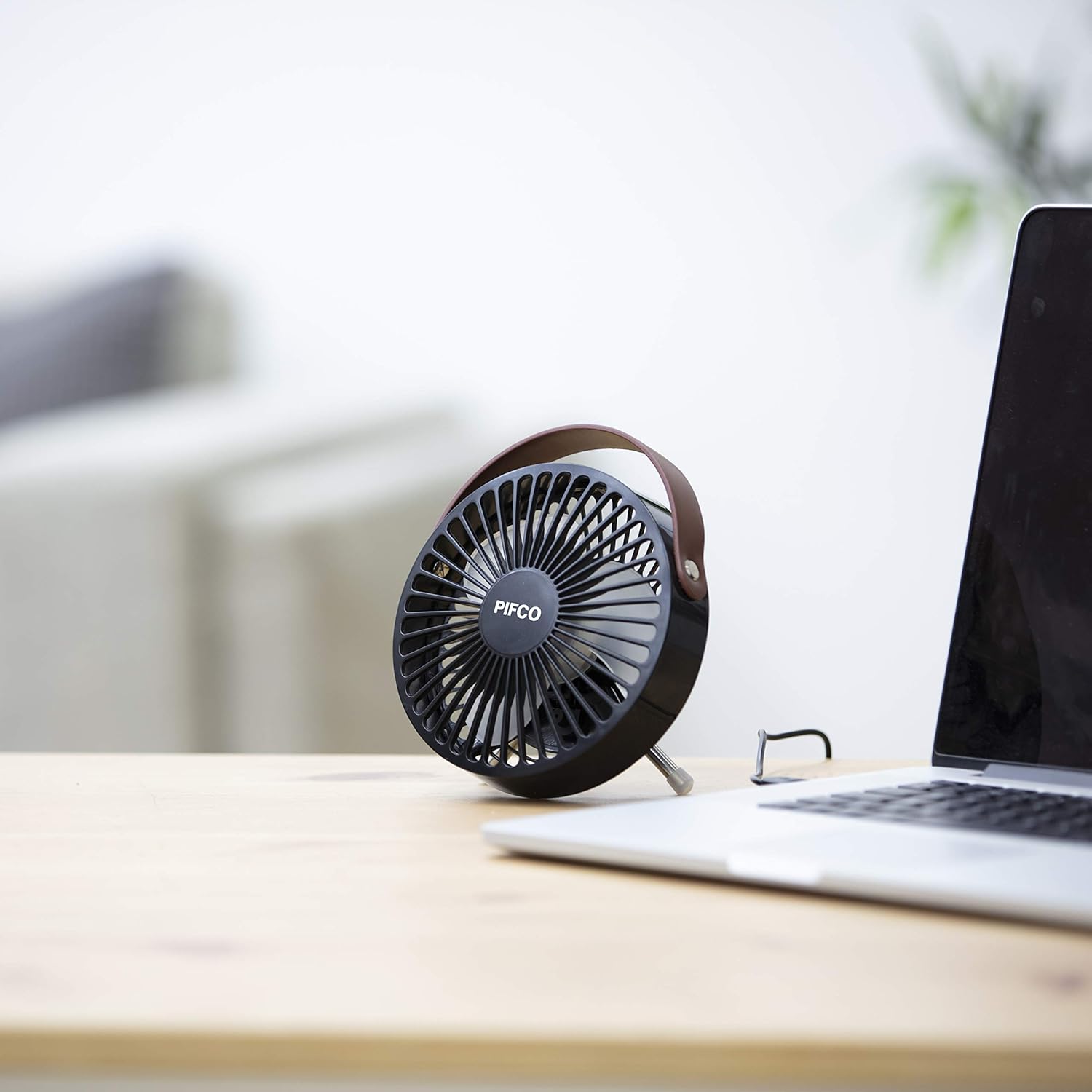
Figure 4: The fan is designed to fit neatly on a desk alongside other devices like a laptop.

Figure 5: The fan is powered via a standard USB connection.
Operating Instructions
- Power On/Off: Locate the On/Off switch on the rear of the fan's motor housing. Flip the switch to the 'ON' position to start the fan. Flip it to the 'OFF' position to turn the fan off.
- Adjust Angle: The fan head can be manually tilted to one of two preset angles (45 or 60 degrees) to direct the airflow. Gently push or pull the fan head to adjust its vertical angle.

Figure 6: The fan's head can be tilted to adjust the direction of airflow.
Maintenance
Regular cleaning will help maintain the performance and appearance of your fan.
- Cleaning: Ensure the fan is unplugged from the USB power source before cleaning. Use a soft, damp cloth to wipe the exterior surfaces of the fan. Do not use abrasive cleaners or solvents.
- Dust Removal: Use a soft brush or a vacuum cleaner with a brush attachment to gently remove dust from the fan grille and blades.
- Storage: When not in use, store the fan in a cool, dry place, preferably in its original packaging to protect it from dust and damage.
Troubleshooting
| Problem | Possible Cause | Solution |
|---|---|---|
| Fan does not turn on. | Not plugged in or loose connection. | Ensure the USB cable is securely plugged into a working USB port. |
| Fan does not turn on. | USB port is not providing power. | Try plugging the fan into a different USB port or a different power source (e.g., a wall adapter). |
| Fan makes unusual noise. | Obstruction in fan blades or grille. | Unplug the fan and carefully check for any foreign objects. Clean the blades and grille. |
| Reduced airflow. | Dust accumulation on blades or grille. | Unplug the fan and clean the blades and grille as per maintenance instructions. |
Specifications
| Model Number | P55003 |
| Brand | Pifco |
| Power Source | Corded Electric (USB) |
| Wattage | 2.5 Watts |
| Fan Design | Table Fan / Desk Fan |
| Material | Plastic |
| Color | Black (as per product title and images) |
| Dimensions (approx.) | 17.2 x 14.4 x 7.9 cm |
| Weight (approx.) | 264 g |
| Cable Length | 1 Metre |
| Adjustable Angles | 45 and 60 degrees |
Warranty and Support
Pifco products are designed to meet high quality standards. For information regarding warranty, returns, or technical support, please refer to the warranty card included with your purchase or visit the official Pifco website. Please have your model number (P55003) and purchase details ready when contacting support.
For further assistance, you may also contact the retailer where the product was purchased.
Ask a question about this manual
Ask about setup, troubleshooting, compatibility, parts, safety, or missing instructions. Manuals+ will review the question and use this page’s manual context to help answer it.