
Docooler H300
Docooler HXSJ H300 USB Wired Gaming Mouse User Manual
Model: H300
1. Product Overview
The Docooler HXSJ H300 is a high-performance USB wired gaming mouse designed for an enhanced gaming experience. It features 7 programmable buttons, adjustable DPI settings, and dynamic breathing lights.

Image: Front view of the Docooler HXSJ H300 gaming mouse, showcasing its ergonomic design and vibrant breathing light patterns.
Key Features:
- Breathing Light: Features 7-color breathing light effects for an immersive gaming atmosphere.
- 7 Buttons: Equipped with 7 buttons for versatile control, including a dedicated fire key for rapid triple attacks.
- Durable Cable: Woven nylon cable with anti-static electromagnetic ring ensures durability and anti-interference performance.
- Adjustable DPI: Offers 5 adjustable DPI settings (1000/1600/2400/3200/5500 DPI) for precise control.
- Ergonomic Design: Contoured surface designed for comfortable hand feeling, reducing fatigue during extended use.
2. Setup Guide
Follow these steps to set up your Docooler HXSJ H300 gaming mouse:
- Unpack: Carefully remove the mouse from its packaging.
- Connect: Locate an available USB 2.0 port on your computer (PC or Laptop). Insert the USB connector of the mouse firmly into the USB port.
- Driver Installation: The mouse is plug-and-play. Your operating system (Windows 7/8/10/2000/XP/Vista, Mac OS or later) will automatically detect and install the necessary drivers. No additional software installation is typically required.
- Verify: Once connected, the breathing lights on the mouse should illuminate, indicating it is powered on and ready for use.
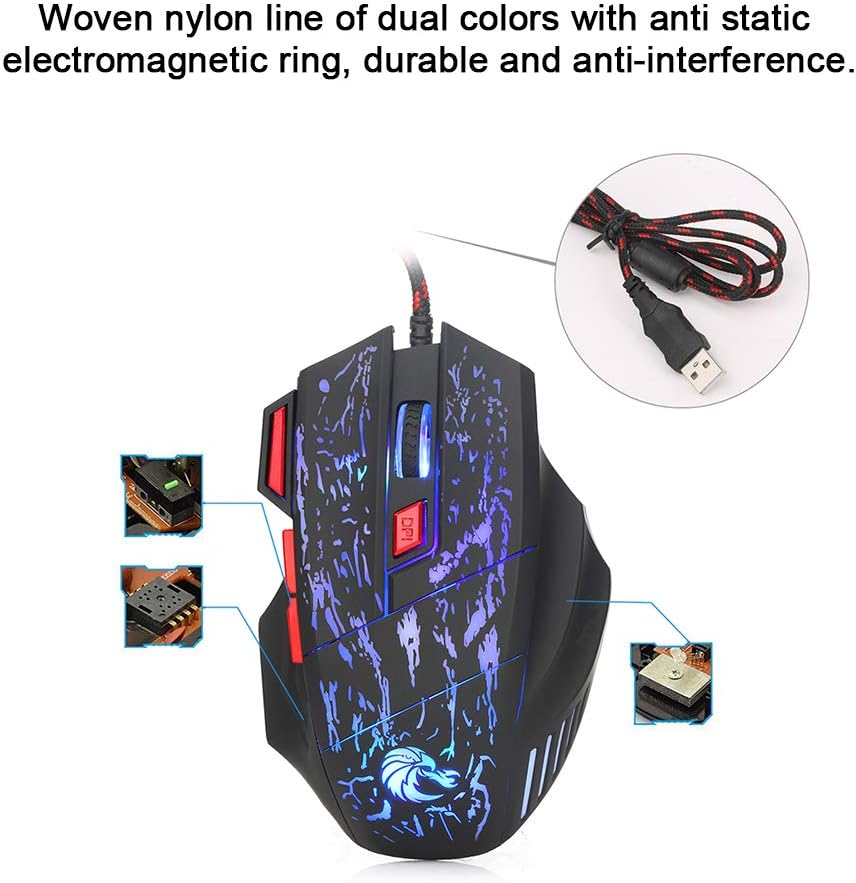
Image: The mouse's durable woven nylon cable with an anti-static electromagnetic ring, designed for reliable connection and reduced interference.
3. Operating Instructions
The HXSJ H300 mouse features 7 buttons for various functions and adjustable sensitivity.
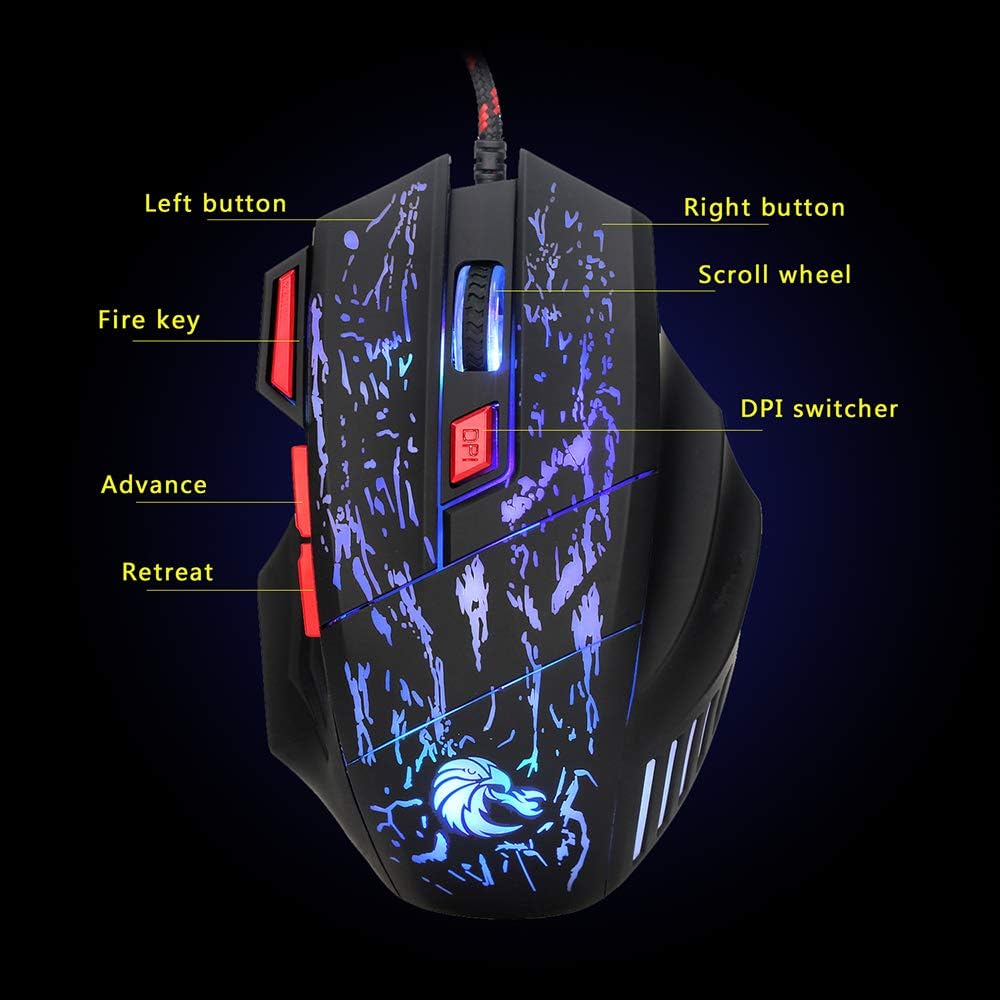
Image: Diagram illustrating the layout and labeling of the seven buttons on the Docooler HXSJ H300 gaming mouse.
Button Functions:
- Left Button: Standard left-click function.
- Right Button: Standard right-click function.
- Scroll Wheel: Scrolls content up or down. Can also be pressed for middle-click functionality.
- DPI Switcher: Cycles through the 5 adjustable DPI settings (1000/1600/2400/3200/5500 DPI). Press to change sensitivity.
- Fire Key: Provides a rapid triple-click action, useful in gaming.
- Advance (Forward): Navigates forward in web browsers or file explorers.
- Retreat (Back): Navigates backward in web browsers or file explorers.
DPI Adjustment:
The mouse offers 5 levels of DPI (Dots Per Inch) sensitivity. Press the DPI Switcher button, located behind the scroll wheel, to cycle through the available settings. Each press will change the mouse's tracking speed, allowing you to select the optimal sensitivity for your task or game.
Breathing Light Effect:
The mouse features a dynamic 7-color breathing light effect that automatically cycles through colors. This provides visual feedback and enhances the aesthetic appeal during use.

Image: The mouse showcasing its vibrant breathing light feature, cycling through multiple colors.
4. Maintenance
Proper maintenance ensures the longevity and optimal performance of your gaming mouse.
- Cleaning: Use a soft, dry cloth to wipe the surface of the mouse. For stubborn dirt, slightly dampen the cloth with water or a mild, non-abrasive cleaner. Avoid using harsh chemicals or abrasive materials.
- Sensor Care: Keep the optical sensor on the bottom of the mouse clean and free from dust or debris to ensure accurate tracking.
- Cable Management: Avoid sharp bends or excessive pulling on the USB cable to prevent damage.
- Storage: When not in use for extended periods, store the mouse in a clean, dry environment away from direct sunlight and extreme temperatures.
5. Troubleshooting
If you encounter issues with your Docooler HXSJ H300 gaming mouse, refer to the following common solutions:
| Problem | Possible Cause | Solution |
|---|---|---|
| Mouse not responding / No light | Loose USB connection, faulty USB port, driver issue. |
|
| Inaccurate tracking / Cursor erratic | Dirty optical sensor, unsuitable mouse pad surface. |
|
| DPI setting not changing | Button not pressed correctly, temporary software glitch. |
|
6. Specifications
Detailed technical specifications for the Docooler HXSJ H300 Gaming Mouse:
| Brand | Docooler |
| Model | HXSJ H300 |
| Key Quantity | 7 |
| Resolution (DPI) | 1000, 1600, 2400, 3200, 5500 (Adjustable) |
| Key Life | 10 million clicks |
| Voltage Rating / Current | DC 5V / 100mA |
| USB Version | 2.0 |
| Buttons | Left, Right, Scroll Wheel, DPI, Fire Key, Advance, Retreat |
| Light Effect | Colorful Breathing Light |
| Compatibility | Windows 7 / 8 / 10 / 2000 / XP / Vista, Mac OS or latest |
| Color | Black + Red accents |
| Material | ABS |
| Cable Length | 140 cm |
| Item Dimensions (L*W*H) | 13.0 * 8.5 * 4.0 cm |
| Item Weight | 139.0 g |

Image: Technical drawing of the Docooler HXSJ H300 gaming mouse with key dimensions (length, width, height) indicated.
7. Warranty and Support
For warranty information and technical support, please refer to the documentation provided with your purchase or contact Docooler customer service.
While specific warranty details are not provided in this manual, Docooler products typically come with a standard manufacturer's warranty covering defects in materials and workmanship. Please retain your proof of purchase for any warranty claims.
For further assistance, visit the official Docooler website or contact their support channels.
Ask a question about this manual
Ask about setup, troubleshooting, compatibility, parts, safety, or missing instructions. Manuals+ will review the question and use this page’s manual context to help answer it.