
1. Introduction
Thank you for choosing the XTRONS TX123GS-TV Car Navigation System. This manual provides essential information for the safe and efficient operation of your device. Please read it thoroughly before installation and use, and keep it for future reference.
The XTRONS TX123GS-TV is a state-of-the-art 2DIN car multimedia system featuring a 10.1-inch QLED display, powered by Android 14. It integrates a powerful 8-core processor with 4GB RAM and 64GB ROM for smooth performance. Enjoy a built-in DVD player, 4x4 full-segment digital TV tuner, 4G connectivity, wireless CarPlay, Android Auto, screen mirroring, and multi-window display capabilities. The rotatable monitor and built-in gyro sensor enhance usability, especially for off-road applications.
2. Safety Information
Always prioritize safety while operating your vehicle. Distracted driving can lead to accidents. Ensure the device is securely installed and does not obstruct your view or interfere with vehicle controls. Do not operate complex functions or watch videos that may distract you while driving. Always adhere to local traffic laws and regulations.
- Professional Installation Recommended: For optimal safety and performance, professional installation is highly recommended.
- Power Supply: Connect the unit to a 12V DC power supply with negative grounding.
- Wiring: Ensure all wiring is correctly connected according to the wiring diagram to prevent damage or malfunction.
- Temperature: Avoid exposing the unit to extreme temperatures.
- Cleaning: Use a soft, dry cloth for cleaning. Do not use abrasive cleaners or solvents.
3. Package Contents
Verify that all items are present in the package:
- 1 x Main Unit (TX123GS-TV)
- 1 x ISO Cable
- 1 x RCA Cable (with SIM card slot)
- 1 x Camera Cable
- 1 x GPS Antenna
- 2 x USB Cables
- 1 x External Microphone (3M)
- 1 x CANbus Cable (if applicable)
- 1 x 4G Antenna
- 2 x Mounting Brackets
- 8 x Mounting Screws
- 1 x User Manual (English, Japanese PDF downloadable)
- 1 x Installation Notes
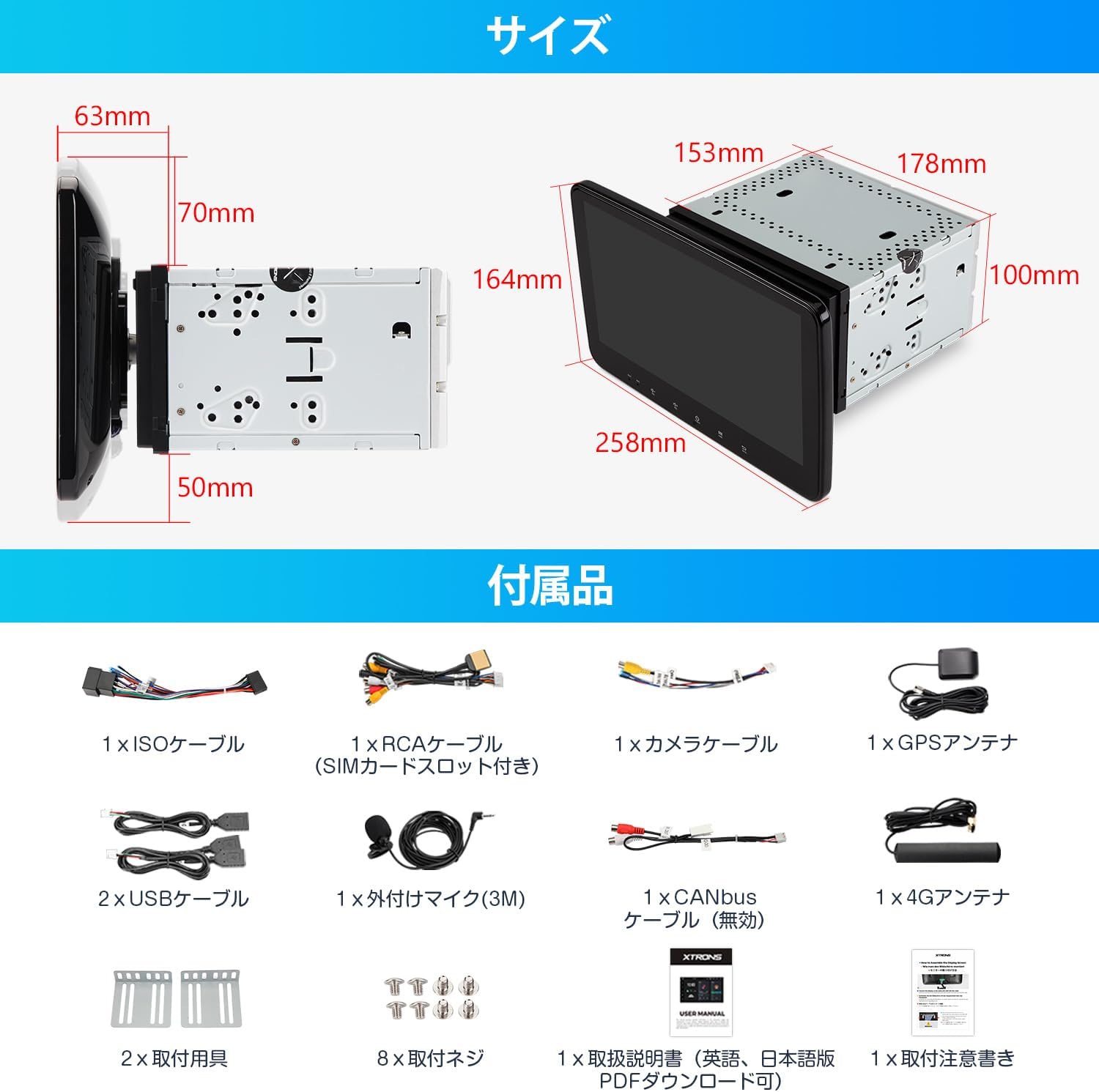
Image: Overview of the XTRONS TX123GS-TV unit, its dimensions, and all included accessories such as cables, antennas, mounting hardware, and manuals.
4. Specifications
| Feature | Specification |
|---|---|
| Screen Size | 10.1 inches |
| Display Type | QLED (1280x720 resolution) |
| Operating System | Android 14 |
| Processor | 8-Core |
| RAM | 4GB |
| ROM | 64GB |
| Connectivity | 4G (SIM support), Wi-Fi, Bluetooth 5.0 |
| Tuner Type | 4x4 Full-Segment Digital TV |
| Special Features | Built-in DVD Player, Gyro Sensor, Rotatable Monitor, Wireless CarPlay, Wireless/Wired Android Auto, Screen Mirroring, Multi-Window Display, DSP |
| Product Dimensions | 17.9 x 15 x 10 cm; 2.5 kg |
| Mounting Type | Dashboard Mount (2DIN standard size) |
5. Setup and Installation
5.1 Pre-Installation Check
Before installation, ensure your vehicle has a standard 2DIN slot (100mm height x 178mm width x 153mm depth). If your vehicle has a 1DIN space, you may need an XTRONS DX121LGS (sold separately).

Image: Diagram illustrating the required 2DIN space for installation, contrasting it with a 1DIN space, and listing included/not included items like ISO power cable and vehicle-specific harnesses.
5.2 Wiring Diagram
Refer to the detailed wiring diagram for correct connections of power, speakers, antennas, and external devices.

Image: A comprehensive wiring diagram showing connections for radio antenna, 4G antenna, GPS antenna, USB ports, audio outputs, video input, reverse signal, Bluetooth antenna, brake signal, IR input, steering wheel control, illumination, auto antenna, and ISO power cable.
5.3 Monitor Attachment/Detachment
The monitor is designed for easy attachment and detachment. Ensure the unit is powered off before performing these steps.
- Detachment: Pull the fixing clips on the back of the screen panel outwards. Lift the screen panel upwards to detach it. Unscrew the cable fixing cover plate and remove the cover. Press the ribbon cable clips inwards and pull the ribbon cable downwards to remove it.
- Attachment: Connect the ribbon cable to the main unit, ensuring the clips are securely fastened. Align the screen panel parallel to the main unit and push it in until the clips engage. Secure the cable fixing cover plate with screws.
Video: This video demonstrates the process of detaching and attaching the front panel of the XTRONS UX6SKJ-PRO-MAX unit, which uses a similar mechanism for the monitor. It shows how to release clips, remove the ribbon cable, and reattach the panel.
Video: This video illustrates the panel attachment and detachment method for the UX7SKJ-PRO-MAX, providing a visual guide for securing and removing the display panel.

Image: Four-step visual guide for attaching the monitor to the main unit, emphasizing connecting the cable, aligning the bracket, pulling clips, and securing the monitor. It also warns against powering on the unit during monitor attachment.
6. Operating Instructions
6.1 Display and User Interface
The TX123GS-TV features a 10.1-inch QLED screen with 1280x720 resolution, offering a cinematic visual experience. The monitor is rotatable and adjustable in angle (26 degrees front/back, 30 degrees horizontal rotation) and vertical position (50mm slide) to ensure optimal viewing from the driver's seat without obstructing other controls.

Image: A comparison of a standard screen and the QLED screen, highlighting the 1280x720 high resolution and 2K video playback capability of the QLED display.

Image: Visual representation of the rotatable monitor, showing its ability to adjust 26 degrees front/back and up to 30 degrees horizontally, along with a 50mm vertical slide for optimal viewing and access to vehicle controls.
6.2 Navigation and Gyro Sensor
The unit supports various navigation apps downloadable from the Play Store, such as Google Maps. The built-in gyro sensor provides inclinometer information, making it ideal for off-road use.

Image: Displays the gyro sensor's inclinometer information, showing vehicle tilt and compass, suitable for off-road driving. Also shows examples of stylish UI with inclinometer displays.
Video: This video demonstrates the navigation function of a similar Eonon unit, showing GPS accuracy and responsiveness during driving, including rerouting capabilities.
6.3 Multimedia Features
The TX123GS-TV includes a built-in DVD player and supports various audio and video formats. Enjoy full-segment digital TV with the integrated 4x4 tuner. USB/TF card support up to 64GB allows for extensive media storage.

Image: Shows the built-in DVD player slot and how the monitor can be adjusted vertically by 50mm to allow for easy disc insertion/ejection without interfering with the dashboard.
Video: This video showcases the DVD playback functionality of the PRA107, an integrated Android navigation system with a DVD player, demonstrating its ability to play discs.
6.4 Connectivity
Stay connected with the built-in 4G module (requires a micro SIM card), Wi-Fi, and USB tethering. Access the Play Store to download your favorite apps like Google Maps and YouTube. Bluetooth 5.0 enables hands-free calling and high-quality audio streaming.

Image: Highlights the built-in 4G LTE communication module, supporting up to 300Mbps, and compatibility with Wi-Fi and USB tethering for easy internet access and app downloads from the Play Store.

Image: Illustrates wireless CarPlay for iPhone and wireless/wired Android Auto compatibility, allowing smartphone apps like music, calls, and navigation to be displayed on the unit's screen.
6.5 Advanced Features
The TX123GS-TV supports wireless screen mirroring, allowing you to display your smartphone's content directly on the unit. The multi-window display feature enables running two applications simultaneously for enhanced multitasking.

Image: Shows a smartphone screen being mirrored wirelessly onto the car navigation unit, allowing for synchronized display of photos, music, and videos.

Image: Demonstrates the multi-window view (Picture-in-Picture mode), where two applications can run simultaneously on the screen, such as a web browser and a video player, or navigation and a video.
Video: This video provides an overview of the XTRONS 2DIN Android13 car navigation system, highlighting its 10.1-inch rotatable display, QLED screen, and various car audio features, including multi-window and connectivity options.
Video: This video demonstrates various functions of the UX7SKJ-PRO-MAX, including UI navigation, app switching, split-screen functionality, and media playback, showcasing the system's responsiveness and features.
6.6 Audio Settings (DSP)
The built-in Digital Signal Processor (DSP) allows for advanced audio customization, including equalizer settings and sound field adjustments, to create an immersive listening experience.

Image: Highlights Bluetooth 5.0 for hands-free calls and music, and the built-in DSP function with equalizer settings for enhanced audio quality.
7. External Device Support
The TX123GS-TV supports various external accessories to expand its functionality:
- Rear Camera Input: Supports AHD (1920x1080) rear cameras for safe parking and reversing.
- OBD2: Compatible with XTRONS OBD2/OBD04 adapters (sold separately) to monitor vehicle data via the Torque app.
- DVR: Connect XTRONS DVR028S/DVR027S (sold separately) to record driving events.
- TPMS: Compatible with XTRONS TPMS07/TPMS08 sensors (sold separately) to monitor tire pressure and temperature.
- HDMI Output: Supports HDMI output for mirroring content to external displays.

Image: Shows various external device connections including AHD rear camera input with parking guidelines, OBD2 compatibility with the Torque app, DVR mode for recording, and TPMS support for tire monitoring.
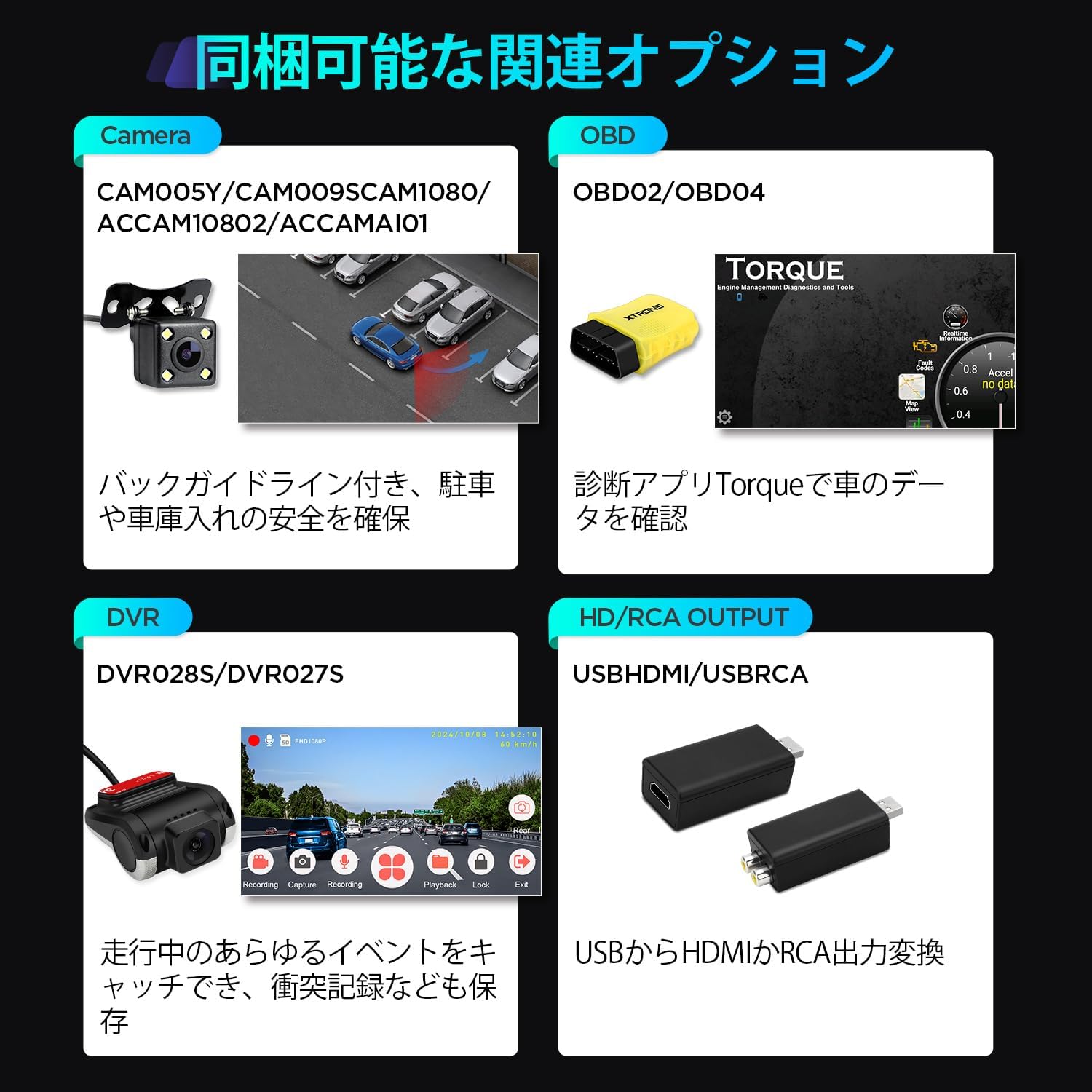
Image: Displays various optional accessories such as cameras (CAM005Y/CAM009S/CAM1080/ACCAM10802/ACCAMAI01), OBD2 adapters (OBD02/OBD04), DVRs (DVR028S/DVR027S), and HD/RCA output adapters (USBHDMI/USBRCA).
8. Maintenance
To ensure the longevity and optimal performance of your XTRONS TX123GS-TV, follow these maintenance guidelines:
- Regular Cleaning: Wipe the screen and unit exterior with a soft, dry, lint-free cloth. Avoid using harsh chemicals or abrasive materials.
- Software Updates: Periodically check for software updates to ensure your system has the latest features and bug fixes. Updates can typically be performed via Wi-Fi or USB.
- Avoid Extreme Conditions: Protect the unit from direct sunlight for prolonged periods and extreme temperatures.
- Disc Care: Handle DVDs carefully to prevent scratches. Clean discs with a soft, dry cloth from the center outwards.
9. Troubleshooting
If you encounter any issues with your XTRONS TX123GS-TV, refer to the following common troubleshooting tips:
- No Power: Check all power connections, including the ISO cable and ACC wire. Ensure the vehicle's ignition is on.
- No Sound: Verify speaker connections, volume levels, and audio output settings. Check if the mute function is active.
- GPS Signal Loss: Ensure the GPS antenna is correctly installed and has a clear view of the sky. Check GPS settings in the system.
- Touchscreen Unresponsive: Try restarting the unit. If the issue persists, a factory reset might be necessary (note: this will erase all user data).
- Bluetooth Connection Issues: Ensure Bluetooth is enabled on both the unit and your smartphone. Try unpairing and re-pairing the devices.
- DVD Playback Errors: Check if the disc is clean and free from scratches. Ensure the disc is inserted correctly.
For more detailed troubleshooting or issues not covered here, please refer to the full PDF manual or contact XTRONS customer support.
10. Warranty and Support
The XTRONS TX123GS-TV comes with a 1-year warranty from the date of purchase. Please retain your proof of purchase for warranty claims.
For further assistance, you can download the comprehensive PDF version of the Japanese user manual from the official XTRONS website:
If you have any questions or require technical support, please contact XTRONS customer service via email.


