
1. Introduction
Thank you for choosing the Premier MS3-2D BT POCKET Barcode Scanner. This compact and portable device is designed for efficient 1D and 2D barcode scanning, offering wireless connectivity via Bluetooth. This manual provides essential information for setting up, operating, and maintaining your scanner to ensure optimal performance.
2. Safety Information
- Do not expose the device to extreme temperatures, direct sunlight, or high humidity.
- Avoid dropping or subjecting the scanner to strong impacts.
- Do not attempt to disassemble or modify the scanner. This will void the warranty and may cause damage.
- Use only the provided charging cable or a compatible charger to prevent battery damage.
- Keep the scanner away from water and other liquids. The device has an IP54 rating, meaning it is protected from limited dust ingress and water spray from any direction, but it is not waterproof.
- Avoid direct eye exposure to the scanning light.
3. Package Contents
Please check the package for the following items:
- Premier MS3-2D BT POCKET Barcode Scanner
- USB Charging Cable
- User Manual (this document)
If any items are missing or damaged, please contact your retailer.
4. Product Overview
The Premier MS3-2D BT POCKET is a compact and versatile barcode scanner designed for portability and ease of use. It supports both 1D and 2D barcode types and connects wirelessly via Bluetooth to compatible devices such as smartphones and tablets. Its integrated 1000 mAh battery provides extended operation, and its IP54 rating ensures durability in various environments.
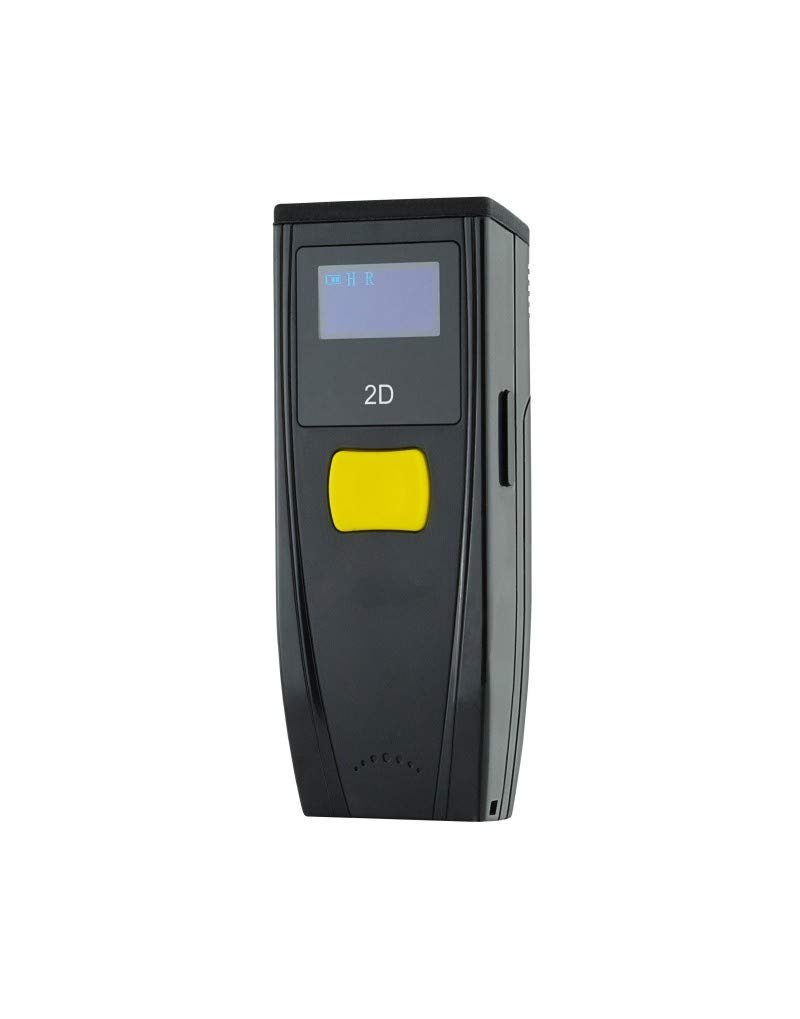
Image 1: Front view of the Premier MS3-2D BT POCKET Barcode Scanner, showing the scanning window and trigger button.
5. Setup
5.1 Charging the Battery
Before initial use, fully charge the scanner's integrated 1000 mAh battery. Connect the USB charging cable to the scanner's charging port and the other end to a USB power source (e.g., computer USB port, USB wall adapter). A full charge typically takes approximately 3 hours. The scanner operates on a 3.7V battery.
5.2 Bluetooth Pairing
To connect the scanner to your host device (smartphone or tablet):
- Turn on the barcode scanner.
- Enable Bluetooth on your host device.
- Put the scanner into pairing mode (refer to the scanner's quick start guide or specific pairing barcode if available, as this varies by model). Typically, this involves holding a specific button or scanning a dedicated pairing barcode.
- On your host device, search for available Bluetooth devices. The scanner should appear in the list (e.g., "MS3-2D" or similar).
- Select the scanner from the list to initiate pairing. Once paired, the scanner will typically emit a confirmation beep or its indicator light will change.
6. Operating Instructions
6.1 Basic Scanning
To scan a barcode:
- Ensure the scanner is powered on and successfully paired with your host device.
- Open an application on your host device where you want the scanned data to appear (e.g., a text editor, spreadsheet, or inventory application).
- Point the scanning window at the barcode, ensuring the entire barcode is within the scanning beam.
- Press the trigger button. A successful scan will typically be indicated by a beep and/or a green light. The barcode data will then be transmitted to your host device as if typed from a keyboard.
6.2 Supported Barcode Types
The MS3-2D BT POCKET scanner is compatible with both 1D and 2D barcode symbologies.
- 1D Barcodes: UPC/EAN, Code 128, Code 39, Interleaved 2 of 5, etc.
- 2D Barcodes: QR Code, Data Matrix, PDF417, etc.
7. Maintenance
7.1 Cleaning
To clean the scanner:
- Wipe the exterior with a soft, damp cloth. Do not use abrasive cleaners or solvents.
- For the scanning window, use a soft, lint-free cloth, possibly slightly dampened with lens cleaner, to avoid scratching.
7.2 Storage
Store the scanner in a cool, dry place away from direct sunlight and extreme temperatures when not in use for extended periods. Ensure the battery is partially charged (around 50%) before long-term storage to preserve battery life.
8. Troubleshooting
- Scanner not turning on: Ensure the battery is charged. Connect the scanner to a power source and try again.
- Cannot pair via Bluetooth: Make sure Bluetooth is enabled on your host device and the scanner is in pairing mode. Ensure no other devices are actively connected to the scanner. Try restarting both the scanner and the host device.
- Scanner not reading barcodes: Ensure the barcode is clean, undamaged, and well-lit. Adjust the distance and angle of the scanner to the barcode. Verify that the scanner is correctly paired and connected to your host device.
- Scanned data not appearing: Confirm the scanner is paired and connected. Check that the cursor is active in the desired input field on your host device.
9. Specifications
| Model Number | ILM2DBTBPK |
| Connectivity | Bluetooth |
| Barcode Compatibility | 1D, 2D |
| Battery Type | Integrated, Rechargeable |
| Battery Capacity | 1000 mAh |
| Battery Voltage | 3.7 V |
| Charging Time | Approx. 3 hours |
| IP Rating | IP54 |
| Color | Black |
| Compatible Devices | Smartphone, Tablet |
| Product Dimensions | 16P x 9l x 5.5H cm |
10. Warranty and Support
For warranty information, please refer to the documentation provided at the time of purchase or contact your retailer. For technical support or further assistance, please reach out to the manufacturer or your point of purchase. Keep your proof of purchase for warranty claims.