
1. Introduction
Welcome to the user manual for your new ZTE Blade V40 Vita mobile phone. This guide is designed to help you understand the features and functions of your device, ensuring a smooth and efficient user experience. Please read this manual carefully before using your phone to ensure proper operation and to prevent damage.
For the latest information and support, please visit the official ZTE website.
2. Product Overview
The ZTE Blade V40 Vita is a powerful and versatile smartphone designed for everyday use. Familiarize yourself with its components and controls.
2.1 Package Contents
- ZTE Blade V40 Vita Mobile Phone
- Charger
- USB Cable
- Quick Start Guide (this manual)
2.2 Device Layout
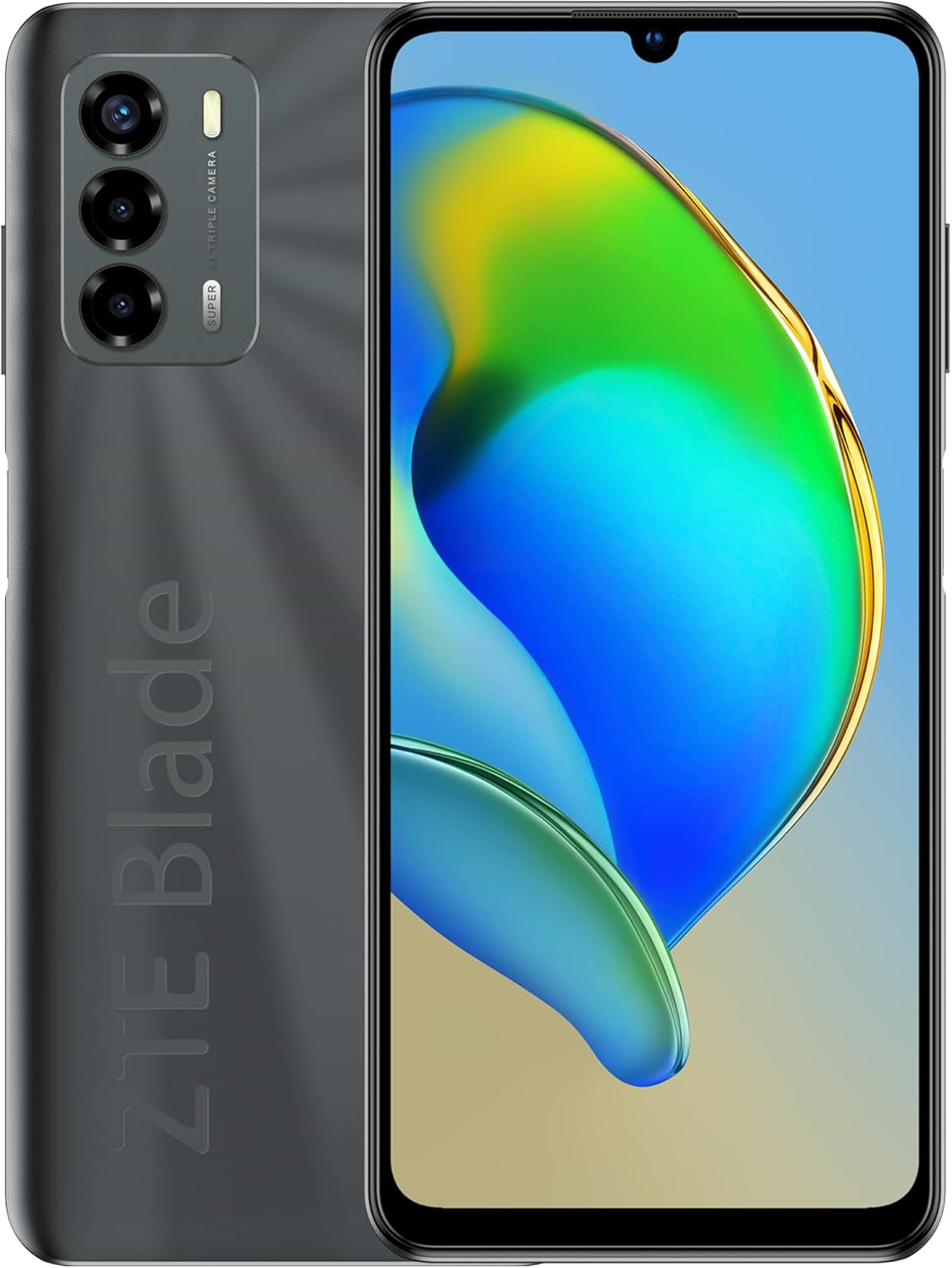
Figure 2.1: Front and back view of the ZTE Blade V40 Vita, showcasing the display and the triple camera setup.

Figure 2.2: Detailed front view of the device, highlighting the 6.75-inch Waterdrop HD+ display.
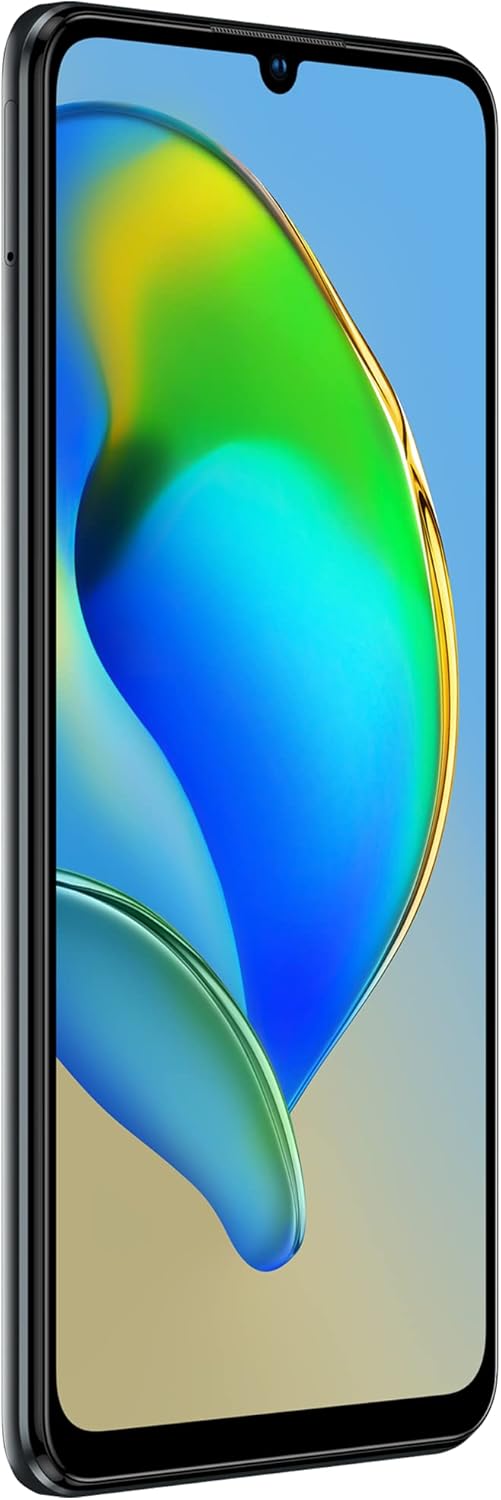
Figure 2.3: Side view of the ZTE Blade V40 Vita, showing the power button and volume rocker.

Figure 2.4: Rear view of the device, focusing on the triple camera module and the ZTE Blade branding.
- Front Camera: 8MP selfie camera located in the waterdrop notch.
- Display: 6.75-inch HD+ Waterdrop Screen.
- Volume Buttons: Located on the side, used to adjust media volume, call volume, and ringtone volume.
- Power Button: Located on the side, used to turn the device on/off, restart, or lock/unlock the screen. Also integrates the fingerprint sensor.
- USB-C Port: For charging and data transfer.
- Speaker: For audio output.
- Microphone: For voice input during calls and recordings.
- SIM/SD Card Tray: For inserting Nano-SIM cards and a microSD card.
- Rear Cameras: Triple camera setup (48MP main, 2MP macro, 2MP depth) with autofocus.
- Flash: For illuminating photos in low light.
3. Setup
Follow these steps to set up your new ZTE Blade V40 Vita.
3.1 Inserting SIM and SD Cards
- Locate the SIM/SD card tray on the side of your phone.
- Insert the SIM ejector tool (or a small paper clip) into the small hole next to the tray and push gently until the tray pops out.
- Place your Nano-SIM card(s) and/or microSD card into the designated slots on the tray, ensuring the gold contacts face down.
- Carefully push the tray back into the phone until it clicks into place.
3.2 Charging the Battery
- Connect the USB cable to the USB-C port on your phone.
- Connect the other end of the USB cable to the charger adapter.
- Plug the charger into a power outlet.
- The battery indicator on the screen will show the charging status. For optimal performance, fully charge the device before first use.
3.3 Powering On/Off
- To Power On: Press and hold the Power button until the ZTE logo appears.
- To Power Off: Press and hold the Power button until the power options menu appears, then tap 'Power off'.
- To Restart: Press and hold the Power button until the power options menu appears, then tap 'Restart'.
3.4 Initial Setup
Upon first power-on, the device will guide you through an initial setup wizard. This includes selecting your language, connecting to Wi-Fi, setting up your Google account, and configuring security options like fingerprint unlock.
4. Operating Your Device
Learn the basic operations of your ZTE Blade V40 Vita.
4.1 Making Calls
- Tap the Phone icon on the home screen.
- Enter the phone number using the dial pad or select a contact from your contacts list.
- Tap the Call button to initiate the call.
4.2 Sending Messages
- Tap the Messages icon.
- Tap the Start chat or New message button.
- Enter the recipient's number or select from contacts.
- Type your message in the text field.
- Tap the Send button.
4.3 Using the Camera
- Tap the Camera icon.
- Frame your shot using the screen as a viewfinder.
- Tap the Shutter button to take a photo.
- To switch to video mode, swipe on the screen or select the video option.
4.4 Wi-Fi Connectivity
- Go to Settings > Network & internet > Wi-Fi.
- Toggle Wi-Fi On.
- Select your desired Wi-Fi network from the list.
- Enter the password if prompted, then tap Connect.
4.5 NFC (Near Field Communication)
NFC allows for short-range wireless communication between your device and other NFC-enabled devices or tags. It can be used for mobile payments, quick pairing with accessories, or sharing content.
- To enable NFC, go to Settings > Connected devices > NFC and toggle it On.
- To use NFC, simply tap the back of your phone near another NFC-enabled device or tag.
4.6 Fingerprint Sensor
The fingerprint sensor is integrated into the power button for convenient and secure unlocking.
- Go to Settings > Security > Fingerprint.
- Follow the on-screen instructions to register your fingerprint(s). You will need to set up a backup screen lock method (PIN, pattern, or password) first.
- Once registered, you can unlock your phone by placing your registered finger on the power button.
5. Maintenance
Proper care and maintenance will extend the life of your device.
5.1 Cleaning Your Device
- Use a soft, lint-free cloth to clean the screen and body of the phone.
- Avoid using harsh chemicals, cleaning sprays, or abrasive materials.
- Do not expose the phone to excessive moisture.
5.2 Battery Care
- Avoid extreme temperatures, as they can degrade battery performance.
- Use only the original charger and USB cable provided with your device.
- Do not leave the phone charging for extended periods after it is fully charged.
- If the battery is severely depleted, charge it immediately.
5.3 Software Updates
Regularly check for and install software updates to ensure your device has the latest features, security patches, and performance improvements. Go to Settings > System > System update.
6. Troubleshooting
This section addresses common issues you might encounter with your device.
| Problem | Solution |
|---|---|
| Device won't turn on | Ensure the battery is charged. Connect the charger and wait a few minutes before attempting to power on. If it still doesn't turn on, try a forced restart by holding the Power button for 10-15 seconds. |
| No network signal | Check if the SIM card is properly inserted. Try restarting the device. Ensure you are in an area with network coverage. Go to Settings > Network & internet > Mobile network and check network settings. |
| Apps are crashing or freezing | Close and reopen the app. Clear the app's cache (Settings > Apps > [App Name] > Storage & cache > Clear cache). Restart the phone. Ensure the app is updated to the latest version. |
| Battery drains quickly | Reduce screen brightness. Turn off Wi-Fi, Bluetooth, and GPS when not in use. Close background apps. Check battery usage in Settings > Battery to identify power-hungry apps. |
| Fingerprint sensor not working | Ensure your finger is clean and dry. Re-register your fingerprint in Settings > Security > Fingerprint. Ensure the sensor area is clean. |
If the problem persists, consider performing a factory data reset (back up your data first) or contact customer support.
7. Specifications
Key technical specifications for the ZTE Blade V40 Vita.
| Feature | Detail |
|---|---|
| Model Name | V40 Vita |
| Brand | ZTE |
| Screen Size | 6.75 inches |
| Operating System | Android 11.0, Android R |
| Memory Storage Capacity | 4 GB RAM, 128 GB Internal Storage |
| Battery Capacity | 5130 mAh (Lithium Polymer) |
| Connectivity Technology | NFC, Wi-Fi (2.4GHz/5GHz) |
| Special Features | Triple Camera (48MP AF + 2MP + 2MP), 8MP Selfie Camera, Fingerprint Sensor |
| Display Technology | LCD |
| Scanner Resolution | 720 x 1520 pixels |
| Color | Zeus Black |
| Item Weight | 198 grams |
| Dimensions | 16.33 x 7.55 x 0.85 cm |
8. Safety Information
Please read the following safety information carefully to ensure safe and proper use of your device.
- Battery Safety: Do not attempt to replace the battery yourself. Use only ZTE-approved batteries and chargers. Do not expose the battery to high temperatures or dispose of it in fire.
- Driving Safety: Always prioritize driving safety. Do not use your phone while driving unless absolutely necessary and permitted by law. Use hands-free accessories.
- Medical Devices: Maintain a safe distance between your phone and medical devices such as pacemakers. Consult your physician and the medical device manufacturer for specific guidelines.
- Explosive Environments: Turn off your phone in areas with potentially explosive atmospheres, such as gas stations or chemical plants.
- Water and Moisture: This device is not waterproof. Avoid exposing it to water, rain, or high humidity.
- Disposal: Dispose of your device and its battery responsibly according to local regulations. Do not dispose of it with household waste.
9. Warranty and Support
Your ZTE Blade V40 Vita comes with a standard manufacturer's warranty. Please refer to the warranty card included in your package for specific terms and conditions, including the warranty period and coverage details.
9.1 Technical Support
For technical assistance, troubleshooting beyond this manual, or warranty claims, please contact ZTE customer support through one of the following channels:
- Official Website: Visit the official ZTE website for support resources, FAQs, and contact information.
- Customer Service Hotline: Refer to your product packaging or the ZTE website for regional customer service numbers.
- Authorized Service Centers: For hardware repairs, locate an authorized ZTE service center near you.
Please have your device's model number (ZTE 8045) and serial number ready when contacting support.


