Introduction
This user manual provides detailed instructions for the INPHIC Ultra-Slim Wireless Bluetooth Keyboard Mouse Combo (Model V788). It covers setup, operation, maintenance, and troubleshooting to ensure optimal performance and a seamless user experience. This combo offers stable wireless connectivity and wide compatibility with various Bluetooth-enabled devices, including iPads, iPhones, and other mobile devices.
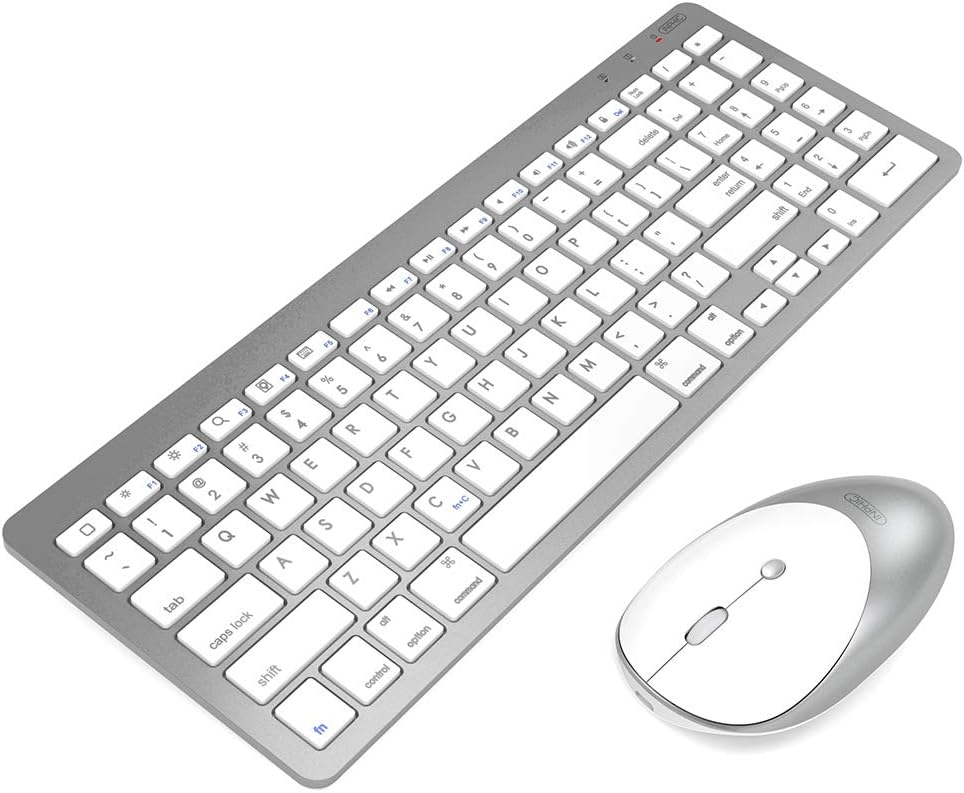
Image: The INPHIC Ultra-Slim Wireless Bluetooth Keyboard and Mouse Combo. The keyboard is a full-size QWERTY layout in a sleek grey finish with white keys, and the mouse is a compact, ergonomic design in a matching grey and white.
Setup
1. Keyboard Pairing Instructions
Follow these steps to pair the keyboard with your device:
- Slide the power switch from OFF to ON. The battery indicator will flash for approximately one second.
- Hold down the Fn key and press the C key simultaneously to enter connection mode. The battery indicator will flash continuously.
- On your device, turn on Bluetooth and search for available devices. Select "Bluetooth keyboard" from the list of discovered devices.
- Enter the PIN code displayed on your device's screen using the keyboard, then press the Enter key.
- Once connected, the battery indicator on the keyboard will stop flashing.
Note: If no PIN code is displayed, enter "11" on your original device's keyboard and press Enter. Then, enter "11" again on the INPHIC keyboard and press Enter. When entering the PIN code, use the main keyboard area, not the numeric keypad, as the numeric keypad only functions after the keyboard is connected.

Image: Close-up view of the INPHIC keyboard highlighting the Fn and C keys for pairing, along with an illustration of the scissor switch mechanism for comfortable typing. The ON/OFF button is also visible on the top edge of the keyboard.
2. Mouse Pairing Instructions
Ensure your computer's Bluetooth function is enabled before proceeding:
- Windows 7: Navigate to Start > Control Panel > Devices and Printers.
- Windows 8/10: From the Start screen, right-click an empty space, then select All apps > Control Panel > Devices and Printers. Click Add a Bluetooth Device.
- Note: If you cannot locate "Devices and Printers," set the Control Panel to "View by: Small icons" to see all Control Panel items.
Once Bluetooth is enabled on your device:
- Turn on the Bluetooth mouse. Press and hold the Mode button for approximately three seconds; the blue light on the mouse will flash rapidly.
- Within a few moments, "BT5.0 Mouse" or "BT3.0 Mouse" should appear in the list of discovered Bluetooth devices. Select the device and click Continue to begin the pairing process.
- After successful pairing, the corresponding indicator light on the mouse will illuminate for about 2 seconds and then turn off, indicating the mouse is ready for normal use.

Image: The INPHIC keyboard and mouse wirelessly connected to a laptop, demonstrating the Bluetooth connection capability. Bluetooth icons are shown near the keyboard and mouse.
Operating Instructions
Key Features and Compatibility
- Stable Wireless Connection: Utilizes Bluetooth technology for a clean, tidy desktop setup. Supports a stable connection with an operating distance of up to 10 meters.
- Wide Compatibility: Compatible with a broad range of devices including iPad Pro 12.9/11 (2020), iPad 10.2, iPad 9.7, iPad Air 2019, iPad Air 2, iPad Mini 2019, iPad Mini 4/3/2/1, iPad 2/3/4, iPhone Series, and other Bluetooth-enabled devices.
- Important Note for iOS Devices: For iPad and iPhone, the system must be updated to iOS 13 or above, and "Assistive Touch" must be enabled (Settings > Accessibility > AssistiveTouch).
- US Layout and Ergonomic Design: Features a QWERTY layout with hotkeys specifically customized for iPad functions, including volume adjustment, music control, and brightness adjustment. Both the mouse and keyboard are ergonomically designed for comfort during extended use.
- Portable Design: The slim and lightweight form factor of both the keyboard and mouse makes them easy to carry in a laptop bag.
- Silent Click Mouse: The mouse is designed for silent operation, allowing you to stay focused without disturbing others. It offers adjustable DPI settings (800/1200/1600 DPI).

Image: An illustration demonstrating the super compatibility of the INPHIC keyboard and mouse combo with various operating systems including Windows (Win 98/2000/XP/Win7/Win8/Win10/Vista), Mac OS, Android, and Linux. Devices like laptops, tablets, and smartphones are shown.
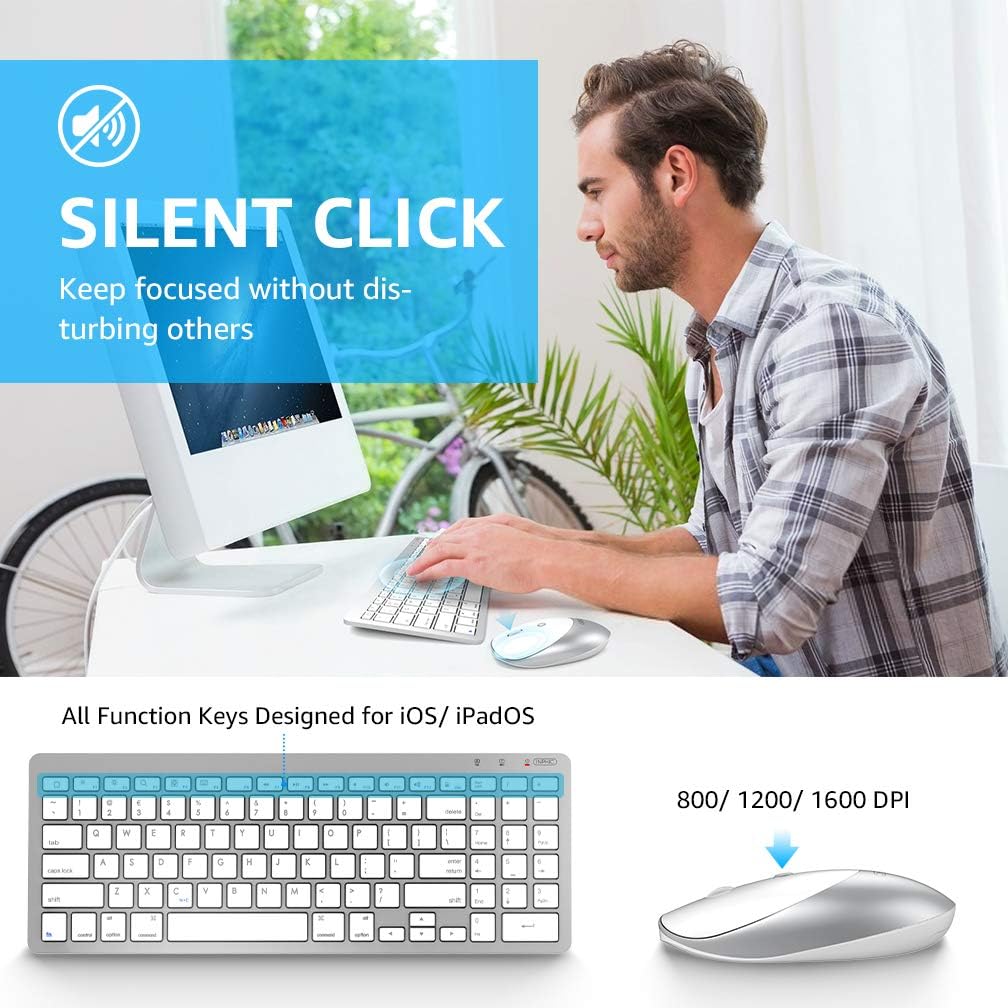
Image: A person using the INPHIC keyboard and mouse combo at a desk, illustrating the "Silent Click" feature of the mouse. The image also shows the keyboard with function keys designed for iOS/iPadOS and the mouse with adjustable DPI settings (800/1200/1600 DPI).
Maintenance
To ensure the longevity and optimal performance of your INPHIC Keyboard Mouse Combo, follow these maintenance guidelines:
- Cleaning: Use a soft, dry cloth to clean the surfaces of the keyboard and mouse. For stubborn dirt, slightly dampen the cloth with water or a mild, non-abrasive cleaner. Avoid excessive moisture.
- Battery Replacement: Both the mouse and keyboard are powered by AAA batteries (not included). Replace batteries when performance degrades or the low battery indicator appears. The combo supports heavy use for 30 consecutive days and features an automatic sleep mode for extended battery life (up to half a year between changes).
- Storage: When not in use for extended periods, turn off the devices to conserve battery life. Store them in a cool, dry place away from direct sunlight and extreme temperatures.
- Avoid Spills: While the keyboard has an anti-splash design, it is not fully waterproof. Avoid spilling liquids on the devices.
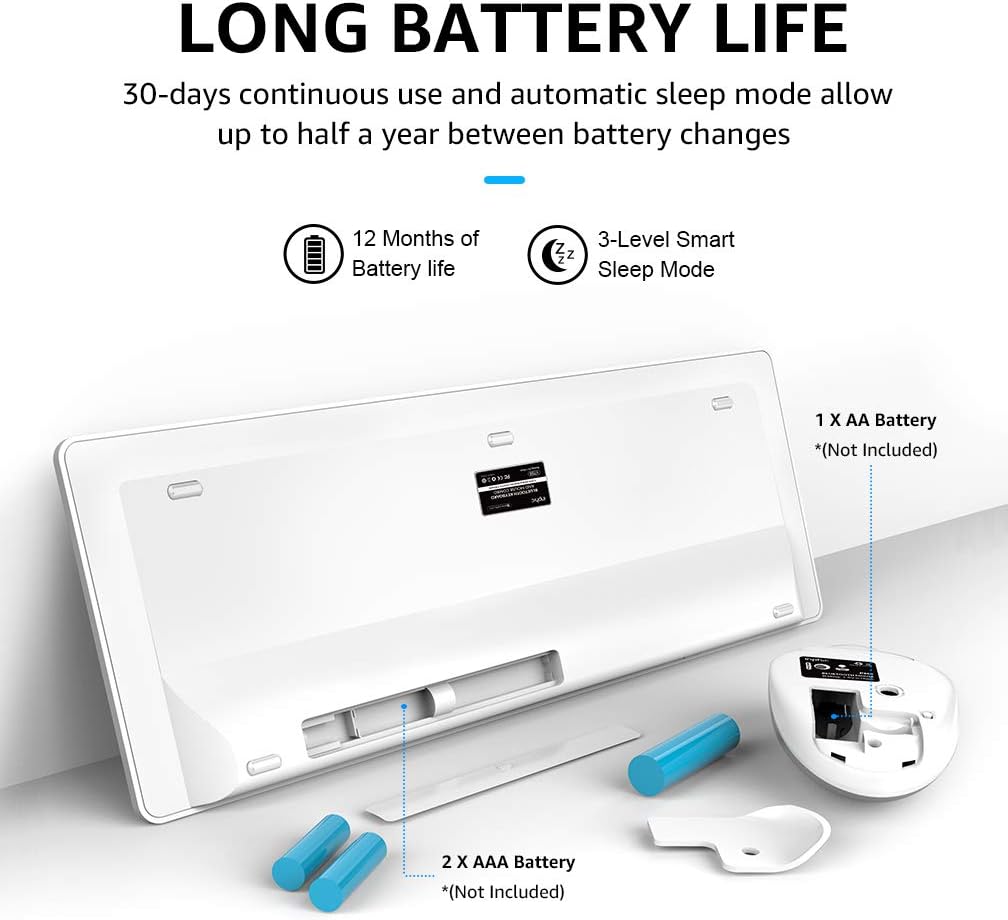
Image: An illustration showing the battery compartments of the INPHIC keyboard and mouse. The keyboard requires 2 AAA batteries, and the mouse requires 1 AA battery. The image highlights the long battery life features, including 30-days continuous use, 12 months of battery life, and a 3-level smart sleep mode.
Troubleshooting
If you encounter issues with your INPHIC Keyboard Mouse Combo, refer to the following common troubleshooting steps:
- Device Not Connecting/Pairing:
- Ensure both the keyboard and mouse are powered on.
- Verify that Bluetooth is enabled on your host device (computer, tablet, phone).
- Make sure the devices are within the 10-meter operating range.
- Re-enter pairing mode for the keyboard (Fn+C) or mouse (hold Mode button for 3 seconds) and attempt to re-pair.
- Check if the batteries are low or depleted. Replace them if necessary.
- For iOS devices, confirm that iOS 13 or above is installed and "Assistive Touch" is enabled.
- Keyboard Input Issues (e.g., PIN code):
- If no PIN code appears, try entering "11" on your original keyboard, press Enter, then "11" on the INPHIC keyboard, and press Enter.
- Ensure you are using the main alphanumeric keys for PIN entry, not the numeric keypad, as it may not be active until fully paired.
- Mouse Cursor Erratic or Unresponsive:
- Check the mouse battery.
- Ensure the mouse is on a clean, non-reflective surface.
- Re-pair the mouse with your device.
- Interference:
- Move away from other wireless devices that might cause interference (e.g., Wi-Fi routers, cordless phones).
Specifications
| Feature | Detail |
|---|---|
| Brand | INPHIC |
| Model Number | V788 |
| Connectivity Technology | Bluetooth (No 2.4G USB receiver required) |
| Operating System Compatibility | Windows 7, Windows 8, Windows 10, Mac OS, Android, iOS (iOS 13+ required for iPad/iPhone) |
| Compatible Devices | iPad (various models), iPhone (various models), Laptops, Tablets, Smartphones |
| Keyboard Layout | US QWERTY with iPad-customized hotkeys |
| Mouse DPI Settings | 800 / 1200 / 1600 DPI |
| Operating Distance | Up to 10 meters (33 feet) |
| Power Source | Battery Powered (Keyboard: 2x AAA, Mouse: 1x AA - Batteries not included) |
| Battery Life | 30 days continuous use; up to 12 months standby with smart sleep mode |
| Item Weight | 508 g |
| Dimensions (Keyboard) | Approx. 345 mm (L) x 124 mm (W) x 4 mm (H) / 13.6 in (L) x 4.9 in (W) x 0.16 in (H) |
| Dimensions (Mouse) | Approx. 108 mm (L) x 58 mm (W) x 28 mm (H) / 4.25 in (L) x 2.3 in (W) x 1.1 in (H) |

Image: Detailed diagram showing the dimensions of both the INPHIC keyboard and mouse in millimeters and inches, including length, width, and height measurements for both devices.
Warranty and Support
Information regarding specific warranty terms and customer support contact details for the INPHIC Ultra-Slim Wireless Bluetooth Keyboard Mouse Combo (Model V788) is not available in the provided product data. Please refer to the product packaging or the manufacturer's official website for the most up-to-date warranty information and support contacts.


