
Product Overview
The Anlapus H.265+ 1080p Home Wired Security Camera System provides comprehensive surveillance for your home or business. This system includes an 8-channel 5MP Lite DVR and 8 high-definition 1080p weatherproof surveillance cameras, designed for reliable 24/7 monitoring.
Key features include advanced H.265+ video compression for efficient storage, flexible 4-in-1 DVR compatibility (AHD, TVI, CVI, CVBS), and customizable motion detection with instant alerts.
What's in the Box
The following components are included in your Anlapus Security Camera System package:

Image: A visual representation of the packing list, showing each component with its quantity.
- 1 x 8 Channel DVR (no hard drive included)
- 8 x 1080p HD Bullet Cameras
- 8 x 60FT BNC+DC CCTV Cables
- 1 x USB Mouse
- 2 x 1 to 4 Power Splitters
- 3 x 12V 2A Power Supplies
- 8 x Mounting Screw Bags
- 1 x Instruction Manual (this document)
- 8 x Warning Stickers
System Components and Connections
Familiarize yourself with the main components and their connection points:

Image: A detailed diagram illustrating the various ports on the DVR and the camera, including video input, monitor outputs (HDMI, VGA), audio input/output, USB ports, and power connections.
- DVR (Digital Video Recorder): The central unit for recording, storing, and managing video footage. It features multiple video input ports for cameras, and output ports for connecting to a monitor.
- Cameras: 1080p HD bullet cameras with 3.6mm lenses, IR-Cut filter for crisp images, and 24 IR LEDs for up to 80ft night vision. They are IP66 weatherproof for outdoor use.
- BNC+DC Cables: These cables transmit both video signal and power to the cameras, simplifying installation.
- Power Supplies: Provide power to the DVR and cameras.
Setup Guide
1. Initial Hardware Connection
Before powering on, ensure all connections are secure.

Image: Illustrates the wired connection process, showing cameras connected to the DVR via BNC cables, the DVR connected to a router and a monitor, and all components powered.
- Connect Cameras: Connect each camera to a video input port on the DVR using the provided BNC+DC cables. Ensure the power connection is also made via the same cable.
- Connect DVR to Monitor: Use an HDMI or VGA cable to connect the DVR to a monitor or TV.
- Connect USB Mouse: Plug the USB mouse into one of the USB ports on the DVR.
- Connect to Network (Optional but Recommended): Connect the DVR's LAN port to your router using an Ethernet cable for remote viewing capabilities.
- Power On: Connect the power adapters to the DVR and cameras, then plug them into a power outlet. The system will boot up automatically.
2. Hard Drive Installation (If Applicable)
This DVR supports one internal 3.5-inch SATA hard drive (up to 8TB capacity). If your system did not come with a pre-installed hard drive, you will need to install one for video recording.
- Unscrew and remove the top cover of the DVR.
- Connect the SATA data cable and power cable from the DVR to the hard drive.
- Secure the hard drive inside the DVR using the provided screws.
- Replace the top cover and secure it with screws.
- Once powered on, navigate to the DVR's menu to format the newly installed hard drive.
3. Mobile App Download and Setup
For remote viewing and alerts, download the Anlapus mobile application.
Image: Shows a smartphone displaying the Anlapus app download page and a live view from a security camera.
- Scan the QR code on the DVR or in the quick start guide, or search for "Anlapus" in your app store.
- Download for Android: Google Play Store
- Download for iOS: Apple App Store
- Register an account and add your DVR by scanning its QR code or manually entering its ID.
Operating the System
Live View
Once the system is set up, you can view live footage from your cameras on the connected monitor or through the Anlapus mobile app/AVSS software on your computer.

Image: Displays live camera feeds on a smartphone, laptop, and desktop monitor, demonstrating multi-device access.
Video Playback
Review recorded footage directly from the DVR or remotely via the app.

Video: An Anlapus brand video demonstrating various features and applications of their security systems, including live view and playback functionalities.
On the DVR, use the mouse to navigate the menu, select 'Playback', choose the date and time, and select the cameras you wish to review. On the mobile app, access the playback feature to view recorded events.
Motion Detection and Alerts
Configure motion detection to receive alerts only when activity is detected in specified areas.

Image: Shows a person walking past a camera and a smartphone receiving an instant app push notification for detected movement.
- Setup Detection Zones: Access the DVR settings to define specific areas within each camera's view where motion detection should be active. This helps reduce false alarms.
- Adjust Sensitivity: Modify the sensitivity level of motion detection to suit your environment.
- Alert Types: The system supports APP push notifications, email alerts, and an audible buzzer from the DVR when motion is detected.
H.265+ Video Compression
The system utilizes H.265+ video compression technology, which significantly improves compression and transmission efficiency without compromising video quality. This allows for maximized storage space on your hard drive and reduced bandwidth usage for remote viewing.

Image: A comparison graphic showing how H.265+ compression allows for longer recording times compared to H.264 with the same hard drive capacity.
Night Vision and Weatherproof Design
The cameras are equipped with infrared (IR) LEDs for clear night vision up to 80 feet, ensuring continuous surveillance even in complete darkness. With an IP66 weatherproof rating, the cameras are designed to withstand various outdoor conditions, including rain, snow, and extreme temperatures (-10°C to 60°C / 14°F to 140°F).
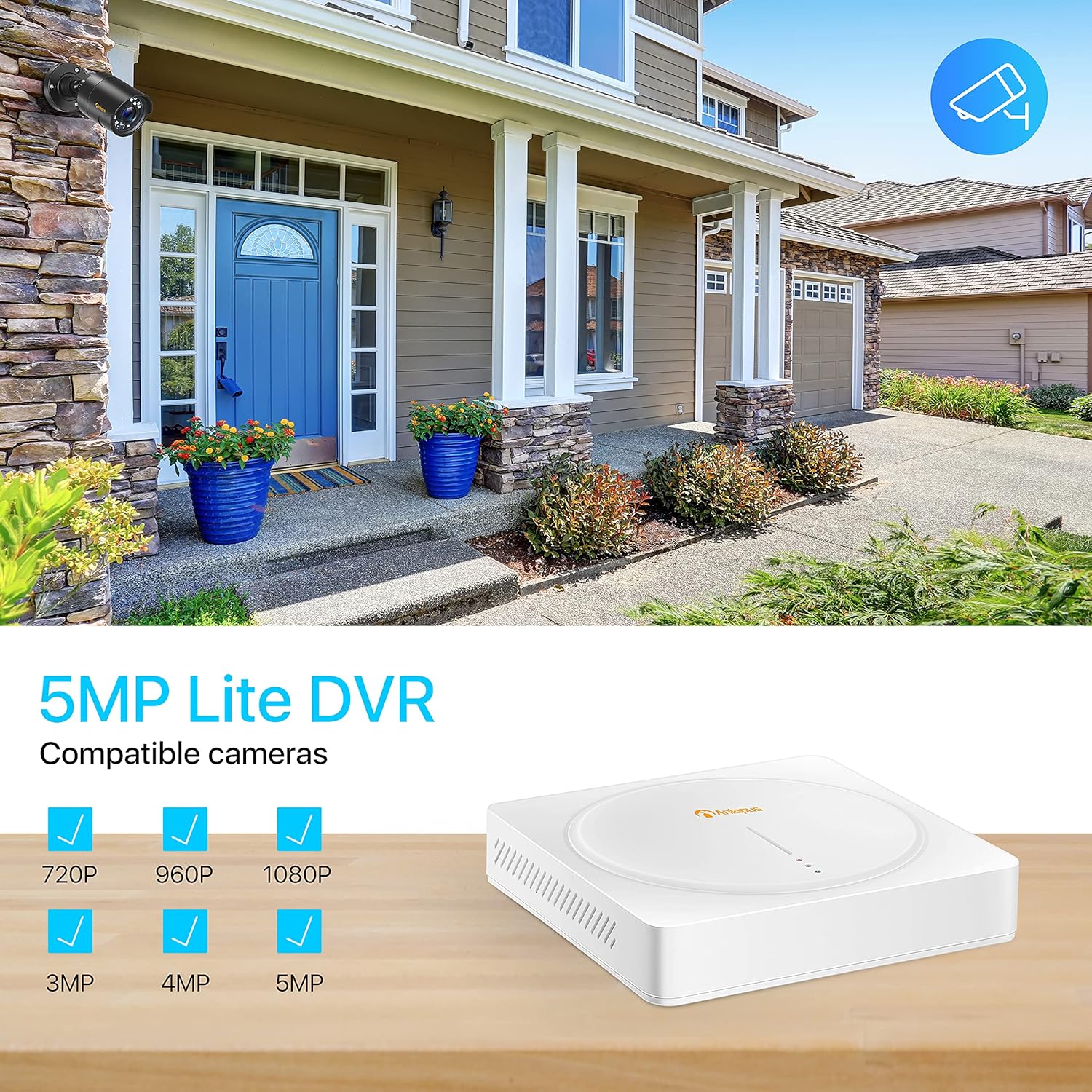
Image: Demonstrates the 1080p Full HD capability, showing a clear color image during the day and a sharp black and white image at night, highlighting the 80ft night vision range.

Image: A camera mounted outdoors under simulated rain, emphasizing its IP66 weatherproof rating and ability to operate in various weather conditions.
Maintenance
- Regular Cleaning: Periodically clean the camera lenses with a soft, damp cloth to ensure clear image quality. Avoid abrasive cleaners.
- Cable Inspection: Routinely check all cables for any signs of wear, damage, or loose connections. Secure or replace as needed.
- Hard Drive Health: If a hard drive is installed, monitor its health through the DVR's system settings. Back up important footage regularly.
- Firmware Updates: Check the Anlapus official website or app for any available firmware updates for your DVR. Updates can improve performance and add new features.
Troubleshooting Common Issues
- No Video Signal:
- Check all BNC and power connections between the camera and DVR.
- Ensure the camera is receiving power (check power adapter and splitters).
- Verify the video input channel on the DVR is correctly selected.
- No Recording:
- Ensure a hard drive is installed and properly connected.
- Check if the hard drive has been formatted in the DVR settings.
- Verify recording schedules or motion detection settings are configured correctly.
- Remote Viewing Issues (App/Software):
- Ensure the DVR is connected to the internet and has a stable network connection.
- Check your router's internet connectivity.
- Verify the DVR's network settings (DHCP enabled or static IP configured correctly).
- Ensure the app is updated to the latest version.
- If experiencing persistent issues with the app, try reinstalling it or checking for alternative compatible software (e.g., AVSS for PC).
- Poor Image Quality:
- Clean the camera lens.
- Ensure the camera is within its optimal operating temperature range.
- Check for strong light sources directly facing the camera.
Technical Specifications
| Feature | Specification |
|---|---|
| Brand | Anlapus |
| Model Number | AS8T2W-4B80S--124S |
| Connectivity Technology | Wired |
| Video Capture Resolution | 1080p, 1920p |
| Special Features | App Control, Night Vision, Weatherproof |
| Number of Channels | 8 |
| Memory Storage Capacity | 8 TB (Max, for internal HDD) |
| Power Source | Corded Electric |
| Signal Format | Analog (AHD, TVI, CVI, CVBS) |
| Low Light Technology | Night Vision |
| Recording Mode | Motion Detection |
| Video Input | BNC |
| Video Output | HDMI, VGA, BNC |
| Item Weight | 16.66 pounds (System) |
| Date First Available | January 2, 2020 |
Warranty and Customer Support
Anlapus products typically come with a manufacturer's warranty. Please refer to the warranty card included in your package or visit the official Anlapus website for detailed warranty terms and conditions.
For technical assistance, troubleshooting, or warranty claims, please contact Anlapus customer support. You can often find contact information on the Anlapus brand store on Amazon or their official website.
Visit the Anlapus Store for more information and support: Anlapus Amazon Store