
cimetech KF003-Grey
cimetech 2.4GHz Wireless Keyboard User Manual
Model: KF003-Grey
Brand: cimetech
Introduction
This manual provides comprehensive instructions for the setup, operation, maintenance, and troubleshooting of your cimetech 2.4GHz Wireless Keyboard. Designed for seamless compatibility with various operating systems including Windows, iOS, and Android, this full-size keyboard offers a comfortable and efficient typing experience for laptop, desktop PC, and tablet users.
Please read this manual thoroughly before using the keyboard to ensure optimal performance and longevity.

Figure 1: cimetech 2.4GHz Wireless Keyboard (KF003-Grey) with USB receiver.
Setup Guide
1. Package Contents
- cimetech 2.4GHz Wireless Keyboard
- Nano USB Receiver
- 2 x AAA Batteries (included)
2. Battery Installation
- Locate the battery compartment on the back of the keyboard.
- Remove the battery cover.
- Insert two (2) AAA batteries, ensuring correct polarity (+/-).
- Replace the battery cover securely.
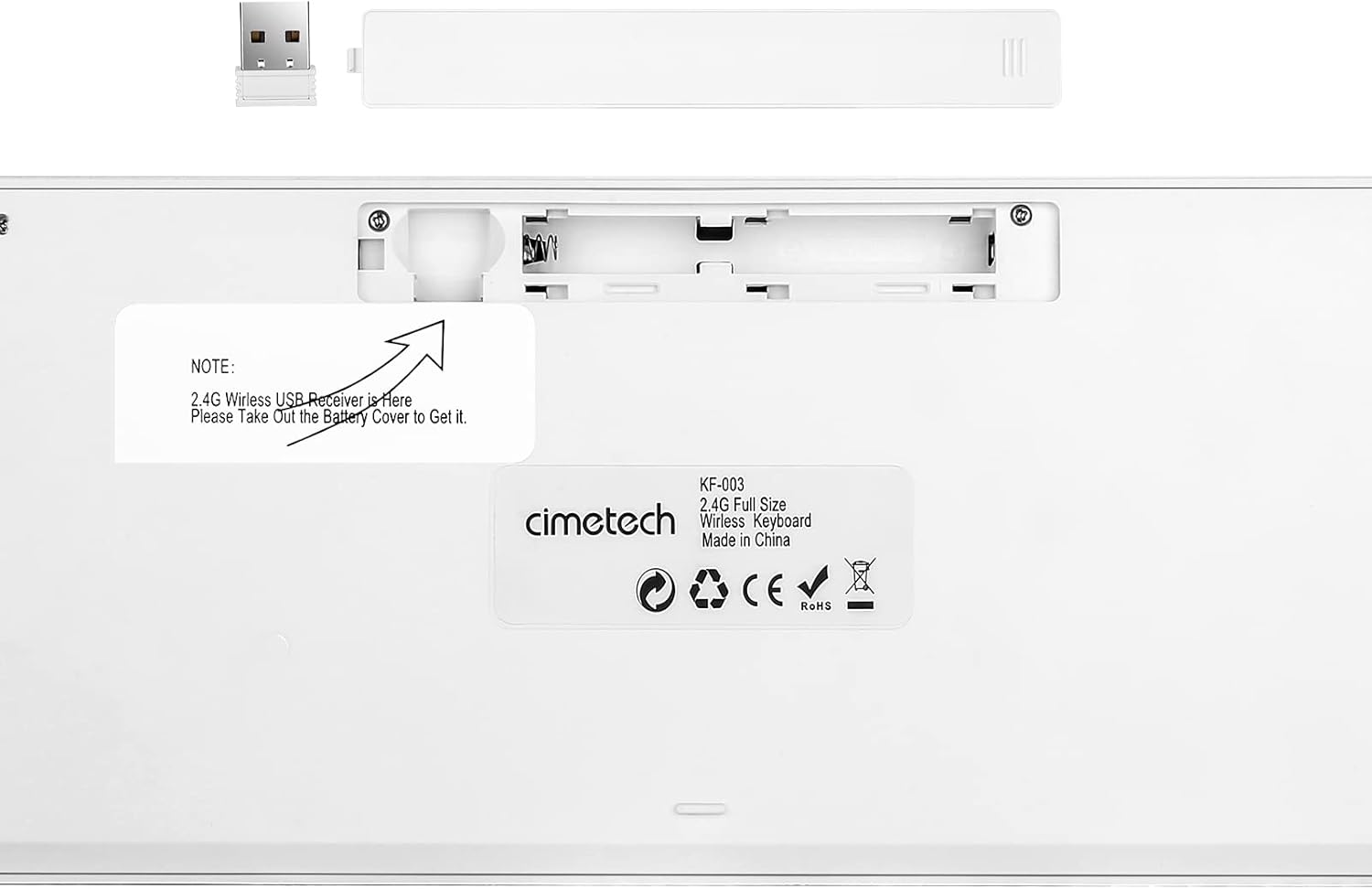
Figure 2: Back of the keyboard indicating battery compartment and USB receiver storage.
3. Connecting the Keyboard
The cimetech wireless keyboard utilizes 2.4G wireless technology for a stable and clutter-free connection.
- Locate the Nano USB receiver, typically stored within the battery compartment on the back of the keyboard (refer to Figure 2).
- Remove the USB receiver from its storage slot.
- Insert the Nano USB receiver into an available USB-A port on your computer, laptop, or tablet.
- The keyboard should automatically connect within a few seconds. No additional drivers are required for most operating systems.

Figure 3: 2.4G Wireless Plug and Play connection diagram.
Operating Instructions
1. Keyboard Layout and Features
The cimetech KF003-Grey keyboard features a full-size layout with 110 keys, including a dedicated numeric pad and 17 shortcut keys for enhanced productivity.

Figure 4: Keyboard layout with dimensions (43.5cm x 12.3cm).
The ergonomic keycaps are designed for comfortable and quiet typing, reducing noise and providing a smooth tactile feel. Rubber pads on the back ensure stability during use.

Figure 5: Detail of the scissor-switch key mechanism for responsive and smooth typing.
2. Indicator Lights
The keyboard features three indicator lights located above the numeric pad:
- NUM Indicator: Lights up when the Number Lock (Num Lock) function is active.
- CAPS Indicator: Lights up when the Caps Lock function is active.
- POWER Indicator: Indicates battery status. It will light up when the keyboard is turned on and may flash when battery power is low.

Figure 6: Location of NUM, CAPS, and POWER indicator lights.
3. Function (Fn) Keys and Multimedia Shortcuts
The keyboard includes a Function (Fn) key that, when pressed in combination with the F1-F12 keys, activates various multimedia and system shortcuts. This allows for quick access to common functions without needing to use a mouse.
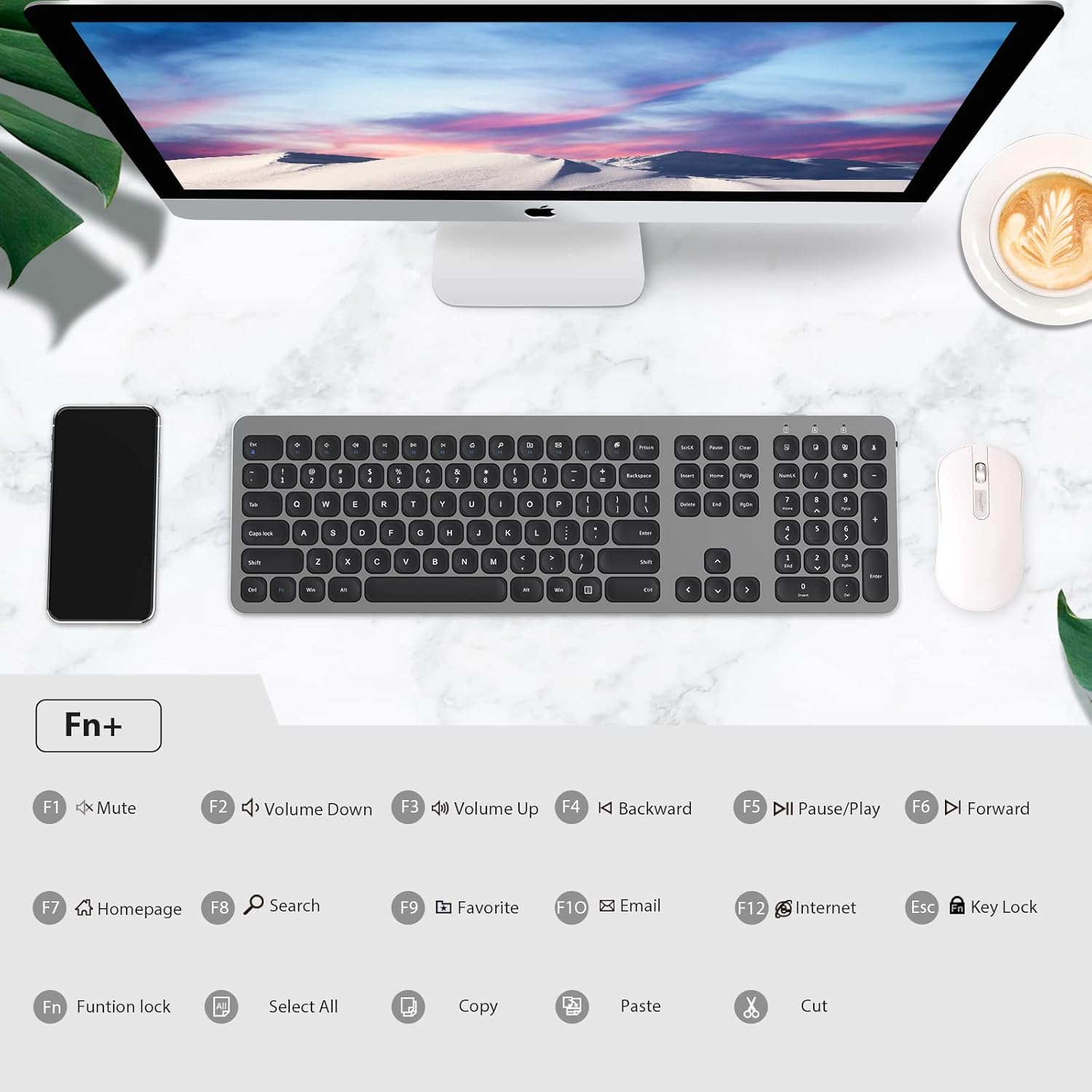
Figure 7: Fn key combinations for multimedia and system shortcuts.
| Key Combination | Function |
|---|---|
| Fn + F1 | Mute Audio |
| Fn + F2 | Volume Down |
| Fn + F3 | Volume Up |
| Fn + F4 | Backward (Media) |
| Fn + F5 | Pause/Play (Media) |
| Fn + F6 | Forward (Media) |
| Fn + F7 | Homepage |
| Fn + F8 | Search |
| Fn + F9 | Favorite |
| Fn + F10 | |
| Fn + F11 | Internet Browser |
| Fn + F12 | Key Lock |
| Fn + Esc | Function Lock (toggles F1-F12 to act as standard function keys or multimedia keys) |
| Fn + A | Select All |
| Fn + C | Copy |
| Fn + V | Paste |
| Fn + X | Cut |
Maintenance
1. Cleaning the Keyboard
To maintain the cleanliness and functionality of your keyboard:
- Use a soft, lint-free cloth slightly dampened with water or a mild cleaning solution.
- Avoid spraying liquids directly onto the keyboard.
- Do not use abrasive cleaners, solvents, or aerosol sprays.
- For dust and debris between keys, use compressed air.
2. Battery Life and Power Saving
The keyboard is designed for long-term operation with its power-saving features:
- The keyboard has a separate ON/OFF switch located on the back. Turn off the keyboard when not in use for extended periods to conserve battery life.
- A smart auto-sleep feature activates after a period of inactivity to save power. Press any key to wake the keyboard.
- Replace the AAA batteries when the POWER indicator light flashes or the keyboard becomes unresponsive.
Troubleshooting
If you encounter issues with your cimetech wireless keyboard, please refer to the following common solutions:
| Problem | Possible Cause / Solution |
|---|---|
| Keyboard is unresponsive or not typing. |
|
| Lag or delayed response when typing. |
|
| Certain keys or multimedia functions are not working. |
|
| Keyboard frequently disconnects. |
|
Specifications
| Feature | Detail |
|---|---|
| Model | KF003-Grey |
| Connectivity Technology | 2.4GHz Wireless (RF), USB-A Receiver |
| Operating Distance | Up to 10 meters (33 feet) |
| Number of Keys | 110 |
| Power Source | 2 x AAA Batteries (included) |
| Compatible Devices | Laptop, PC, Tablet |
| Operating Systems | Windows XP / Vista / 7 / 8 / 10, iOS, Android, Mac OS |
| Product Dimensions | 14.57 x 5.12 x 0.79 inches (37 x 13 x 2 cm) |
| Item Weight | 1.1 pounds (0.5 kg) |
| Special Features | Portable, Ergonomic, Lightweight, Hotkeys and Media Keys, Quiet Click |
Warranty and Support
For information regarding warranty coverage, technical support, or customer service, please refer to the warranty card included with your product packaging or visit the official cimetech website. Keep your purchase receipt for warranty claims.
For further assistance, you may also contact the seller directly through the platform where the product was purchased.
Ask a question about this manual
Ask about setup, troubleshooting, compatibility, parts, safety, or missing instructions. Manuals+ will review the question and use this page’s manual context to help answer it.