
Introduction
This manual provides comprehensive instructions for the Acer EK251Q P6 24.5 Inch Full HD IPS LED Monitor. It covers product setup, operation, maintenance, troubleshooting, and detailed technical specifications to ensure optimal performance and user experience. Please read this manual thoroughly before using your monitor.
The Acer EK251Q P6 monitor features a 24.5-inch IPS panel with Full HD (1920x1080) resolution, a 144Hz refresh rate, and 1ms Visual Response Boost (VRB). It supports AMD FreeSync technology for smooth visuals and incorporates Acer VisionCare technologies like BlueLightShield and Flicker-less for eye comfort. The ZeroFrame design offers an expansive viewing area, and the monitor includes HDMI and VGA connectivity.
What's in the Box
Verify that all components are present in the package:
- Monitor
- Stand
- Power Cord
- HDMI Cable
- User Manual (this document)
Setup
1. Assembling the Monitor Stand
Carefully remove the monitor and stand components from the packaging. Attach the stand base to the stand neck, securing it with the provided screw. Then, attach the assembled stand to the back of the monitor until it clicks into place or is secured with screws, depending on the model's design.
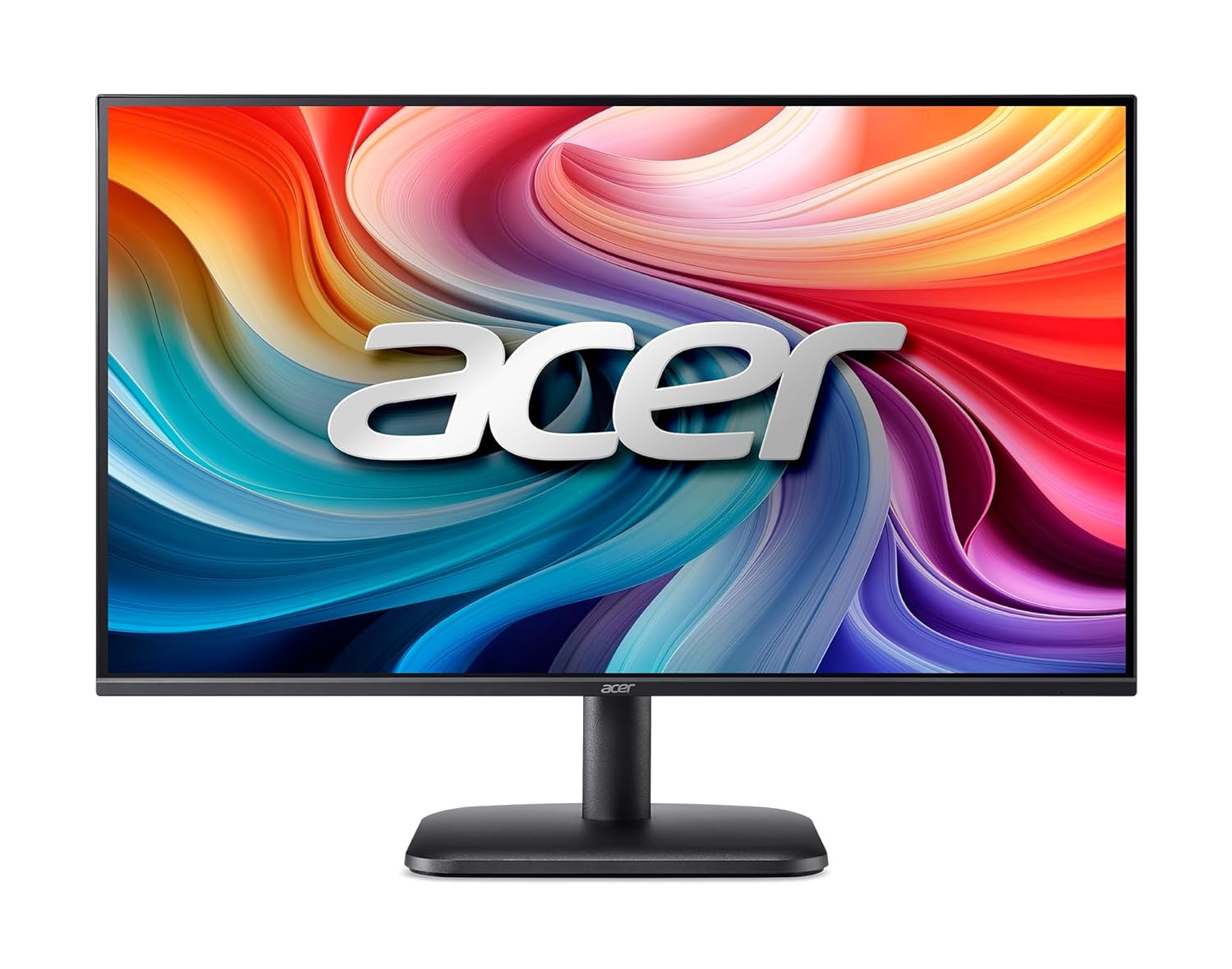
Image: Front view of the Acer EK251Q P6 monitor with its stand assembled.
2. Connecting the Monitor
Connect the power cord to the monitor's power input and then to a power outlet. Use the provided HDMI cable to connect the monitor to your computer's HDMI port. Alternatively, you can use a VGA cable to connect to a VGA port.

Image: Rear view of the monitor highlighting the VGA and HDMI input ports.

Image: Detailed rear view of the monitor, showing the power input, VGA port, and HDMI port.
3. Powering On
Press the power button located on the monitor to turn it on. Ensure your computer is also powered on. The monitor should automatically detect the input signal.
Operating the Monitor
On-Screen Display (OSD) Controls
The monitor features an On-Screen Display (OSD) menu for adjusting various settings. Typically, buttons are located on the bottom or rear of the monitor. Refer to the quick start guide for specific button locations and functions.
- Menu Button: Activates the OSD menu.
- Navigation Buttons: Used to move through menu options.
- Select/Enter Button: Confirms a selection.
- Exit Button: Closes the OSD menu or goes back to the previous level.
Adjusting Display Settings
Access the OSD menu to adjust settings such as brightness, contrast, color temperature, and input source. For optimal performance, ensure your computer's display settings match the monitor's native resolution (1920x1080) and desired refresh rate (up to 144Hz).
Refresh Rate and Response Time
The monitor supports a 144Hz refresh rate and 1ms Visual Response Boost (VRB) for fluid motion. To enable 144Hz, ensure your graphics card and cable support this refresh rate. You may need to adjust the refresh rate in your operating system's display settings.

Image: Monitor displaying dynamic content, illustrating the fast 1ms VRB response time and 250 nits brightness.
AMD FreeSync Technology
This monitor is equipped with AMD FreeSync technology, which synchronizes the monitor's refresh rate with your AMD graphics card's frame rate to eliminate screen tearing and stuttering. Ensure FreeSync is enabled in both the monitor's OSD menu and your AMD Radeon Software settings.

Image: Monitor displaying smooth graphics, indicating the presence of AMD FreeSync and Flicker-less technologies.
Acer VisionCare Technologies
The monitor includes several features designed to reduce eye strain during prolonged use:
- BlueLightShield: Reduces blue light emission.
- Flicker-less: Eliminates screen flickering.
- ComfyView: Reduces reflections from ambient light.
- Low Dimming: Allows for very low brightness levels in dark environments.
These features can be enabled or adjusted through the OSD menu.

Image: Monitor displaying a vibrant image, with icons representing BlueLightShield, Acer ComfyView, and Low Dimming technologies.
Ergonomic Adjustments
The monitor stand allows for tilt adjustment from -5° to 20° to achieve a comfortable viewing angle. For alternative mounting, the monitor is VESA 100x100 mm wall-mount compatible (mounting hardware sold separately).

Image: Side profile of the monitor, illustrating its slim design and the range of tilt adjustment.
Maintenance
Cleaning the Monitor
- Always power off the monitor and unplug the power cord before cleaning.
- Use a soft, lint-free cloth lightly dampened with water or a mild, non-abrasive screen cleaner.
- Do not spray cleaner directly onto the screen.
- Avoid using harsh chemicals, solvents, or abrasive materials, as these can damage the screen or casing.
General Care
- Keep the monitor away from direct sunlight, heat sources, and excessive dust.
- Ensure adequate ventilation around the monitor.
- Avoid placing heavy objects on the monitor or its cables.
Troubleshooting
If you encounter issues with your monitor, refer to the following common troubleshooting steps:
No Power / No Display
- Ensure the power cord is securely connected to both the monitor and a working power outlet.
- Verify the power button on the monitor is pressed.
- Check if the power outlet is functional by plugging in another device.
No Signal / Blank Screen
- Confirm the video cable (HDMI or VGA) is securely connected to both the monitor and your computer.
- Ensure the correct input source is selected in the monitor's OSD menu.
- Verify your computer is powered on and not in sleep mode.
- Try connecting the monitor to another computer or using a different video cable to rule out cable or computer issues.
Image Quality Issues (Blurry, Distorted, Incorrect Colors)
- Ensure the display resolution on your computer is set to the monitor's native resolution (1920x1080).
- Adjust brightness, contrast, and color settings through the OSD menu.
- If using VGA, perform an auto-adjust function via the OSD menu if available.
- Update your graphics card drivers.
Flickering or Tearing
- Ensure AMD FreeSync is enabled in both the monitor's OSD and your AMD Radeon Software.
- Check the refresh rate setting in your operating system's display settings.
- Verify the video cable is properly connected and not damaged.
Specifications
| Feature | Detail |
|---|---|
| Brand | acer |
| Model Name | EK251Q P6 |
| Model Number | UM.KE1SI.601 |
| Screen Size | 24.5 Inches |
| Display Type | IPS LED |
| Resolution | FHD 1080p (1920 x 1080 Pixels) |
| Aspect Ratio | 16:9 |
| Refresh Rate | 144 Hz |
| Response Time | 1 Milliseconds (VRB) |
| Image Brightness | 250 Nits |
| Contrast Ratio | 1500:1 |
| Viewing Angle | 178 Degrees |
| Color Gamut | sRGB 99% |
| Adaptive Sync | AMD FreeSync |
| Connectivity | 1x HDMI (1.4), 1x VGA |
| Eye Care Technology | Acer BlueLightShield, Flicker-less, ComfyView, Low Dimming |
| Mounting Type | Tilt Adjustable (-5° to 20°), VESA Wall Mount (100x100 mm) |
| Power Consumption | 18 Watts |
| Item Dimensions (D x W x H) | 19.2D x 55.7W x 40.9H Centimeters |
| Item Weight | 2.79 Kilograms |
| Country of Origin | China |
Warranty and Support
Warranty Information
This Acer monitor comes with a 3 Years Manufacturer Warranty. Please retain your purchase receipt for warranty claims. The warranty covers manufacturing defects under normal use conditions.
Customer Support
For technical assistance, warranty claims, or product inquiries, please contact Acer customer support:
- Manufacturer: Acer Incorporated
- Manufacturer Contact: 8F, No. 88 Sec. 1, Xintai 5th road, Xizhi, New Teipei City, TW 221
- Importer (India): Acer India Pvt Ltd, Embassy Heights, 6th Floor, No. 13 Magrath Road, Next to HOSMAT Hospital, Bangalore, INDIA – 560025
For the most up-to-date support information, please visit the official Acer website.


