
UNITOPSCI UP-7033
UNITOPSCI Double Din Car Stereo Receiver User Manual
Model: UP-7033
Introduction
Thank you for choosing the UNITOPSCI Double Din Car Stereo Receiver. This 7-inch touch screen multimedia player is designed to enhance your in-car entertainment and connectivity. It features built-in Bluetooth for hands-free calling and audio streaming, an FM radio tuner, Mirror Link functionality for smartphone integration, and supports various multimedia playback options via USB, AUX, and TF card inputs. A rearview camera is also included for safer parking. Please read this manual thoroughly before installation and operation to ensure proper use and optimal performance.
What's in the Box
- 1 x Car Stereo
- 1 x Backup Camera
- 2 x Power Cable
- 1 x User Manual
- 1 x Remote Control (Battery Not included)

Image: Included components of the UNITOPSCI Double Din Car Stereo Receiver.
Specifications
| Feature | Description |
|---|---|
| System | WINCE |
| Chipset | C200S |
| Screen Size | 7 inches |
| Product Dimensions (L,W,H) | 7.01 x 2.48 x 4.02 inches (178mm x 65mm x 100mm) |
| Item Weight | 1.63 pounds |
| Power Output | 4*45W |
| Work Temperature | -10℃ to 60℃ |
| Steering Wheel Control | Supported |
| Power Amplifier Chip | TDA7388 |
| Connectivity Technology | Bluetooth, USB |
| Controller Type | iOS, Android |
| Special Features | Touchscreen, Built-In Bluetooth, FM Tuner, Digital Display Screen, Hands-Free Calling |
| Compatible Devices | Smartphone |
| Audio Encoding | Stereo |
| Audio Output Mode | Stereo |
| Surround Sound Channel Configuration | 4.0 |
| Video Encoding | H.264 |
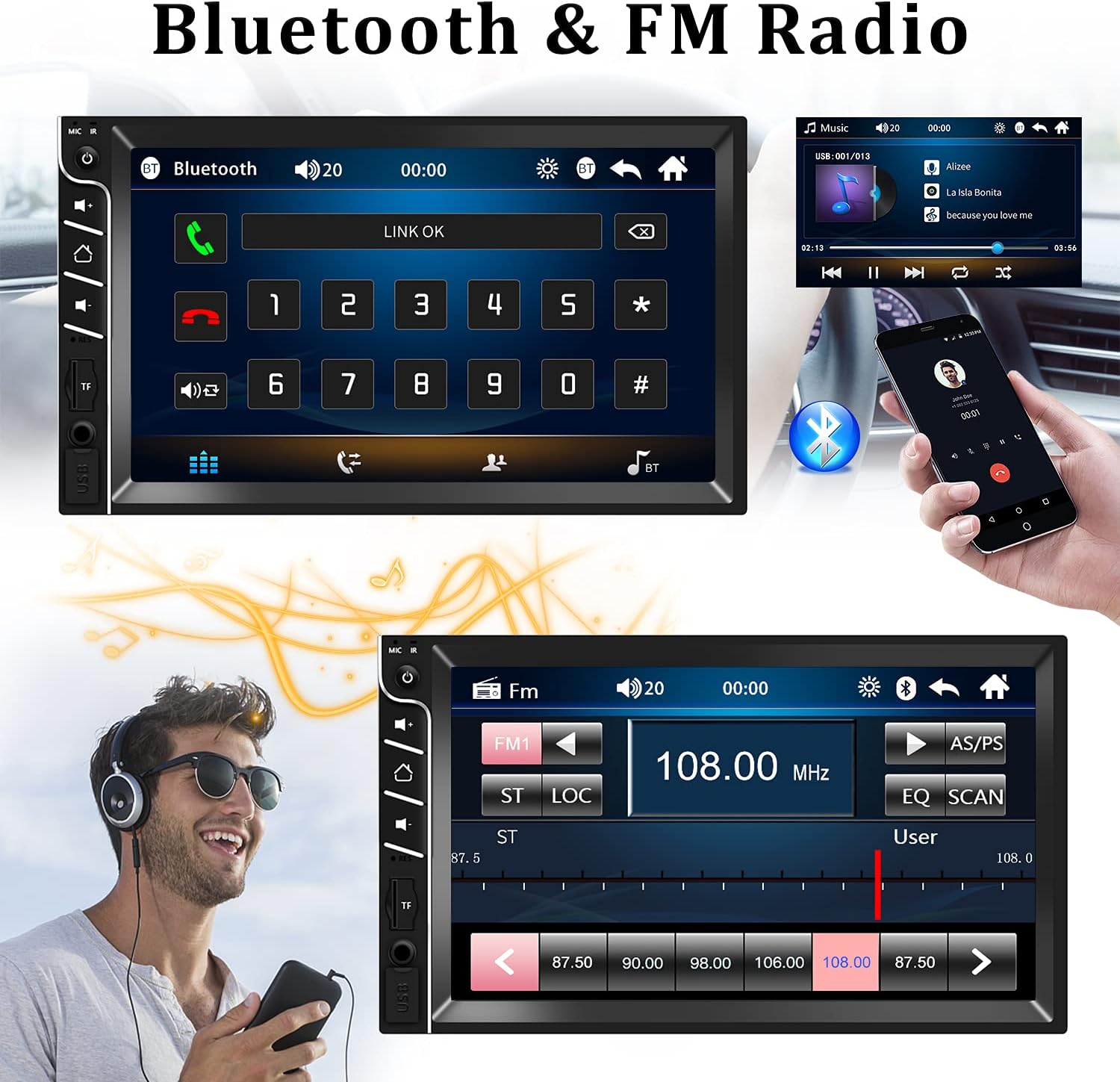
Image: Product dimensions and rear panel connections.
Installation and Setup
Wiring Diagram
Proper wiring is crucial for the functionality of your car stereo. Please refer to the diagram below and the following instructions carefully:
- Yellow Wire: Connect to 12V battery positive (memory cable to retain settings).
- Red Wire: Connect to 12V positive ignition switch (ACC).
- Black Wire: Connect to 12V battery negative (ground).
Ensure all connections are firm and secure. Only use the power cords supplied with the radio. Verify that your car's power source is 12V DC.

Image: Car stereo wiring connections.
Operating Instructions
General Controls
The front panel of the car stereo features intuitive controls for easy operation:
- MIC IR: Microphone and Infrared receiver for remote control.
- Power Key: Press to turn on/off, short press for mute.
- Volume Increase/Reduction: Adjust audio level.
- Home Page: Return to the main menu.
- Reset Key: Small hole for factory reset (use a thin object).
- TF Card Slot: Insert TF/MicroSD card for media playback.
- AUX In: 3.5mm audio input jack.
- USB Port: Connect USB devices for media playback or charging.

Image: Front panel controls and ports.
Bluetooth Connectivity
Pair your smartphone with the car stereo for hands-free calling and wireless audio streaming.
- Turn on Bluetooth on your mobile device.
- On the car stereo, navigate to the Bluetooth menu.
- Search for available devices on your phone and select "UNITOPSCI" or similar.
- Confirm pairing on both devices. Once connected, you can make/receive calls and play music wirelessly.
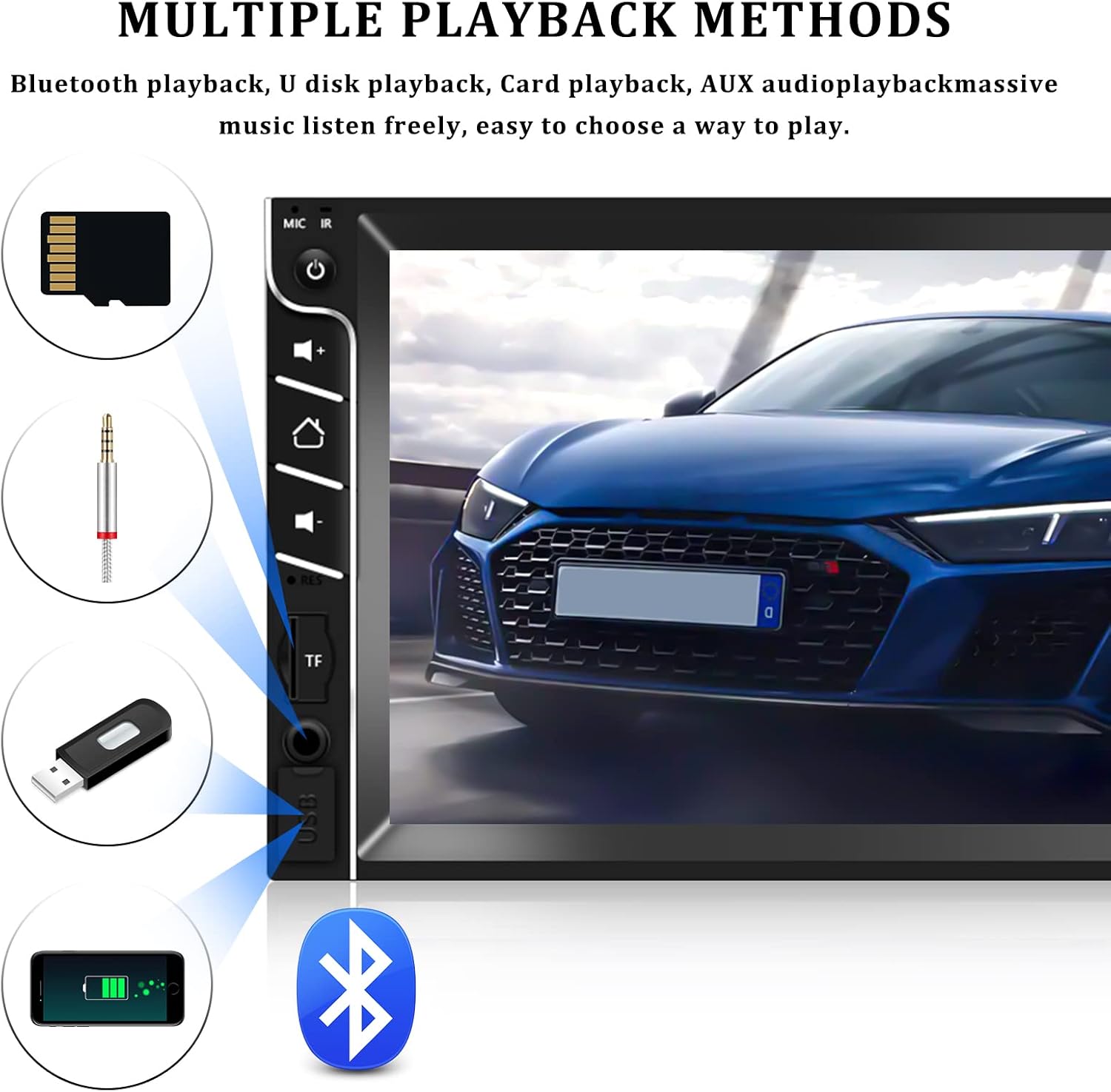
Image: Bluetooth interface for calls and music.
FM Radio
Enjoy your favorite radio stations with the built-in FM tuner.
- From the main menu, select the 'FM' icon.
- Use the arrow buttons to manually tune to a frequency or press 'SCAN' to automatically search and save stations.
- The stereo supports 18 preset stations for quick access.

Image: FM Radio interface.
Mirror Link Function
Mirror Link allows you to display your smartphone's screen on the car stereo. This feature supports Android phones (versions 4.0-8.0) and iPhones (versions 5s-7plus). Please note that Samsung phones are generally not supported for Mirror Link.
- Connect your smartphone to the car stereo via a USB cable.
- Follow the on-screen prompts on both your phone and the stereo to establish the connection.
- Once connected, your phone's screen will be mirrored, allowing you to view navigation, videos, and other apps directly on the stereo display.

Image: Mirror Link in action, displaying phone content on the stereo.
Rear View Camera Input
The included rearview camera provides a wide-angle view to assist with parking and reversing.
- Ensure the rearview camera is properly installed and connected to the designated input on the car stereo.
- When you shift your vehicle into reverse gear, the stereo screen will automatically switch to display the camera's feed, showing parking guidelines for convenience and safety.
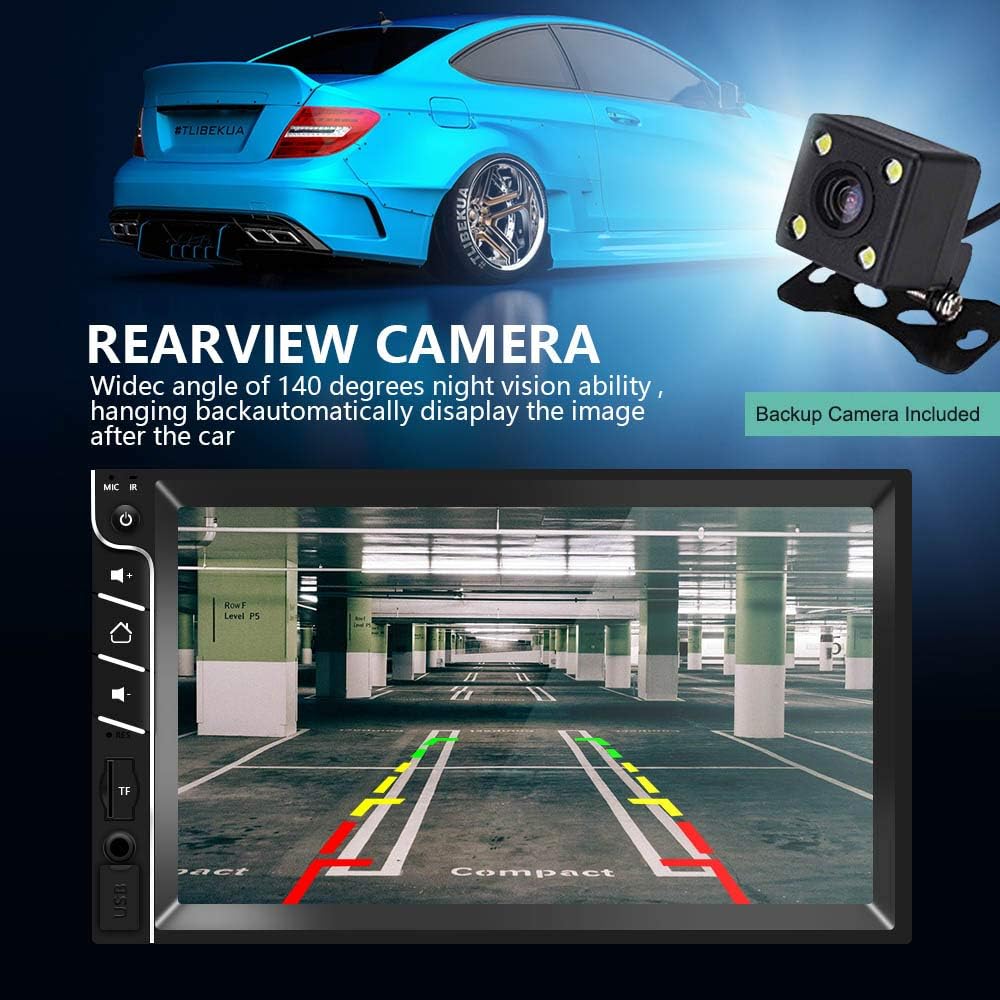
Image: Rearview camera display on the car stereo.
Multimedia Playback
The car stereo supports various multimedia formats and playback methods.
- USB/TF Card: Insert a USB drive or TF (MicroSD) card into the respective slots. The system will automatically detect and allow you to browse and play audio (MP3) and video (MP5) files. Supports TF cards up to 32GB.
- AUX Input: Connect external audio devices (e.g., MP3 players) via the 3.5mm AUX-in jack.
- Bluetooth Audio: Stream music wirelessly from your paired smartphone.

Image: Main interface of the car stereo.
Image: Multiple playback options available.
Care and Maintenance
To ensure the longevity and optimal performance of your car stereo, follow these maintenance guidelines:
- Cleaning: Use a soft, dry cloth to clean the screen and exterior. For stubborn smudges on the screen, a slightly damp, lint-free cloth can be used. Avoid abrasive cleaners or solvents.
- Temperature: Do not expose the unit to extreme temperatures or direct sunlight for prolonged periods.
- Moisture: Keep the unit dry. Avoid exposure to water or excessive humidity.
- Ventilation: Ensure the unit has adequate ventilation to prevent overheating. Do not block any vents.
Troubleshooting
No Power Supply
If the unit does not power on, consider the following:
- Confirm that the power source is 12V DC and the wiring harness is firmly connected.
- Only use the power cords supplied with the radio.
- Check that all power cables are properly and securely connected (red to ACC, yellow to battery positive, black to battery negative).
- Check if the fuse is intact. If necessary, replace it with a fuse of the correct value.
- Test with another DC12V battery by connecting the red and yellow wires to the positive terminal and the black wire to the negative terminal to verify the unit's functionality.
Common Issues and Solutions
| Problem | Possible Cause | Solution |
|---|---|---|
| No sound | Volume too low; Speaker wires disconnected; Mute function active | Increase volume; Check speaker connections; Deactivate mute |
| Bluetooth not connecting | Bluetooth off on phone/stereo; Device not in pairing mode; Interference | Ensure Bluetooth is on; Put device in pairing mode; Move closer to stereo; Restart both devices |
| Mirror Link not working | Incompatible phone model; Incorrect cable; App not installed/updated | Check phone compatibility (Android 4.0-8.0, iPhone 5s-7plus); Use original USB cable; Ensure necessary apps are installed and updated |
| Poor FM radio reception | Antenna not connected; Weak signal area; Interference | Check antenna connection; Try tuning to stronger stations; Avoid areas with high interference |
| Backup camera not displaying | Camera not connected; Reverse trigger wire not connected; Faulty camera | Verify camera and trigger wire connections; Test camera functionality |
Warranty and Support
UNITOPSCI is committed to providing high-quality products and satisfactory services. We offer lifetime after-sales consultation and technical support for our products.
- Replacement: Available within 24 months of purchase.
- Returns: 60-day no-worry return policy.
- Quick Response: Expect a response within 16 hours for inquiries.
For any technical assistance, warranty claims, or product-related questions, please contact our support team:
Email: UNITOPSCI@126.com

Image: UNITOPSCI Customer Support.
Related documentsUP-7033


Ask a question about this manual
Ask about setup, troubleshooting, compatibility, parts, safety, or missing instructions. Manuals+ will review the question and use this page’s manual context to help answer it.