
Introduction
About Your Denon Home 350 Speaker
The Denon Home 350 is a wireless smart speaker designed to deliver high-quality stereo sound. It integrates seamlessly into a multi-room audio system using HEOS Built-in technology, allowing you to stream music throughout your home. The speaker supports various streaming services and connectivity options including Wi-Fi, Bluetooth, and AirPlay 2. It also features voice control capabilities and customizable presets for ease of use.
Product Overview
What's in the Box
- Denon Home 350 Speaker
- Power cord
- Literature pack (including this manual)
Speaker Components and Controls
The Denon Home 350 features a minimalist design with essential controls and connection ports. Refer to the images below for visual identification.
Front View

Image: Front view of the Denon Home 350 speaker, showcasing its fabric grille and the Denon logo with a blue indicator light at the bottom center.
Top Panel Controls

Image: Angled view of the Denon Home 350 speaker, highlighting the touch-sensitive control panel on the top surface. This panel includes controls for volume, play/pause, and preset selection.
Rear Panel Connections
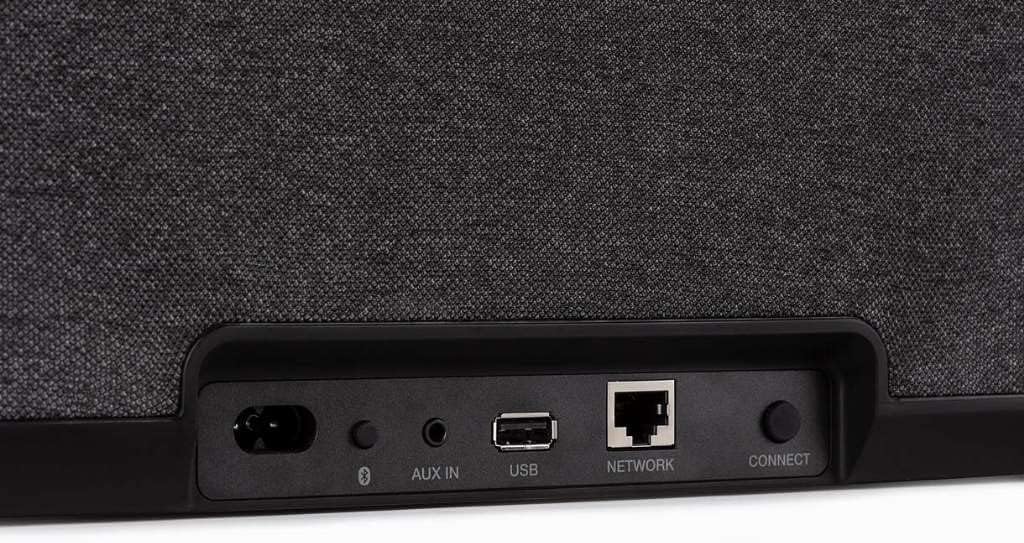
Image: Close-up of the rear panel of the Denon Home 350 speaker, showing the power input, Bluetooth button, AUX IN port, USB port, Ethernet (NETWORK) port, and the CONNECT button for setup.
- Power Input: Connects to the AC power cord.
- Bluetooth Button: Initiates Bluetooth pairing mode.
- AUX IN: 3.5mm stereo input for connecting external audio devices.
- USB Port: For playing music from USB storage devices.
- NETWORK Port: Ethernet port for wired network connection.
- CONNECT Button: Used during initial setup to connect to your Wi-Fi network.
Setup Guide
Initial Placement
Place your Denon Home 350 speaker on a stable, flat surface. Ensure it is within range of your Wi-Fi router for optimal wireless performance. For best sound quality, avoid placing the speaker directly in a corner or against a wall, though the HEOS app allows for acoustic adjustments based on placement.
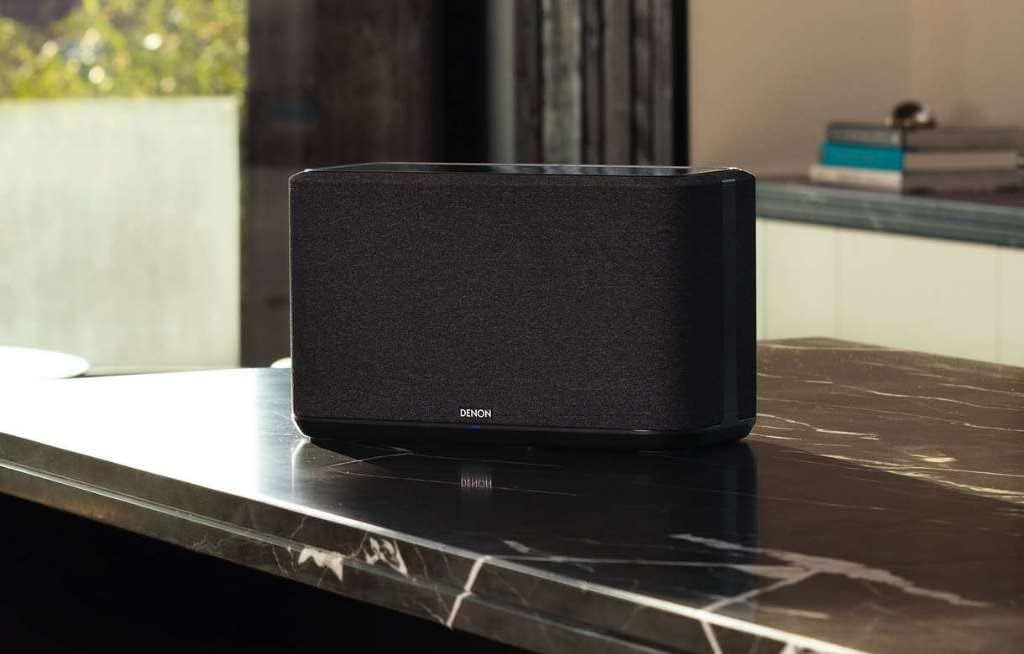
Image: The Denon Home 350 speaker positioned on a kitchen counter, demonstrating a typical placement scenario.
Power Connection
- Connect the supplied power cord to the power input on the rear of the speaker.
- Plug the power cord into a wall outlet. The indicator light on the front will illuminate.
Network Connection (HEOS App)
The Denon Home 350 requires a network connection for most features, including streaming services and multi-room audio. The HEOS app guides you through this process.
- Download the HEOS app from the Apple App Store or Google Play Store onto your smartphone or tablet.
- Open the HEOS app and follow the on-screen instructions to add your Denon Home 350 speaker.
- The app will prompt you to connect the speaker to your Wi-Fi network. You may be instructed to press the CONNECT button on the rear panel.
- Note: Some users have reported that an initial wired Ethernet connection to your router may be required for the first-time setup if Wi-Fi setup encounters issues. Once connected via Ethernet, the Wi-Fi settings can be configured through the HEOS app, and the Ethernet cable can then be removed.

Image: The Denon Home 350 speaker on a marble countertop, illustrating its integration into a home environment.
Operating Instructions
Using the HEOS App
The HEOS app is the primary interface for controlling your Denon Home 350 speaker. It allows you to:
- Browse and play music from various streaming services.
- Access music stored on your local network or USB drive.
- Create and manage multi-room audio groups with other HEOS Built-in devices.
- Adjust sound settings, including bass and treble, and optimize for speaker placement (e.g., corner, near wall, center of room).
- Manage presets.

Image: A Denon Home 350 speaker with a smartphone nearby, showing the HEOS app interface for music selection and control.
Streaming Music
The Denon Home 350 supports multiple ways to stream audio:
Wi-Fi Streaming (HEOS Built-in)
Access popular streaming services such as Spotify, Apple Music, Amazon Music HD, Pandora, TIDAL, and TuneIn directly through the HEOS app. This method provides the highest audio quality and supports multi-room synchronization.
Bluetooth Connectivity
To connect a Bluetooth device:
- Press and hold the Bluetooth button on the rear panel of the speaker until the indicator light flashes blue.
- Enable Bluetooth on your device and select "Denon Home 350" from the list of available devices.
- Once paired, audio from your device will play through the speaker.
Note: Bluetooth audio quality may be lower than Wi-Fi streaming, and some users have reported minor audio clipping at the end of tracks.
AirPlay 2
For Apple device users, AirPlay 2 allows seamless streaming from iOS devices and Macs. Select the Denon Home 350 from the AirPlay menu on your device.
USB and Network Playback
Connect a USB storage device to the USB port on the rear panel to play local music files. You can also access music libraries stored on network-attached storage (NAS) devices via the HEOS app.
Voice Control
The Denon Home 350 has Alexa Built-in. You can use voice commands for playback control, volume adjustments, and other smart speaker functions. Ensure your speaker is connected to your Amazon Alexa account via the HEOS app.
Presets
The top panel of the speaker features touch-sensitive preset buttons. You can assign your favorite internet radio stations, playlists, or streaming service content to these presets via the HEOS app for quick access without needing your phone.
Multi-Room Audio
Utilize HEOS Built-in to group multiple Denon Home speakers or other HEOS-enabled devices (AV receivers, sound bars) to play the same music synchronously across different rooms or different music in each room.
Maintenance
Cleaning
- Wipe the speaker's exterior with a soft, dry cloth.
- Do not use liquid cleaners or solvents, as they may damage the finish.
- Avoid spraying cleaners directly onto the speaker.
Software Updates
The HEOS app will notify you when firmware updates are available for your Denon Home 350. It is recommended to keep your speaker's software updated for optimal performance and new features.
Troubleshooting
Common Issues and Solutions
| Problem | Possible Cause | Solution |
|---|---|---|
| Speaker does not power on. | Power cord not connected or outlet not active. | Ensure the power cord is securely connected to both the speaker and a working electrical outlet. |
| Cannot connect to Wi-Fi via HEOS app. | Network interference, incorrect password, or initial setup issue. |
|
| Bluetooth audio cuts out or skips. | Distance from device, interference, or device issues. |
|
| No sound from streaming services. | Incorrect source selected, network issue, or service outage. |
|
Specifications
Denon Home 350 Wireless Smart Speaker
| Feature | Detail |
|---|---|
| Model Number | DENONHOME350BK |
| Speaker Type | Wireless Smart Speaker |
| Audio Output Mode | Stereo |
| Drivers | Two 0.75" Tweeters, Two 2" Mid-Bass Drivers, Two 6.5" Woofers |
| Connectivity Technology | Bluetooth, Wi-Fi (802.11a/b/g/n/ac) |
| Wireless Communication | Bluetooth, Wi-Fi, AirPlay 2, HEOS Built-in |
| Voice Control | Alexa Built-in, Siri (via AirPlay 2) |
| Input Voltage | 120 Volts (AC) |
| Product Dimensions (D x W x H) | 15" x 9.2" x 7.2" (38.1 cm x 23.4 cm x 18.3 cm) |
| Power Source | AC Power |
| Control Method | Voice, HEOS App, Touch Controls |
| UPC | 883795004947 |
Note on Power Source: The Denon Home 350 is designed for AC power only and does not include an internal battery for portable use.

Image: Diagram illustrating the dimensions of the Denon Home 350 speaker: 8.85 inches (H), 14.9 inches (W), and 7.1 inches (D).
Warranty and Support
Limited Warranty
The Denon Home 350 Wireless Smart Speaker comes with a limited warranty. Please refer to the "Literature pack" included with your product for specific terms and conditions, including warranty duration and coverage details.
Customer Support
For technical assistance, troubleshooting beyond this manual, or warranty claims, please contact Denon customer support. Visit the official Denon website for contact information and additional resources.
For more information, visit the Denon Store on Amazon.


