
1. Product Overview
The Wendry I8 Plus is a compact 2.4GHz wireless mini QWERTY keyboard featuring an integrated touchpad and LED backlighting. Designed for convenience, it offers a versatile input solution for various devices, allowing for comfortable operation from a distance.
This device combines the functionality of a keyboard and a mouse, making it ideal for controlling smart TVs, PCs, Android TV boxes, and other compatible systems. Its plug-and-play design ensures easy setup without the need for additional software installation.

Image 1.1: The Wendry I8 Plus keyboard demonstrating compatibility with multiple devices.
2. Package Contents
- Wendry I8 Plus Mini LED Backlit Keyboard
- USB Receiver (located in the battery compartment)
- Rechargeable Lithium-ion Battery (if included, or compartment for AAA batteries)
- USB Charging Cable (if applicable)
- User Manual (this document)
3. Setup Guide
3.1 Battery Installation
- Locate the battery compartment on the back of the keyboard.
- Slide open the battery cover.
- Insert the provided rechargeable battery or two AAA batteries, ensuring correct polarity (+/-).
- Close the battery cover securely.
3.2 USB Receiver Connection
- Open the battery compartment cover.
- Carefully remove the USB receiver, which is magnetically stored inside.
- Plug the USB receiver into an available USB port on your device (e.g., PC, Smart TV, Android TV Box).
- The device will automatically detect and install the necessary drivers. No additional software is required.
- The keyboard is now ready for use.

Image 3.1: Location of the USB receiver and battery compartment.
4. Operating Instructions
4.1 Basic Keyboard and Touchpad Use
- Typing: Use the QWERTY layout for text input.
- Touchpad: The central area functions as a high-sensitivity touchpad for mouse cursor control.
- Single Finger Tap: Functions as a left mouse click.
- Two Finger Tap: Functions as a right mouse click.
- Two Finger Drag: For scrolling up and down.

Image 4.1: Using the high-sensitivity touchpad for navigation.
4.2 LED Backlighting Control
The keyboard features colorful LED backlighting for improved visibility in low-light conditions. To control the backlighting:
- Press the Fn key simultaneously with the F2 key to toggle the backlight on/off or change its color.

Image 4.2: The keyboard displaying its colorful LED backlighting.
4.3 DPI Adjustment
The touchpad's sensitivity (DPI) can be adjusted to suit your preference and screen size. There are 3 levels of DPI available:
- To adjust the DPI, press the Fn key simultaneously with the Space Bar. Repeat to cycle through the DPI levels.
4.4 Multimedia Keys
The keyboard includes dedicated multimedia control keys for easy access to functions like volume control, play/pause, and track navigation.
- Volume Up/Down: Use the V+ and V- buttons.
- Play/Pause, Next/Previous Track: Use the dedicated media control buttons on the left side.
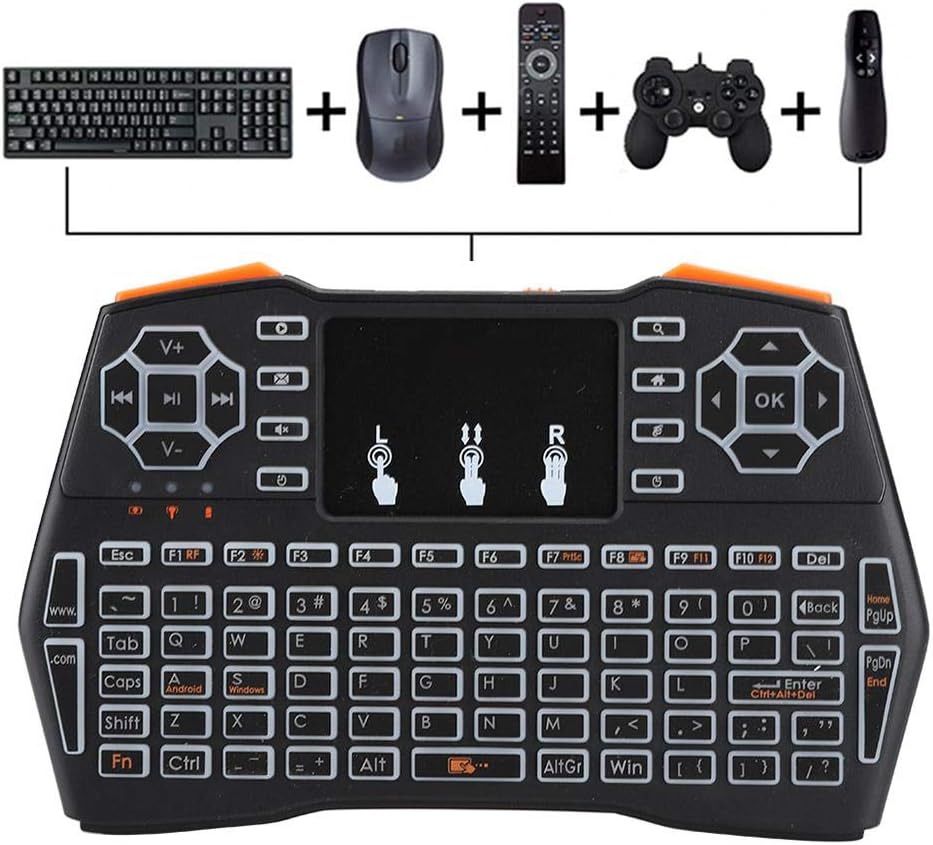
Image 4.3: Using the keyboard for multimedia control and gaming.
5. Maintenance
- Cleaning: Use a soft, dry cloth to clean the keyboard surface. For stubborn dirt, a slightly damp cloth can be used, but ensure no moisture enters the device.
- Storage: When not in use for extended periods, store the keyboard in a cool, dry place.
- Battery Care: If using a rechargeable battery, ensure it is charged regularly. If using AAA batteries, remove them if the device will not be used for a long time to prevent leakage.
- USB Receiver: Always store the USB receiver in its designated magnetic slot within the battery compartment to prevent loss.
6. Troubleshooting
- Keyboard not responding:
- Ensure the battery is charged or replaced.
- Verify the USB receiver is securely plugged into the device.
- Try plugging the USB receiver into a different USB port.
- Ensure the keyboard is within the 20-meter operating range of the receiver.
- Restart the connected device.
- Touchpad not working or erratic:
- Ensure your fingers are clean and dry when using the touchpad.
- Adjust the DPI settings (Fn + Space Bar) to see if sensitivity improves.
- Clean the touchpad surface.
- Backlight not working:
- Ensure the battery has sufficient charge.
- Press Fn + F2 to toggle the backlight.
- Short operating range:
- Ensure there are no significant obstructions between the keyboard and the USB receiver.
- Avoid using the keyboard near strong electromagnetic interference sources.
7. Specifications
| Feature | Detail |
|---|---|
| Model Number | I8 Plus (Wendryng7y53ptgu) |
| Connectivity Technology | 2.4GHz Radio Frequency, USB |
| Special Feature | Touchpad, LED Backlighting |
| Compatible Devices | Gaming Console, Personal Computer, Television |
| Keyboard Description | QWERTY Mini Keyboard |
| Operating Distance | Up to 20 meters (approx. 65 feet) |
| Power Source | 1 Nonstandard Battery (rechargeable) or AAA batteries |
| Item Weight | 6.3 ounces (approx. 178 grams) |
| Manufacturer | Wendry |
8. Warranty and Support
For warranty information and technical support, please refer to the documentation provided at the time of purchase or contact your retailer. General support inquiries can often be directed to the manufacturer's official website or customer service channels.
Please retain your proof of purchase for any warranty claims.