
Introduction
Thank you for choosing the JOYACCESS Wireless Keyboard and Mouse Combo. This manual provides detailed instructions for setting up, operating, maintaining, and troubleshooting your new wireless peripheral set. Please read this manual thoroughly before use to ensure optimal performance and longevity of your product.
Product Overview
The JOYACCESS Wireless Keyboard and Mouse Combo offers a reliable 2.4G wireless connection, ergonomic design, and rechargeable features for enhanced productivity and comfort.
Key Features:
- 2.4G Stable Wireless Connection: Provides a strong and reliable connection up to 33ft (10 meters) with a single Nano receiver.
- Full Size Rechargeable Keyboard: Ultra-slim design with numeric keypad, rechargeable via Micro USB, and features an auto-sleep mode for energy saving.
- Ergonomic Mouse with Adjustable DPI: Silent click mouse with back/forward buttons and 5 adjustable DPI levels (800/1200/1600/2000/2400) for precise tracking.
- Quick Response and Quiet Click: Keyboard utilizes scissor switch mechanisms for comfortable, quiet, and responsive typing.
- Wide Compatibility: Compatible with Windows 2000 / ME / XP / Vista / 7 / 8 / 10, Mac OS, Android, and Linux.

Image: The JOYACCESS wireless keyboard and mouse combo, featuring the full-size keyboard, ergonomic mouse, and the compact USB Nano receiver.

Image: Diagram illustrating the functions of the F1-F12 keys on the keyboard, including media controls, volume, navigation, and system functions.
Setup
Follow these steps to set up your wireless keyboard and mouse:
- Insert Mouse Battery: The mouse requires 1 AA battery (not included). Open the battery compartment on the underside of the mouse and insert the battery, ensuring correct polarity.
- Charge Keyboard: Connect the supplied Micro USB cable to the charging port on the keyboard and the other end to a USB power source (e.g., computer USB port, USB wall adapter). Charge for approximately 2 hours for a full charge. The keyboard can be used while charging.
- Connect USB Nano Receiver: Locate the 2-in-1 Nano receiver, usually stored in the battery compartment of the mouse or a dedicated slot. Plug the Nano receiver into an available USB port on your computer or device.
- Power On: Turn on the keyboard by clicking the round button on its back. For the mouse, ensure the battery is inserted. The devices should automatically connect to the receiver.

Image: Illustration showing the rechargeable keyboard and the mouse requiring one AA battery, with indicators for charging time (2 hours) and mouse battery life (up to 60 days).
Operating Instructions
Keyboard Usage:
- Typing: The full-size keyboard provides a comfortable and quiet typing experience due to its scissor switch mechanism.
- Function Keys: Use the F1-F12 keys for various shortcuts as indicated by their icons (e.g., media control, volume adjustment, web navigation).
- Auto-Sleep Mode: To conserve battery, the keyboard will automatically enter sleep mode after a period of inactivity. Press any key to reawaken it.

Image: Close-up view of the keyboard highlighting the scissor switch mechanism for smooth and quiet typing, and an illustration of the comfortable ergonomic typing angle.
Mouse Usage:
- DPI Adjustment: The mouse features 5 adjustable DPI levels (800/1200/1600/2000/2400). Press the DPI button (usually located near the scroll wheel) to cycle through the sensitivity settings.
- Back/Forward Buttons: Use the side buttons for quick navigation (back/forward) in web browsers or file explorers.
- Silent Click: The mouse is designed for silent clicks, minimizing noise in quiet environments.
- Auto-Sleep Mode: The mouse will also enter sleep mode after 20 seconds of inactivity to save power. Move the mouse or click any button to reactivate it.

Image: Detailed diagram of the mouse, pointing out its features: high-quality aluminum material, 800-2400 adjustable DPI, comfortable ergonomic design, back/forward buttons, and quiet/durable buttons.
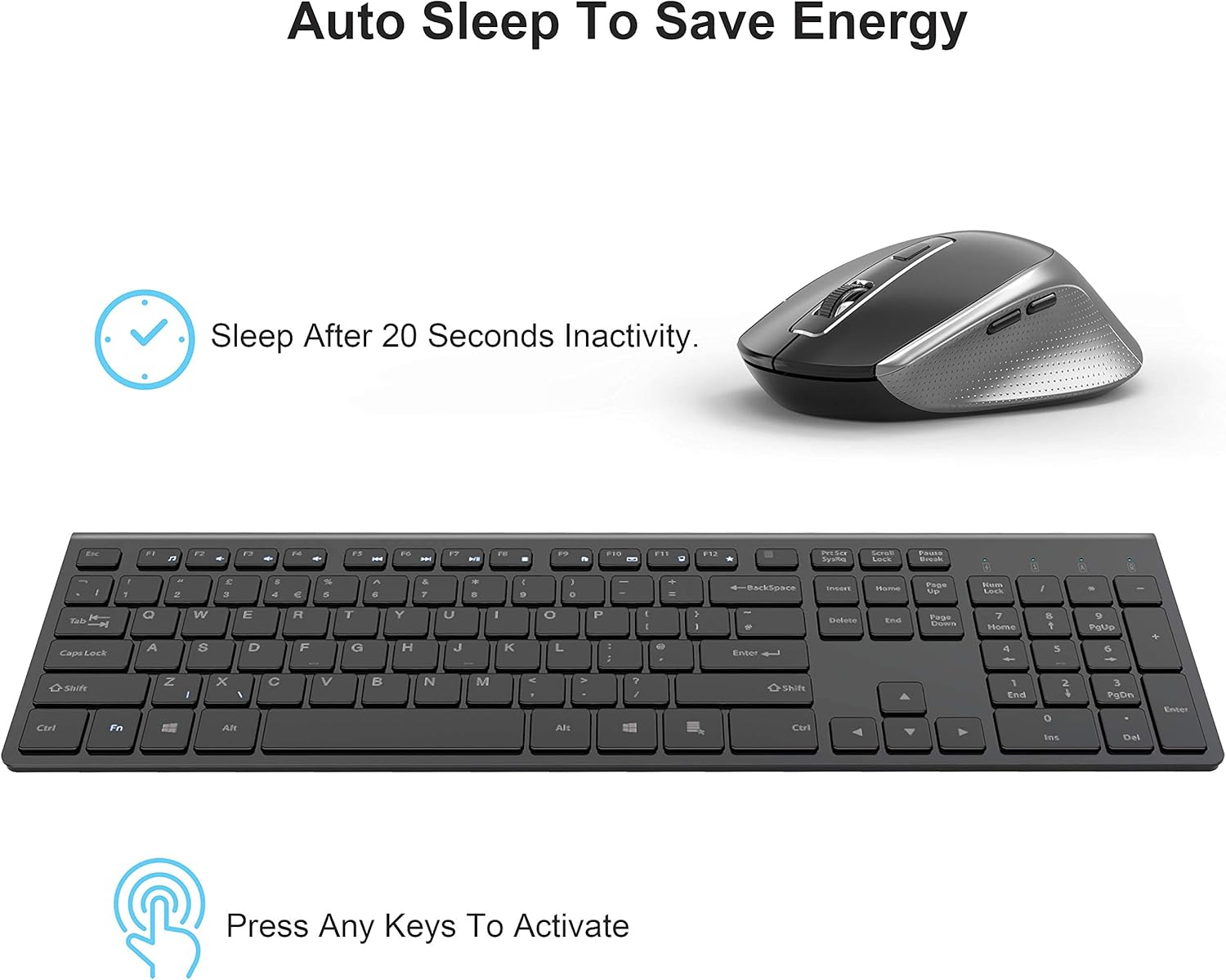
Image: Illustration demonstrating the auto-sleep feature of the keyboard and mouse, indicating they sleep after 20 seconds of inactivity and can be activated by pressing any key.
Maintenance
Proper care will extend the life of your wireless keyboard and mouse:
- Cleaning: Use a soft, dry cloth to clean the surfaces of the keyboard and mouse. For stubborn dirt, slightly dampen the cloth with water or a mild, non-abrasive cleaner. Avoid excessive moisture.
- Battery Care (Mouse): Replace the AA battery in the mouse when performance degrades. Remove the battery if the mouse will not be used for an extended period to prevent leakage.
- Charging (Keyboard): Recharge the keyboard when the battery indicator shows low power. Avoid fully depleting the battery frequently to maintain its lifespan.
- Storage: Store the devices in a cool, dry place away from direct sunlight and extreme temperatures.
Troubleshooting
If you encounter issues with your JOYACCESS Wireless Keyboard and Mouse, try the following solutions:
| Problem | Possible Solution |
|---|---|
| Keyboard/Mouse not responding |
|
| Lagging or intermittent connection |
|
| Mouse cursor erratic or not moving smoothly |
|
For more detailed troubleshooting, you may refer to the official Troubleshooting Guide PDF available from the manufacturer.
Specifications
| Feature | Detail |
|---|---|
| Product Dimensions (Keyboard) | 14 x 4 x 1.1 inches (approx.) |
| Item Weight | 14.1 ounces |
| Connectivity Technology | 2.4GHz Wireless (USB Nano Receiver) |
| Keyboard Battery | Rechargeable (via Micro USB) |
| Mouse Battery | 1 AA battery (not included) |
| Mouse DPI Levels | 800 / 1200 / 1600 / 2000 / 2400 |
| Compatible Devices | Laptop, Personal Computer, Tablet |
| Operating System Compatibility | Windows 2000 / ME / XP / Vista / 7 / 8 / 10, Mac OS, Android, Linux |
| Color | Grey+Black |
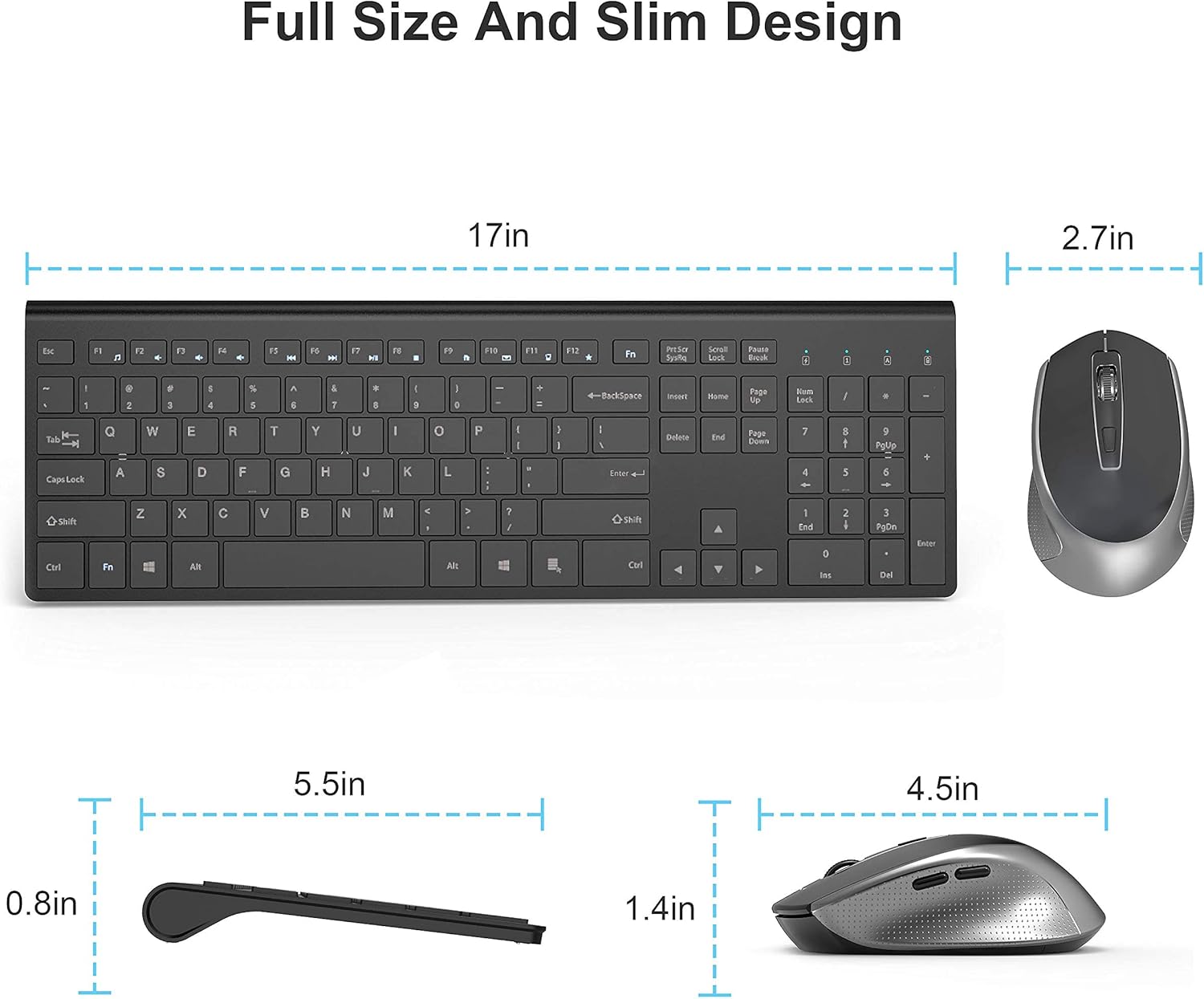
Image: Diagram showing the approximate dimensions of the keyboard (17 inches long, 0.8 inches thick) and mouse (2.7 inches wide, 1.4 inches high).

Image: An overhead view of the keyboard and mouse in use with a computer, displaying icons for Mac OS, Windows, Android, and Linux, indicating broad compatibility.
Warranty and Support
JOYACCESS is committed to providing high-quality products and services. For any product-related inquiries, technical support, or warranty information, please contact JOYACCESS customer service through the retailer's platform or the official JOYACCESS website. Please retain your proof of purchase for warranty claims.
