
1. Introduction
Thank you for choosing the Uiosmuph LED Wireless Mouse. This manual will guide you through the setup, operation, and maintenance of your new mouse, ensuring you get the most out of its features, including its silent click design, vibrant LED lighting, and versatile connectivity options.
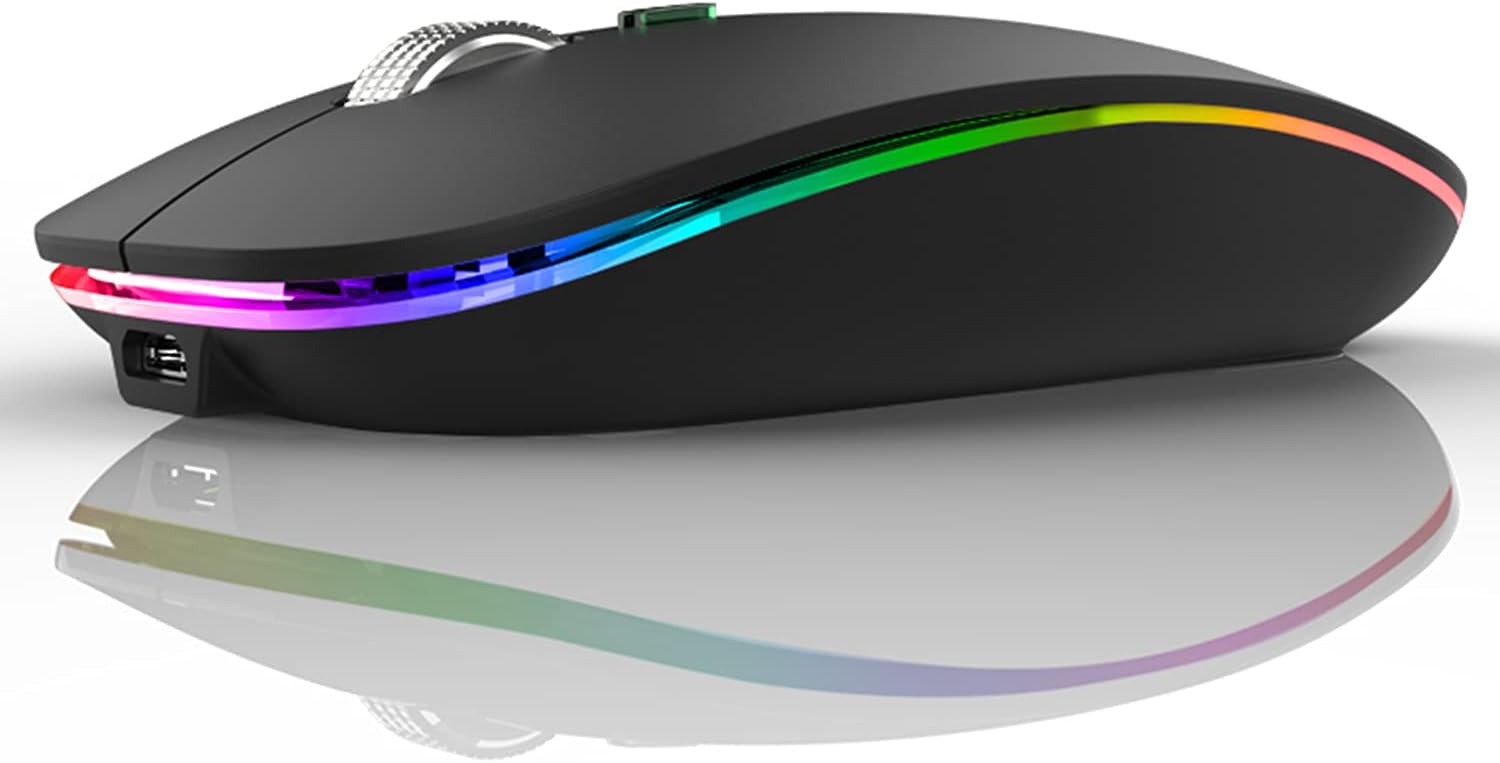
Image: The Uiosmuph LED Wireless Mouse in matte black, showcasing its sleek design and colorful LED strip.
2. Package Contents
Please verify that all items are present in your package:
- 1 x LED Wireless Mouse
- 1 x USB Receiver (stored at the mouse bottom)
- 1 x Type C Adapter
- 1 x USB C Charging Cable
- 1 x User Manual
3. Product Features
- Rechargeable: Built-in rechargeable battery, eliminating the need for disposable batteries.
- Silent Click: Special soundless design for the right and left buttons ensures a quiet working environment.
- Colorful Light: Features 7 different colors that change randomly during use, providing soothing and dynamic lighting.
- Energy Saving: Automatically enters sleep mode after 8 minutes of inactivity to conserve power. The LED light can be manually turned off via a bottom switch.
- Slim & Portable: Compact dimensions (approx. 4.4 x 2.2 x 0.79 inches) make it ideal for travel and easy storage in laptop bags.
- Dual Connectivity: Includes both a USB-A receiver and a USB-C adapter for broad compatibility with various devices.
- Wide Compatibility: Works seamlessly with Windows 7/8/10/XP, Vista, Linux, Mac OS, Chrome OS, and most computers with USB-C ports (e.g., MacBook Pro after 2016, MacBook Air after 2018, Chromebook).

Image: The Uiosmuph mouse displaying its colorful breathing light feature while in use on a laptop.

Image: Illustration highlighting the noiseless click feature of the mouse, ideal for quiet environments.
4. Setup Guide
4.1 Connecting via USB-A Port
- Turn on the mouse using the ON/OFF switch located on the bottom.
- Take out the USB receiver from its storage slot at the bottom of the mouse.
- Plug the USB receiver into an available USB-A port on your computer or device.
- The mouse should automatically connect and be ready for use.
4.2 Connecting via USB-C Port
- Turn on the mouse using the ON/OFF switch located on the bottom.
- Take out the USB receiver from its storage slot at the bottom of the mouse.
- Plug the USB receiver into the provided Type C adapter.
- Plug the Type C adapter (with the USB receiver inserted) into an available USB-C port on your computer or device.
- The mouse should automatically connect and be ready for use.

Image: A visual guide demonstrating the steps for connecting the mouse using both USB-A and USB-C ports.
5. Operating Instructions
5.1 Basic Operation
- Left Click: Standard selection and activation.
- Right Click: Opens context menus.
- Scroll Wheel: Scrolls content up and down. Pressing the scroll wheel typically acts as a middle click.
5.2 LED Light Control
The mouse features a colorful LED light strip that cycles through 7 different colors. To turn off the LED light and conserve battery, use the dedicated LED ON/OFF switch located on the bottom of the mouse.

Image: The bottom of the mouse, indicating the location of the LED ON/OFF switch, battery indicator, and USB receiver storage.
6. Charging the Mouse
The Uiosmuph wireless mouse is equipped with a built-in rechargeable battery. When the battery is low, the mouse's performance may decrease, or the LED lights might dim/turn off. To charge:
- Connect the provided USB-C charging cable to the USB-C charging port on the front of the mouse.
- Connect the other end of the USB-C charging cable to a USB power source (e.g., computer USB port, wall adapter).
- The mouse's LED lights may indicate charging status (refer to the battery indicator on the bottom if available).
- A full charge typically takes a few hours. Once fully charged, disconnect the charging cable.

Image: The mouse connected via its USB-C charging port, illustrating the recharging process.
7. Energy Saving Features
To maximize battery life, the Uiosmuph mouse incorporates smart energy-saving features:
- Automatic Sleep Mode: If the mouse is inactive for 8 minutes, it will automatically enter a sleep mode. To wake it up, simply move or click the mouse.
- LED Light Switch: The colorful LED light can be turned off manually using the switch on the bottom of the mouse. This is useful when you want to extend battery life or prefer to use the mouse without the lights.
8. Care and Maintenance
- Keep the mouse clean by wiping it with a soft, dry cloth. Avoid using harsh chemicals or abrasive materials.
- Do not expose the mouse to extreme temperatures, direct sunlight, or high humidity.
- Store the USB receiver in its designated slot at the bottom of the mouse when not in use to prevent loss.
- Avoid dropping or subjecting the mouse to strong impacts.
9. Troubleshooting
| Problem | Possible Cause | Solution |
|---|---|---|
| Mouse not responding/connecting. | Mouse is off, low battery, receiver not properly connected, or driver issue. | 1. Ensure the mouse is switched ON. 2. Charge the mouse fully. 3. Re-insert the USB receiver firmly into the port. 4. Try a different USB port. 5. Restart your computer. |
| LED lights are off or dim. | LED switch is off, or low battery. | 1. Check the LED ON/OFF switch on the bottom of the mouse and ensure it's in the 'ON' position. 2. Charge the mouse. |
| Mouse movement is erratic or sluggish. | Dirty optical sensor, unsuitable surface, or low battery. | 1. Clean the optical sensor on the bottom of the mouse with a soft cloth. 2. Use the mouse on a clean, non-reflective surface. 3. Charge the mouse. |
| Mouse not charging. | Faulty cable, power source, or charging port. | 1. Ensure the charging cable is securely connected. 2. Try a different USB power source. 3. Use a different USB-C charging cable if available. |
10. Product Specifications
| Feature | Detail |
|---|---|
| Product Dimensions | 4.4 x 2.25 x 0.04 inches |
| Item Weight | 1.76 ounces |
| Manufacturer | Lootech |
| ASIN | B0836GXKKB |
| Item Model Number | onesize |
| Batteries | 1 Product Specific batteries required. (included) |
| Brand | Uiosmuph |
| Color | Matte Black |
| Connectivity Technology | USB (2.4G Wireless with USB-A receiver and Type-C adapter) |
| Special Features | LED Lights, Portable, Rechargeable, Soundless, Wireless |
| Movement Detection Technology | Optical |
11. Warranty and Support
Uiosmuph products are designed for reliability and performance. For any warranty claims, technical support, or inquiries, please contact Uiosmuph customer service through the retailer's platform or the official Uiosmuph website. Please retain your proof of purchase for warranty validation.
Visit the Uiosmuph Store for more information and products.