
Bietrun WXM10
Bietrun WXM10 UHF Wireless Microphone User Manual
Model: WXM10
Introduction
This user manual provides detailed instructions for the Bietrun WXM10 UHF Wireless Microphone. Designed for wide compatibility, this microphone system offers a reliable audio solution for various devices including iPhones, iPads, Android phones, and DSLR cameras. It features a 130-foot wireless range, adjustable channels for stable signal, and a convenient plug-and-play setup. Please read this manual thoroughly to ensure proper use and optimal performance of your device.
What's in the Box
- Wireless Lavalier Microphone
- Receiver
- 1 to 2 USB Charging Cable
- Portable Protective Bag
- User Manual

Image: Overview of the Bietrun WXM10 wireless microphone system, showing the receiver, transmitter with lavalier microphone, and a 3.5mm adapter.
Setup Guide
1. Charging the Device
The transmitter and receiver are equipped with built-in 400 mAh rechargeable lithium-ion batteries. Use the provided 1 to 2 USB charging cable to charge both units simultaneously. A full charge takes approximately 2.5 hours and provides about 6 hours of working time. The red indicator light will be on during charging and will turn off once fully charged.

Image: Charging the Bietrun WXM10 wireless microphone system using the dual USB cable.
2. Initial Pairing and Connection
The Bietrun WXM10 is designed for plug-and-play operation. To connect:
- Turn on the power switches for both the lavalier microphone (transmitter) and the receiver.
- Wait until the blue indicator lights on both the transmitter and receiver stop flashing and remain solid. This indicates a successful connection.
- If the microphone does not produce sound or fails to pair, please refer to the troubleshooting section or re-pair according to the instructions provided in the "Troubleshooting" section.
3. Device Compatibility
The WXM10 is equipped with a 1/8" TRRS plug for broad compatibility. It works with:
- iPhone (requires genuine Lightning to 3.5mm adapter, not included)
- iPad (requires genuine USB-C to 3.5mm or Lightning to 3.5mm adapter, not included)
- Android Phones (requires genuine USB-C to 3.5mm adapter, not included)
- DSLR Cameras
Important Note for Android Phones:
Due to system version issues, the microphone may not be compatible with the phone's native video recording function. For audio and video recording on Android phones, it is often necessary to use a third-party application.
The microphone is NOT compatible with Amplifiers, Speakers, Bluetooth Speakers, or MacBooks.
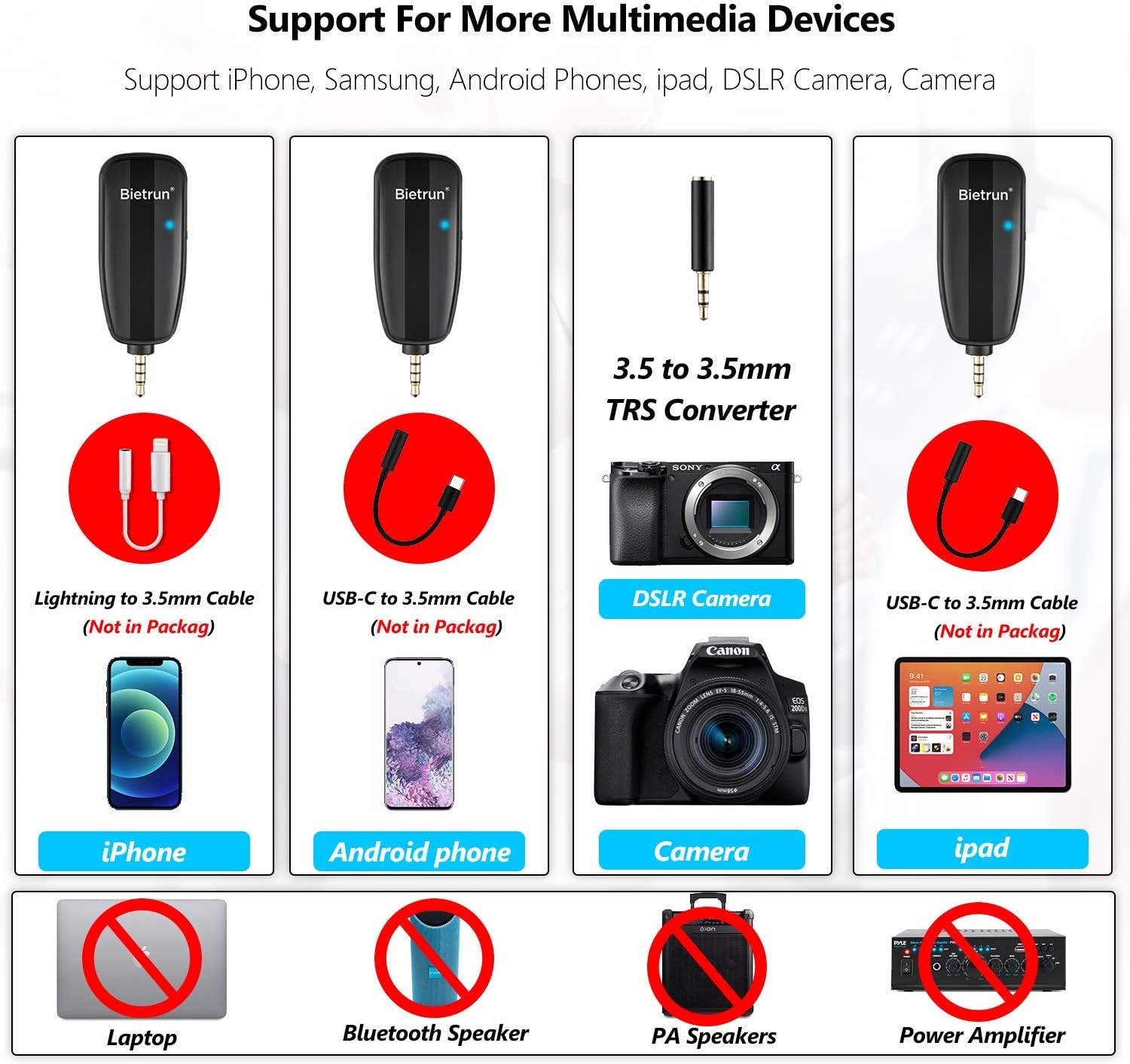
Image: Compatibility overview for the Bietrun WXM10, illustrating compatible and incompatible devices.
Operating Instructions
1. Power On/Off
To power on or off the transmitter and receiver, simply toggle their respective power switches. Ensure both units are powered on for proper operation.
2. Adjusting Channels
The WXM10 features 25 UHF adjustable channels to minimize interference and noise. If you experience interference or noise during use, you can switch channels:
- On the transmitter (microphone), press and hold the "—" button until the blue light flashes quickly. This indicates the channel is being switched.
- The system will automatically find a clear channel.
3. Proper Microphone Placement
For optimal audio quality, ensure the lavalier microphone is clipped upright and not tilted. The microphone is unidirectional (cardioid) and designed to pick up sound primarily from the front, effectively rejecting sounds from other directions.
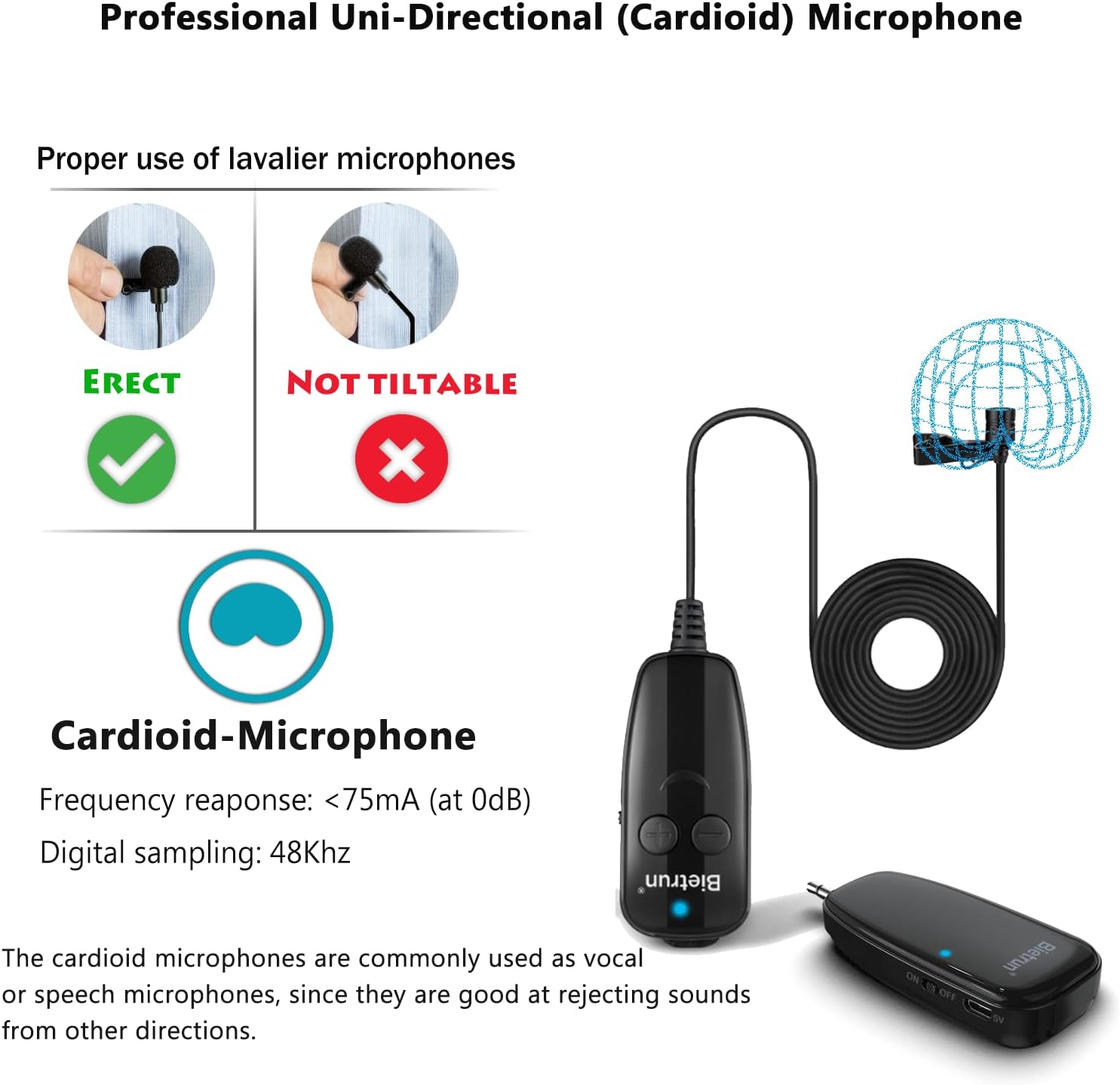
Image: Guide to proper lavalier microphone placement for best audio capture.
4. Usage Scenarios
The Bietrun WXM10 is suitable for various applications, including:
- Interviews
- Vlogging
- Live Streaming
- Recording
- Singing

Image: Examples of common uses for the Bietrun WXM10 wireless microphone.
Maintenance
To ensure the longevity and optimal performance of your Bietrun WXM10 wireless microphone, please follow these maintenance guidelines:
- Cleaning: Use a soft, dry cloth to clean the exterior of the transmitter and receiver. Do not use liquid cleaners or aerosols, as they may damage the internal components.
- Storage: When not in use, store the microphone system in its portable protective bag in a cool, dry place, away from direct sunlight and extreme temperatures.
- Battery Care: Avoid fully discharging the batteries frequently. For long-term storage, charge the batteries to about 50% to prolong their lifespan.
- Handling: Handle the microphone and receiver with care. Avoid dropping them or subjecting them to strong impacts.
Troubleshooting
No Sound or Pairing Issues
If you experience no sound from the microphone or difficulty pairing the transmitter and receiver, follow these steps to re-pair the devices:
- Turn off both the receiver and the transmitter (microphone).
- Turn on the transmitter (microphone) only. Long press the "+" button until the blue light flashes quickly.
- Turn on the receiver and wait for the connection.
- Once the blue lights on both the transmitter and receiver stop flashing and remain solid, the connection is successful.
Interference or Noise ("dididi" sound)
If you hear a "dididi" sound or other signal interference noise, it indicates a need to change the operating channel. Refer to the "Adjusting Channels" sub-section under "Operating Instructions" to switch to a clear channel.
Android Phone Compatibility
As noted in the setup guide, some Android phones may not support the microphone with their default camera or video recording applications due to system version issues. If you encounter this, please use a third-party application for audio and video recording.
Specifications
| Model Name | WXM10 |
| Microphone Form Factor | Lavalier |
| Connectivity Technology | UHF |
| Wireless Range | 65-130 feet (20-40 meters) |
| Number of Channels | 25 (Adjustable UHF) |
| Frequency Range | 50Hz-16KHz |
| Audio Sensitivity | 95 dB |
| Signal-to-Noise Ratio | 95 dB |
| Power Source | Rechargeable Lithium Polymer Battery (400 mAh) |
| Working Time | Approx. 6 hours |
| Charging Time | Approx. 2.5 hours |
| Connector Type | 3.5 mm TRRS Jack |
| Compatible Devices | Camera, Smartphone (iPhone, iPad, Android Phone) |
| Material | Plastic |
| Item Dimensions (L x W x H) | 32.68 x 1.18 x 1.18 inches |
| Item Weight | 5.3 ounces |
Warranty and Support
Bietrun offers a 1-year warranty and free replacement service for the WXM10 UHF Wireless Microphone. If you have any questions or encounter issues with your product, please do not hesitate to contact Bietrun customer service. We provide 24-hour after-sales service to address your concerns as quickly as possible.
For support, please refer to the contact information provided with your product packaging or visit the official Bietrun website.
Related documentsWXM10

Ask a question about this manual
Ask about setup, troubleshooting, compatibility, parts, safety, or missing instructions. Manuals+ will review the question and use this page’s manual context to help answer it.