Introduction
This manual provides detailed instructions for setting up, operating, and maintaining your Rapoo 8200M Multi-Mode Silent Wireless Keyboard and Mouse Combo. This combo offers versatile connectivity options, including Bluetooth 3.0, Bluetooth 4.0, and 2.4 GHz wireless, allowing seamless switching between multiple devices. The keyboard features chiclet keys and multimedia hotkeys, while the mouse is designed for silent operation.
Setup
1. Battery Installation
The Rapoo 8200M combo requires AA batteries for operation. Two AA alkaline batteries are included with your purchase.
- For the Keyboard: Locate the battery compartment on the underside of the keyboard. Open the cover, insert two AA batteries according to the polarity indicators (+/-), and close the cover securely.
- For the Mouse: Locate the battery compartment on the underside of the mouse. Open the cover, insert one AA battery according to the polarity indicators (+/-), and close the cover securely.
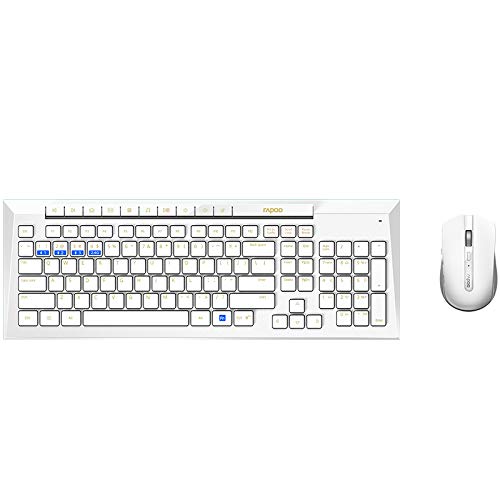
Image: The Rapoo 8200M wireless keyboard and mouse combo, showing the overall design. The keyboard is white with yellow function key labels, and the mouse is also white.
2. Connecting via 2.4 GHz Wireless
For 2.4 GHz wireless connection, use the included USB receiver.
- Remove the USB receiver from its storage slot, typically found within the mouse's battery compartment.
- Plug the USB receiver into an available USB port on your computer.
- Turn on the keyboard and mouse using their respective power switches. The devices should automatically connect to your computer.
3. Connecting via Bluetooth
The Rapoo 8200M supports Bluetooth 3.0 and 4.0 connections. The keyboard can pair with up to 3 Bluetooth devices, and the mouse can pair with up to 2 Bluetooth devices.
- For the Keyboard: Press and hold the Fn key along with one of the Bluetooth keys (F10, F11, or F12) for approximately 3 seconds until the indicator light starts blinking slowly. This indicates the keyboard is in pairing mode.
- For the Mouse: Press and hold the Bluetooth button on the underside of the mouse for approximately 3 seconds until the indicator light starts blinking slowly. This indicates the mouse is in pairing mode.
- On your computer or device, go to Bluetooth settings and search for new devices. Select "Rapoo 8200M Keyboard" or "Rapoo 8200M Mouse" from the list of available devices to complete the pairing process.
4. Switching Between Devices
The combo allows you to switch between connected devices with ease.
- For the Keyboard: To switch between 2.4 GHz wireless and Bluetooth devices, press the corresponding key: F9 for 2.4G, F10 for Bluetooth 1, F11 for Bluetooth 2, and F12 for Bluetooth 3.
- For the Mouse: To switch between 2.4 GHz wireless and Bluetooth devices, press the device switching button on the underside of the mouse. The indicator light will change to show the currently selected connection mode.
Operating Instructions
1. Keyboard Functions
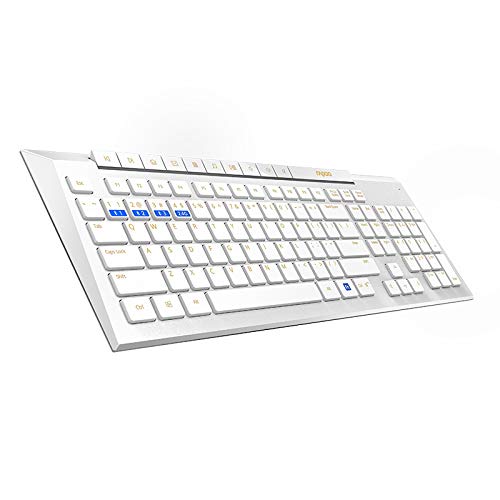
Image: An angled view of the Rapoo 8200M keyboard, highlighting the chiclet keys and multimedia function row.
- Chiclet Keys: The keyboard features chiclet-style keys with rounded corners, designed for comfortable and accurate typing.
- Multimedia Hotkeys: The function keys (F1-F8) double as multimedia hotkeys. Press the Fn key simultaneously with the desired function key to access media player controls, volume adjustment, homepage, and other shortcuts.
2. Mouse Functions
- Silent Click Design: The mouse is equipped with silent switches for its left and right buttons, significantly reducing click noise to create a quieter working environment.
- DPI Adjustment: The mouse has an optical resolution of 1600 DPI, providing precise tracking. DPI settings are fixed.
Maintenance
1. Battery Replacement
The Rapoo 8200M combo is designed for long battery life. The keyboard can operate for up to 12 months, and the mouse for up to 9 months, under typical usage conditions. When the battery indicator light flashes or performance degrades, it's time to replace the batteries.
- Follow the battery installation steps outlined in the Setup section.
- Always use new, high-quality AA alkaline batteries for optimal performance.
- Dispose of used batteries responsibly according to local regulations.
2. Cleaning
To maintain the appearance and functionality of your keyboard and mouse:
- Use a soft, dry, lint-free cloth to wipe down the surfaces.
- For stubborn dirt, slightly dampen the cloth with water or a mild, non-abrasive cleaner. Avoid excessive moisture.
- Do not use harsh chemicals, solvents, or abrasive cleaning agents, as these can damage the finish.
- For the keyboard, you may use compressed air to clear debris from between the keys.
Troubleshooting
If you encounter issues with your Rapoo 8200M combo, try the following steps:
- No Connection/Unresponsive:
- Ensure the keyboard and mouse are powered on.
- Check battery levels and replace if necessary.
- For 2.4 GHz connection, ensure the USB receiver is securely plugged into a working USB port. Try a different USB port.
- For Bluetooth connection, ensure Bluetooth is enabled on your device and the devices are properly paired. Try re-pairing the devices.
- Move the keyboard and mouse closer to the receiver or Bluetooth device to rule out range issues.
- Avoid using the devices on metal surfaces, which can interfere with wireless signals.
- Input Lag or Intermittent Connection:
- Check for potential interference from other wireless devices (e.g., Wi-Fi routers, cordless phones).
- Ensure there are no large metal objects between the devices and the receiver/Bluetooth host.
- Update your computer's Bluetooth drivers if connecting via Bluetooth.
- Keys Not Responding Correctly:
- Clean the keyboard to remove any debris that might be obstructing key presses.
- Ensure the correct input language and keyboard layout are selected in your operating system settings.
If problems persist, please refer to the Support section for further assistance.
Specifications
| Feature | Detail |
|---|---|
| Model Number | 8200M |
| Connectivity Technology | Bluetooth 3.0, Bluetooth 4.0, 2.4 GHz RF Wireless |
| Keyboard Device Pairing | Up to 4 devices (1 x 2.4G, 3 x Bluetooth) |
| Mouse Device Pairing | Up to 3 devices (1 x 2.4G, 2 x Bluetooth) |
| Keyboard Type | Chiclet keys, Multimedia Function Keys |
| Mouse Type | Silent buttons, Optical |
| Optical Resolution | 1600 DPI |
| Keyboard Battery Life | Up to 12 months |
| Mouse Battery Life | Up to 9 months |
| Batteries Required | 2 x AA (Keyboard), 1 x AA (Mouse) |
| Included Components | Wireless keyboard, Wireless mouse, USB receiver, 2 AA alkaline batteries, Quick start guide |
| Dimensions (Keyboard) | 43.8 x 15.4 x 2.5 cm |
| Item Weight | 840 g (combo) |
Warranty Information
The Rapoo 8200M Multi-Mode Silent Wireless Keyboard and Mouse Combo comes with a 3-year warranty from the date of purchase. This warranty covers manufacturing defects and ensures the product meets its specified performance standards under normal use. Please retain your proof of purchase for warranty claims.
Support
For further assistance, technical support, or warranty claims, please visit the official Rapoo website or contact their customer service. You can typically find contact information and FAQs on the manufacturer's support page.
Online Resources: www.rapoo.com